Converting handwritten notes using AI can save hours of typing, especially when you have notebooks, meeting notes, lecture pages, or old documents that you want to edit and organize digitally. The basic process is simple: take a clear photo or scan of the handwriting, give the image to an AI or handwriting-recognition tool, review the extracted text, and then format it into something useful.
The important part is knowing which method works best for your type of handwriting and how to catch mistakes before relying on the converted text.
What Happens When AI Converts Handwritten Notes to Text?
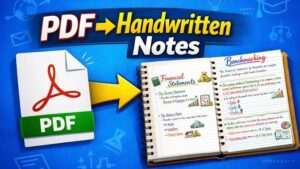
The technology behind this process is usually called handwriting recognition, a specialized form of optical character recognition (OCR). OCR traditionally focuses on printed characters, while handwriting recognition has to interpret variations in letter shapes, spacing, word connections, and writing styles.
AI-based systems can go further than simply identifying individual characters. They can use the surrounding words and structure of a sentence to make a more informed interpretation when a particular letter is unclear.
For example, a handwritten word might contain a character that looks like either an “r” or a “v.” An AI system can use the rest of the sentence to determine which interpretation makes more sense. That does not mean the result is always correct. Unusual handwriting, poor images, abbreviations, diagrams, and specialized terminology can still cause errors.
There are also two slightly different situations to distinguish.
If you have handwritten notes on paper, you first need to photograph or scan them. The AI then works from the resulting image.
If you wrote the notes digitally with a stylus on a tablet or touchscreen, the application may have access to the original digital ink. Tools such as Microsoft OneNote can convert digital handwriting directly to typed text, which avoids some of the problems associated with photographing paper. Microsoft documents this capability through its Ink to Text feature.
What You Need Before Converting Handwritten Notes
You do not necessarily need a scanner or specialized handwriting software. For ordinary paper notes, a reasonably good smartphone camera is often enough.
The quality of the source image has a major effect on the final transcription. If the handwriting is small, the page is tilted, shadows cover part of the writing, or the image is blurry, the AI has less information to work with.
Before taking pictures, place the notebook on a flat surface and use enough light to make the writing clearly visible. Avoid casting a shadow over the page with your phone or body.
Try to keep the camera parallel to the page rather than photographing it from a sharp angle. This reduces distortion and makes the lines of text easier to interpret.
For multi-page notes, photograph each page separately or use a document-scanning feature that can capture several pages. Apple’s Notes app, for example, can scan multiple document pages into a PDF, while Google Drive’s mobile app can scan documents and save them as PDF or JPG files.
If the notes contain sensitive information, think about where you are uploading them before choosing an AI service. Personal records, confidential work information, financial details, passwords, or private correspondence should not be uploaded to an AI service without first checking its privacy practices and your organization’s requirements.
How to Convert Handwritten Notes Using AI
For paper notes, one of the simplest approaches is to photograph the page and upload the image to an AI tool that supports image inputs.
ChatGPT, for example, can accept image inputs and analyze documents contained in uploaded images. OpenAI’s current documentation says image inputs are available on the web and mobile platforms, subject to applicable usage limits and account settings.
The process is straightforward.
- Photograph or scan the handwritten page. Make sure the entire page is visible and the writing is readable.
- Open an AI tool that accepts image uploads.
- Upload the image. You can generally add a photo from your device or drag an image into a supported web interface.
- Tell the AI exactly what you want. For example, ask it to transcribe the handwriting without summarizing or rewriting it.
- Review the transcription against the original page.
- Correct errors before using the text elsewhere.
- Ask the AI to organize the verified text if you want headings, bullet points, a study guide, meeting minutes, or another format.
A useful prompt is:
Transcribe the handwritten notes in this image exactly as written. Preserve the original wording and paragraph structure. If you cannot confidently read a word, mark it as [unclear] instead of guessing.
That last instruction is important. If you simply ask an AI to “read these notes,” it may try to produce something coherent when portions of the handwriting are difficult to interpret. For transcription work, identifying uncertainty is usually more useful than silently inventing a plausible word.
After the first transcription, you can use a second prompt to process the verified text:
Organize this transcription into clear headings and bullet points. Do not add information that was not present in the original notes.
This separates transcription from editing. Keeping those tasks separate makes it easier to compare the extracted text with the original handwriting.
How to Get Better Results From AI Handwriting Recognition
The biggest improvement usually comes from improving the image rather than writing a more complicated prompt.
Use a Clear, Straight Image
A blurry photograph can make letters impossible to distinguish. Retake the picture instead of expecting AI to reconstruct information that was never captured clearly.
Place the page on a flat surface and hold the camera directly above it. Make sure all four corners are visible when possible.
Use Even Lighting
Bright light is helpful, but direct glare can be just as problematic as darkness. Glossy paper can reflect light and wash out individual words.
Natural, indirect light or two evenly positioned light sources usually works better than a single bright lamp directly above the page.
Crop Out Unnecessary Background
If the notebook occupies only a small portion of a photograph, crop the image so the handwriting takes up most of the frame.
This gives the recognition system more relevant visual information and makes the page easier to inspect manually.
Process Difficult Pages Separately
If one page contains handwriting, diagrams, arrows, and several unrelated sections, consider processing individual sections instead of the whole page at once.
This is particularly useful for heavily annotated lecture notes. You can ask the AI to transcribe the main text first and then separately interpret labels or short handwritten annotations.
Tell the AI What Not to Change
If accuracy matters, explicitly ask for transcription rather than summarization.
For example:
Transcribe this page exactly. Do not summarize, correct grammar, expand abbreviations, or rearrange the content. Preserve headings, numbered items, and line breaks where possible. Mark uncertain words instead of guessing.
This gives the AI a much narrower task.
Converting Handwritten Notes on an iPhone
An iPhone provides several useful options before you even use a separate AI service.
Apple’s Notes app can scan text with the camera and insert recognized text into a note in supported languages. You can also scan paper documents into PDFs.
To scan text in Notes:
- Open Notes and create or open a note.
- Tap the attachment button.
- Choose Scan Text.
- Position the handwritten or printed text inside the camera view.
- Select the text you want to insert.
- Tap Insert.
The exact recognition available depends on the language and system features supported on the device.
If you are working with handwriting created directly inside Apple Notes, iPhone also provides handwriting selection and a Copy as Text option for supported languages. Apple says handwritten text can also be searched within Notes.
That makes digital handwriting different from photographed paper. If your handwriting already exists as digital ink, you may not need to take a screenshot and send it through another recognition system.
For paper notebooks, however, scanning the pages first and then using an AI tool for transcription and organization can be more practical.
Converting Handwritten Notes on Android
Android users have several ways to digitize paper notes.
Google Drive’s mobile application includes a document-scanning feature. You can photograph a page, adjust the scan, add additional pages, and save the result as a PDF or JPG.
A practical workflow is:
- Open the Google Drive app.
- Use the camera option to scan the page.
- Position the page inside the scanning area.
- Capture the page.
- Crop or adjust the scan if necessary.
- Add additional pages.
- Save the finished scan.
- Upload the resulting images or PDF to an AI tool that supports them.
- Request a transcription rather than a summary.
The advantage of this approach is that you can create a clean digital copy of your notebook before asking AI to interpret it. You also retain the original scanned document, which is useful when checking questionable words later.
Converting Handwritten Notes With Microsoft OneNote
Microsoft OneNote is particularly useful if your handwriting was created digitally with a compatible pen or stylus.
OneNote includes an Ink to Text feature that converts selected handwritten ink into typed text. Microsoft says the process involves selecting the handwriting with the Lasso Select tool and then choosing Ink to Text. The feature is not available in OneNote for the web.
To use it:
- Open the OneNote page containing your handwriting.
- Select the Draw tab.
- Choose Lasso Select.
- Draw around the handwriting you want to convert.
- Select Ink to Text.
This method is preferable when the notes were originally written with a digital pen because OneNote is working with digital ink rather than trying to interpret a photograph.
OneNote also has OCR capabilities for extracting text from pictures and file printouts. Microsoft notes that OCR accuracy depends on factors such as image quality, legibility, and the amount and complexity of text in the image.
There is an important distinction here: Ink to Text is intended for digital handwriting, while OCR from a picture is designed to extract text from an image. Choose the method that matches the type of notes you have.
How to Convert Messy Handwriting With AI
Messy handwriting is where AI can be particularly useful, but it is also where you should be most careful.
Traditional OCR may struggle when individual characters are poorly formed. An AI system can sometimes use the surrounding sentence to interpret difficult words, but contextual reasoning can also introduce mistakes.
For example, suppose a handwritten note says:
“Check battery before replacing screen.”
If one word is difficult to read, an AI might infer a word that makes the sentence sound reasonable even if that word was not actually written.
For important documents, use a two-stage process.
First, ask for a faithful transcription with uncertain sections marked.
Second, inspect those uncertain sections against the original page.
Only after verification should you ask the AI to clean up grammar, reorganize the material, or summarize it.
This approach is especially important for technical notes, medical terminology, names, addresses, formulas, measurements, and financial figures. A single incorrectly recognized character can change the meaning of the entire line.
How to Convert Handwritten Notes Into Organized Digital Notes
Transcribing the handwriting is only the first step. Once you have verified text, AI can help turn rough notes into a much more useful document.
For example, you can ask it to:
- Group related ideas under headings
- Turn lists into bullet points
- Create a chronological sequence
- Separate questions from answers
- Extract action items from meeting notes
- Create study notes from lecture material
- Convert rough notes into a structured outline
- Identify repeated topics
- Create a glossary of technical terms
- Turn verified notes into a revision sheet
The key is to tell the AI not to introduce information that was not in the original notes.
A useful prompt is:
Using only the verified transcription below, reorganize these notes into clear sections. Keep all important details and do not add facts or assumptions. Preserve technical terms, numbers, names, and quoted statements exactly.
This is safer than asking the AI to “improve” the notes without any restrictions.
What AI Handwriting Conversion Does Poorly
AI handwriting recognition is useful, but it is not a perfect replacement for manually checking the original page.
The following situations can reduce accuracy:
- Extremely small handwriting
- Heavy cursive
- Words written over lines or drawings
- Pages photographed at an angle
- Shadows across the writing
- Glare from glossy paper
- Low-resolution photographs
- Faded ink
- Overlapping annotations
- Unusual abbreviations
- Specialized terminology
- Mathematical notation
- Tables and complex diagrams
- Multiple languages on the same page
Diagrams deserve special attention. An AI may be able to describe a diagram or identify some labels, but that does not guarantee that it will reproduce the original structure correctly.
Mathematical notes can present another problem. OneNote, for example, provides a specific Ink to Math feature for converting handwritten mathematical equations into typed mathematical notation.
If your notes contain equations, code, chemical formulas, or technical symbols, verify them character by character rather than assuming that ordinary text transcription is sufficient.
Common Mistakes When Converting Handwritten Notes
One of the most common mistakes is photographing an entire notebook from too far away. The page may technically be readable to a person, but the individual letters become too small for reliable recognition.
Another mistake is asking the AI to summarize the notes immediately. A summary can hide transcription errors because you may never see the questionable original wording.
A better workflow is:
Scan → transcribe → verify → organize → summarize.
Do not throw away the original scans after conversion. Keep them alongside the editable text so you can check the source if something looks wrong later.
It is also a mistake to assume that a fluent AI response is necessarily an accurate transcription. AI systems are designed to produce useful language, but transcription requires a different priority: preserving what was actually written.
Which Method Should You Use?
| Type of handwritten notes | Best approach |
|---|---|
| Paper notebook | Photograph or scan, then use AI for transcription |
| Clear handwritten pages | AI image input can work well |
| Digital pen handwriting | OneNote Ink to Text or the device’s handwriting tools |
| iPhone Notes handwriting | Use Apple’s handwriting selection and Copy as Text |
| Multiple paper pages | Scan pages into a PDF, then process them |
| Notes with diagrams | Transcribe text separately and inspect diagrams manually |
| Mathematical notes | Use handwriting-to-math tools where supported |
| Important or sensitive documents | Check privacy requirements before uploading |
| Very messy handwriting | Use AI, but verify uncertain words against the original |
There is no single best tool for every notebook. The right choice depends on whether your notes are on paper or already digital, how legible they are, what language they use, and whether they contain tables, diagrams, or specialized symbols.
How to Check an AI Transcription Before Using It
Always compare the converted text with the original notes when accuracy matters.
Start with names, numbers, dates, measurements, URLs, technical terms, and abbreviations. These are easy places for a transcription error to change the meaning.
Then check headings and sentence boundaries. Handwritten notes often use arrows, indentation, underlining, and spacing to show relationships that may not be obvious in a plain-text transcription.
If the AI marks something as unclear, return to the original image rather than asking it to guess again. A second guess may sound convincing without being any more accurate.
For important documents, keep both versions:
Original scan/photo: the source record.
Verified transcription: the editable working copy.
That simple habit gives you a way to trace questionable information back to the original handwriting.
Final Thoughts
Learning how to convert handwritten notes using AI is less about finding one perfect app and more about creating a reliable workflow. Start with a clear scan or photograph, use a handwriting recognition or AI tool to produce the first transcription, and then compare the result with the original before treating it as accurate.
For paper notes, AI image recognition is convenient because it can work directly from photographs. For handwriting created with a digital pen, tools such as OneNote’s Ink to Text can provide a more direct conversion. iPhone and Android devices can also help create clean scans before the AI step.
The most important rule is simple: use AI to speed up transcription, but keep the original notes available for verification. Once the text has been checked, AI becomes much more useful for turning rough handwriting into searchable, organized notes, study material, meeting records, or editable documents.
If you think there’s been a mistake here, please do let us know by commenting on this post or Contact Us. And a member of our Content Integrity Team will review this decision with you.