If you have used Facebook on several phones, computers, tablets, or browsers over the years, your account can accumulate old login sessions that are no longer needed. You can remove these devices from Facebook’s login history through the Accounts Center, and you can also sign out of sessions remotely if you no longer have access to the device.
Facebook’s settings interface can vary slightly between the app, mobile browser, and desktop site, but the security controls are generally found under Password and security and Where you’re logged in.
Removing an old session is useful if you sold a phone, replaced a computer, used Facebook on a shared device, or simply want to clean up devices you no longer recognize. It is also an important security check because an unfamiliar session may indicate that someone else has accessed your account.
What Facebook Login History Actually Shows
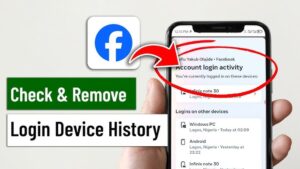
Facebook’s login history is primarily a record of active or recent account sessions, rather than a permanent list of every device you have ever used.
A session can represent Facebook being accessed through the mobile app, a web browser, or another supported device. Facebook may show information such as the device type, approximate location, and recent activity. The information is not always perfectly precise. For example, a location can be based on the internet connection rather than the physical location of the device.
This matters when you see a device or location that looks unfamiliar. An unusual location does not automatically mean someone hacked your account. Mobile networks, VPNs, corporate networks, and inaccurate IP-based location data can make a legitimate login appear to come from somewhere else.
The more useful question is whether you recognize the device, browser, and approximate activity. If you do not, treat the session cautiously.
How to Remove Old Devices From Facebook Login History
Facebook currently manages many account security settings through Accounts Center. The exact labels can change as Meta updates its apps, so you may see slightly different wording depending on your Facebook version.
Remove an old device from the Facebook app
On an Android phone or iPhone, start with the Facebook app and open your account settings.
- Open Facebook and sign in.
- Tap the Menu button.
- Open Settings & privacy, then select Settings.
- Look for Accounts Center.
- Tap Password and security.
- Find the section called Where you’re logged in.
- Select your Facebook account if Facebook asks which account you want to manage.
- Review the listed sessions.
- Tap the old phone, computer, browser, or other session you want to remove.
- Choose Log out.
If you see an option to select multiple sessions, you can use it to sign out of several old devices instead of opening each session individually.
The important distinction is that you are ending the Facebook session on that device. You are not physically deleting historical information from Facebook’s systems.
Remove an old device from a computer
You can also manage Facebook sessions from a desktop browser.
- Sign in to Facebook.
- Open Settings & privacy.
- Select Settings.
- Open Accounts Center.
- Choose Password and security.
- Select Where you’re logged in.
- Choose your Facebook account.
- Review the devices and sessions shown.
- Select the session you want to remove.
- Click Log out.
Facebook’s account settings are available through its website after you sign in.
If the interface looks different from these steps, search within Facebook’s settings for Where you’re logged in or Password and security. Meta periodically reorganizes its settings, so the path can differ between versions.
How to Sign Out of All Old Facebook Devices
If you have accumulated many old sessions and do not want to examine them individually, Facebook can provide a way to sign out of multiple sessions.
Open Accounts Center > Password and security > Where you’re logged in, select your Facebook account, and review the available sessions.
Depending on the version of Facebook you are using, you may be able to select multiple sessions or use an option that signs you out of other devices.
Be careful when using a broad sign-out option. Your current phone or computer may also be included depending on what you select. If Facebook asks you to sign in again afterward, that is normal because the existing session has been terminated.
This method is particularly useful after changing phones or computers. Instead of trying to remember every place where you previously signed in, you can review the account’s active sessions and remove the ones you no longer need.
What to Do If You Don’t Recognize a Device
An unfamiliar device deserves more attention than an old device you simply forgot about.
First, look at the session details. Consider whether the device could belong to you, someone in your household, a work computer, an old phone, or a browser you used temporarily.
Also consider location accuracy. Facebook’s reported location may be approximate, so a different city does not by itself prove unauthorized access.
If you still cannot identify the session, sign it out.
Then change your Facebook password. A password change is more important than simply removing one suspicious session because someone who has obtained your password could potentially sign in again.
After changing the password, review your other account-security settings and enable two-factor authentication if it is not already enabled. Two-factor authentication adds another verification step when Facebook detects a login that requires additional confirmation.
Do not reuse the new Facebook password on email, banking, shopping, or other accounts. If another service has experienced a password leak and you reused the same password, changing only your Facebook session would not address the underlying problem.
Why an Old Device May Keep Appearing
One common source of confusion is seeing a device that you thought you already removed.
There are several possible explanations.
The device may have another active session
A phone or computer can have more than one Facebook session associated with different browsers, apps, or account states. Signing out one session does not necessarily mean every session associated with that device has disappeared.
Review the complete list under Where you’re logged in rather than relying only on the device name.
You may have logged in again
If you sign out of an old computer and later use Facebook on that same computer, Facebook can create a new session.
This is especially easy to do on devices you still own. For example, removing a Chrome session from a computer does not prevent you from opening Facebook in Chrome again later.
The device description may not be exact
Facebook may identify a session using a general device or browser description rather than the exact model name you expect.
A mobile session might be described broadly as a phone, while a desktop session may identify the browser or operating system. Do not assume a slightly unfamiliar description automatically represents a different physical device.
Does Removing a Device Delete It From Facebook Completely?
Not necessarily.
When you choose Log out, you are primarily ending that device’s active access to your Facebook account. This is different from asking Facebook to erase all records associated with that login.
Login and security information may be retained by Meta according to its systems, policies, and legal requirements. Therefore, you should think of the feature as session management, not as a tool for permanently erasing every trace of a previous login.
This distinction is important if your goal is privacy. Removing an old session prevents that session from continuing to access your account, but it does not mean Facebook has forgotten that the account previously used that device.
What Happens to Facebook on the Old Device?
If you remotely log out of an old phone or computer, Facebook should no longer treat that session as an active authenticated session.
The exact result can depend on the app and device. The person using the old device may see a login screen the next time they try to access Facebook, and they may need to enter the account credentials again.
If you gave the device to another person, remote logout should not be your only privacy step.
Before selling or giving away a phone or computer, you should also remove your personal data from the device itself. On a phone, that generally means using the manufacturer’s proper reset procedure after backing up your data. On a computer, use the operating system’s account removal and reset options appropriate for the device.
Signing out of Facebook protects the Facebook session. It does not erase your photos, browser passwords, files, messages stored locally, or other personal information that may remain on the device.
Remove Saved Facebook Login Information From an Old Device
There is another issue that is easy to confuse with login history: saved login information.
A browser or Facebook app may remember account information to make signing in easier. This is different from an active Facebook session.
For example, you might remove a device from Where you’re logged in, but the browser could still contain saved credentials or autofill information. Someone with access to that computer might therefore be able to attempt another login.
If the old device is no longer yours, remove saved passwords and account information from the device where possible.
For browsers, check the browser’s password manager. Chrome, Edge, Firefox, Safari, and other browsers have their own password-storage systems, so the exact procedure depends on the browser.
If you are preparing a device for another person, a complete device reset is safer than manually removing individual accounts.
What If Facebook Won’t Let You Remove a Device?
Occasionally, Facebook’s security interface may not behave as expected.
Start by closing and reopening the Facebook app. If you are using the app, check whether an update is available through your device’s official app store.
You can also try Facebook in a desktop browser. If the app’s settings page is not displaying the session controls correctly, the web version may present the account settings differently.
If a session disappears and then returns, check whether you are still using Facebook on that device. Reopening Facebook can create another active session.
Also check whether you are looking at a session associated with another Meta account inside Accounts Center. If you have connected Facebook and Instagram, Accounts Center can contain security settings for more than one account, so make sure you are managing the intended Facebook account.
Should You Change Your Password After Removing an Old Device?
If the device is simply an old phone or computer that you own, changing your password is usually not necessary solely because you removed it.
The situation is different if you do not recognize the device.
In that case, changing the password is a sensible security measure because removing one session does not tell you how that session was created. If somebody knows your password, they may be able to establish another session after you remove the first one.
A strong new password should be unique to Facebook. Avoid small modifications of an old password because someone who knows the previous password may be able to guess the new version.
After changing it, review Where you’re logged in again and remove sessions you do not recognize.
Turn On Two-Factor Authentication for Better Protection
Removing old Facebook sessions cleans up existing access, but two-factor authentication helps protect future logins.
With two-factor authentication enabled, Facebook can require an additional verification method when someone attempts to sign in under circumstances that require it. The second factor can help protect your account even if your password has been exposed.
You can generally find this setting through Accounts Center > Password and security > Two-factor authentication.
The available verification methods can vary by account and region. Follow Facebook’s current setup instructions rather than relying on an old tutorial that may describe options no longer offered in your account.
Keep your recovery methods accessible. Security controls can become a problem of their own if you enable a verification method and then lose access to the phone, authenticator, or recovery mechanism required to prove your identity.
Common Mistakes When Cleaning Up Facebook Login Sessions
One mistake is removing only the session that looks suspicious and then assuming the account is secure. If you genuinely suspect unauthorized access, change the password and review your security settings as well.
Another mistake is assuming the location shown by Facebook is exact. IP-based locations can be approximate, particularly with mobile networks and VPNs.
It is also easy to confuse an active login with saved login information. Logging out of Facebook does not necessarily remove a password saved by your browser or device.
Finally, do not use third-party websites or applications that claim they can clean Facebook login history for you. Account security should be managed through Facebook’s own settings rather than by giving another service your Facebook credentials.
When You Should Take Extra Security Steps
Removing an old device is usually enough when you are simply cleaning up an account you have used on several devices.
Take additional action if you notice several warning signs at the same time, such as:
- A device you cannot identify
- Login activity from a location that does not make sense
- Unexpected password-reset messages
- Changes to your account that you did not make
- Messages or posts you did not send
- New account information you do not recognize
- Repeated unfamiliar sessions after changing your password
In those circumstances, treat the situation as a potential account-security problem rather than a simple cleanup task.
Sign out unfamiliar sessions, change your password, enable two-factor authentication, and review the account for unauthorized changes. If you cannot regain control of the account, use Facebook’s official account-recovery process rather than relying on unofficial recovery services.
Frequently Asked Questions
Can I remove just one old device from Facebook?
Yes. Go to Accounts Center > Password and security > Where you’re logged in, select the relevant Facebook account, find the session, and choose Log out.
Will the other person be notified when I remove their device?
The important effect is that the session is terminated. Facebook’s interface and notifications can change, so do not rely on the other person receiving or not receiving a specific notification.
Why does Facebook show a location I have never visited?
The displayed location can be approximate because it may be inferred from the internet connection or IP address. A location mismatch alone is not enough to establish that someone accessed your account.
Does logging out remove my Facebook account from the device?
It removes the active Facebook session, but saved passwords or other login information may remain on the device. If you no longer control the device, you should also remove saved credentials or reset the device when appropriate.
Should I remove my current phone from the list?
There is usually no reason to remove your current active device unless you specifically want to sign out of it. If you do remove it, you may have to sign in again.
Can I delete Facebook’s entire login history?
The Where you’re logged in feature is designed primarily to manage account sessions. Logging out of a device should not be interpreted as permanently deleting every historical record Facebook may retain about account activity.
Conclusion
Knowing how to remove old devices from Facebook login history is useful for both routine account cleanup and security checks. Open Accounts Center, go to Password and security, select Where you’re logged in, and sign out of sessions you no longer need or do not recognize.
If an unfamiliar device concerns you, do more than remove the session. Change your Facebook password, review the remaining sessions, enable two-factor authentication, and check for account changes you did not make. For an old device you gave away, remember that Facebook logout only addresses the account session, so removing saved credentials and properly resetting the device are separate steps.
Facebook’s settings can change over time, but the underlying principle remains the same: review active sessions regularly, remove access you no longer need, and treat genuinely unfamiliar activity as a security issue rather than simply an untidy login list.
If you think there’s been a mistake here, please do let us know by commenting on this post or Contact Us. And a member of our Content Integrity Team will review this decision with you.