

Bluetooth devices are expected to reconnect automatically and stay connected while you work. When a wireless mouse freezes, AirPods suddenly disconnect, or a Bluetooth keyboard stops responding, even simple tasks become frustrating.
The good news is that most Bluetooth connection problems on a MacBook can be traced to software settings, interference, outdated firmware, or corrupted Bluetooth preferences rather than faulty hardware.
This guide explains why Bluetooth devices disconnect on a MacBook, how to identify the root cause, and the most effective ways to fix the problem. The steps apply to recent versions of macOS, including Sonoma, Sequoia, and newer releases, although some menu names may vary slightly depending on your version.
Why Bluetooth Devices Keep Disconnecting on MacBook
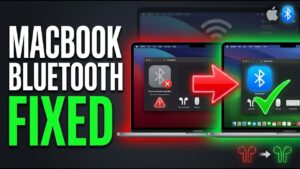
Bluetooth uses short-range radio signals to communicate with nearby devices. Although it is designed to be reliable, several factors can interrupt that connection.
Common causes include:
- Temporary Bluetooth software glitches
- Wireless interference from nearby electronics
- Low battery levels on Bluetooth accessories
- Outdated macOS or accessory firmware
- Corrupted Bluetooth settings
- Too many connected Bluetooth devices
- USB accessories creating radio interference
- Hardware problems with the Bluetooth module or accessory
Finding the cause helps you avoid trying fixes that are unlikely to solve your particular issue.
Start With the Simple Checks
Before changing system settings, rule out the obvious causes.
Charge the Bluetooth Device
A Bluetooth accessory with a nearly empty battery may connect normally but disconnect after a few minutes.
Recharge devices such as:
- Magic Mouse
- Magic Keyboard
- AirPods
- Bluetooth headphones
- Third-party wireless mice and keyboards
If the device uses replaceable batteries, install fresh ones before continuing.
Move the Device Closer
Bluetooth typically works best within about 10 meters (33 feet), but walls, desks, and other objects reduce that range.
For troubleshooting:
- Place the accessory within a few feet of your MacBook.
- Remove large metal objects between the device and the Mac.
- Test again before assuming the problem is software-related.
Turn Bluetooth Off and Back On
Restarting the Bluetooth radio clears temporary communication issues.
- Open System Settings.
- Select Bluetooth.
- Turn Bluetooth off.
- Wait about 15 seconds.
- Turn Bluetooth back on.
- Reconnect your device.
This simple reset often resolves intermittent disconnects.
Restart Your MacBook
Many Bluetooth problems are caused by temporary background processes that become unstable after the Mac has been running for days or weeks.
Restarting refreshes:
- Bluetooth services
- Wireless drivers
- Background processes
- Memory used by macOS
Choose Apple menu > Restart, then reconnect your Bluetooth accessory after startup.
Forget and Pair the Bluetooth Device Again
If a device repeatedly disconnects, its saved pairing information may have become corrupted.
Removing the device and pairing it again creates a fresh Bluetooth connection.
- Open System Settings > Bluetooth.
- Locate the affected device.
- Click the information button or right-click the device.
- Choose Forget This Device.
- Confirm removal.
- Put the accessory into pairing mode.
- Pair it with your MacBook again.
If only one Bluetooth device has problems while others work normally, this method is often the most effective solution.
Check for Wireless Interference
Bluetooth shares the 2.4 GHz radio spectrum with many household devices.
Common sources of interference include:
- Wi-Fi routers
- Microwave ovens
- Wireless speakers
- USB 3.0 hubs
- External hard drives
- Wireless webcams
- Baby monitors
- Smart home devices
Disconnect nearby USB accessories temporarily and test your Bluetooth connection again.
If the issue disappears, reconnect devices one at a time until you identify the source of interference.
Update macOS
Apple regularly releases updates that improve Bluetooth reliability, compatibility, and driver performance.
To check for updates:
- Open System Settings.
- Select General.
- Click Software Update.
- Install any available updates.
- Restart your MacBook.
Bluetooth issues that appear after upgrading to a new version of macOS are sometimes fixed in later updates.
Update the Bluetooth Device Firmware
Some Bluetooth accessories receive firmware updates that improve compatibility with macOS.
Examples include:
- AirPods
- Bluetooth headphones
- Gaming controllers
- Wireless keyboards
- Wireless mice
Firmware updates are usually installed through:
- The manufacturer’s app
- Companion desktop software
- Automatic updates when connected to compatible devices
Check the manufacturer’s support documentation if your accessory has update options.
Reset the Bluetooth Module
If every Bluetooth device disconnects randomly, resetting the Bluetooth module may help.
On older Intel-based Macs, Apple included a hidden Bluetooth reset menu. Modern versions of macOS no longer expose this option, but restarting Bluetooth services can produce similar results.
The simplest approach is:
- Turn Bluetooth off.
- Restart your Mac.
- Turn Bluetooth back on.
- Pair devices again if necessary.
If that does not help, removing the Bluetooth preference file can rebuild Bluetooth settings.
Remove Corrupted Bluetooth Preferences
macOS stores Bluetooth configuration data in a preference file. If it becomes corrupted, devices may disconnect repeatedly.
Before deleting system files, disconnect important Bluetooth accessories and have a wired mouse or keyboard available if possible.
- Open Finder.
- Press Command + Shift + G.
- Enter:
/Library/Preferences/- Locate:
com.apple.Bluetooth.plist- Move it to the Trash.
- Restart your MacBook.
macOS automatically creates a fresh Bluetooth preference file during startup.
After restarting, pair your Bluetooth devices again.
Disconnect Unused Bluetooth Devices
Every connected Bluetooth device shares wireless resources.
Having many active Bluetooth accessories can occasionally cause instability, especially if several continuously exchange data.
Disconnect devices you are not using, such as:
- Extra keyboards
- Spare mice
- Game controllers
- Bluetooth speakers
- Fitness trackers
Then test whether the remaining devices maintain a stable connection.
Check Login Items and Background Apps
Some third-party software interacts directly with Bluetooth devices.
Examples include:
- Mouse customization utilities
- Gaming software
- Audio management tools
- Keyboard remapping applications
- Device synchronization software
If disconnects started after installing new software:
- Open System Settings.
- Select General.
- Open Login Items & Extensions.
- Temporarily disable recently added applications.
- Restart your Mac.
If Bluetooth becomes stable afterward, re-enable items individually until you identify the conflicting application.
Test Bluetooth in Safe Mode
Safe Mode starts macOS with only essential system components.
If Bluetooth works normally in Safe Mode, another installed application or extension is likely interfering with Bluetooth.
To enter Safe Mode:
Apple Silicon Macs
- Shut down your MacBook.
- Press and hold the power button.
- Wait until startup options appear.
- Select your startup disk.
- Hold Shift.
- Click Continue in Safe Mode.
Intel Macs
- Restart your Mac.
- Hold Shift immediately after powering on.
- Release the key when the login screen appears.
Use Bluetooth normally for several minutes.
If disconnects disappear in Safe Mode, restart normally and investigate recently installed software.
Reset NVRAM on Intel Macs
NVRAM stores certain hardware settings.
Although Bluetooth settings are not stored directly in NVRAM, resetting it can occasionally resolve hardware-related communication issues on Intel-based Macs.
To reset NVRAM:
- Shut down the Mac.
- Turn it on.
- Immediately hold:
- Option
- Command
- P
- R
- Continue holding the keys for about 20 seconds.
- Release them and allow macOS to start.
Apple silicon Macs automatically manage these settings, so this step does not apply to newer MacBooks with M-series chips.
Check for Hardware Problems
If every software fix fails, determine whether the problem follows the MacBook or the accessory.
Try these tests:
| Test | What It Indicates |
|---|---|
| Connect the accessory to another computer | If it disconnects there too, the accessory is likely faulty. |
| Connect a different Bluetooth device to your MacBook | If only one device fails, the issue is probably with that accessory. |
| Test multiple Bluetooth devices | If every device disconnects, your MacBook’s Bluetooth hardware may be responsible. |
These comparisons help narrow down where the fault actually lies.
When USB Devices Are the Cause
Many people overlook USB interference.
Poorly shielded USB 3.0 devices can emit radio noise that disrupts Bluetooth communications.
Examples include:
- External SSDs
- USB hubs
- Docking stations
- External hard drives
- USB Wi-Fi adapters
Disconnect them temporarily and observe whether Bluetooth becomes stable.
If interference is confirmed:
- Move the USB device farther from the MacBook.
- Use a higher-quality USB cable.
- Connect through a different port.
- Choose a better-shielded USB hub.
Common Mistakes That Keep Bluetooth Problems Coming Back
Several troubleshooting mistakes make Bluetooth issues harder to diagnose.
Avoid these habits:
- Restarting only the accessory instead of both the accessory and the Mac.
- Pairing the same device repeatedly without first removing the old pairing.
- Ignoring low battery warnings.
- Keeping outdated versions of macOS installed.
- Assuming every disconnect is caused by Bluetooth hardware.
- Testing multiple fixes at the same time, making it difficult to know which one actually worked.
Applying one change at a time produces clearer results.
If Bluetooth Disconnects Only After Sleep
Some users notice Bluetooth works perfectly until the MacBook wakes from sleep.
If that happens:
- Install the latest macOS updates.
- Turn Bluetooth off and back on after waking.
- Restart the Mac if the problem persists.
- Remove and re-pair the affected device.
- Test in Safe Mode to rule out software conflicts.
If the issue began immediately after a macOS upgrade, it may be related to a temporary software bug that Apple addresses in a later update.
When You Should Contact Apple or the Device Manufacturer
Professional support may be necessary if:
- Every Bluetooth device disconnects even after resetting Bluetooth preferences.
- Bluetooth cannot be turned on at all.
- The Bluetooth option disappears from System Settings.
- Bluetooth fails immediately after a hardware repair.
- The accessory disconnects with multiple computers despite firmware updates.
- Apple Diagnostics reports Bluetooth hardware errors.
At that point, the issue is more likely to involve hardware than software settings.
Final Thoughts
Bluetooth devices disconnecting on a MacBook usually point to one of a handful of issues: wireless interference, outdated software, corrupted Bluetooth settings, low accessory battery levels, or a faulty device. Starting with simple checks before moving on to advanced troubleshooting saves time and avoids unnecessary changes.
If the problem affects only one accessory, removing and pairing it again often restores a stable connection. When every Bluetooth device disconnects, updating macOS, rebuilding Bluetooth preferences, checking for interference, and testing in Safe Mode provide a systematic way to identify the underlying cause. If none of those steps resolve the issue, testing the hardware with another computer can help determine whether the MacBook or the Bluetooth accessory needs repair or replacement.
Related Articles
- How to Update macOS Safely Without Losing Data
- How to Improve MacBook Performance for Video Editing
- How to Free Up Storage on MacBook Without Deleting Important Files
- How to Fix MacBook Trackpad Not Clicking Properly
If you think there’s been a mistake here, please do let us know by commenting on this post or Contact Us. And a member of our Content Integrity Team will review this decision with you.





