

When Finder is not responding on Mac, even simple tasks like opening folders, moving files, or accessing external drives can become impossible. In some cases, Finder freezes completely. In others, it crashes repeatedly, displays the spinning beach ball, or refuses to launch after you log in.
The good news is that Finder problems are usually caused by software issues rather than hardware failure. A corrupted preference file, a problematic external drive, a full startup disk, outdated software, or a background process can all stop Finder from working properly. The right solution depends on what caused the problem.
This guide explains why Finder stops responding, how to identify the cause, and the safest ways to get it working again without risking your files.
Why Finder Stops Responding
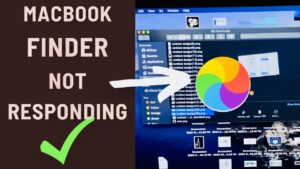
Finder is the file management application built into macOS. It handles browsing folders, managing files, connecting to network locations, accessing external storage, and displaying your desktop.
Because Finder interacts with nearly every part of macOS, it depends on many background services. If one of those services becomes stuck, Finder may freeze as well.
Common symptoms include:
- Finder windows won’t open.
- The spinning beach ball appears constantly.
- Files refuse to copy or move.
- Finder crashes immediately after opening.
- Right-click menus never appear.
- The desktop disappears.
- External drives never load.
- Finder continually says “Not Responding.”
Understanding what caused the issue makes troubleshooting much easier.
Common Reasons Finder Becomes Unresponsive
Several different issues can produce similar symptoms.
Too Many Finder Processes
Sometimes Finder doesn’t quit correctly after an error. Multiple Finder processes remain active and begin competing for system resources.
Restarting Finder usually fixes this.
Corrupted Finder Preferences
Finder stores its settings inside a preference file. If this file becomes damaged after a crash, forced shutdown, or interrupted update, Finder may freeze every time it launches.
Deleting the preference file forces macOS to create a fresh one.
A Full Startup Disk
macOS requires free storage for virtual memory, temporary files, and system operations.
If your startup disk is nearly full, Finder may slow dramatically or stop responding.
Problematic External Drives
A damaged USB drive, external SSD, SD card, or network share can cause Finder to freeze while attempting to read its contents.
If Finder only freezes after connecting a specific device, that device is likely involved.
Third-Party Extensions
Cloud storage software, antivirus tools, file management utilities, and Finder extensions sometimes interfere with normal Finder operation.
This is especially common after macOS upgrades if an application hasn’t been updated.
Software Bugs
Occasionally a macOS update introduces Finder issues that Apple later fixes through another software update.
Running an outdated version of macOS may also leave known Finder bugs unresolved.
Before You Start Troubleshooting
Before making system changes:
- Save work in any open applications.
- Disconnect unnecessary external drives.
- Close apps you aren’t using.
- Make sure your Mac has enough battery or is connected to power.
If Finder is frozen but other apps still work, avoid forcing the entire Mac to shut down immediately. Doing so increases the risk of losing unsaved work.
Method 1: Force Quit and Restart Finder
This is the fastest solution and often resolves temporary freezes.
- Press Option + Command + Escape.
- Select Finder from the list.
- Click Relaunch.
- Wait several seconds.
Finder closes and starts again automatically.
If Finder responds normally afterward, the issue was likely temporary.
If it freezes again within a few minutes, continue with the next methods.
Method 2: Restart Your Mac
A restart clears temporary system processes, memory usage, and stuck background services.
Choose Apple menu > Restart.
If Finder is completely frozen and you cannot access the Apple menu:
- Hold the Power button until the Mac turns off.
- Wait about 20 seconds.
- Turn it back on.
Avoid making forced shutdowns a habit because they can occasionally damage open files.
Method 3: Check Available Storage Space
Finder depends on available storage to function correctly.
If your startup disk has only a few gigabytes remaining, Finder performance can become unstable.
To check storage:
- Open Apple menu > System Settings.
- Select General.
- Click Storage.
If storage is nearly full:
- Empty the Trash.
- Delete large downloads.
- Move videos to external storage.
- Remove unused applications.
- Delete old iPhone backups if you no longer need them.
Keeping at least 10% to 20% of your startup disk free generally helps macOS perform reliably.
Method 4: Disconnect External Devices
A faulty storage device can prevent Finder from loading.
Disconnect:
- USB drives
- External SSDs
- Hard drives
- SD cards
- USB hubs
Then restart Finder.
Reconnect devices one at a time.
If Finder freezes after connecting one specific drive, inspect that drive using Disk Utility.
Method 5: Use Disk Utility to Check Your Drive
File system errors can interfere with Finder.
Disk Utility includes a repair tool called First Aid.
To run it:
- Open Applications > Utilities > Disk Utility.
- Select your startup disk.
- Click First Aid.
- Choose Run.
- Wait for the scan to finish.
If First Aid repairs errors successfully, restart your Mac afterward.
If serious errors remain, you may need to run First Aid from macOS Recovery.
Method 6: Delete Finder Preference Files
If Finder settings become corrupted, resetting them often restores normal behavior.
Using Terminal
Open Terminal and run:
rm ~/Library/Preferences/com.apple.finder.plist
killall Finder
Finder automatically creates a new preference file.
You may lose customized Finder settings such as toolbar arrangements or preferred view options, but your files remain untouched.
Method 7: Boot Into Safe Mode
Safe Mode starts macOS with only essential system components.
It also clears certain system caches and checks the startup disk.
If Finder works correctly in Safe Mode, another application or login item is likely causing the problem.
Apple Silicon Macs
- Shut down the Mac.
- Hold the Power button.
- Choose your startup disk.
- Hold Shift.
- Click Continue in Safe Mode.
Intel Macs
- Restart the Mac.
- Immediately hold Shift.
- Release Shift after the login screen appears.
After testing Finder, restart normally.
Method 8: Disable Login Items
Applications that launch automatically can interfere with Finder.
Open:
System Settings > General > Login Items
Temporarily disable recently installed applications.
Restart your Mac.
If Finder works normally afterward, re-enable login items one at a time until you identify the problematic application.
Method 9: Update macOS
Software updates often contain stability fixes for Finder.
To check:
- Open System Settings.
- Select General.
- Click Software Update.
- Install available updates.
If the issue started immediately after a major macOS upgrade, check whether Apple has released a newer update that addresses known bugs.
Method 10: Check Activity Monitor
Activity Monitor can reveal whether another process is overwhelming Finder.
- Open Applications > Utilities > Activity Monitor.
- Sort by CPU or Memory usage.
- Look for applications consuming unusually high resources.
- Quit applications you recognize if they appear stuck.
Avoid force quitting system processes unless you know exactly what they do.
Method 11: Reset Finder Using Terminal
If Finder refuses to restart normally, Terminal can restart it directly.
Run:
killall FinderFinder should immediately relaunch.
If Terminal reports that Finder isn’t running, restarting your Mac is usually the next step.
Method 12: Test With Another User Account
Creating another user account helps determine whether the issue affects only your profile.
If Finder works perfectly in a new account, the problem is probably related to:
- Finder preferences
- Login items
- User-specific cache files
- Account settings
If Finder also freezes there, the issue is more likely system-wide.
When Finder Keeps Crashing
Repeated Finder crashes usually indicate something more persistent than a temporary freeze.
Look for patterns.
For example:
- Does Finder crash only when opening one folder?
- Only after connecting an external drive?
- Only while browsing network locations?
- Only after launching cloud storage software?
Identifying the trigger significantly narrows the troubleshooting process.
If Finder crashes only when opening a particular folder, one damaged file inside that folder could be responsible.
Advanced Troubleshooting
If none of the previous solutions work, consider these additional options.
Reset NVRAM (Intel Macs Only)
Intel-based Macs allow resetting NVRAM, which stores certain hardware-related settings.
Apple silicon Macs perform similar management automatically and do not require manual NVRAM resets.
Reinstall macOS
Reinstalling macOS replaces system files without normally deleting personal data.
Boot into macOS Recovery and choose Reinstall macOS.
Even so, creating a recent backup before reinstalling the operating system is strongly recommended.
Restore From Time Machine
If Finder problems began after a software installation or system change, restoring from a recent Time Machine backup may resolve the issue.
Choose a backup created before the problem first appeared.
Common Mistakes to Avoid
Some troubleshooting steps can create unnecessary complications.
Avoid these mistakes:
- Repeatedly forcing the Mac to shut down.
- Deleting random files from the Library folder.
- Installing multiple “Mac cleaner” applications.
- Running unknown Terminal commands from online forums.
- Ignoring startup disk space warnings.
- Disconnecting external drives while data is still being written.
A careful, methodical approach usually solves Finder issues faster than trying many fixes at once.
How to Prevent Finder From Freezing Again
Although no software is immune to occasional bugs, a few habits reduce the likelihood of Finder becoming unresponsive.
- Keep macOS updated.
- Maintain sufficient free disk space.
- Properly eject external drives.
- Remove applications you no longer use.
- Restart your Mac periodically instead of leaving it running for weeks.
- Keep cloud storage applications updated.
- Avoid installing unnecessary Finder extensions.
If Finder begins slowing down gradually instead of suddenly, checking storage usage and background applications should be your first step.
Frequently Asked Questions
Why is Finder using so much CPU?
Finder may consume high CPU when indexing files, generating previews, syncing cloud storage, processing large folders, or encountering a damaged external drive. If usage remains high after several minutes, restart Finder and investigate connected storage devices or recently installed software.
Can deleting Finder preferences delete my files?
No. Deleting the Finder preference file only resets Finder settings. Your documents, photos, and other personal files remain unchanged.
Why does Finder freeze only with an external drive?
The drive may have file system errors, failing hardware, or compatibility problems. Test the drive with Disk Utility’s First Aid feature and try connecting it using another cable or port.
Should I reinstall macOS immediately?
Usually not. Most Finder issues are resolved by restarting Finder, repairing the disk, freeing storage space, or removing corrupted preferences. Reinstalling macOS is best reserved for situations where simpler troubleshooting has not worked.
Final Thoughts
Knowing how to fix Finder not responding on Mac starts with identifying whether the problem is temporary or caused by a deeper issue. In many cases, simply relaunching Finder or restarting the Mac restores normal operation.
If the problem returns, checking available storage, disconnecting external devices, repairing the disk, resetting Finder preferences, and testing in Safe Mode can help isolate the cause.
Work through the fixes one at a time instead of changing multiple settings at once. That makes it much easier to identify what solved the problem and reduces the chance of creating new issues while troubleshooting.
Related Articles
- Why Is My MacBook Overheating During Normal Use?
- How to Encrypt Your MacBook With FileVault
- How to Manage iCloud Storage on MacBook
- How to Fix MacBook Microphone Not Working
If you think there’s been a mistake here, please do let us know by commenting on this post or Contact Us. And a member of our Content Integrity Team will review this decision with you.





This Post Has One Comment