A Windows 11 update installed but the computer keeps restarting is usually a sign that something went wrong during the update process, a driver is conflicting with the new system files, or Windows is stuck completing an installation task.
In some cases, the restart loop happens immediately after an update finishes. In others, the computer appears to start normally but keeps rebooting after a few minutes.
The good news is that this problem is often fixable without reinstalling Windows. The right solution depends on what happens during the restart cycle.
A computer that reaches the desktop before restarting requires a different approach from one that never gets past the Windows logo.
This guide explains why Windows 11 update restart loops happen and walks through practical solutions, starting with the safest methods and moving toward more advanced repairs.
Why Windows 11 Keeps Restarting After an Update
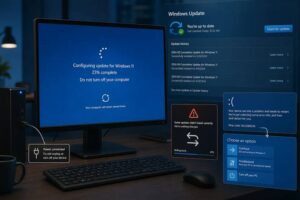
Windows updates modify important parts of the operating system, including system files, security components, drivers, and startup services. During a normal update, Windows installs these changes and restarts several times to complete the process.
A restart loop occurs when Windows cannot finish one of these steps successfully.
Common causes include:
- A failed or incomplete update installation
- Corrupted Windows system files
- Incompatible device drivers
- A problem with Windows Update components
- Damaged startup configuration data
- Third-party antivirus or security software interfering with the update
- Insufficient storage space during installation
- Hardware issues exposed by new drivers
The timing of the problem can provide clues. If the computer started restarting immediately after “Installing updates,” the update itself is likely involved. If the system boots successfully and then restarts later, a driver or background service may be causing the failure.
First Steps Before Trying Advanced Fixes
Before changing system files or using recovery tools, try a few basic checks.
Disconnect External Devices
USB devices can sometimes prevent Windows from completing startup after an update. A newly installed driver may conflict with connected hardware.
Disconnect:
- External hard drives
- USB flash drives
- Printers
- Docking stations
- Game controllers
- USB adapters
Leave only essential devices connected, such as the keyboard and mouse, then restart the computer.
If Windows starts normally afterward, reconnect devices one at a time to identify the cause.
Check Whether Windows Can Reach the Desktop
The solution depends on how far Windows gets.
Ask yourself:
- Does Windows show the login screen?
- Does it reach the desktop before restarting?
- Is it stuck on the Windows logo?
- Does it show “Preparing Automatic Repair”?
- Does it display a blue screen error?
If you can access the desktop, start with Windows-based fixes. If you cannot, use Windows Recovery Environment methods.
Fix 1: Boot Into Safe Mode and Remove the Problem Update
Safe Mode starts Windows with only essential drivers and services. It is useful when a recent update or driver prevents normal startup.
Windows 11 may automatically enter recovery mode after several failed boots. If it does not, you can force Windows Recovery Environment manually.
- Turn on the computer.
- When the Windows logo appears, hold the power button until the computer shuts down.
- Repeat this process two or three times.
- Windows should enter Automatic Repair.
- Select:
Troubleshoot → Advanced options → Startup Settings → Restart
- After restarting, press 4 or F4 to enter Safe Mode.
Once Safe Mode loads:
- Open Settings.
- Select Windows Update.
- Open Update history.
- Select Uninstall updates.
- Remove the most recent quality update.
Restart the computer normally.
Removing a recent update works because it reverses the newest system changes that may have introduced the problem. It does not remove your personal files or reset Windows.
Fix 2: Run Windows Startup Repair
Windows includes a built-in recovery tool that checks common startup problems.
Startup Repair can fix issues involving:
- Damaged boot files
- Incorrect startup settings
- Missing system components
To run it:
- Enter Windows Recovery Environment.
- Select:
Troubleshoot → Advanced options → Startup Repair
- Choose your user account.
- Enter your password if requested.
- Allow Windows to scan and repair startup problems.
The process may take several minutes.
Startup Repair does not repair every update-related problem. It focuses mainly on boot failures, so it may report that it cannot fix the issue even when another recovery method will work.
Fix 3: Repair Corrupted Windows System Files
Windows updates rely on thousands of system files. If some files become corrupted during installation, Windows may repeatedly restart because essential components cannot load correctly.
Two built-in tools can repair these problems:
- System File Checker (SFC)
- Deployment Image Servicing and Management (DISM)
If you can access Safe Mode:
- Right-click the Start button.
- Select Terminal (Admin) or Command Prompt (Admin).
- Run:
sfc /scannowWait until the scan completes.
If SFC reports that it found problems but could not repair them, run:
DISM /Online /Cleanup-Image /RestoreHealthAfter DISM finishes, run SFC again:
sfc /scannowDISM repairs the Windows component store that SFC depends on. Running both tools together gives Windows a better chance of repairing update-related corruption.
Fix 4: Reset Windows Update Components
Sometimes Windows is not damaged, but the update process itself becomes stuck. Windows Update stores downloaded files in temporary folders, and a corrupted download can cause repeated installation attempts.
Resetting Windows Update components clears these files and allows Windows to download fresh update packages.
Open Terminal as administrator and run these commands:
net stop wuauserv
net stop bits
net stop cryptsvc
net stop msiserver
Then rename the update folders:
ren C:WindowsSoftwareDistribution SoftwareDistribution.old
ren C:WindowsSystem32catroot2 catroot2.old
Restart the services:
net start wuauserv
net start bits
net start cryptsvc
net start msiserver
Restart your computer.
Windows will recreate the update folders automatically. Your installed programs and personal files are not affected.
Fix 5: Disable Automatic Restart After System Failure
Sometimes Windows is actually showing a blue screen error, but the computer restarts too quickly to display it.
Disabling automatic restart can reveal the real cause.
From Windows Recovery Environment:
- Select:
Troubleshoot → Advanced options → Startup Settings
- Click Restart.
- Choose:
Disable automatic restart after system failure
If a blue screen appears afterward, note the error message or stop code. Common examples include driver-related errors such as:
- DRIVER_IRQL_NOT_LESS_OR_EQUAL
- SYSTEM_SERVICE_EXCEPTION
- INACCESSIBLE_BOOT_DEVICE
The stop code can point toward the exact component causing the restart loop.
Fix 6: Roll Back a Recently Installed Driver
Windows updates sometimes include hardware drivers. A new driver may work poorly with certain devices, especially older graphics cards, storage controllers, or network adapters.
If Safe Mode works:
- Right-click Start.
- Select Device Manager.
- Expand recently updated hardware categories.
- Right-click the device.
- Select Properties.
- Open the Driver tab.
- Choose Roll Back Driver if available.
If rollback is unavailable, you can uninstall the device driver and allow Windows to reinstall it.
Driver problems are especially likely if the restart loop began after a major Windows update rather than a small security update.
Fix 7: Use System Restore
System Restore returns Windows system files and settings to an earlier point without deleting personal documents.
It can undo:
- Driver changes
- Registry changes
- System updates
- Installed software changes
To use it:
- Open Windows Recovery Environment.
- Select:
Troubleshoot → Advanced options → System Restore
- Choose a restore point created before the update.
- Confirm the restoration.
System Restore only works if restore points were enabled before the problem occurred. Many newer Windows installations have this feature disabled by default, so it may not always be available.
Fix 8: Check Storage Space and Hardware Health
Windows updates need enough free storage space to unpack files and complete installation. If the system drive is almost full, updates may fail and cause instability.
If you can access Windows:
- Open Settings.
- Go to:
System → Storage
- Check available space.
Try to keep several gigabytes free on the Windows drive.
Hardware problems can also appear after updates because new software changes how Windows communicates with components.
Possible warning signs include:
- Frequent crashes before the update
- Clicking noises from a hard drive
- Random freezes
- Memory-related blue screens
For storage issues, check the drive using:
chkdsk C: /fRun this command from an administrator terminal. Windows may schedule the scan for the next restart.
Fix 9: Perform a Windows 11 Repair Install
If Windows still restarts after trying the previous methods, a repair install can replace damaged Windows files while keeping personal data and applications.
This method reinstalls Windows system components without performing a full reset.
You typically need:
- A working Windows desktop
- A Windows 11 installation assistant or ISO file
- Enough storage space
A repair install is useful when:
- Windows starts but behaves incorrectly
- System files are damaged
- Updates repeatedly fail
- Built-in repair tools cannot fix the problem
It is less suitable when Windows cannot boot at all. In that situation, recovery environment tools or a clean installation may be necessary.
What to Do If Windows 11 Is Stuck in a Restart Loop Before Login
If you cannot reach the login screen, focus on recovery options.
Try this order:
- Disconnect external devices.
- Enter Windows Recovery Environment.
- Run Startup Repair.
- Remove the latest update.
- Try Safe Mode.
- Run SFC and DISM.
- Use System Restore.
Avoid immediately resetting Windows unless other repair options fail. A reset can remove applications and requires more setup afterward.
Common Mistakes That Make the Problem Worse
Repeatedly Turning Off the Computer During Updates
Interrupting updates can damage system files. If Windows says it is installing updates, allow it enough time unless it has clearly frozen for an extended period.
Installing Random Driver Tools
Third-party driver update programs often install incorrect drivers or replace stable Windows drivers with incompatible versions.
Download drivers from the device manufacturer whenever possible.
Deleting System Files Manually
Removing files from Windows folders to “fix” an update problem can create additional issues. Use built-in repair tools first.
Resetting Windows Too Quickly
A Windows reset can solve many problems, but it should usually be a later option. Many restart loops can be repaired without losing installed programs.
How to Prevent Future Windows Update Restart Problems
You cannot prevent every update failure, but a few habits reduce the chances.
Keep enough free storage space on the system drive. Windows needs room to download and process updates.
Create restore points before major changes such as:
- BIOS updates
- Major Windows upgrades
- Driver replacements
Keep important drivers updated, especially:
- Graphics drivers
- Chipset drivers
- Storage controller drivers
Avoid shutting down your computer while Windows is completing updates.
If your computer has older hardware, check manufacturer compatibility information before installing major Windows feature updates.
Frequently Asked Questions
Why does Windows 11 restart repeatedly after an update?
Windows 11 may restart repeatedly after an update because the installation failed, system files became corrupted, or a newly installed driver conflicts with your hardware. The exact cause depends on whether Windows reaches the desktop or fails during startup.
Will uninstalling a Windows update delete my files?
No. Removing a Windows update does not delete personal files such as documents, photos, or videos. It only removes the selected system update.
How long should Windows stay stuck restarting after an update?
A restart during a normal update can take several minutes, especially on slower computers. If the computer has been restarting continuously for 30 minutes or more without progress, it is likely experiencing a problem rather than completing the update.
Can Safe Mode fix a Windows 11 update loop?
Safe Mode does not automatically repair the issue, but it gives you access to repair tools when normal startup fails. From Safe Mode, you can uninstall updates, remove drivers, and repair system files.
Should I reinstall Windows 11 if updates keep failing?
A full reinstall is usually a last resort. Try removing the problematic update, repairing system files, restoring Windows to an earlier point, or performing a repair install first.
Final Thoughts
A Windows 11 update installed but the computer keeps restarting usually points to a failed update process, corrupted files, or a driver conflict. The solution is not always a complete Windows reinstall.
Start with simple steps such as disconnecting external devices and entering Safe Mode. If those do not help, move through repair options like uninstalling the latest update, running SFC and DISM, using System Restore, or performing a repair installation.
The key is identifying where the restart loop happens. A computer that reaches the desktop has different repair options from one that cannot start Windows at all. By matching the fix to the symptoms, you can often recover the system while keeping your files and applications intact.
Related Articles
- How to Make an Old Laptop Run Faster Without Upgrading RAM (Windows and Mac)
- Printer Connected but Not Printing From Windows 11: 12 Proven Fixes That Actually Work
- Why Does Windows Defender Use High CPU All the Time? Causes, Fixes, and How to Reduce It Safely
- How to Fix Laptop Touchpad Scrolling Not Working After Windows Update
If you think there’s been a mistake here, please do let us know by commenting on this post or Contact Us. And a member of our Content Integrity Team will review this decision with you.