
A Windows update is supposed to improve your computer, but sometimes it creates unexpected problems. One of the more common issues is a touchpad that still moves the pointer but suddenly refuses to scroll. Two-finger scrolling, edge scrolling, or gesture-based scrolling may stop working altogether after installing a Windows update.
In most cases, the touchpad hardware hasn’t failed. The update may have replaced the touchpad driver, reset your touchpad settings, installed an incompatible driver through Windows Update, or changed how Windows recognizes your device.
The good news is that this problem is usually fixable without reinstalling Windows. The right solution depends on what changed during the update, so it’s worth checking the simplest possibilities before moving to more advanced troubleshooting.
Why Touchpad Scrolling Stops Working After a Windows Update
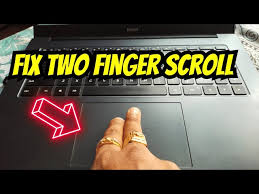
Windows updates can affect several components involved in touchpad functionality.
Some of the most common causes include:
- Windows replaced the manufacturer’s touchpad driver with a generic Microsoft driver.
- Touchpad gesture settings were reset during the update.
- A newer driver contains a bug affecting scrolling.
- The touchpad software from Synaptics, ELAN, Precision Touchpad, or ASUS Smart Gesture was removed or disabled.
- Windows installed an incompatible driver automatically.
- System files became corrupted during the update.
- The BIOS or firmware is no longer fully compatible with the updated Windows version.
Understanding the cause makes it easier to choose the right fix instead of trying random solutions.
Check Whether Only Scrolling Is Affected
Before changing drivers, determine whether the issue is limited to scrolling.
Try these quick checks:
- Move the pointer around the screen.
- Click using the left and right buttons.
- Test two-finger scrolling in File Explorer and your web browser.
- Try pinch-to-zoom if your touchpad supports gestures.
- Connect a USB mouse and verify that the mouse wheel scrolls normally.
If everything works except scrolling, the problem is almost always related to touchpad settings or drivers rather than hardware.
If the pointer doesn’t move at all, you’ll need to troubleshoot the touchpad itself before focusing on scrolling.
Verify That Touchpad Scrolling Is Still Enabled
A Windows update can silently restore default settings.
To check:
- Press Windows + I to open Settings.
- Go to Bluetooth & devices.
- Select Touchpad.
- Expand Scroll & zoom.
- Make sure Drag two fingers to scroll is enabled.
- Test scrolling immediately afterward.
If your laptop uses Microsoft’s Precision Touchpad drivers, these settings control most gestures.
Some manufacturers replace this page with their own software. If you don’t see gesture options, your laptop may rely on Synaptics, ELAN, ASUS Smart Gesture, Dell Touchpad, or another vendor-specific application.
Restart Your Laptop Before Trying More Advanced Fixes
It sounds obvious, but it solves more issues than many people expect.
Some Windows updates finish configuring drivers only after a complete restart. If you’ve only shut the lid or used Sleep mode since the update, perform a full restart instead.
Choose Restart, not Shut down, because Fast Startup can preserve parts of the previous session.
After Windows loads again, test scrolling.
Reinstall the Touchpad Driver
Driver replacement is one of the most common reasons scrolling stops working.
Remove the Existing Driver
- Right-click the Start button.
- Open Device Manager.
- Expand Human Interface Devices or Mice and other pointing devices.
- Locate your touchpad device.
- Right-click it and choose Uninstall device.
- If available, check Delete the driver software for this device.
- Restart the computer.
Windows will attempt to reinstall an appropriate driver automatically.
If scrolling returns, the previous driver installation was likely corrupted.
Roll Back the Driver
If scrolling stopped immediately after installing an update, the newest driver may simply have a compatibility problem.
To roll back:
- Open Device Manager.
- Locate the touchpad.
- Open Properties.
- Select the Driver tab.
- Click Roll Back Driver if the option is available.
- Restart Windows.
Rolling back restores the previously installed driver, which often resolves problems introduced by newer releases.
If the Roll Back button is unavailable, Windows no longer has the previous driver stored locally. In that case, you’ll need to install the manufacturer’s driver manually.
Install the Official Touchpad Driver
Generic Windows drivers provide basic pointer movement, but they don’t always support advanced gestures such as two-finger scrolling.
Visit your laptop manufacturer’s support page and download the latest touchpad driver designed for your exact model.
Manufacturers commonly provide drivers for:
- Synaptics
- ELAN
- Alps
- Precision Touchpad
- ASUS Smart Gesture
- Dell Touchpad
- Lenovo UltraNav
- HP TouchPad
Install the downloaded driver, restart the laptop, and test scrolling again.
Using the driver supplied by the manufacturer is generally more reliable than relying solely on Windows Update, especially on older laptops.
Prevent Windows from Replacing the Driver Again
Sometimes Windows fixes the issue temporarily, only to overwrite the working driver during the next update.
If this happens repeatedly:
- Install the working manufacturer driver.
- Pause Windows updates temporarily.
- Hide the problematic driver update if Microsoft offers it again.
- Resume normal updates afterward.
This approach allows you to continue receiving Windows security updates while avoiding the driver version causing the issue.
Check for Optional Driver Updates
Not every driver arrives through normal Windows Update.
To check:
- Open Settings.
- Go to Windows Update.
- Select Advanced options.
- Open Optional updates.
- Expand Driver updates.
- Install any touchpad-related updates if they match your laptop model.
Optional updates often contain newer manufacturer drivers that haven’t yet been installed automatically.
Reset Touchpad Settings
Occasionally the driver works correctly, but the configuration becomes corrupted.
To reset:
- Open Settings.
- Go to Bluetooth & devices.
- Open Touchpad.
- If available, select Reset.
After the reset completes, re-enable two-finger scrolling and any other gestures you normally use.
Check Manufacturer Touchpad Software
Many laptops include software that manages gestures independently of Windows.
Examples include:
- Synaptics Control Panel
- ELAN Smart-Pad
- ASUS Smart Gesture
- Dell Touchpad
- Lenovo Settings
- HP Control Zone
Open the installed touchpad utility and verify that:
- Two-finger scrolling is enabled.
- Vertical scrolling is turned on.
- Horizontal scrolling is configured correctly.
- Gestures haven’t been disabled after the Windows update.
Sometimes Windows Settings shows scrolling enabled while the manufacturer’s software disables it, leading to conflicting behavior.
Run the Hardware and Devices Troubleshooter
Although Microsoft removed the traditional Hardware Troubleshooter from Settings, it still exists.
Open Command Prompt as Administrator and run:
msdt.exe -id DeviceDiagnosticFollow the prompts and apply any suggested fixes.
This won’t solve every driver issue, but it can detect configuration problems affecting input devices.
Repair Corrupted Windows System Files
If the update damaged system components, repairing Windows files may restore touchpad functionality.
Open Command Prompt as Administrator and run:
sfc /scannowWait until the scan finishes.
If it reports corrupted files that couldn’t be repaired, run:
DISM /Online /Cleanup-Image /RestoreHealthAfter DISM completes successfully, restart the computer and run SFC again.
These commands repair Windows system files rather than manufacturer drivers, but they can resolve problems caused by incomplete or damaged updates.
Check BIOS or UEFI Touchpad Settings
Some laptops allow the touchpad to operate in different modes.
Common options include:
- Basic
- Advanced
- Precision
- Internal Pointing Device
If a BIOS update accompanied the Windows update, the touchpad mode may have changed.
Restart the computer, enter the BIOS or UEFI setup, and verify that the touchpad is enabled and configured correctly.
Avoid changing unrelated BIOS settings unless you’re familiar with their purpose.
Uninstall the Recent Windows Update
If every other solution fails and the issue appeared immediately after a specific update, removing that update can confirm whether it’s responsible.
To uninstall:
- Open Settings.
- Select Windows Update.
- Open Update history.
- Click Uninstall updates.
- Remove the most recent update.
- Restart the computer.
If scrolling starts working again, the update is likely the cause.
Keep in mind that uninstalling security updates should usually be considered a temporary measure until Microsoft or your laptop manufacturer releases a compatible fix.
Use System Restore
System Restore returns Windows drivers, registry settings, and system files to an earlier state without affecting personal files.
If a restore point exists from before the update:
- Search for Create a restore point.
- Open System Restore.
- Choose a restore point dated before the problem began.
- Allow Windows to restart.
This can be especially effective when the update changed multiple system components at once.
Test in Safe Mode
Safe Mode loads Windows with minimal drivers.
If scrolling works in Safe Mode but not during a normal boot, another driver or startup program is likely interfering with the touchpad.
This points toward software conflicts rather than hardware failure.
If scrolling still doesn’t work in Safe Mode, the problem is more likely related to the touchpad driver itself or Windows configuration.
Signs the Problem May Be Hardware Instead
Although Windows updates often trigger scrolling issues, hardware failures can produce similar symptoms.
Possible hardware indicators include:
- The touchpad stops responding entirely.
- The pointer jumps randomly.
- The touchpad disconnects intermittently.
- Physical clicks stop working.
- The touchpad disappears from Device Manager even after reinstalling drivers.
If these symptoms appear regardless of Windows version or operating system, the touchpad cable or hardware may require professional repair.
Common Mistakes That Delay the Fix
Many users spend hours reinstalling Windows when a much simpler solution would have worked.
Avoid these common mistakes:
- Installing drivers intended for a different laptop model.
- Ignoring manufacturer drivers and relying only on generic Windows drivers.
- Updating several drivers simultaneously, making it difficult to identify the cause.
- Assuming the touchpad is physically broken immediately after an update.
- Forgetting to restart after installing or removing drivers.
- Disabling touchpad gestures accidentally while troubleshooting.
Making one change at a time makes it much easier to identify what actually solves the problem.
When to Contact Your Laptop Manufacturer
If you’ve:
- reinstalled the correct touchpad driver,
- verified scrolling settings,
- repaired Windows system files,
- tested System Restore,
- checked BIOS settings, and
- confirmed the issue began after an update,
it’s worth contacting your laptop manufacturer’s support team.
They may already have a newer driver, firmware update, or compatibility patch for your specific laptop model that hasn’t yet reached Windows Update.
Final Thoughts
If your laptop touchpad scrolling is not working after a Windows update, the issue is usually caused by a driver change, reset gesture settings, or an incompatible update rather than a hardware failure.
Start with the simplest checks by confirming that scrolling is enabled and restarting your computer. If that doesn’t help, reinstall or roll back the touchpad driver, then install the latest version from your laptop manufacturer’s support page.
Repairing Windows system files, checking optional driver updates, or using System Restore can resolve cases where the update altered more than just the touchpad driver.
Working through these fixes in order gives you the best chance of restoring two-finger scrolling without reinstalling Windows or replacing perfectly functional hardware.
Related Articles
- Why Is My Computer Freezing After Windows Update? Causes and Fixes
- How to Fix Windows 11 Stuck on Preparing Automatic Repair
- Fix USB Device Not Recognized After Windows Update: Causes and Solutions That Work
- How to Fix External Hard Drive Not Showing Up in Windows 11
If you think there’s been a mistake here, please do let us know by commenting on this post or Contact Us. And a member of our Content Integrity Team will review this decision with you.


This Post Has One Comment