

A USB device not recognized after a Windows update usually happens because the update changes how Windows communicates with USB controllers, drivers, power settings, or device software.
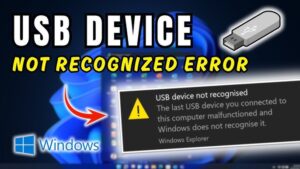
A keyboard, mouse, external hard drive, flash drive, printer, or phone that worked before the update may suddenly stop appearing or show an error such as “USB device not recognized” or “The last USB device you connected to this computer malfunctioned.”
The good news is that this problem is often caused by software changes rather than a failed USB device. Windows updates can replace drivers, reset hardware settings, or introduce compatibility issues that prevent USB devices from working correctly.
The right fix depends on whether the problem affects one device, one USB port, or every USB device connected to the computer.
This guide explains why USB devices stop working after Windows updates and walks through practical solutions, starting with the safest fixes and moving toward more advanced troubleshooting.
Why USB Devices Stop Working After a Windows Update
Windows updates are designed to improve security, stability, and hardware compatibility, but they can sometimes change system components that USB devices rely on.
One common cause is a driver change. Windows automatically installs drivers for many USB controllers and devices. If an update replaces an existing driver with a newer version that does not work correctly with your hardware, Windows may fail to detect connected devices.
USB problems can also appear after updates because of changes to power management. Windows may enable settings that allow it to turn off USB ports to save energy. In some cases, the USB controller does not restart properly after sleep, shutdown, or an update installation.
Other possible causes include:
- A corrupted USB controller driver
- A failed Windows update installation
- Incorrect USB power settings
- Outdated motherboard chipset drivers
- Damaged USB device drivers
- A device firmware compatibility problem
- A hardware issue that appeared at the same time as the update
Before assuming the update caused permanent damage, it is worth testing whether Windows can still detect the hardware correctly.
Start With Basic Checks Before Changing Windows Settings
Before reinstalling drivers or modifying system settings, perform a few quick checks. These steps can identify simple connection problems and prevent unnecessary changes.
Try a Different USB Port
Connect the device to another USB port on your computer.
If you are using a desktop PC, try ports directly connected to the motherboard on the back of the case instead of front-panel ports. Front USB ports can sometimes fail because of loose internal connections or power issues.
For laptops, test both USB-A and USB-C ports if available.
If the device works in another port, the issue is likely related to that specific port rather than Windows itself.
Test the USB Device on Another Computer
Connect the same USB device to another computer.
If it works normally elsewhere, the device is probably fine and the problem is related to Windows, drivers, or your computer’s hardware configuration.
If it does not work on another computer, the device itself may have failed.
Restart Windows Completely
A normal restart can clear temporary USB controller problems.
Avoid testing immediately after a failed update installation without restarting. Windows sometimes completes hardware configuration tasks during the first few boots after an update.
To perform a complete restart:
- Open the Start menu.
- Select Power.
- Choose Restart.
- Test the USB device again after Windows loads.
If the problem started immediately after an update, restarting is a simple step that is often overlooked.
Run the Windows Hardware Troubleshooter
Modern versions of Windows have moved many troubleshooters into the Settings app, and some older hardware troubleshooters are no longer available in the same way. However, Windows still provides tools that can detect and repair common device problems.
To check available troubleshooters:
- Open Settings.
- Select System.
- Choose Troubleshoot.
- Open Other troubleshooters.
- Run any available hardware-related troubleshooters.
The troubleshooter may reset certain settings or identify driver issues. It will not fix every USB problem, but it is a safe first step.
Reinstall USB Controller Drivers in Device Manager
One of the most effective fixes for USB device errors after Windows updates is reinstalling USB controller drivers.
USB controllers are the components that allow Windows to communicate with USB ports. If their drivers become corrupted or incompatible after an update, connected devices may stop being recognized.
To reinstall USB controller drivers:
- Right-click the Start button.
- Select Device Manager.
- Expand Universal Serial Bus controllers.
- Look for entries such as:
- USB Root Hub
- Generic USB Hub
- USB Host Controller
- USB xHCI Host Controller
- Right-click each USB controller.
- Select Uninstall device.
- Restart your computer.
Windows will automatically reinstall the required USB drivers during startup.
Do not worry if your mouse or keyboard stops working temporarily while removing USB controller entries. Windows normally detects and restores them after reboot. If you are using a desktop computer, it is safer to keep a non-USB keyboard or mouse available when possible.
Update USB and Chipset Drivers From the Manufacturer
Windows Update does not always install the best drivers for your specific hardware. A computer manufacturer may provide customized USB, chipset, and motherboard drivers that work better with your system.
For example, laptop manufacturers often modify chipset drivers to manage power, USB ports, and battery behavior. Installing a generic Windows driver may solve some problems but create others.
Download drivers from your computer manufacturer’s official support website. Look for:
- Chipset drivers
- USB controller drivers
- Thunderbolt drivers (if your device uses Thunderbolt)
- BIOS or firmware updates
Avoid downloading driver packages from unknown third-party websites. Many “driver updater” programs install unnecessary software and can create additional problems.
Roll Back the USB Driver After a Recent Update
If the USB device stopped working immediately after Windows installed a driver update, rolling back the driver can restore the previous working version.
To roll back a driver:
- Open Device Manager.
- Expand Universal Serial Bus controllers.
- Right-click the affected USB controller.
- Select Properties.
- Open the Driver tab.
- Click Roll Back Driver if the option is available.
- Restart your computer.
The rollback option only appears when Windows still has the previous driver stored. If it is unavailable, reinstalling the manufacturer’s driver may be the better option.
Disable USB Selective Suspend
Windows uses USB selective suspend to reduce power consumption by temporarily turning off inactive USB devices. This feature is useful for battery life, but it can occasionally cause USB devices to disconnect or fail to reconnect after updates.
To disable USB selective suspend:
- Press Windows + R.
- Type:
powercfg.cpl- Press Enter.
- Select your current power plan.
- Click Change plan settings.
- Choose Change advanced power settings.
- Expand USB settings.
- Expand USB selective suspend setting.
- Set it to Disabled.
- Apply the changes.
Restart your computer and test the USB device.
This fix is especially useful for external hard drives, USB hubs, and devices that frequently disconnect.
Turn Off USB Power Management
Windows may allow the operating system to turn off USB hubs to save power. After some updates, this setting can cause devices to disappear.
To change this:
- Open Device Manager.
- Expand Universal Serial Bus controllers.
- Open the properties of each USB Root Hub.
- Select the Power Management tab.
-
Remove the checkmark from:
“Allow the computer to turn off this device to save power.”
- Click OK.
Repeat this for other USB Root Hub entries if available.
This does not always fix the problem, but it is a common solution for USB devices that stop responding after the computer wakes from sleep.
Remove and Reinstall the Problem Device
If only one USB device is affected, the device driver itself may be corrupted.
For example, an external storage drive, printer, webcam, or phone may have its own driver software that became damaged after the update.
To reinstall the device:
- Open Device Manager.
- Find the device under categories such as:
- Disk drives
- Cameras
- Portable devices
- Other devices
- Right-click the device.
- Select Uninstall device.
- Restart Windows.
- Reconnect the USB device.
Windows will attempt to install the device again.
For specialized hardware such as printers, audio interfaces, and professional equipment, install the latest driver package from the manufacturer’s website after removing the old driver.
Check for Windows Update Problems
Sometimes the USB problem is caused by the Windows update itself rather than your drivers.
If the issue started immediately after installing a specific update, check whether uninstalling that update restores USB functionality.
To remove a recent update:
- Open Settings.
- Go to Windows Update.
- Select Update history.
- Choose Uninstall updates.
- Select the most recent update.
- Click Uninstall.
Only remove updates that are directly connected to the problem. Security updates are important, so avoid uninstalling updates permanently unless you understand the consequences.
If Microsoft releases a newer update that fixes the issue, installing that update may be preferable to staying on an older version.
Use System Restore if USB Worked Before the Update
System Restore can return Windows system files, drivers, and settings to an earlier state without deleting personal files.
This method works best when:
- USB devices worked recently
- A restore point exists from before the update
- The problem began immediately afterward
To use System Restore:
- Search for Create a restore point in Windows Search.
- Open it.
- Select System Restore.
- Choose a restore point created before the USB problem began.
- Follow the instructions.
System Restore does not restore personal documents, photos, or downloaded files. It mainly affects system configuration.
Repair Corrupted Windows System Files
If a Windows update damaged system components, built-in repair tools may help.
Open Command Prompt as administrator:
- Right-click the Start button.
- Select Terminal (Admin) or Command Prompt (Admin).
- Run:
sfc /scannowWait until the scan finishes.
If Windows reports that it could not repair all files, run:
DISM /Online /Cleanup-Image /RestoreHealthAfter DISM completes, run the SFC scan again.
These tools repair Windows files that may affect hardware detection and driver installation.
Update BIOS or UEFI Firmware
In some cases, USB issues after Windows updates are related to firmware compatibility.
The BIOS or UEFI controls communication between Windows and hardware components, including USB controllers. Manufacturers sometimes release firmware updates that improve compatibility with newer Windows versions.
Before updating BIOS:
- Confirm the update is specifically designed for your exact computer model.
- Keep the computer connected to power.
- Follow the manufacturer’s instructions carefully.
A failed BIOS update can cause serious problems, so this should not be the first troubleshooting step.
What to Do If Windows Still Does Not Recognize USB Devices
If none of the software fixes work, the problem may be hardware-related.
Consider these possibilities:
- Multiple USB ports have failed
- The motherboard USB controller is damaged
- The USB device requires more power than the port provides
- A USB hub is faulty
- A cable is damaged
- The device firmware is incompatible
External hard drives are a common example. A drive may work with a short, high-quality USB cable but fail with a damaged or underpowered cable.
For desktops, a failed USB controller may require a motherboard repair or replacement. For laptops, professional hardware service may be necessary if all USB ports stop working.
Common Mistakes When Fixing USB Recognition Problems
Many USB problems become harder to solve because users make changes too quickly.
Avoid these mistakes:
- Installing random “automatic driver updater” software
- Downloading drivers from unofficial websites
- Changing registry settings without knowing what they do
- Updating BIOS before trying simpler fixes
- Assuming the USB device is broken without testing another computer
- Removing important system drivers without knowing how to restore them
A careful troubleshooting process usually identifies the cause faster than applying many fixes at once.
Prevent USB Problems After Future Windows Updates
You cannot prevent every compatibility issue, but a few habits reduce the chance of problems.
Keep important drivers updated through your computer manufacturer’s support tools. Create a restore point before major Windows upgrades. Avoid connecting critical storage devices through unreliable USB hubs.
If a USB device is essential for work or data access, keep a backup plan. For example, store important files in another location instead of relying on a single external drive.
Final Thoughts
A USB device not recognized after a Windows update is usually caused by a driver, power management setting, or compatibility change rather than a permanent hardware failure.
Reinstalling USB controller drivers, updating chipset software, adjusting power settings, or removing a problematic update solves many cases.
Start with simple checks, then move toward driver and system repairs. If every USB device fails across all ports, the issue may be related to hardware rather than Windows.
A methodical approach makes it easier to find the cause without making unnecessary system changes.
Related Articles
- How to Remove Duplicate Files Safely From Windows 11
- Printer Connected but Not Printing From Windows 11: 12 Proven Fixes That Actually Work
- Fix Windows Activation Error 0x8007007B Step by Step
- How to Remove Virus From Windows Without Antivirus Software
If you think there’s been a mistake here, please do let us know by commenting on this post or Contact Us. And a member of our Content Integrity Team will review this decision with you.



This Post Has 3 Comments