Windows activation error 0x8007007B usually appears when Windows cannot validate your product key with Microsoft’s activation servers. In many cases, the problem is caused by using the wrong type of license, incorrect activation settings, damaged system files, or a computer that was previously connected to an organization’s activation server.
The good news is that this error is often fixable without reinstalling Windows. The right solution depends on why the error appeared in the first place. This guide walks through every reliable method, explains why each one works, and helps you avoid common mistakes that can make activation problems worse.
What Does Windows Activation Error 0x8007007B Mean?
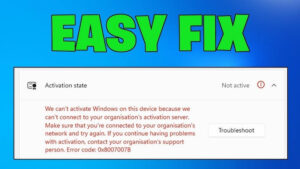
Error 0x8007007B generally indicates that Windows is trying to activate using an activation method that doesn’t match the installed license.
Many users encounter this after:
- Installing Windows from an organization or workplace image
- Replacing the motherboard
- Upgrading Windows
- Reinstalling Windows with the wrong edition
- Entering an incorrect product key
- Purchasing a second-hand computer
- Restoring Windows from a backup
One of the most common causes is a computer configured to use a KMS (Key Management Service) server instead of Microsoft’s activation servers.
KMS activation is intended for businesses, schools, and organizations that activate many computers internally. Home users normally should not be using KMS.
Before You Start
Before trying the fixes below, verify a few basics.
Make sure:
- Your PC has an internet connection.
- The date, time, and time zone are correct.
- You’re signed in with an administrator account.
- Windows has finished installing updates.
- You’re running the edition that matches your license, such as Windows 11 Home or Windows 11 Pro.
Using a Windows Home product key on Windows Pro, or the other way around, will prevent activation regardless of the troubleshooting steps you try.
Check Your Windows Activation Status
Before changing anything, determine what type of license Windows is trying to use.
- Press Windows + R.
- Type:
slmgr.vbs /dlv- Press Enter.
- Wait for the Windows Script Host window to appear.
Look for information such as:
- License Status
- Product Key Channel
- Activation ID
- KMS information
If you see references to KMS, GVLK, or a KMS server, Windows is configured for volume licensing.
If your computer is a personal device, this is usually the reason for error 0x8007007B.
Method 1: Activate Windows Using the Settings App
Always try the simplest method first.
- Open Settings.
- Go to System > Activation.
- Select Activate if available.
- Wait for Windows to contact Microsoft’s activation servers.
If activation succeeds, no further troubleshooting is necessary.
If the same error returns, continue with the next method.
Method 2: Remove the KMS Server Configuration
This is the most effective fix for home users experiencing activation error 0x8007007B.
Why this works
If Windows has been configured to contact a KMS server that no longer exists, activation cannot complete.
Removing the old KMS configuration forces Windows to use Microsoft’s activation servers instead.
Steps
Open Command Prompt as Administrator.
Run:
slmgr /ckmsYou should receive a confirmation that the KMS server name has been cleared.
Next run:
slmgr /atoWindows will now attempt activation using the default activation service.
Restart the computer after completing these commands.
Method 3: Install Your Correct Product Key Again
Sometimes Windows has the wrong product key installed.
Open Command Prompt as Administrator.
Enter:
slmgr /ipk XXXXX-XXXXX-XXXXX-XXXXX-XXXXXReplace the X characters with your genuine product key.
After installing the key, activate Windows:
slmgr /atoWhen this method helps
This approach works well if:
- You recently purchased a Windows license.
- You upgraded hardware.
- Windows was reinstalled.
- The current key doesn’t match the installed edition.
Method 4: Use the Windows Activation Troubleshooter
Microsoft includes an automated troubleshooter that can repair many activation issues.
- Open Settings.
- Go to System > Activation.
- Select Troubleshoot.
- Follow the on-screen instructions.
The troubleshooter can:
- Detect hardware changes.
- Reconnect a digital license.
- Identify edition mismatches.
- Suggest the appropriate activation method.
If your license is linked to your Microsoft account, you may be asked to sign in before Windows attempts reactivation.
Method 5: Verify Your Windows Edition
A surprisingly common problem is installing the wrong edition of Windows.
For example:
| Installed Edition | Product Key | Activation Result |
|---|---|---|
| Windows Home | Windows Pro | Fails |
| Windows Pro | Windows Home | Fails |
| Windows Pro | Windows Pro | Works |
| Windows Home | Windows Home | Works |
To check your edition:
- Open Settings.
- Go to System > About.
- Look under Windows specifications.
If the edition doesn’t match your license, you’ll need to install the correct edition or obtain the proper license.
Method 6: Check Whether Your License Is Genuine
Windows activation cannot succeed if the license is invalid.
Valid licenses generally come from:
- Microsoft Store
- Authorized retailers
- New computers purchased from reputable manufacturers
- Genuine retail product cards
- Digital licenses linked to a Microsoft account
Problems often occur when product keys are purchased from unofficial websites at unusually low prices.
Those keys may:
- Already be in use
- Be intended for volume licensing
- Have been revoked
- Be region restricted
- Not match your Windows edition
If Windows reports that the key is blocked or invalid, you’ll need a legitimate replacement key.
Method 7: Repair Corrupted Windows System Files
Corrupted activation components can sometimes trigger activation failures.
Run the following commands one at a time from an elevated Command Prompt.
Check system files
sfc /scannowWait until the scan completes.
If repairs were made, restart your computer.
Repair the Windows image
If the problem continues, run:
DISM /Online /Cleanup-Image /RestoreHealthDISM downloads healthy system components and replaces damaged ones when necessary.
After DISM finishes:
- Restart Windows.
- Run:
slmgr /atoagain.
Method 8: Check Your Internet Connection
Windows activation requires communication with Microsoft’s servers.
Activation may fail if:
- A VPN is interfering.
- A firewall blocks activation traffic.
- A proxy server is configured incorrectly.
- Corporate network policies prevent activation.
Try these steps:
- Restart your router.
- Disconnect from any VPN.
- Temporarily disable a third-party firewall.
- Connect to another network if possible.
Public Wi-Fi with login portals can also interfere with activation until you’ve completed the sign-in process.
Method 9: Reset the Windows Licensing Status
If the licensing database has become inconsistent, resetting it may help.
Open Command Prompt as Administrator.
Run:
slmgr /upkThis removes the installed product key.
Then install it again:
slmgr /ipk YOUR-PRODUCT-KEYFinally activate:
slmgr /atoOnly perform this method if you have your product key available.
Method 10: Link Your Digital License to a Microsoft Account
Many modern Windows installations use a digital license instead of a printed product key.
To verify:
- Open Settings.
- Go to System > Activation.
- Check the activation message.
If your license is linked to your Microsoft account, Windows can often reactivate automatically after hardware changes.
If you’ve recently replaced your motherboard or other major components, use the Activation Troubleshooter and select the option indicating that you’ve changed hardware recently.
Common Mistakes That Cause Error 0x8007007B
Many activation attempts fail because users unknowingly make one of these mistakes.
Using command-line fixes from random websites
Some online guides recommend installing generic KMS keys.
These keys are intended for organizations using volume licensing. Installing them on a home PC often causes activation problems rather than fixing them.
Installing the wrong Windows edition
Even a genuine product key won’t activate the wrong edition.
Always verify the installed edition before changing keys.
Buying extremely cheap product keys
If a Windows Pro license costs only a few dollars, there’s a good chance it wasn’t intended for retail activation.
While some low-cost keys work temporarily, others are eventually blocked, leaving Windows unable to activate.
Replacing hardware without linking a Microsoft account
Changing the motherboard may cause Windows to view the computer as a new device.
Linking your digital license beforehand makes reactivation much easier.
Troubleshooting If None of the Fixes Work
If you’ve tried every method and activation still fails, gather more information before making additional changes.
Check:
- The exact activation error code.
- Whether Windows reports a digital license.
- Whether the product key matches the installed edition.
- Whether the device previously belonged to a company or school.
- Whether the motherboard has recently been replaced.
You can also run:
slmgr /xprThis command displays whether Windows is permanently activated or if the activation has expired.
If Windows still refuses to activate, contact Microsoft Support. They can verify the status of your license, determine whether the product key has been blocked, and help resolve activation issues that cannot be fixed locally.
Frequently Asked Questions
Can I fix error 0x8007007B without reinstalling Windows?
Yes. Most users resolve this error by removing an incorrect KMS configuration, installing the correct product key, or using the Activation Troubleshooter. Reinstalling Windows is rarely necessary.
Does replacing the motherboard cause activation problems?
It can. A digital license is often tied to significant hardware components, especially the motherboard. If you’ve linked the license to your Microsoft account, the Activation Troubleshooter usually allows you to reactivate Windows after the hardware change.
Will running SFC or DISM activate Windows?
No. These tools do not activate Windows directly. They repair damaged system files that may prevent the activation service from functioning correctly.
Is error 0x8007007B a virus?
No. This error is related to Windows licensing and activation. It is not caused by malware, although unauthorized activation tools downloaded from the internet can introduce security risks.
Can I use a Windows 10 product key to activate Windows 11?
In many cases, yes. If the Windows 10 key is genuine and matches the installed edition, Microsoft generally allows it to activate the equivalent edition of Windows 11. However, eligibility depends on the type of license and the device.
Final Thoughts
Windows activation error 0x8007007B usually points to a licensing mismatch rather than a serious system failure. For most personal computers, the issue is caused by Windows attempting to use a KMS activation server that was intended for organizational use.
Clearing that configuration, reinstalling the correct product key, or using the built-in Activation Troubleshooter resolves the problem in many cases.
If those steps don’t work, verify that your Windows edition matches your license, repair any damaged system files, and confirm that your product key is genuine.
By working through the methods in order, you can identify the underlying cause instead of applying random fixes, giving you the best chance of restoring Windows activation successfully.
Related Articles
- Fix Laptop Webcam Showing Black Screen in Zoom
- Windows 11 Update Installed but Computer Keeps Restarting: Causes and Fixes
- Windows 11 Taskbar Not Responding After Startup: How to Fix It
- Why Is My SSD Slower Than Expected in Windows 11? Causes, Fixes, and How to Restore Performance
If you think there’s been a mistake here, please do let us know by commenting on this post or Contact Us. And a member of our Content Integrity Team will review this decision with you.