

When the Windows 11 taskbar stops responding after startup, even simple tasks become frustrating. You might be able to move the mouse, but clicking the Start button does nothing.
The taskbar icons refuse to open, the notification area is frozen, or the entire desktop appears to hang for several minutes after signing in.
This problem can appear after a Windows update, a driver installation, software conflict, corrupted system files, or even a damaged user profile. In some cases, the taskbar eventually starts working after several minutes. In others, it remains completely unusable until Windows is restarted.
The good news is that the problem is usually fixable without reinstalling Windows. The key is identifying whether the issue is caused by Windows Explorer, system corruption, startup software, updates, or something deeper.
This guide walks through the most effective solutions, starting with the simplest and moving toward more advanced troubleshooting.
Why the Windows 11 Taskbar Stops Responding After Startup
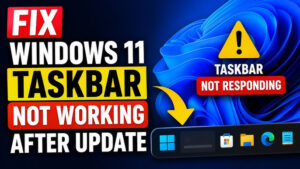
The Windows taskbar depends on several Windows components working together.
These include:
- Windows Explorer (explorer.exe)
- Start Menu processes
- Shell Experience Host
- Windows Search
- Graphics drivers
- User profile settings
If one of these components crashes or fails to load correctly during startup, the taskbar may freeze.
Common causes include:
- Corrupted Windows system files
- Buggy Windows updates
- Startup applications interfering with Explorer
- Graphics driver problems
- Damaged icon cache
- Corrupted user profile
- Disk errors
- Third-party customization software
- Incomplete Windows updates
Understanding the cause helps you choose the right fix instead of trying random solutions.
Restart Windows Explorer
Windows Explorer controls the desktop, File Explorer, Start menu, and taskbar.
If Explorer fails to initialize correctly during login, restarting it often restores the taskbar immediately.
Using Task Manager
- Press Ctrl + Shift + Esc.
- If Task Manager opens in compact mode, click More details.
- Find Windows Explorer under Processes.
- Right-click it.
- Select Restart.
The screen may briefly flash while Explorer reloads.
If the taskbar immediately becomes responsive, the issue was likely a temporary Explorer startup failure.
Restart the Taskbar-Related Processes
Sometimes Explorer restarts successfully while one of the supporting Windows processes remains stuck.
Restart these processes from Task Manager if they appear:
- Windows Explorer
- StartMenuExperienceHost.exe
- ShellExperienceHost.exe
- SearchHost.exe
If these processes are not listed, Windows will normally recreate them automatically after Explorer restarts.
Wait if Windows Is Still Finishing Startup
This sounds obvious, but it happens more often than many people realize.
After major Windows updates, Windows may spend several minutes:
- rebuilding the search index
- optimizing apps
- completing update tasks
- synchronizing Microsoft account settings
During this period, the taskbar can appear frozen.
If the hard drive or SSD is showing heavy activity immediately after login, give Windows five to ten minutes before assuming the taskbar is permanently stuck.
If this happens only once after an update, it’s usually normal.
If it happens after every startup, continue with the next fixes.
Disable Startup Applications
Too many startup programs can delay or interfere with Explorer.
Programs that commonly affect the taskbar include:
- Antivirus suites
- RGB control software
- Desktop customization tools
- Clipboard managers
- Screen recording software
- Third-party Start menu replacements
Disable Startup Apps
- Press Ctrl + Shift + Esc.
- Open Startup apps.
- Disable unnecessary applications.
- Restart the computer.
Don’t disable security software permanently unless you’re troubleshooting.
Instead, disable one startup application at a time until you identify the conflicting program.
Install the Latest Windows Updates
Microsoft frequently fixes taskbar bugs through cumulative updates.
If the problem started several weeks ago and your PC hasn’t been updated, installing the latest patches may resolve it.
To check:
- Open Settings.
- Select Windows Update.
- Click Check for updates.
- Install all available updates.
- Restart the computer.
If the issue began immediately after a recent update, the opposite approach may be necessary.
Uninstall a Problematic Windows Update
Occasionally a cumulative update introduces bugs affecting the taskbar.
If the problem began immediately after installing Windows updates:
- Open Settings.
- Go to Windows Update.
- Select Update history.
- Click Uninstall updates.
- Remove the most recent quality update.
- Restart Windows.
If the taskbar works normally afterward, you can temporarily pause updates until Microsoft releases a fix.
Run System File Checker
Corrupted Windows files frequently cause Explorer and the taskbar to malfunction.
The System File Checker scans protected Windows files and replaces damaged copies automatically.
Open Command Prompt as Administrator and run:
sfc /scannowThe scan can take 10 to 20 minutes.
Possible results include:
- No integrity violations found
- Corrupted files repaired
- Some files could not be repaired
If repairs were made, restart Windows and test the taskbar again.
Repair the Windows Component Store
If SFC cannot repair damaged files, use the Deployment Image Servicing and Management (DISM) tool.
Run these commands one at a time:
DISM /Online /Cleanup-Image /CheckHealthDISM /Online /Cleanup-Image /ScanHealthDISM /Online /Cleanup-Image /RestoreHealthAfter DISM finishes:
sfc /scannowRunning DISM first gives System File Checker a healthy Windows image to repair from.
Check for Graphics Driver Problems
The taskbar relies on GPU acceleration.
A faulty graphics driver can prevent the Windows shell from rendering correctly after login.
Open Device Manager and expand Display adapters.
If the issue started after updating your graphics driver:
- Roll back the driver if available.
- Install the latest driver from your GPU manufacturer.
- If the newest driver introduced the issue, install the previous stable version.
This is especially common with beta graphics drivers.
Perform a Clean Boot
A clean boot starts Windows with Microsoft services only.
This helps determine whether third-party software is causing the problem.
Configure a Clean Boot
- Press Windows + R.
- Type:
msconfig- Open Services.
- Check Hide all Microsoft services.
- Click Disable all.
- Open the Startup tab.
- Open Task Manager.
- Disable every startup application.
- Restart Windows.
If the taskbar works normally afterward, re-enable services and startup apps in small groups until the conflicting software is identified.
Rebuild the Icon Cache
Corrupted icon cache files sometimes prevent the taskbar from displaying or responding correctly.
Open Command Prompt as Administrator.
Run:
taskkill /IM explorer.exe /FDelete the icon cache:
del /A /Q "%localappdata%IconCache.db"Restart Explorer:
start explorer.exeWindows automatically creates a new icon cache.
Check the Drive for File System Errors
A failing drive or corrupted file system can prevent Windows components from loading correctly.
Run:
chkdsk C: /fIf prompted, schedule the scan for the next restart.
Allow Windows to complete the disk check before logging in again.
If disk errors continue appearing, consider checking the drive’s SMART health using the manufacturer’s diagnostic tool.
Create a New Windows User Account
Sometimes only one Windows profile becomes corrupted.
A quick way to test this is by creating another local account.
- Open Settings.
- Go to Accounts.
- Select Other users.
- Add a new local user.
- Sign into the new account.
If the taskbar works normally there, your original profile is likely damaged.
You can usually solve the issue by moving your personal files to the new account instead of reinstalling Windows.
Remove Third-Party Customization Software
Programs that modify the Windows interface are among the most common causes of taskbar problems.
Examples include:
- Taskbar customization tools
- Explorer modification utilities
- Third-party Start menu replacements
- Window management software
- Theme patchers
If the issue appeared after installing one of these utilities, uninstall it completely and restart the computer.
Even software designed specifically for Windows 11 can break after major feature updates.
Check Event Viewer for Errors
If the taskbar freezes every time Windows starts, Event Viewer may reveal the underlying cause.
Look for errors involving:
- explorer.exe
- ShellExperienceHost
- StartMenuExperienceHost
- Windows Search
- Application Error
- DistributedCOM
Pay attention to recurring errors that appear at the exact time the taskbar stops responding.
This information can help identify faulty drivers or applications.
Boot into Safe Mode
Safe Mode loads Windows with minimal drivers and services.
If the taskbar works normally in Safe Mode, Windows itself is probably healthy.
The problem is more likely caused by:
- startup software
- drivers
- shell extensions
- antivirus software
- desktop customization utilities
This narrows your troubleshooting considerably.
Reset Windows Without Losing Personal Files
If every repair attempt fails, a Windows reset may be the fastest solution.
Choose:
Settings → System → Recovery → Reset this PC
Select:
Keep my files
This reinstalls Windows while preserving personal documents, although installed desktop applications must be reinstalled afterward.
Before starting, back up important files to an external drive or cloud storage.
Common Mistakes That Slow Down Troubleshooting
Many users spend hours trying random fixes because they assume every taskbar issue has the same cause.
Avoid these common mistakes:
- Restarting the computer repeatedly without checking Event Viewer or Task Manager.
- Installing registry cleaners that claim to repair Windows automatically.
- Downloading Explorer replacement utilities from untrusted websites.
- Disabling Windows services without knowing their purpose.
- Ignoring hardware issues such as failing SSDs or memory errors.
A structured approach almost always reaches the solution faster.
When the Problem Points to Hardware
Although software causes most taskbar freezes, hardware shouldn’t be overlooked.
Consider testing your hardware if you also notice:
- Random blue screen errors
- Frequent application crashes
- File corruption
- Windows updates failing repeatedly
- Slow SSD performance
- Unexpected restarts
Running Windows Memory Diagnostic and checking SSD health can help determine whether the issue extends beyond the taskbar.
Preventing the Problem from Returning
Once you’ve restored a working taskbar, a few maintenance habits can reduce the chances of the issue returning.
Keep Windows and device drivers up to date, but avoid installing optional driver updates unless they address a problem you’re experiencing.
Install interface customization tools cautiously, especially after major Windows feature updates, as they often depend on internal Windows components that change over time.
Review your startup applications periodically and remove software you no longer use. Running too many background programs increases startup time and makes it harder to identify conflicts when problems occur.
It’s also a good idea to run sfc /scannow occasionally if you experience unexpected Windows behavior and maintain regular backups so you’re prepared if more serious system corruption develops.
Final Thoughts
A Windows 11 taskbar not responding after startup is usually the result of a problem with Windows Explorer, corrupted system files, startup applications, graphics drivers, or a recent Windows update. In many cases, restarting Explorer or disabling a conflicting startup program restores normal operation within minutes.
If those quick fixes don’t help, working through system file repairs, clean boot troubleshooting, driver checks, and user profile testing will usually identify the underlying cause. Only after those options have been exhausted should you consider resetting Windows.
By following the steps in order, you can resolve the issue methodically instead of relying on trial and error, and in most cases, restore a responsive taskbar without reinstalling the operating system.
Related Articles
- Why Is File Explorer Opening Slowly in Windows 11? Causes, Fixes, and Ways to Speed It Up
- Fix Windows Activation Error 0x8007007B Step by Step
- Windows 11 Update Installed but Computer Keeps Restarting: Causes and Fixes
- How to Fix High Disk Usage Caused by Windows Search
If you think there’s been a mistake here, please do let us know by commenting on this post or Contact Us. And a member of our Content Integrity Team will review this decision with you.




This Post Has 2 Comments