File Explorer is one of the most frequently used parts of Windows 11. When it starts taking several seconds to open folders, freezes while loading, or becomes unresponsive before displaying files, even simple tasks become frustrating.
The problem can appear after a Windows update, installing new software, connecting network drives, or simply after months of regular use.
The good news is that a slow File Explorer usually isn’t caused by failing hardware.
In many cases, it’s the result of overloaded Quick Access history, corrupted cache files, slow storage, problematic extensions, indexing issues, or background services delaying Explorer during startup.
This guide explains why File Explorer opens slowly in Windows 11, how to identify the most likely cause, and the most effective ways to restore its normal performance.
What causes File Explorer to open slowly?
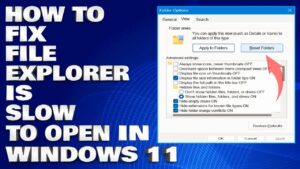
File Explorer depends on several Windows components working together. Before it displays your files, Windows loads folder information, navigation history, thumbnails, Quick Access items, network locations, and shell extensions installed by applications.
If one of these components becomes slow, File Explorer has to wait.
Some of the most common causes include:
- Quick Access trying to load unavailable folders.
- Corrupted File Explorer history.
- Network drives that are disconnected or responding slowly.
- Third-party context menu extensions.
- Thumbnail cache problems.
- Corrupted system files.
- Windows Search indexing issues.
- Slow or failing storage devices.
- Background applications consuming disk resources.
- Bugs introduced by recent Windows updates.
The symptoms vary depending on the underlying cause.
You might notice:
- File Explorer takes 5 to 20 seconds to open.
- A green loading bar appears for an extended period.
- Folders display slowly.
- Right-click menus take several seconds.
- Explorer freezes before becoming responsive.
- Downloads or Documents folders open much slower than others.
Understanding which symptom you have makes troubleshooting much easier.
Check whether the problem affects every folder
Before changing Windows settings, determine whether the slowdown happens everywhere or only in specific locations.
Open several different folders, such as:
- Desktop
- Documents
- Downloads
- Pictures
- Local Disk (C:)
- An external USB drive
- A network folder, if you use one
If only one folder is slow, the problem is probably related to that folder’s contents, template, or thumbnails.
If every folder is slow, the issue is more likely to involve File Explorer itself, Windows services, storage performance, or system files.
This simple test helps narrow down the troubleshooting process.
Clear File Explorer history
One of the quickest fixes is clearing File Explorer’s history.
Quick Access remembers recently opened files and frequently used folders. If those entries become corrupted or point to locations that no longer exist, Explorer can pause while trying to load them.
To clear the history:
- Open File Explorer.
- Select the three-dot menu.
- Open Options.
- Under Privacy, click Clear.
- Select Apply, then OK.
Close File Explorer completely and reopen it.
Many users notice an immediate improvement after clearing this cache.
Change File Explorer to open This PC instead of Home
Windows 11 opens the Home page by default.
The Home page loads:
- Recent files
- Recommended files
- Quick Access
- Pinned folders
- Cloud-based content if OneDrive is connected
If any of these items respond slowly, Explorer appears slow even though the rest of Windows is working normally.
To change the startup location:
- Open File Explorer Options.
- Find Open File Explorer to.
- Select This PC.
- Save the changes.
If Explorer opens much faster afterward, the slowdown is probably related to Home or Quick Access rather than Windows itself.
Remove unavailable network drives
Disconnected network drives are another common reason File Explorer pauses during startup.
Explorer checks mapped drives while loading. If a server is offline or a network share is unavailable, Windows may wait several seconds before timing out.
Open This PC and look for drives with a red X or disconnected status.
If you no longer need them:
- Right-click the mapped drive.
- Select Disconnect.
If you still use the drive, verify that the network connection and server are available before opening File Explorer.
Disable unnecessary Quick Access items
Quick Access is useful, but it can become cluttered over time.
Pinned folders stored on removable drives, external disks, or cloud locations may delay Explorer if those devices aren’t available.
Review your pinned folders.
Remove entries that:
- No longer exist
- Point to disconnected drives
- Reference old project folders
- Depend on unavailable cloud storage
Keeping Quick Access clean reduces unnecessary loading time.
Restart Windows Explorer
Explorer is a running Windows process.
Sometimes it develops temporary performance problems after long uptime or software changes.
Restarting it refreshes the process without restarting the entire computer.
- Press Ctrl + Shift + Esc.
- Open Task Manager.
- Locate Windows Explorer.
- Select Restart.
This only takes a few seconds and often resolves temporary slowdowns.
Clear the thumbnail cache
Windows stores thumbnails so image previews load faster.
If the cache becomes corrupted or excessively large, Explorer may spend extra time rebuilding previews.
To clear it:
- Search for Disk Cleanup.
- Select your Windows drive.
- Check Thumbnails.
- Run the cleanup.
The first time you browse image folders afterward, Windows recreates the cache. Those folders may load slightly slower once, but performance usually returns to normal after the cache is rebuilt.
Check for third-party context menu extensions
Many applications integrate with File Explorer.
Cloud storage tools, archive utilities, antivirus software, PDF programs, graphics applications, and version control software often add right-click menu entries.
Poorly designed or outdated extensions can slow Explorer, even before you open a folder.
If the slowdown started after installing software, temporarily uninstall or disable the application and see whether Explorer improves.
Common examples include:
- Compression tools
- Backup software
- File synchronization utilities
- Older graphics editors
- Legacy shell extensions
If performance returns after removing one program, you’ve likely identified the cause.
Run System File Checker and DISM
Corrupted Windows system files can affect Explorer’s performance.
Windows includes built-in repair tools that scan and replace damaged files.
Open Command Prompt as Administrator and run:
sfc /scannowWait for the scan to finish.
After that, run:
DISM /Online /Cleanup-Image /RestoreHealthRestart your PC after both commands complete.
These tools don’t fix every Explorer issue, but they’re effective when corrupted Windows components are involved.
Check your storage drive
Slow storage affects nearly every part of Windows, including File Explorer.
If Explorer opens slowly along with applications, Settings, and the Start menu, the storage device may be the bottleneck.
Things to check include:
- Available free space
- SSD health
- Disk usage in Task Manager
- SMART warnings from drive monitoring software
If your Windows installation is still running from a traditional hard drive, moving to an SSD provides one of the largest performance improvements you can make.
For SSD users, ensure the drive isn’t nearly full. Performance often drops when very little free space remains.
Look for high disk usage
File Explorer competes with other applications for disk access.
Open Task Manager and select the Processes tab.
If disk usage remains close to 100% even while you’re not actively using the PC, another program may be slowing Explorer.
Common causes include:
- Antivirus scans
- Windows Update
- Cloud synchronization
- Backup software
- Large file indexing
- Virtual machine software
Allow these tasks to finish or temporarily pause them before testing Explorer again.
Rebuild the Windows Search index
Windows Search helps Explorer locate files quickly.
If the search index becomes corrupted, folders and searches can respond slowly.
To rebuild the index:
- Open Indexing Options.
- Select Advanced.
- Click Rebuild.
Depending on the number of files on your PC, rebuilding may take several hours.
Search performance may temporarily decrease during the rebuild.
Scan for malware
Although less common than software conflicts, malware can interfere with File Explorer.
Unexpected Explorer slowdowns accompanied by high CPU usage, unknown background processes, or unusual disk activity deserve a security scan.
Run a full scan using Microsoft Defender or another trusted antivirus solution.
If malware is detected, remove it before continuing with additional troubleshooting.
Check for Windows updates
Microsoft regularly fixes File Explorer bugs through cumulative updates.
If the slowdown appeared after installing Windows 11, or if you’ve postponed updates for some time, installing the latest patches may resolve known issues.
Conversely, if the problem started immediately after a specific update, check whether Microsoft has acknowledged a related bug. In some cases, the issue is resolved in the following monthly update.
Create a new Windows user profile
Explorer settings are stored partly within your user profile.
If only one account experiences slow File Explorer while another account works normally, the profile may be corrupted.
Create a temporary local user account and sign in.
If Explorer performs normally there, migrating to a new profile may solve the issue without reinstalling Windows.
When a clean boot helps
If you’ve tried several fixes without success, perform a clean boot.
A clean boot starts Windows with only essential Microsoft services and drivers.
This helps determine whether background software is causing Explorer to slow down.
If File Explorer becomes fast after a clean boot, gradually re-enable startup items until the problem returns.
This process takes time but is one of the most reliable ways to identify software conflicts.
Common mistakes that make the problem worse
Some troubleshooting steps are unnecessary or create new problems without addressing the real cause.
Avoid these mistakes:
- Deleting random system files to free space.
- Disabling essential Windows services without understanding their purpose.
- Installing multiple registry cleaners.
- Running several optimization tools at the same time.
- Reinstalling Windows before completing basic troubleshooting.
In many cases, clearing Explorer history or removing a problematic shell extension fixes the issue without drastic measures.
When the slowdown points to failing hardware
Although software is the most common cause, hardware shouldn’t be ruled out.
Watch for these warning signs:
- Clicking folders causes long pauses throughout Windows.
- Files take unusually long to copy.
- Programs launch slowly.
- Windows freezes frequently.
- Disk health software reports warnings.
- You hear repeated clicking noises from a mechanical hard drive.
If several of these symptoms occur together, back up important files immediately and check the health of your storage device.
Prevent File Explorer from becoming slow again
Once Explorer is working normally, a few maintenance habits can help keep it that way.
- Keep Windows updated.
- Remove software you no longer use.
- Avoid installing unnecessary shell extensions.
- Keep sufficient free space on your system drive.
- Disconnect unused network drives.
- Periodically clear File Explorer history if Quick Access becomes sluggish.
- Restart your PC occasionally instead of relying only on sleep mode.
- Monitor SSD or HDD health if your computer is several years old.
These simple practices reduce the chance of Explorer becoming sluggish over time.
Final thoughts
If you’re wondering why File Explorer is opening slowly in Windows 11, the answer usually comes down to one of a handful of causes: overloaded Quick Access history, disconnected network drives, problematic shell extensions, thumbnail cache issues, heavy background disk activity, or corrupted Windows components.
Start with the simplest fixes, such as clearing File Explorer history, switching the startup location to This PC, restarting Windows Explorer, and removing unavailable network locations.
If those don’t help, move on to repairing system files, rebuilding the search index, checking storage health, and performing a clean boot to isolate software conflicts.
Working through these steps methodically is usually faster than making random changes. In most cases, you’ll identify the underlying cause and restore File Explorer to opening quickly and responding smoothly again.
Related Articles
- How to Remove Duplicate Files Safely From Windows 11
- Printer Connected but Not Printing From Windows 11: 12 Proven Fixes That Actually Work
- How to Fix High Disk Usage Caused by Windows Search
- How to Change GPT Disk to MBR Without Losing Data
If you think there’s been a mistake here, please do let us know by commenting on this post or Contact Us. And a member of our Content Integrity Team will review this decision with you.