If your PC becomes slow a few minutes after startup and Task Manager shows Windows Search or SearchIndexer.exe causing high disk usage, you’re dealing with a common Windows indexing issue. In most cases, the problem isn’t the search feature itself.
Instead, it’s an index that has become corrupted, an unusually large number of files waiting to be indexed, or a conflict with another application.
The good news is that you usually don’t need to disable Windows Search permanently. Indexing helps Windows find files, emails, and settings almost instantly.
The goal is to identify why indexing is consuming excessive disk activity and fix the underlying cause without losing the convenience of fast search.
This guide explains why Windows Search causes high disk usage, how to identify whether it’s responsible for the problem, and the most effective solutions in the order they’re worth trying.
Understanding Why Windows Search Uses the Disk
Windows Search maintains a database called the search index. Instead of scanning every folder each time you search, Windows builds this database in the background so search results appear almost instantly.
Normally, indexing runs quietly and pauses when you’re actively using your computer. High disk usage usually happens when Windows has to rebuild or update a large portion of the index.
Common situations include:
- Installing a major Windows update
- Upgrading to a new Windows version
- Copying thousands of files onto the computer
- Restoring files from backup
- Connecting a new drive
- Corruption in the search index
- Problems with Outlook indexing
- Third-party antivirus software repeatedly changing files
Temporary spikes are normal. Continuous 100% disk usage for hours is not.
Confirm That Windows Search Is the Cause
Before changing settings, make sure Windows Search is actually responsible.
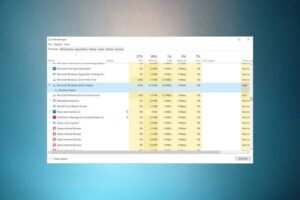
- Press Ctrl + Shift + Esc to open Task Manager.
- Select More details if necessary.
- Open the Processes tab.
- Sort by Disk usage.
You may see processes such as:
- SearchIndexer.exe
- SearchHost.exe
- SearchProtocolHost.exe
If one of these consistently stays near the top while disk usage remains unusually high, Windows Search is likely the source.
You can also switch to the Details tab for a more detailed view of running processes.
Check Whether Windows Is Still Building the Index
Sometimes nothing is actually wrong. Windows is simply catching up after significant changes.
To check indexing progress:
- Open Settings.
- Go to Privacy & Security (Windows 11) or Search settings depending on your Windows version.
- Open Searching Windows.
- Review the indexing status.
If Windows reports that thousands of items remain, allowing indexing to finish may completely resolve the problem.
Large SSDs containing hundreds of thousands of files can take several hours to complete the initial indexing.
Restart the Windows Search Service
Like many Windows components, the Search service can occasionally get stuck.
Restarting it forces Windows to begin indexing again with a clean state.
- Press Windows + R.
- Type:
services.msc- Press Enter.
- Find Windows Search.
- Right-click it.
- Choose Restart.
If Restart is unavailable:
- Select Stop.
- Wait a few seconds.
- Select Start.
After restarting, monitor Task Manager for several minutes.
If disk activity quickly returns to normal, the service had likely entered a bad state.
Rebuild the Search Index
A damaged search index is one of the most common reasons Windows Search continuously reads and writes data.
Rebuilding deletes the current index and creates a new one.
Windows 11
- Open Control Panel.
- Select Indexing Options.
- Click Advanced.
- Under Troubleshooting, choose Rebuild.
- Confirm the action.
Windows 10
The process is identical.
Keep in mind:
- Searches may temporarily become slower.
- Windows rebuilds the index in the background.
- High disk usage may briefly increase before settling down.
Depending on the number of files, rebuilding can take anywhere from a few minutes to several hours.
Reduce the Number of Indexed Locations
Windows doesn’t need to index every folder on your computer.
Indexing large software repositories, backup folders, virtual machines, or downloaded archives creates unnecessary work.
Open Indexing Options and click Modify.
Consider removing folders containing:
- ISO images
- Virtual machine files
- Source code repositories
- Large media archives
- Backup folders
- Temporary downloads
- Game installation folders
Leave important folders such as:
- Documents
- Desktop
- Pictures
- Email data (if you use Outlook)
Reducing indexed locations often has a noticeable impact on disk activity, especially on older hard drives.
Exclude Large Changing Folders
Some folders constantly change because applications update files every few seconds.
Examples include:
- Browser cache folders
- Build output directories
- Development environments
- Temporary rendering folders
Windows Search repeatedly notices these changes and attempts to update the index.
If you rarely search these locations, excluding them reduces unnecessary indexing work.
Run the Search and Indexing Troubleshooter
Windows includes a built-in troubleshooter specifically for indexing issues.
Open:
Settings → System → Troubleshoot → Other troubleshooters
Locate Search and Indexing and run it.
The troubleshooter checks for:
- Disabled services
- Permission problems
- Missing components
- Corrupted indexing settings
- Search configuration errors
It cannot fix every issue, but it often resolves common problems automatically.
Repair Corrupted Windows System Files
If Windows Search continues misbehaving after rebuilding the index, damaged system files may be responsible.
Open Command Prompt as Administrator.
Run:
sfc /scannowWait until the scan completes.
If Windows reports corruption that couldn’t be repaired, run:
DISM /Online /Cleanup-Image /RestoreHealthAfter DISM finishes, restart your computer and run SFC again.
Repairing system files often fixes indexing services that repeatedly fail or restart.
Check Your Storage Drive’s Health
High disk usage isn’t always caused by Windows Search itself.
A failing hard drive or SSD can make even small indexing operations appear extremely slow.
Warning signs include:
- Clicking sounds from an HDD
- Very slow file copying
- Long application launch times
- Windows freezing during disk activity
- SMART warnings from drive monitoring tools
If the drive is unhealthy, replacing it is the real solution. Rebuilding indexes repeatedly won’t solve an underlying hardware problem.
Look for Antivirus Conflicts
Some antivirus programs scan every file that Windows Search attempts to index.
This creates a cycle:
- Windows reads a file.
- Antivirus scans it.
- Windows updates the index.
- Antivirus scans it again.
The result can be sustained disk usage.
If you’ve recently installed new security software, temporarily disabling real-time protection for testing, or creating exclusions for trusted folders, may reveal whether it’s contributing to the problem.
Do not leave antivirus disabled permanently unless you’re using another trusted security solution.
Pause Indexing During Heavy Workloads
If you’re editing videos, compiling software, or copying large amounts of data, indexing can compete for disk resources.
You can temporarily stop the Windows Search service while working.
- Open services.msc.
- Stop Windows Search.
- Restart it after completing your work.
This is generally better than permanently disabling indexing, since Windows can catch up later when the computer is idle.
Disable Windows Search Only as a Last Resort
If you almost never search for files and none of the previous solutions help, disabling Windows Search is an option.
Keep in mind what you’ll lose:
- Slower File Explorer searches
- Slower Start menu searches
- Reduced Outlook search performance
- Longer searches across large drives
To disable it:
- Open services.msc.
- Double-click Windows Search.
- Change Startup type to Disabled.
- Stop the service.
- Restart the computer.
For most users, fixing the underlying issue provides a better experience than disabling the feature completely.
Why High Disk Usage Happens More Often on HDDs
Mechanical hard drives are much slower than SSDs when accessing thousands of small files.
Windows Search performs many small reads and writes while indexing.
On an SSD, this usually isn’t noticeable.
On a traditional HDD, disk usage can quickly reach 100% even though the actual amount of data being transferred isn’t very large.
If your computer still uses an HDD, upgrading to an SSD often improves overall responsiveness far more than tweaking indexing settings.
Common Mistakes to Avoid
Several popular suggestions online can make the situation worse or solve only the symptom.
Avoid these mistakes:
- Rebuilding the index repeatedly before allowing one rebuild to finish.
- Disabling every Windows service without identifying the actual cause.
- Deleting system files related to Windows Search.
- Assuming 100% disk usage always means the disk is transferring large amounts of data.
- Ignoring failing storage hardware while focusing only on software fixes.
Patience is also important. Immediately after rebuilding an index or installing a Windows update, higher-than-normal disk usage is expected.
Troubleshooting If the Problem Keeps Returning
If Windows Search repeatedly causes high disk usage after every reboot, investigate these possibilities:
- A program continuously creates and deletes files.
- Cloud storage applications constantly synchronize folders.
- Outlook repeatedly rebuilds its mail index.
- Windows updates fail and restart indexing.
- Corruption returns because of drive errors.
- Antivirus software interferes with indexing.
Watching Task Manager together with Resource Monitor can help identify whether another process is triggering Windows Search to work continuously.
Frequently Asked Questions
Is it safe to disable Windows Search?
Yes. Windows will continue to function normally, but searches in File Explorer, the Start menu, and some applications will become significantly slower.
Why is Windows Search using 100% disk after an update?
Major Windows updates often trigger a complete or partial rebuild of the search index. This is usually temporary and should stop once indexing finishes.
Does rebuilding the search index delete my files?
No. Rebuilding only deletes the search database. Your files remain unchanged.
Why is disk usage high even though CPU usage is low?
Disk usage and CPU usage measure different resources. Windows Search can spend most of its time waiting for the storage drive to read files, especially on slower hard drives.
Can an SSD reduce Windows Search disk problems?
Yes. SSDs handle random file access much faster than mechanical hard drives, making indexing far less noticeable.
Final Thoughts
High disk usage caused by Windows Search is usually the result of an index that’s rebuilding, become corrupted, or processing more files than necessary. In many cases, simply allowing indexing to finish, restarting the Windows Search service, or rebuilding the index resolves the issue.
If the problem persists, reduce the number of indexed locations, check for software conflicts, repair Windows system files, and verify the health of your storage drive. These steps address the underlying causes rather than masking the symptoms.
Windows Search is designed to improve everyday performance by making searches nearly instant. Keeping the index healthy is usually a better long-term solution than disabling the feature entirely.
Related Articles
- Why Is File Explorer Opening Slowly in Windows 11? Causes, Fixes, and Ways to Speed It Up
- Fix USB Device Not Recognized After Windows Update: Causes and Solutions That Work
- How to Make an Old Laptop Run Faster Without Upgrading RAM (Windows and Mac)
- Fix Windows 11 Black Screen After Login With Cursor: 12 Proven Ways to Restore Your Desktop
If you think there’s been a mistake here, please do let us know by commenting on this post or Contact Us. And a member of our Content Integrity Team will review this decision with you.