

If you need to change a GPT disk to MBR without losing data, the process is possible, but it depends on the tool you use. Windows’ built-in Disk Management and DiskPart utilities require deleting every partition before converting the disk, which erases all data. To keep your files, you need software that can perform a non-destructive partition table conversion.
This guide explains when you should convert a GPT disk to MBR, what to do before you begin, the safest methods available, common pitfalls, and what to do if something goes wrong.
Understanding GPT and MBR
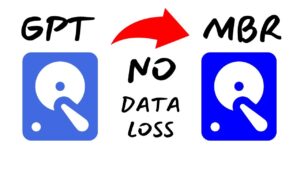
Before changing a disk’s partition style, it helps to understand what GPT and MBR actually are.
GPT (GUID Partition Table) is the modern partitioning standard. It was introduced alongside UEFI firmware and removes many of the limitations of the older MBR format.
MBR (Master Boot Record) has been around for decades. Although it still works well for many situations, it comes with several restrictions.
| Feature | GPT | MBR |
|---|---|---|
| Maximum disk size | Over 2 TB | Up to 2 TB |
| Maximum primary partitions | Usually 128 | 4 primary partitions |
| Boot mode | UEFI | Legacy BIOS |
| Partition table backup | Yes | No |
| Error recovery | Better | Limited |
For modern Windows 10 and Windows 11 systems, GPT is generally the recommended choice. MBR is mainly needed for compatibility with older hardware, legacy BIOS systems, or certain operating systems.
Why Someone Might Convert GPT to MBR
Although GPT offers several advantages, there are situations where MBR is still required.
Common reasons include:
- Installing Windows on an older computer that only supports Legacy BIOS
- Running older operating systems that cannot boot from GPT disks
- Using legacy recovery tools
- Connecting a drive to older industrial or embedded hardware
- Meeting compatibility requirements for specialized software
If your computer already supports UEFI, there is usually little reason to switch from GPT to MBR.
Can You Convert GPT to MBR Without Losing Data?
Yes, but not with Windows’ built-in tools.
Disk Management and DiskPart only convert an empty disk. They require deleting every existing partition first.
That means the following built-in process always results in data loss:
- Delete every partition
- Convert the disk
- Recreate partitions
- Restore files from backup
If you want to preserve your existing partitions and files, you need partition management software that supports non-destructive conversion.
Even then, there is always some level of risk whenever the partition table is modified. An unexpected power outage, hardware failure, or software crash could corrupt the drive.
Before You Begin
Spend a few minutes preparing before making any changes.
Create a Backup
Even though the goal is to keep your data, no disk conversion is completely risk-free.
A full backup is strongly recommended.
You can back up your files to:
- An external hard drive
- A NAS device
- Cloud storage
- Another internal drive
If the disk contains your operating system, consider creating a full system image instead of only copying personal files.
Check Whether the Disk Is the System Drive
The conversion process differs depending on whether you’re converting:
- A secondary storage drive
- The Windows boot drive
Changing the partition style of the boot disk may also require adjusting your firmware settings from UEFI to Legacy BIOS afterward.
Verify Disk Health
A disk with existing bad sectors or file system errors is a poor candidate for partition conversion.
Run the following command:
chkdsk X: /fReplace X with the correct drive letter.
If SMART monitoring reports the drive is failing, replace the drive before attempting any conversion.
Method 1: Convert GPT to MBR Without Data Loss Using Partition Software
This is the safest and simplest option.
Several well-known partition managers support converting GPT to MBR without deleting partitions.
Examples include:
- AOMEI Partition Assistant
- EaseUS Partition Master
- MiniTool Partition Wizard
Although the interfaces differ slightly, the overall workflow is similar.
Step 1: Launch the Partition Manager
Open the software with administrator privileges.
Locate the GPT disk you want to convert.
Double-check that you have selected the correct disk.
Step 2: Choose the Conversion Option
Right-click the disk.
Select:
Convert GPT Disk to MBR Disk
Do not choose options related to deleting partitions or rebuilding the disk unless you specifically intend to erase everything.
Step 3: Apply the Pending Changes
Most partition managers queue operations instead of performing them immediately.
Review every pending action carefully.
When satisfied, click Apply.
Some conversions complete instantly.
Others require a reboot before Windows starts.
Step 4: Wait for Completion
Avoid interrupting the process.
Do not:
- Force shutdown the PC
- Disconnect the drive
- Restart the computer manually
Interrupting a partition table update is one of the easiest ways to corrupt a disk.
Step 5: Verify the Conversion
After Windows starts again:
- Open Disk Management.
- Right-click the disk.
- Select Properties.
- Open the Volumes tab.
- Verify that the partition style now shows Master Boot Record (MBR).
Also confirm that:
- Files are accessible.
- Applications still work.
- The file system appears healthy.
Method 2: Convert Using DiskPart (Data Will Be Erased)
If preserving data is not important, Windows includes a built-in command-line utility.
Open Command Prompt as Administrator.
Run:
diskpart
list disk
select disk X
clean
convert mbr
exit
Replace X with the correct disk number.
The clean command removes the partition table, making all existing data inaccessible.
Afterward, you’ll need to recreate partitions and restore files from backup.
Method 3: Convert Using Disk Management (Also Erases Data)
Disk Management can also convert the partition style, but only after every partition has been deleted.
The process is straightforward:
- Open Disk Management.
- Delete every partition on the GPT disk.
- Right-click the disk label.
- Choose Convert to MBR Disk.
Because all partitions must be removed first, this method is not suitable if you need to keep your data.
What Happens After Converting the System Disk?
If the converted drive contains Windows, changing the partition style may prevent the computer from booting until the firmware settings are updated.
Most systems originally installed in UEFI mode expect GPT.
After converting to MBR, you may need to:
- Enter BIOS or firmware settings.
- Disable UEFI boot.
- Enable Legacy BIOS or CSM mode.
- Save the settings.
- Restart the computer.
Not every motherboard supports Legacy Boot. Many newer computers only support UEFI, making GPT the only practical option for the operating system disk.
Common Problems After GPT to MBR Conversion
Even when the conversion succeeds, you may encounter a few issues.
Windows Won’t Boot
Possible causes include:
- Firmware still configured for UEFI
- Damaged boot records
- Incorrect active partition
- Boot files were not updated
If necessary, boot from Windows installation media and repair the bootloader.
Missing Drive Letter
Sometimes Windows removes or changes drive letters after disk operations.
Open Disk Management.
Assign a new drive letter if necessary.
Partitions Appear as Unallocated
This usually indicates that the partition table was damaged during conversion.
Immediately stop writing data to the disk.
Using partition recovery software may restore the partition entries before they are overwritten.
Disk Larger Than 2 TB
MBR cannot fully utilize disks larger than 2 TB.
For example:
| Disk Size | Usable with MBR |
|---|---|
| 1 TB | Entire disk |
| 2 TB | Entire disk |
| 3 TB | About 2 TB |
| 4 TB | About 2 TB |
| 8 TB | About 2 TB |
The remaining capacity becomes unusable under MBR.
If your drive exceeds 2 TB, staying with GPT is usually the better decision.
Common Mistakes to Avoid
Many conversion failures happen because of avoidable mistakes.
Some of the most common include:
- Forgetting to create a backup
- Converting the wrong disk
- Interrupting the conversion process
- Confusing UEFI with Legacy BIOS
- Using DiskPart without realizing it erases data
- Attempting to convert a failing drive
- Converting large drives over 2 TB to MBR
Taking a few minutes to verify each step greatly reduces the chance of problems.
Is It Better to Stay With GPT?
For most users, yes.
GPT provides several advantages:
- Better support for modern hardware
- Improved reliability
- More partitions
- Better recovery from partition corruption
- Support for very large drives
Unless you specifically need MBR for compatibility, there is usually no benefit in converting.
Many people begin the conversion only to discover that their software or hardware actually supports GPT.
Checking your requirements beforehand may save unnecessary work.
Troubleshooting Tips
If the conversion does not go as expected, these checks often help.
If Windows reports the disk is in use, close programs accessing the drive or reboot and try again.
If the conversion software refuses to proceed, verify that the disk does not have file system errors by running CHKDSK.
If the software requests a restart, allow it to complete the operation before logging back into Windows.
If the converted drive is not recognized, reconnect it or rescan disks from Disk Management.
If the system disk no longer boots, confirm the firmware boot mode matches the new partition style.
Frequently Asked Questions
Can Windows convert GPT to MBR without deleting partitions?
No. Windows Disk Management and DiskPart require deleting all partitions before converting the disk. To keep your data, you’ll need third-party partition management software that supports non-destructive conversion.
Will I lose my files during the conversion?
If you use Windows’ built-in conversion tools, yes. If you use software designed for non-destructive GPT-to-MBR conversion, your files are intended to remain intact, but creating a backup beforehand is still strongly recommended.
Can I convert the Windows system drive?
Yes, but converting the system disk often requires changing the firmware boot mode from UEFI to Legacy BIOS. If your computer only supports UEFI, Windows may not boot from an MBR system disk.
Can I convert a 4 TB drive to MBR?
You can, but MBR can only address up to 2 TB of storage. The remaining capacity cannot be used unless the disk is converted back to GPT.
Which partition style should I choose for Windows 11?
Windows 11 is designed to run on UEFI systems using GPT. Unless you have a specific compatibility requirement, GPT remains the recommended partition style for Windows 11 installations.
Final Thoughts
Changing a GPT disk to MBR without losing data is possible, but it requires the right approach. Windows’ built-in tools cannot perform a non-destructive conversion because they erase every partition before changing the partition table.
If preserving your files is important, use reputable partition management software that supports GPT-to-MBR conversion without deleting partitions, and always create a current backup before making changes.
For most modern computers, GPT remains the better choice because it supports larger drives, more partitions, and UEFI boot.
Convert to MBR only when you have a clear compatibility requirement, such as older hardware or software that cannot work with GPT.
By verifying your system’s boot mode, checking disk health, and following the appropriate conversion method, you can minimize the risk of data loss and complete the process safely.
Related Articles
- Printer Connected but Not Printing From Windows 11: 12 Proven Fixes That Actually Work
- Why Is My SSD Slower Than Expected in Windows 11? Causes, Fixes, and How to Restore Performance
- How to Remove Virus From Windows Without Antivirus Software
- How to Stop Windows 11 From Using Too Much RAM
If you think there’s been a mistake here, please do let us know by commenting on this post or Contact Us. And a member of our Content Integrity Team will review this decision with you.


