

Your phone says storage is nearly full. But scrolling through your photos and apps doesn’t seem to add up to the number shown.
This is one of the more confusing storage situations on Android. It usually means the missing space is sitting in categories the main screen doesn’t surface clearly.
Cached data accumulated over time, system files, leftover data from apps you uninstalled long ago, or duplicate files you never realized you had. Finding it means digging a little deeper than the default Settings, Storage screen.
The default view is genuinely misleading in a specific way. It shows totals by broad category without separating what’s useful from what’s just accumulated cruft.
Start With the Detailed Storage Breakdown
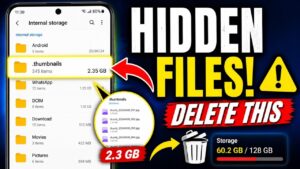
The default Storage screen, under Settings, Storage, gives a rough breakdown: Photos, Videos, Apps, Audio, and so on. This is a reasonable starting point, but it hides the real source from casual inspection.
Tap into each category individually rather than trusting the summary. “Apps” as a category often shows a combined total without separating the app’s own size from its cached data.
Check App Cache and Data Separately From App Size
This is the single biggest source of “missing” storage for most people. An app’s installed size might be small, 50MB for example, but its accumulated cache can easily reach several gigabytes.
Particularly for social media, streaming, and messaging apps that quietly store media and thumbnails locally.
- Go to Settings, Apps, then select a specific app.
- Tap Storage & Cache.
- You’ll see three separate numbers: App size, Data, and Cache.
Sort through your most-used apps this way, or use “sort by size” if available. Look specifically at Data and Cache, not just app size.
It’s common to find a single messaging app quietly holding 2 to 4GB in cached images that were viewed once and never needed again. Clearing cache is safe and doesn’t delete your account or login state.
Look for Data From Uninstalled Apps
When you uninstall an app, Android doesn’t always cleanly remove every trace. Particularly files it saved to a shared Downloads folder or exported media.
This leftover data doesn’t show anywhere in the Apps section anymore, since the app itself is gone. That makes it genuinely hard to find without a file manager.
Open your phone’s Files app, or install Google Files, and browse internal storage. Look through folders matching apps you no longer have installed.
Use the Files App’s Clean Up Feature
Google’s Files app includes a Clean tab designed specifically to surface hidden storage consumers.
- Junk Files: aggregates cached data across every app in one combined view.
- Duplicate Files: identifies genuinely identical files, often photos saved multiple times through different apps.
- Large Files: sorts everything by size, surfacing forgotten downloads or old recordings.
- Screenshots: groups these together, since they accumulate quietly and rarely get reviewed.
This is generally the fastest way to find large chunks of reclaimable storage without digging through folders yourself.
Checking Download Folder Clutter From Browsers and File Sharing Apps
Your general Downloads folder is one of the most commonly overlooked storage sinks, since files land there from browser downloads, email attachments saved for later, and file-sharing apps like Nearby Share or Bluetooth transfers, without any automatic cleanup ever happening.
Open the Files app and browse directly to Downloads. It’s genuinely common to find years of accumulated PDFs, installer files, and forwarded images that were relevant once and never needed again after the moment they were downloaded.
Sorting this folder by size or by date, using the Files app’s sort options, makes it quick to spot the largest and oldest items first, rather than scrolling through everything chronologically to find what’s actually worth deleting.
How Game Apps Specifically Inflate Storage Beyond Their Listed Size
Mobile games are frequently the single largest storage consumers on a phone, often far exceeding their listed install size once you account for downloaded texture packs, cached level data, and save files accumulated over months of play.
A game that showed as 200MB at install time can easily grow to 3 or 4GB after additional content packs download automatically on first launch and subsequent updates. This is normal for the genre, but worth knowing when auditing storage, since games you no longer play regularly but still have installed are often the single biggest opportunity for reclaiming space quickly.
Check Settings, Storage, Apps, and sort by size specifically to identify which installed games are taking up the most space relative to how often you actually still play them.
Voice Memo and Audio Recording Apps
Voice recording apps, whether a dedicated voice memo app or a recording feature built into your phone’s default apps, store audio files that can accumulate unnoticed over months or years of occasional use, particularly for anyone who records meetings, lectures, or quick voice notes regularly.
Check your voice recording app’s own storage location directly, since these files sometimes don’t appear clearly in general storage categories the way photos and videos do. Reviewing and deleting old recordings you no longer need, particularly ones from meetings or events long past, is a quick way to reclaim space that’s easy to overlook entirely.
What Happens to Storage When an App Update Fails Midway
Occasionally, an app update that fails or gets interrupted partway through leaves behind a partial, corrupted download that doesn’t get automatically cleaned up, quietly consuming storage space without appearing as a completed app or a clearly labeled temporary file.
This is one of several things the Files app’s Junk Files scan, covered earlier, is specifically designed to catch, since it looks for exactly this kind of orphaned partial data left behind by interrupted processes rather than just obvious cache files.
Checking Browser Storage and Saved Website Data
Web browsers accumulate their own storage footprint over time. Cached website data, offline reading content, saved images from visited pages.
Check Settings, Apps, Chrome or whichever browser you use, then Storage & Cache, the same way as any other app. Clearing doesn’t log you out or delete bookmarks.
WhatsApp and Messaging App Media Storage
Messaging apps with media sharing, WhatsApp especially, accumulate enormous storage through automatically saved photos and videos from group chats. WhatsApp has its own built-in tool for this.
Settings, Storage and Data, Manage Storage, shows exactly which chats consume the most space. You can bulk-delete large media files directly.
Checking for Orphaned Backup Files
Local backup files, rather than cloud-based ones, sometimes remain on your device indefinitely, even after you’ve switched to cloud backup. Check Files for folders named “Backups” or your messaging app’s name with a date stamp.
Frequently Asked Questions
Is it safe to clear cache for all apps at once rather than individually?
Yes, cache is designed to be temporary, disposable data apps regenerate as needed. Some phones offer a “Clear all cache” option as a first step.
Why does my storage number not match what I actually see when I add up my files manually?
This is normal. Some space is reserved by the OS for system functions and isn’t available for user files, which explains part of the gap.
Will deleting cache files log me out of apps or lose my settings?
No, clearing cache never logs you out. Only clearing an app’s full Data resets it to a fresh install, so know which option you’re choosing.
Understanding Why Storage Doesn’t Free Up Immediately After Deleting Files
Sometimes people delete a large batch of files and check the storage screen right afterward, only to find the number hasn’t updated to reflect the freed space yet. This is a common source of confusion, but it’s usually just a display lag rather than a sign the deletion didn’t actually work.
Android’s storage summary sometimes takes a few minutes to recalculate after a large deletion, particularly right after clearing app cache in bulk or deleting many files at once. Restarting the phone forces an immediate recalculation if the number still looks wrong after waiting a few minutes on its own.
Checking for Multiple User Profiles Using Separate Storage
If your phone has multiple user profiles set up, a feature more common on tablets but available on some phones too, each profile maintains its own separate storage allocation for apps and files, even though they share the same underlying physical storage capacity.
Go to Settings, System, Multiple Users, if this feature exists on your device, and check whether a secondary profile you’ve forgotten about is holding a meaningful amount of storage. Removing an unused secondary profile entirely reclaims whatever storage was allocated to it.
SD Card Versus Internal Storage Confusion on Supported Phones
On phones that support expandable storage via a microSD card, it’s worth confirming which storage the numbers you’re looking at actually refer to, since internal storage and SD card storage are tracked separately in most cases, and a full internal storage reading doesn’t mean your SD card is full too, or vice versa.
Check Settings, Storage, and look for a toggle or tab switching between “This device” and the SD card specifically, if one is inserted. Moving photos, videos, and supported apps to the SD card, where the phone allows it, is a straightforward way to free up internal storage specifically without deleting anything at all.
How Screen Recording Files Differ From Screenshots in Storage Impact
Screen recordings are considerably larger than screenshots and easy to forget about, since they’re often created for a quick one-time purpose, showing someone a bug or a feature, and then never revisited or deleted afterward.
A single few-minute screen recording can easily be several hundred megabytes depending on resolution and frame rate, meaning even a handful of forgotten recordings adds up to meaningful storage. Check your Files app or gallery specifically for a Screen Recordings folder, separate from the Screenshots folder already covered, since these accumulate independently and are easy to overlook precisely because they’re rarer than screenshots.
Why Manufacturer-Specific Cleaning Tools Sometimes Find More Than Google’s Files App
Some manufacturers, Samsung in particular through its Device Care feature, include their own storage cleaning tool that scans for manufacturer-specific cache locations and system files that Google’s generic Files app doesn’t necessarily know to look for, since these are specific to that manufacturer’s software layer on top of Android.
If you’re on a phone with a manufacturer-specific device care or cleaning tool, running that alongside the Files app’s Clean tab, rather than relying on just one, gives more complete coverage, since each tool tends to catch things specific to its own scope that the other might miss.
Checking Duplicate Photos From Cloud Sync Conflicts
If you use more than one cloud backup service at once, Google Photos and a manufacturer’s own cloud backup, for example, it’s genuinely common for the same photo to get saved locally in two different places by two different apps without either one recognizing the other’s copy.
This creates duplicate storage use that the Files app’s duplicate finder sometimes misses, since the files may have slightly different names or metadata even though the actual image is identical. Reviewing your camera roll for a specific folder created by a secondary backup app, then disabling that duplicate backup entirely if you’re already covered by Google Photos, resolves this at the source.
Podcast Apps and Automatic Episode Downloads
Podcast apps that automatically download new episodes for shows you subscribe to are a genuinely common and overlooked storage drain, since this happens silently in the background without any prompt or confirmation each time.
Check your podcast app’s settings for an auto-download limit, usually expressed as “keep the last X episodes,” and reduce it if it’s set to keep more than you actually listen to. Also check for old, fully listened episodes that never got deleted automatically, which some apps leave behind unless you specifically enable auto-delete after listening.
Camera App Settings That Silently Increase Storage Use
Some camera apps default to shooting in RAW format alongside a standard JPEG, or record video at a higher resolution and frame rate than most people actually need for casual use, both of which dramatically increase file size per photo or video compared to standard settings.
Check your camera app’s settings for RAW capture and video resolution specifically. Unless you’re doing deliberate photo editing work that benefits from RAW files, or specifically need 4K video at 60fps, dropping to standard JPEG and 1080p at 30fps cuts storage use per photo and video significantly without a noticeable quality loss for typical use.
Frequently Asked Questions, Continued
Does having more storage installed, like a 256GB phone versus 128GB, mean less need to manage it?
To a degree, yes, since more headroom means it takes longer to fill up, but the same categories of hidden storage, cache, uninstalled app leftovers, forgotten downloads, accumulate proportionally regardless of total capacity, so the cleanup process itself is the same either way.
Is there a risk in deleting files I find in the System or Other category?
This category generally can’t be deleted manually at all through normal means, which is by design, since it covers files the operating system needs to function correctly. If you’re seeing files there you can actually select and delete, they’re likely miscategorized user files rather than true system files.
Why does clearing cache sometimes only free up a small amount despite the app showing a large cache number?
Some of what’s counted as cache is actively used by the app for current functionality, like recently viewed content kept ready for instant access, and gets regenerated almost immediately after clearing if you reopen the app, which can make the freed space look smaller than expected on a follow-up check.
Check Downloaded and Offline Media Content
Streaming apps that support offline downloads are a common hidden sink, particularly if you downloaded content for a trip months ago and forgot about it.
These downloads live within each app’s own storage, not a shared media location. Check each app’s Downloads or Offline section directly.
Review System and Other Storage
Android groups certain files under a generic “System” or “Other” category, covering logs and crash reports that don’t fit elsewhere. This can’t be cleared manually, and several gigabytes is normal on a phone used for a year or more.
If this category grows rapidly rather than staying stable, it can indicate a misbehaving app generating excessive logs repeatedly.
Check Google Photos Backup Status
Photos backed up to Google Photos still take up local storage unless you specifically free up device storage. Go to Google Photos, profile picture, Photos Settings, Free Up Device Storage.
This removes local full-resolution copies of already-backed-up photos, replacing them with a small thumbnail, while keeping full access via streaming.
Consider a Factory Reset Only as a Last Resort
If storage remains mysteriously high after all of this, and you suspect residual clutter that isn’t identifiable through normal tools, a factory reset clears it completely. This should be a last resort, not a first step.
Conclusion
Hidden storage usage is almost always app cache and data not clearly separated from app size, leftover files from uninstalled apps, or offline content stored within individual apps.
Working through the Files app’s Clean tab first gets the fastest overview. Checking individual app Storage & Cache screens, your Downloads folder, and Google Photos backup settings usually accounts for the rest, often freeing up several gigabytes without deleting a single photo you actually wanted to keep.
If you think there’s been a mistake here, please do let us know by commenting on this post or Contact Us. And a member of our Content Integrity Team will review this decision with you.


