

An Android phone can show a Wi-Fi connection while apps still refuse to load, refresh, or connect to the internet. You may see full Wi-Fi bars, but apps like Chrome, YouTube, WhatsApp, Instagram, or banking apps may display errors, stay stuck loading, or say there is no internet connection.
This problem usually happens because the phone is connected to the router but the internet connection is being blocked somewhere between the device, network settings, DNS service, app permissions, or the app itself.
A Wi-Fi icon only confirms that your phone has a connection to the wireless network. It does not always mean that data is successfully reaching your apps.
The good news is that most cases can be fixed without resetting your entire phone. The right solution depends on whether the problem affects all apps, only certain apps, or only one Wi-Fi network.
Check If the Problem Is Your Wi-Fi Connection or Your Android Phone
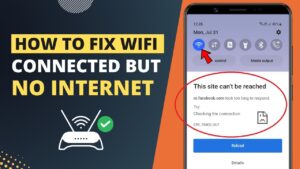
Before changing settings on your phone, determine where the problem is coming from.
Try opening a website in a browser. If websites also fail to load, the issue is likely related to the Wi-Fi connection, DNS settings, or your phone’s network configuration.
If websites work but specific apps do not, the problem is more likely caused by app permissions, background data restrictions, corrupted app files, or an app-specific issue.
You can also test another device connected to the same Wi-Fi network. For example:
- If another phone or laptop also cannot access the internet, your router or internet provider may be the problem.
- If other devices work normally but your Android phone does not, the issue is likely with your phone settings.
- If only one app fails, focus on troubleshooting that app instead of changing network settings.
This simple check prevents unnecessary troubleshooting steps.
Restart Your Android Phone and Wi-Fi Router
A restart can fix temporary connection failures caused by software glitches, stuck network processes, or router communication errors.
Your Android phone constantly manages Wi-Fi authentication, IP addresses, background connections, and app network access. Occasionally, these processes can fail even though the phone still shows as connected.
Start with these steps:
- Turn off Wi-Fi on your Android phone.
- Restart the phone.
- Unplug your Wi-Fi router from power.
- Wait about 30 seconds.
- Plug the router back in and wait until the connection is restored.
- Connect your phone to Wi-Fi again.
After reconnecting, test the apps that were not working.
If the problem disappears after restarting, it was likely caused by a temporary software or router issue. If it returns frequently, you may need to investigate deeper causes such as DNS problems, outdated software, or router settings.
Forget the Wi-Fi Network and Connect Again
Android saves network information such as the Wi-Fi password, IP configuration, and security settings. If those saved details become incorrect or corrupted, your phone may connect to Wi-Fi but fail to communicate properly with the internet.
Removing the network and reconnecting forces Android to create a fresh connection.
To forget a Wi-Fi network:
- Open Settings on your Android phone.
- Go to Network & Internet, Connections, or Wi-Fi depending on your device.
- Tap your connected Wi-Fi network.
- Select Forget or Forget Network.
- Connect again by entering your Wi-Fi password.
The exact menu names vary between manufacturers such as Samsung, Google Pixel, Xiaomi, OnePlus, and Motorola.
After reconnecting, check whether your apps can access the internet.
This method is especially useful when:
- The phone connects but shows “No internet access.”
- Apps stopped working after changing router settings.
- The Wi-Fi password was recently changed.
- The phone has trouble connecting only to one specific network.
Disable and Re-enable Airplane Mode
Airplane mode temporarily disables wireless communication, including Wi-Fi and mobile networks. Turning it on and off can refresh the phone’s network connections.
Try this:
- Open the Quick Settings panel.
- Turn on Airplane Mode.
- Wait 15 to 30 seconds.
- Turn Airplane Mode off.
- Reconnect to Wi-Fi.
This is a quick fix for situations where the phone appears connected but network communication has stopped responding.
However, if apps repeatedly lose connection afterward, the issue is probably not just a temporary network state problem.
Check Whether Your Internet Connection Actually Works
Sometimes Android connects successfully to the router, but the router itself has lost internet access.
Your phone may still display the Wi-Fi symbol because the wireless connection between your phone and router is active. The problem is that the router cannot reach the internet.
To check:
- Open a browser and visit several websites.
- Try another device on the same Wi-Fi.
- Check whether your router shows an internet warning light.
- Restart the modem if you have a separate modem and router.
If every device connected to the Wi-Fi has the same problem, contact your internet provider or check for an outage.
Changing phone settings will not fix an internet connection that is unavailable from the router.
Turn Off VPN Apps and Private DNS
VPNs and custom DNS settings can interfere with app connections even when Wi-Fi appears normal.
A VPN creates an encrypted connection between your phone and another server. If that server is unavailable, overloaded, or incorrectly configured, apps may fail to connect.
Private DNS changes how your phone translates website and service addresses into internet locations. A wrong DNS provider can prevent apps from reaching their servers.
Disable VPN
To check for VPN issues:
- Open Settings.
- Go to Network & Internet or Connections.
- Select VPN.
- Disconnect any active VPN.
Some VPN apps also run background services, so you may need to open the VPN app and disable its connection.
Change Private DNS Settings
On many newer Android versions:
- Open Settings.
- Select Network & Internet.
- Tap Private DNS.
- Change it to Automatic.
- Restart your apps.
If you previously configured a custom DNS service, switching back to automatic can confirm whether DNS was causing the problem.
Check App Permissions and Background Data Settings
If only certain apps are not working, Android may be restricting their internet access.
Android allows users to control whether apps can use mobile data, Wi-Fi, background activity, and battery resources. Aggressive battery-saving settings can sometimes prevent apps from connecting properly.
To check an app:
- Open Settings.
- Go to Apps.
- Select the app that is not working.
- Tap Mobile data & Wi-Fi or a similar option.
- Make sure network access is allowed.
Also check:
- Background data is enabled.
- Battery restrictions are not blocking the app.
- The app is updated.
- The app has not been disabled.
This commonly affects messaging apps, email apps, social media apps, and cloud storage applications.
Clear the App Cache and Data
An app can fail to connect because its stored files are damaged or outdated.
Clearing the cache removes temporary files without deleting your account information. It is usually the safest first step.
To clear an app cache:
- Open Settings.
- Select Apps.
- Choose the affected app.
- Tap Storage.
- Select Clear Cache.
Test the app again.
If clearing the cache does not work, you can try Clear Data or Clear Storage, but be aware that this resets the app. You may need to sign in again and configure settings from scratch.
Use this option mainly when:
- The app opens but cannot load content.
- The app crashes repeatedly.
- The problem affects only one application.
Update Android and Your Apps
Outdated software can cause compatibility problems between apps, Android system components, and network services.
Check for updates:
Update Android
- Open Settings.
- Go to System or Software Update.
- Check for available updates.
Update Apps
- Open the Google Play Store.
- Tap your profile icon.
- Select Manage apps & device.
- Install available updates.
Updates often include fixes for connection bugs, security issues, and compatibility problems.
If the problem started immediately after an update, however, the cause may be a new software issue rather than outdated software.
Reset Network Settings on Android
If your phone still connects to Wi-Fi but apps cannot access the internet, resetting network settings can remove hidden configuration problems.
A network reset removes:
- Saved Wi-Fi networks and passwords.
- Bluetooth connections.
- Some mobile network settings.
It does not delete photos, apps, messages, or personal files.
To reset network settings:
- Open Settings.
- Go to System or General Management.
- Select Reset Options.
- Choose Reset Wi-Fi, mobile & Bluetooth.
- Confirm the reset.
Afterward, reconnect to your Wi-Fi network and test your apps.
This method is useful when:
- Multiple apps stopped working.
- Wi-Fi works on other devices.
- The phone has unusual connection behavior.
- Previous troubleshooting steps failed.
Check Date and Time Settings
Incorrect date and time settings can prevent apps from connecting securely.
Many apps use encrypted connections that require your phone’s clock to match current time. If the date is significantly wrong, authentication can fail.
To fix this:
- Open Settings.
- Go to System or General Management.
- Select Date & Time.
- Enable Automatic date and time.
After correcting the time, restart affected apps.
This issue is less common but can cause confusing connection failures, especially with email, banking, and security-related apps.
Check Storage Space and System Performance
A phone with very little storage space can behave unpredictably. Android needs free storage to create temporary files, update apps, and maintain normal system operations.
Check available storage:
- Open Settings.
- Select Storage.
- Review available space.
If storage is nearly full:
- Delete unnecessary files.
- Remove unused apps.
- Clear large downloads.
- Move photos and videos to cloud storage or another device.
Low storage is not usually the direct cause of Wi-Fi failure, but it can contribute to apps freezing, crashing, or failing to update properly.
Try Safe Mode to Find Problem Apps
Third-party apps can sometimes interfere with network connections.
Examples include:
- VPN applications.
- Firewall apps.
- Security apps.
- Ad blockers.
- Network management tools.
Android Safe Mode starts the phone with only essential system apps.
If Wi-Fi apps work normally in Safe Mode, a recently installed app may be causing the problem.
The exact steps for entering Safe Mode vary by phone manufacturer, but commonly:
- Press and hold the power button.
- Touch and hold the Power Off option.
- Select Safe Mode when prompted.
If the issue disappears, remove recently installed apps one by one until you find the cause.
When Only One App Is Not Working
If your Wi-Fi works and most apps connect normally, avoid resetting your entire network. The problem is likely limited to that application.
Try these steps:
- Force close the app.
- Restart the phone.
- Clear the app cache.
- Update the app.
- Reinstall the app.
- Check whether the app service is experiencing an outage.
Some apps can experience server-side problems that have nothing to do with your phone or Wi-Fi connection.
Common Mistakes When Fixing Android Wi-Fi Problems
Many people immediately reset their phone or change multiple settings at once. This makes troubleshooting harder because you do not know which action fixed the problem.
Avoid these mistakes:
- Factory resetting the phone before testing simpler solutions.
- Changing advanced router settings without knowing the cause.
- Installing multiple network repair apps.
- Assuming strong Wi-Fi signal means internet access is working.
- Ignoring VPN or DNS settings.
A structured approach saves time and reduces the chance of creating new problems.
Frequently Asked Questions
Why does my Android phone say connected to Wi-Fi but apps have no internet?
Your phone may be connected to the router but unable to reach the internet. The cause could be a router problem, DNS issue, VPN interference, incorrect network settings, or app restrictions.
Why do websites work but apps do not on Wi-Fi?
If browsers work but apps fail, the problem is usually related to app permissions, background data restrictions, cached app files, or an app-specific connection issue.
Why does Wi-Fi work on other devices but not my Android phone?
This usually points to a phone-side problem. Forgetting the Wi-Fi network, resetting network settings, disabling VPNs, and checking DNS settings are common fixes.
Will resetting network settings delete everything?
No. A network reset does not delete photos, apps, or personal files. It only removes saved network-related settings such as Wi-Fi passwords and Bluetooth pairings.
Should I factory reset my Android phone for Wi-Fi problems?
A factory reset should be a last resort. Most Wi-Fi and app connection problems can be fixed through network resets, app troubleshooting, or configuration changes.
Final Thoughts
When an Android phone is connected to Wi-Fi but apps are not working, the problem is usually not the Wi-Fi signal itself. The phone may have a connection to the router while something prevents apps from reaching online services.
Start with simple checks: restart your phone and router, test the connection with another device, forget and reconnect to Wi-Fi, and check VPN or DNS settings.
If the problem affects only certain apps, focus on app permissions, cache, and updates instead of changing the entire network setup.
A step-by-step approach usually identifies the cause without needing extreme solutions like a factory reset.
Related Articles
If you think there’s been a mistake here, please do let us know by commenting on this post or Contact Us. And a member of our Content Integrity Team will review this decision with you.


