

An app stuck at “Installing” or “Pending,” with the progress bar frozen, is one of the more common Android annoyances. It tends to happen at the worst possible moment, usually when you need that app right now.
It’s rarely a sign of anything seriously wrong with your phone. Most of the time it’s a stalled download queue, a storage or connectivity issue the Play Store isn’t reporting clearly, or corrupted install cache data.
All of these are fixable without a factory reset or losing anything on the device. The Play Store rarely tells you why an install is stuck, so working through causes systematically gets you there faster than guessing.
Why This Happens
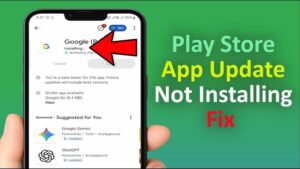
The Play Store manages installs through a download queue. That queue can get stuck for several reasons.
A previous update that failed silently can still be holding a slot without you knowing. Insufficient storage isn’t always reported clearly or accurately either.
A Wi-Fi connection that dropped mid-download without the Store noticing is another common cause. So is corrupted cache data within the Play Store app itself, accumulated over time.
Less commonly, a background restriction on the Play Store app can prevent it from completing downloads while your screen is off.
Start With the Basics
Try the simplest fixes first. They resolve this more often than you’d expect, and they take almost no time.
- Cancel the stuck install in your downloads list, then try installing again from scratch.
- Switch from Wi-Fi to mobile data or vice versa and retry. A weak or dropping connection is one of the most common causes, especially for larger apps.
- Restart your phone entirely, not just the app. This clears temporary process states that interfere with the download manager, and it’s genuinely effective for this specific issue.
Clear Play Store Cache and Data
If a restart doesn’t help, the Play Store’s own cache is a common culprit. Clearing it doesn’t delete your apps or account info.
- Go to Settings, Apps, and find Google Play Store.
- Tap Storage, or Storage & Cache depending on your version.
- Tap Clear Cache first and retry. If still stuck, go back and tap Clear Data too.
Clearing data is more aggressive. It signs you out of the Play Store, so you’ll need to sign back in afterward.
Also Clear the Download Manager
This step gets missed often. The Play Store relies on Android’s system Download Manager to actually pull the file data.
If that component has its own stuck cache, clearing the Play Store alone won’t fully fix it. Go to Settings, Apps, then find Download Manager.
You may need to enable “Show system apps” to see it. Clear its cache and data the same way.
Check Available Storage
Android sometimes fails to install due to low storage without a clear error. Go to Settings, Storage and check how much free space you actually have.
Aim for at least 1 to 2 GB free. Android needs working space for the install process itself, not just room for the final app.
Clear cached data from large apps, or remove unused apps and old downloads. This usually frees enough room without deleting anything you care about.
Check Your Google Account Sync and Storage
Sometimes a stuck install ties to your account state rather than storage. This is especially true if you’ve recently changed your password.
Go to Settings, Accounts, tap your Google account, and check for any errors flagged there. Re-entering your password often resolves an install stuck because the session lapsed silently mid-download.
Restart in Safe Mode to Rule Out a Conflicting App
A third-party app, particularly a task killer or aggressive security app, might be interrupting the download process. Safe Mode temporarily disables all third-party apps.
Press and hold power until the menu appears, then hold Power Off until you’re prompted to restart in Safe Mode. This varies by manufacturer, some require holding volume down during restart instead.
If the app installs successfully in Safe Mode, a background app was likely the cause. Check which apps you’ve installed recently with broad permissions.
Update the Play Store Itself
The Play Store updates itself automatically, but this can fail silently. You can’t update it from within itself if it’s the actual problem.
Check your version under Settings, Apps, Google Play Store, and scroll down. In most cases, clearing cache and data forces a fresh check for the latest version anyway.
When to Try a Different Install Method
If nothing above works, and it’s an app you trust from a legitimate source, downloading the APK directly from the developer’s official site is a reasonable last resort. This isn’t a general recommendation to sideload casually.
It carries real security risk if the source isn’t verified. But it helps confirm whether the problem is specific to the Play Store’s pipeline or something broader.
Checking for a Pending Restart That’s Blocking the Queue
Sometimes an install appears stuck because a different, unrelated update is waiting for a restart before finishing. This can quietly block everything else in the queue behind it.
Go to Manage Apps & Device, then Manage, and look for anything marked “Update pending restart.” Restarting once often clears the blockage.
Storage Permission Issues on Newer Android Versions
Storage permissions became more granular in recent Android versions. Rarely, a corrupted permission state for the Play Store itself can interfere with writing installation files.
Go to Settings, Apps, Google Play Store, Permissions, and confirm Storage is set to Allow. If it’s somehow set to Deny, correcting it can resolve installs failing at the file-writing stage.
When It’s a Specific App Rather Than a General Play Store Problem
If everything else installs normally but one app consistently gets stuck, the problem may sit with that app’s listing, not your phone. Large apps recently updated with a bigger file size sometimes have temporary distribution issues.
Check that app’s reviews for other recent reports of the same issue. Waiting a few hours often fixes it without any action on your part.
Frequently Asked Questions
Will canceling a stuck install delete any progress?
No. Canceling just removes it from the queue and discards the partial file. Starting again begins fresh, not resumed.
Why does this happen more on a new phone right after setup?
Dozens of apps often queue simultaneously during a restore, straining the queue and your connection more than a single install would. Let the phone finish restoring everything else first, then retry the stuck app manually.
Does mobile data versus Wi-Fi affect whether installs get stuck?
It can, particularly on connections with high latency or brief drops rather than a total outage. If installs consistently stick on one connection type but not the other, that’s a useful diagnostic clue.
What a Corrupted Download Actually Looks Like
Sometimes an install completes fully but the app immediately crashes on first open, or fails to install with a vague “parsing error.” This usually means the downloaded file itself was corrupted mid-transfer, not that the install process stalled.
This is different from a genuinely stuck progress bar, and the fix is the same either way: clear cache, confirm a stable connection, and retry the download from scratch rather than trying to repair the corrupted file.
Checking Device Storage Type on Older Phones
On older or budget phones with slower internal storage, particularly ones still using eMMC storage rather than the faster UFS standard found in most modern phones, installs can appear to hang simply because writing the file to storage takes noticeably longer than the progress bar suggests.
This isn’t a bug, it’s a genuine hardware limitation. If your phone is several years old and this happens consistently with larger apps specifically, patience is sometimes the only real fix, alongside making sure storage isn’t also nearly full, which compounds the slowdown.
Does a VPN Interfere With Play Store Installs?
Yes, sometimes. A VPN routing traffic through a distant or overloaded server can slow or interrupt large downloads specifically, even when general browsing feels fine on the same connection.
If you have a VPN active, try disabling it temporarily and retrying the install. If that resolves it, either switch to a closer server location or disable the VPN specifically during app installs going forward.
Manufacturer-Specific Installer Quirks
Samsung phones run their own package installer verification on top of Google’s, which occasionally causes installs to stall specifically on Samsung devices when Google’s process completes fine. If you’re on a Samsung phone, check Settings, Apps, then find “Package Installer” specifically, separate from the Play Store, and clear its cache the same way.
Xiaomi’s MIUI has a security layer that sometimes blocks installs it flags as suspicious, even for legitimate Play Store apps, particularly right after a MIUI update. Check Security app, then Permissions, then Autostart and Install via USB settings, and make sure the Play Store itself isn’t restricted there.
OnePlus and other OEMs with aggressive battery management sometimes restrict the Play Store’s background process specifically, which can interrupt an install if you switch away from the app mid-download. Check Settings, Battery, and make sure the Play Store isn’t set to a restricted background mode.
When Google Play Protect Is the Actual Blocker
Google Play Protect scans apps before and during installation for potentially harmful behavior. Occasionally, particularly with newly published apps or ones that haven’t built up much install history yet, this scan takes unusually long or appears to stall the progress bar entirely.
Open the Play Store, tap your profile icon, then Play Protect, and check whether a scan is actively running. If so, waiting for it to complete, rather than canceling and retrying, is usually faster than it looks, since canceling just restarts the same scan on your next attempt.
If Play Protect specifically flags an app and blocks the install with a warning, that’s a different situation entirely, and worth taking seriously rather than working around, since it means Google’s own scanning found something concerning about that specific app.
Checking for Multiple Google Accounts Causing Confusion
If you have more than one Google account signed into your phone, the Play Store sometimes gets confused about which account’s app library and payment method to use for a specific install, particularly right after adding a new account. This can manifest as an install that starts, then silently stalls without any error.
Go to Settings, Accounts, and check which Google account is currently set as the default for the Play Store specifically, usually found within the Play Store’s own account switcher in the top right of the app. Switching explicitly to the account that actually owns your app library, then retrying, resolves this in most cases.
What Happens When You’re Low on RAM During an Install
Installation itself uses working memory, not just storage space, to unpack and verify a new app before it’s placed in its final location. On a phone with very little free RAM at that moment, typically because many apps are already running in the background, the install process can slow dramatically or appear to hang.
Closing a few background apps from the recent apps screen before starting a large install, particularly on phones with 4GB of RAM or less, gives the installation process more working memory to complete smoothly rather than competing with everything else already running.
Checking Date and Time Settings
This sounds unrelated, but an incorrect date or time on your phone can genuinely break secure connections to the Play Store, since certificate verification depends on your device’s clock being roughly accurate. If your phone’s date somehow got set incorrectly, installs can fail or stall without any message explaining why.
Go to Settings, System, Date & Time, and make sure “Automatic date & time” is enabled rather than a manually set date that may have drifted. This is an uncommon cause, but worth the ten seconds it takes to check when nothing else has worked.
What to Do If the Play Store App Itself Won’t Open
If you can’t even get the Play Store to open properly, rather than just having one stuck install within it, the troubleshooting priority shifts. Force stop the Play Store entirely first, under Settings, Apps, Google Play Store, Force Stop, before attempting any cache clearing.
Then clear cache and data as covered earlier, restart the phone, and open the Play Store fresh. In persistent cases, checking for a pending system update under Settings, System, System Update, and installing it if available often resolves underlying Play Store instability that no amount of cache clearing alone can fix.
A Note on Enterprise or Work Profile Restrictions
If your phone has a work profile set up, common on company-issued devices or personal phones enrolled in a company’s mobile device management system, app installs within that work profile can be restricted by IT policy, independent of anything on your personal profile.
If a stuck install is happening specifically within a work profile, and personal apps install fine, this is worth raising with your IT department directly rather than continuing to troubleshoot on your end, since the restriction may be intentional and outside your control to change.
When Airplane Mode Toggling Doesn’t Help but a Full SIM Reseat Does
In rare cases on physical SIM phones, a loose or partially seated SIM card causes intermittent connectivity that’s inconsistent enough to interrupt downloads without fully dropping the connection in an obvious way. If you’ve tried everything software-related without success, powering off the phone, removing and reseating the SIM card, then powering back on is worth trying.
This is a low-probability fix, but it costs nothing to try and occasionally resolves connectivity issues that look like Play Store problems but are actually a hardware connection issue with the SIM tray rather than anything wrong with your account, apps, or software configuration at all.
Frequently Asked Questions, Continued
Should I uninstall and reinstall the Play Store app itself?
You generally can’t uninstall the Play Store entirely, since it’s a core system app on Android, but you can disable and re-enable it on some phones under Settings, Apps, Google Play Store, then Disable, followed by Enable again. This achieves a similar reset effect to clearing data without needing to sign back in fresh in every case.
Does restarting my router fix a stuck Play Store install?
It can, specifically if the underlying issue is an unstable Wi-Fi connection rather than anything on the phone itself. A router that’s been running for weeks without a restart sometimes develops performance issues that affect all connected devices, not just your phone, so it’s worth testing if multiple devices on the same network show slow downloads generally.
Why does an install sometimes finish instantly the second time after failing the first?
This usually means the first attempt had already downloaded most of the file before failing, and the retry only needed to complete the remaining portion rather than starting over, particularly if you canceled and retried within the same Wi-Fi session rather than switching networks in between.
Conclusion
A stuck installation is almost always a queue, cache, or storage problem, not a sign of a bigger issue with your phone’s hardware.
Working through cache clearing for both the Play Store and Download Manager, confirming free storage, and checking your Google account sync resolves this in the large majority of cases. Safe Mode is worth trying if you suspect a specific app is interfering.
It’s a useful diagnostic step even if you don’t pin down the exact culprit, since it confirms whether the problem is software-related rather than something deeper with the device.
If you think there’s been a mistake here, please do let us know by commenting on this post or Contact Us. And a member of our Content Integrity Team will review this decision with you.


