

Battery Saver mode works by throttling your phone. It dims the screen, kills background sync, restricts location, and slows down animations.
It solves the symptom, not the cause. If you’ve ever turned Battery Saver off and watched your battery drop right back to its old habits within a day, that’s why.
Whatever was draining your phone before is still there. It was just temporarily masked by restrictions that also make your phone feel worse to use.
The real fix is finding what’s actually draining the battery. That usually means checking background app activity, location permissions, screen settings, and sometimes battery health itself.
One or two specific things are usually responsible for most of the drain. Once you find them, you get real battery life back without losing the responsiveness Battery Saver takes away.
Why Battery Saver Isn’t a Real Fix
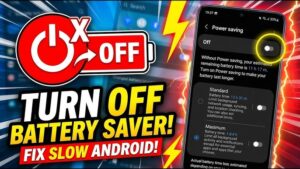
Battery Saver is a blunt instrument. It applies the same restrictions across your entire phone, regardless of which apps are actually the problem.
A phone with one badly behaved app draining 40% of your battery gets the same treatment as a phone that’s just being used a lot. You end up with a slower, dimmer phone that still runs out of charge sooner than it should.
There’s also a trade-off most people underestimate. Battery Saver disables background app refresh and delays notifications for nearly everything, not just the problem apps.
If you rely on messaging apps or delivery updates, that delay gets old fast. Most people switch Battery Saver off within a day or two, still not knowing what was draining the battery in the first place.
Find What’s Actually Draining Your Battery
Before changing anything, check where your battery is actually going. On most phones, this is under Settings, then Battery, then Battery Usage.
The exact wording varies. Samsung calls it Battery and Device Care, Pixel just says Battery.
Look at two numbers separately: percentage used, and screen time versus background time. An app that used 15% in 10 minutes of screen time is very different from one that used 15% over 8 hours in the background.
A navigation app using battery while open and giving directions is expected. A weather widget burning battery while closed is not, and that’s exactly what this screen surfaces.
Most Android versions let you tap into an app for more detail. Look for “kept awake,” “woke up device,” and “background activity” as separate items.
An app with a high “woke up device” count is repeatedly pulling your phone out of sleep. That’s more disruptive than passive background usage that doesn’t wake the screen.
Common Background Drain Culprits
A few categories of apps are repeat offenders. Social media apps with aggressive background refresh, like Facebook and Instagram, preload content far more often than most apps need.
Fitness trackers that poll GPS constantly, even when you’re not exercising, are another common one. So are apps with a persistent notification that keeps a background service alive around the clock.
Games with push notifications for events or rewards also wake your phone more than people realize. Each check often involves a brief network request, even when nothing new happened.
Restrict Background Activity Per App Instead of Globally
Rather than throttling the whole phone, restrict background activity for specific apps. Go to Settings, Apps, select the app, then Battery, and set it to Restricted.
Restricted apps still work normally when you open them. They just can’t check for updates in the background between uses.
This is the key advantage over Battery Saver. The app isn’t disabled, it’s just prevented from doing things you weren’t going to notice anyway.
Do this only for apps you don’t need instant notifications from. If you restrict a messaging app you rely on, you’ll notice delayed messages.
Games, shopping apps, and social apps you open deliberately are usually safe to restrict. You won’t notice anything missing day to day.
Adjust Screen Settings, Since the Display Is Usually the Biggest Drain
The display is typically the single largest battery consumer on most phones. It often uses more than the processor and cellular radio combined during normal use.
- Lower your screen timeout to 30 seconds. Every extra minute the screen stays lit adds up over a full day.
- Switch to dark theme if you have an OLED or AMOLED display, which is most phones from the last several years. Black pixels are essentially turned off on this display type. On an LCD screen, dark mode makes no real difference.
- Use adaptive brightness. It keeps brightness matched to your surroundings instead of running higher than necessary indoors.
- Drop to 60Hz if your phone has a fixed high refresh rate with no adaptive option. High refresh screens use more power, and this extends battery life at the cost of slightly less smooth scrolling.
Check Location Services Settings
GPS is a major drain when apps access your location constantly instead of only while you’re using them. Go to Settings, Location, App Permissions, and check which apps have “Allow all the time.”
Very few apps genuinely need this. Weather and shopping apps only need location while you’re actively using a specific feature.
Set most apps to “Allow only while using the app.” Reserve “Allow all the time” for things that truly need it, like a family locator or a fitness tracker logging a route.
This single change is often responsible for a noticeably longer battery day. Continuous GPS polling is one of the more power-intensive background tasks a phone can run.
Manage Sync and Notification Load
Every account syncing in the background uses some battery, even when nothing new has arrived. This isn’t a large drain from any single account, but it adds up across several.
If you have multiple email accounts syncing constantly, switch non-urgent ones to Wi-Fi only. Or reduce sync frequency from real-time to every 15 or 30 minutes.
Push notifications themselves are lightweight. What isn’t lightweight is apps that use a notification as a trigger to refresh unrelated data in the background.
Turn off notification categories you rarely act on. This reduces both annoyance and the background wake-ups that often come with them.
Battery Health Matters More Than People Assume
If your phone is more than two years old and battery life has gotten worse despite no change in habits, the battery may have degraded. Lithium-ion batteries lose capacity gradually with charge cycles.
By roughly 500 to 800 full cycles, about one to two years of daily charging, it’s normal to see 10 to 20% less usable capacity than when the phone was new.
Some phones show battery health directly under Settings, Battery, Battery Information. If yours doesn’t, a gradual drop in screen-on time over months, rather than a sudden change after an update, points toward battery wear.
In that case, background optimization helps somewhat, but it won’t fully restore the battery life you remember. A replacement is the more effective fix if the phone otherwise still meets your needs.
What to Avoid
Task killer apps that force-close everything often cause more drain, not less. The system has to relaunch those apps from scratch next time, which uses more power than resuming a suspended copy.
Modern Android manages background apps efficiently on its own. A killer app forcing constant restarts usually works against you, not for you.
Habitually swiping away apps from recent apps also doesn’t help much. It’s more effective to restrict background permissions for the specific apps causing problems, identified through the Battery Usage screen.
How Adaptive Battery Changes Things
Android’s Adaptive Battery feature uses on-device machine learning to predict which apps you’ll use soon. It restricts background activity for apps it predicts you won’t touch.
This runs quietly with no configuration needed. It explains a pattern some people notice: a rarely opened app suddenly sends delayed notifications, not because anything broke, but because it landed in a lower-priority standby bucket.
Check whether it’s enabled under Settings, Battery, Adaptive Battery. For most people this should stay on.
If an app you use daily seems deprioritized incorrectly, opening it more consistently over a few days usually corrects its standby bucket. The system adjusts based on actual recent usage.
Network Mode Has a Bigger Effect Than Most People Expect
Your connection type affects battery life more than screen brightness in some situations, especially with weak signal. A phone constantly searching for 5G in an area with spotty coverage drains faster than one on stable 4G.
The radio works harder to maintain the higher-bandwidth connection, even when you’re not using data-intensive features. In areas with inconsistent 5G, switching to “4G/LTE preferred” under Settings, Network & Internet, SIMs, Preferred Network Type can noticeably extend battery life.
This trade-off matters less in areas with strong, consistent 5G. There the radio isn’t working as hard to maintain the connection.
Always-On Display Costs More Than It Looks Like It Should
Always-On Display feels minor since it’s just a dim clock and a few icons. But on phones without an efficient low-power implementation, it can account for 3 to 5% of daily battery use.
This varies by phone. Some OLED panels handle it efficiently since only a small area lights up. Others draw more power depending on refresh frequency.
Test a day with AOD off against a day with it on. Check Settings, Battery, Battery Usage afterward for the screen category to see the real difference on your specific device.
Manufacturer-Specific Battery Tools Worth Checking
Beyond stock Android, most manufacturers add their own battery layer. These are worth exploring, since they sometimes offer more control, and sometimes cause problems of their own.
- Samsung includes Battery and Device Care with a “Put unused apps to sleep” feature. It lets you set apps to Sleep, Deep Sleep, or Never Sleep individually.
- Xiaomi’s MIUI is notoriously aggressive by default. It sometimes kills background apps you actually want, like messaging apps that then deliver notifications late. Check Security app, Battery, App Battery Saver, and set important apps to “No restrictions.”
- OnePlus and similar OEMs sometimes include an “Advanced Optimization” toggle that closes background apps more aggressively than stock Android. Disable it for apps you need running consistently.
Frequently Asked Questions
Does closing apps I’m not using help battery life?
Not meaningfully, for apps already suspended by Android’s memory management. Relaunching an app from scratch uses more power than resuming one the system already cached.
Is it bad to charge my phone overnight?
Modern phones stop charging once they hit 100%, so this isn’t the concern it once was. Some phones offer “Protect Battery” or “Adaptive Charging” to slow charging overnight and reduce long-term wear. It doesn’t meaningfully change single-day battery life either way.
Do widgets drain battery even when I’m not looking at my home screen?
Some do. Widgets that refresh live data, like weather or stock prices, periodically wake the phone briefly, even with the screen off. The effect is usually smaller than background permissions or screen settings.
Third-Party Battery Apps: What’s Actually Worth Trusting
Battery monitoring apps that promise to “boost” your battery are mostly not worth installing. Many just duplicate what Android’s Battery Usage screen already shows, wrapped in ads.
A few genuinely useful ones focus on tracking discharge rate over time rather than promising a fix. AccuBattery is a common example, since it logs charge cycles and helps estimate battery health on phones that don’t expose that number directly.
Avoid anything that asks for accessibility permissions just to “optimize” your battery. That level of access is disproportionate to what a battery app actually needs, and it’s a common pattern in low-quality apps.
How Weather and Temperature Affect Battery Life
Battery chemistry is sensitive to temperature, not just charge cycles. Using your phone in direct sunlight or a hot car seat can reduce both current battery life and long-term capacity.
Cold weather has a different effect. Lithium-ion batteries temporarily show less available capacity in cold conditions, which is why phones sometimes seem to drain faster in winter, even without any change in usage.
This isn’t permanent damage from cold exposure alone. The battery returns to its normal capacity once it warms back up, unlike heat damage, which can be cumulative over time.
Checking for a Specific App Bug After an Update
Sometimes battery drain starts suddenly right after updating a specific app, not a system update. A bug in that update can cause a background process to loop or fail to release resources properly.
If drain started right after updating one app specifically, check that app’s reviews on the Play Store for other users reporting the same pattern. Developers usually push a fix within days once this is widely reported.
In the meantime, restricting that specific app’s background activity, covered earlier, limits the damage until a fix arrives.
Battery Calibration: Does It Actually Help?
Older advice suggested periodically draining your phone to 0% and charging to 100% to “recalibrate” the battery percentage. This made more sense on older battery technology and isn’t necessary on modern phones.
Modern phones use more accurate internal sensors that don’t drift the way older ones did. Regularly draining to 0% is actually mildly harder on long-term battery health, not better for it.
If your battery percentage reading seems inaccurate, a full charge to 100% without interruption is usually enough to correct it, without needing a full drain first.
Dark Mode Across the System, Not Just in Apps
Enabling dark mode for individual apps helps, but system-wide dark theme goes further. Go to Settings, Display, and turn on Dark Theme at the system level.
This affects Settings menus, notification shade, and any app that respects the system theme automatically, not just the ones you’ve manually switched. On an OLED screen, this adds up across everything you interact with throughout the day, not just your most-used apps.
Some apps still ignore system dark mode and need to be switched individually within their own settings. It’s worth checking your most-used apps specifically if they don’t seem to follow the system setting.
Volume and Haptic Feedback: Small but Real Contributors
Haptic feedback, the vibration when you tap a key or button, uses a small amount of power every single time it fires. On a phone with heavy typing use throughout the day, this adds up more than most people expect.
Reducing haptic intensity or turning off keyboard vibration specifically, found under Settings, Sound & Vibration, or within your keyboard app’s own settings, is a minor but genuinely free change. It won’t transform your battery life on its own, but it’s worth doing alongside the bigger changes above.
The same logic applies to system animations. Reducing animation scale under Developer Options makes transitions feel snappier and shaves a tiny amount of processing time off every screen change, though the battery impact here is smaller than most of the other changes covered.
When a Software Update Itself Causes Temporary Drain
It’s normal for battery life to dip for a day or two right after a major Android update. The system is re-indexing files, rebuilding caches, and apps are re-optimizing themselves in the background.
This settles on its own within 24 to 48 hours in most cases. If drain is still noticeably worse a week after an update, that’s no longer normal settling behavior, and it’s worth going back through the Battery Usage screen to check for a specific app causing the ongoing problem.
Conclusion
Battery Saver treats every app the same, which is why it never feels like a lasting fix.
Finding your actual drain sources, whether that’s a specific app running unrestricted, location permissions set too broadly, a screen timeout left too long, or a network mode fighting for signal, gets you real battery life improvements. And it doesn’t cost you the responsiveness Battery Saver takes away.
If you’ve made these changes and battery life is still worse than it used to be, check battery health specifically. No software setting fixes a hardware issue underneath.
If you think there’s been a mistake here, please do let us know by commenting on this post or Contact Us. And a member of our Content Integrity Team will review this decision with you.


