

If you want to improve your iPhone battery lifespan, focus on two things that have the biggest long-term effect: heat and charging habits. You do not need to stop charging overnight, avoid using your phone while it charges, or obsess over keeping the battery at exactly 50%. Modern iPhones already manage charging intelligently, but a few settings and everyday habits can reduce unnecessary battery wear.
The battery inside an iPhone is a rechargeable lithium-ion battery. Like all batteries of this type, it gradually loses capacity as it chemically ages. How quickly that happens depends on factors such as temperature, charging patterns, and how heavily the phone is used.
What Actually Affects iPhone Battery Lifespan?
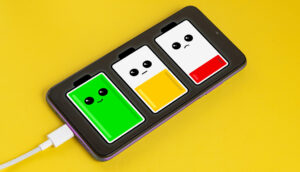
There is an important difference between battery life and battery lifespan.
Battery life describes how long your iPhone runs before you need to charge it. Battery lifespan describes how long the battery remains capable of holding a useful amount of charge before its capacity has significantly declined.
You can improve daily battery life by reducing screen brightness or disabling certain background activities. Those changes may make the phone last longer between charges, but they do not necessarily prevent normal chemical aging of the battery.
Battery lifespan is influenced more by factors such as:
- How much the battery is charged and discharged over time
- How long the phone remains at very high charge levels
- Exposure to high temperatures
- Charging habits
- General usage patterns
- The battery’s age and previous charge-cycle history
Apple describes battery aging as a combination of several factors rather than something determined by one particular charging habit.
That means there is no magic percentage that completely stops battery degradation. The goal is to reduce unnecessary stress without making the phone inconvenient to use.
Keep Your iPhone Cool While Charging
If you change only one battery-care habit, make it this one.
Heat can accelerate battery aging. Apple specifically warns that using or charging an iPhone in ambient temperatures above 35°C (95°F) can permanently reduce battery lifespan. Apple considers 16°C to 22°C (62°F to 72°F) an ideal ambient temperature range for iPhone operation.
This matters because charging naturally produces some heat. Activities such as gaming, GPS navigation, camera use, video streaming, and wireless charging can also increase the phone’s temperature. Combining several of these activities while charging can make the device noticeably warmer.
Try to avoid charging your iPhone:
- In direct sunlight
- Inside a hot car
- Under a pillow or blanket
- In an enclosed space where heat cannot escape
- While the phone is already unusually hot
- In very hot outdoor conditions
If your iPhone becomes warm during charging, move it to a cooler location and remove anything that is trapping heat.
You do not normally need to force the phone to cool down with extreme measures. Let it return to a normal temperature naturally.
What if charging stops at 80%?
Do not assume the battery or charger is defective.
iOS can temporarily limit charging when the iPhone becomes too warm or too cold. Charging can slow down or pause until the device returns to an appropriate temperature.
This is a protection mechanism, not necessarily a fault.
Use a Charge Limit on iPhone 15 and Later
If you have an iPhone 15 or newer, one of the most useful battery-lifespan features is Charge Limit.
It allows you to choose a maximum charge level between 80% and 100%, in 5% increments. Once the phone reaches the selected limit, it stops charging. Apple provides this feature specifically to help reduce battery wear, particularly for people who frequently charge their iPhone or leave it connected to power for long periods.
To configure it:
- Open Settings.
- Tap Battery.
- Tap Charging.
- Select your preferred charge limit.
An 80% limit can make sense if you usually have easy access to a charger during the day and want to prioritize long-term battery health.
However, there is no requirement to use 80%. If an 80% limit leaves you constantly searching for a charger, choose a higher limit. A setting that fits your routine is more useful than an aggressive limit that makes the phone inconvenient to use.
Apple also allows the iPhone to recommend a charge limit based on your charging habits.
Does setting the limit to 80% always make the most sense?
Not necessarily.
If you regularly need your iPhone to last from morning until late at night, limiting it to 80% may force you to recharge more often. In that situation, a 90% or 95% limit may be a better compromise.
The purpose of the feature is to reduce unnecessary battery wear, not to prevent you from using the battery capacity you paid for.
Also, iPhone may occasionally charge to 100% even when a lower charge limit is enabled. Apple says this helps maintain accurate battery state-of-charge estimates.
Turn On Optimized Battery Charging
If you have an iPhone model that does not offer the newer Charge Limit feature, Optimized Battery Charging is particularly useful.
When enabled, the iPhone can pause charging around 80% and wait before completing the remaining charge when it predicts that the phone will stay connected to power for an extended period. The aim is to reduce the amount of time the battery spends fully charged.
On iPhone 14 and earlier:
- Open Settings.
- Tap Battery.
- Tap Battery Health & Charging.
- Make sure Optimized Battery Charging is enabled.
On iPhone 15 and later, charging controls are under Settings > Battery > Charging. Optimized Battery Charging is available when the charge limit is set to 100%.
Optimized Battery Charging needs time to learn your routine. It may not activate consistently if your charging schedule changes frequently or you travel often.
So if you plug your iPhone in at night and notice that it sometimes reaches 100% immediately, that does not necessarily mean the feature is broken.
Do Not Wait Until the Battery Reaches 0%
You do not need to completely drain an iPhone battery before charging it.
Lithium-ion batteries do not require the old-fashioned practice of regularly running the battery all the way down before recharging. Apple explicitly states that you can charge your iPhone even when the battery is not fully depleted.
Partial charging is normal.
For example, charging from 40% to 70% and later from 35% to 80% is not inherently harmful. A charge cycle is based on using a total amount equivalent to 100% of the battery’s capacity, not on how many times you connect the charger.
This gives you flexibility. If you are at 45% and know you will be away from a charger for several hours, charging now is perfectly reasonable.
Charging Overnight Is Not Automatically Bad
There is a persistent idea that leaving an iPhone connected overnight will “overcharge” the battery.
Modern iPhones are designed to manage charging automatically. Apple says the iPhone stops charging when the battery is fully charged and can resume charging if the battery level subsequently falls.
The bigger concern is not simply that the phone is plugged in overnight. It is the amount of time the battery remains at a high charge level and the temperature of the device.
This is one reason Optimized Battery Charging exists. It can delay charging beyond 80% and finish closer to the time you normally unplug the phone.
So if overnight charging is part of your routine, you do not need to abandon it. Keep charging optimizations enabled and make sure the phone is not getting excessively hot.
Be Careful With Heat From Wireless Charging
Wireless charging is convenient, but it can generate more heat depending on the charger, alignment, case, charging conditions, and surrounding temperature.
That does not mean you should avoid wireless charging entirely. It means temperature is more important than whether the charger is wired or wireless.
If your iPhone becomes noticeably hot while charging wirelessly, try moving it to a cooler location or removing a case that traps heat. Apple also recommends removing a case if the device tends to heat up while charging.
If the phone is already hot, giving it time to cool before continuing to charge is more useful than worrying about whether wireless charging itself is “bad.”
Avoid Using Your iPhone Intensively While It Is Hot
Using an iPhone while it charges is not inherently a problem.
The situation becomes different when charging is combined with demanding workloads and high ambient temperatures. A graphics-intensive game, GPS navigation, camera recording, or high-quality video streaming can produce additional heat while the battery is already charging.
If you notice your iPhone getting hot during a particular activity, the practical solution is to reduce the workload or stop charging temporarily until the phone cools.
This is especially relevant in hot climates. The same charging behavior that feels harmless in a cool indoor room can produce much more heat in a hot car or outdoors under direct sunlight.
Use Battery Settings to Find What Is Draining Your Battery
Battery lifespan and battery life are different, but excessive battery drain can still be useful to investigate.
If your iPhone suddenly needs charging much more often than before, open:
Settings > Battery
The Battery section can show which apps and activities are consuming the most energy.
Look for unusually high usage from things such as:
- Video or social media apps
- Games
- Navigation
- Camera activity
- Background activity
- Weak cellular coverage
- Excessive screen-on time
Do not automatically disable every feature that appears in the list. First identify whether the usage is expected.
For example, if you spent two hours playing a graphics-intensive game, seeing that game near the top of the battery list is normal. If an app you rarely use consistently consumes significant power in the background, that deserves further investigation.
Reducing unnecessary battery consumption can mean fewer charging sessions over the long term, although normal charging itself is not something you need to avoid.
Keep Your iPhone and Apps Updated
Software updates can sometimes affect battery behavior temporarily.
After installing a major iOS update, your iPhone may perform background tasks such as indexing files, processing photos, or completing other system work. That can cause increased battery usage for a period of time. Apple also identifies software updates and device restoration as situations where an iPhone can become warmer temporarily.
Do not immediately conclude that a new iOS version has permanently damaged your battery because the phone runs warmer or drains faster shortly after an update.
Give the device time to finish background processing, then check its battery behavior again.
Keeping iOS reasonably up to date is also useful because battery management features and system behavior can change between versions.
Check Your iPhone Battery Health
If you are concerned about battery lifespan, check the information iOS provides rather than relying only on how quickly the percentage appears to fall.
On supported iPhones, open:
Settings > Battery > Battery Health & Charging
The exact options vary by iPhone model and iOS version.
Battery health gives you an indication of the battery’s maximum capacity compared with when it was new. As lithium-ion batteries chemically age, their ability to hold charge decreases, and an aging battery can also affect peak performance.
Do not treat the percentage as a score that must remain perfect. Battery capacity naturally declines with use.
Apple says batteries in iPhone 14 models and earlier are designed to retain 80% of their original capacity at 500 complete charge cycles under ideal conditions. iPhone 15 models and later are designed for 80% at 1,000 complete charge cycles under ideal conditions. Actual results vary according to how the phone is used and charged.
The phrase under ideal conditions matters. These figures are not guarantees for every iPhone.
Know When Battery Replacement Makes More Sense
Battery-care settings cannot reverse chemical aging.
If your iPhone’s battery has degraded substantially, changing charging habits may slow future wear, but it will not restore the lost capacity.
Signs that it may be time to investigate battery service include:
- Battery capacity has become significantly reduced
- The phone shuts down unexpectedly
- Battery life has become impractical for your normal use
- iOS reports a battery service recommendation
- Performance is affected by an aged battery
Apple provides battery service options for iPhones with aging batteries.
A battery replacement can be more practical than trying to make an old battery behave like a new one through increasingly restrictive settings.
Common iPhone Battery Mistakes to Avoid
Some battery advice found online is either outdated or unnecessarily restrictive.
You do not need to:
- Drain the battery to 0% before charging
- Wait until the battery is nearly empty every time
- Avoid charging overnight completely
- Keep the battery at exactly 50%
- Turn off Wi-Fi and Bluetooth simply to protect battery health
- Stop using your iPhone while it is connected to a charger
- Constantly unplug and reconnect the charger to prevent “overcharging”
Apple specifically says partial charging does not harm the battery, and Wi-Fi and Bluetooth are designed to consume minimal power when they are not connected to a network or accessory.
The more useful approach is to avoid excessive heat, use Apple’s charging optimizations, and charge the phone according to your actual needs.
A Practical Battery Routine for Everyday iPhone Use
You do not need a complicated charging schedule.
For an iPhone 15 or newer, consider setting a charge limit that matches your routine. If 80% comfortably gets you through the day, use it. If it does not, try 90% or 95% instead.
For an older compatible iPhone, keep Optimized Battery Charging enabled.
Charge whenever convenient rather than deliberately running the battery down. If the phone becomes hot, address the temperature instead of continuing to charge it under the same conditions.
If you regularly charge overnight, keep the phone in a cool, ventilated location. Avoid charging it underneath bedding or inside a hot vehicle.
Finally, check Battery settings when your battery life changes unexpectedly. The goal is to identify unusual behavior rather than disable useful features at random.
How to Improve iPhone Battery Lifespan Without Making the Phone Harder to Use
The best battery routine is one you can maintain without constantly thinking about the battery percentage.
If your iPhone 15 or newer supports Charge Limit, use it when a lower maximum charge fits your day. If you need more capacity, increase the limit. On older models, Optimized Battery Charging can reduce the time the battery spends fully charged.
Most importantly, protect the phone from excessive heat. High temperatures are one of the clearest environmental factors that can permanently shorten battery lifespan, so avoiding hot charging conditions is more useful than following complicated charging rituals.
And remember that batteries are consumable components. Even with excellent care, an iPhone battery will eventually lose capacity. The purpose of good battery habits is not to stop aging, but to reduce avoidable wear and keep the battery useful for as long as reasonably possible.
Conclusion
To improve iPhone battery lifespan, concentrate on the habits that actually matter: keep the device cool, use Charge Limit on supported iPhones when it suits your routine, leave Optimized Battery Charging enabled when available, and charge whenever you need to rather than deliberately draining the battery.
You do not need to obsess over reaching a particular percentage or avoid overnight charging. Modern iPhones already include charging and temperature protections designed to manage these situations.
The most practical approach is simple: avoid excessive heat, reduce unnecessary time at very high charge levels, monitor Battery Health, and replace an aging battery when normal use becomes difficult. Those habits give you a much better chance of getting useful service from your iPhone battery without turning everyday charging into a chore.
If you think there’s been a mistake here, please do let us know by commenting on this post or Contact Us. And a member of our Content Integrity Team will review this decision with you.




