

When iPhone Face ID stops working, the problem is often caused by something simple such as a blocked TrueDepth camera, incorrect Face ID settings, an outdated version of iOS, or the way the phone is positioned. However, Face ID can also stop working after physical damage or a repair involving the front camera system. The best approach is to start with the easy checks, then move toward resetting Face ID and checking for hardware-related problems if the basic fixes fail.
Apple recommends checking the camera area, Face ID settings, your face position, iOS updates, and the device itself before resetting Face ID.
Why Is Face ID Not Working on Your iPhone?
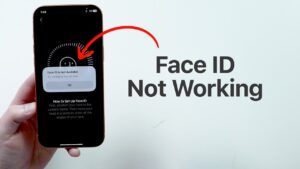
Face ID uses the iPhone’s TrueDepth camera system to capture depth information and an infrared image of your face. The phone compares that information with the facial representation created when Face ID was originally enrolled. Because the system depends on several sensors working together, a problem with the camera area, settings, software, or hardware can prevent authentication.
There is also an important distinction between Face ID temporarily refusing to unlock the phone and Face ID being completely unavailable. Your iPhone may intentionally request the passcode after certain security-related events, such as restarting the device. In that situation, Face ID itself may be working normally.
If Face ID repeatedly fails under normal conditions, or you cannot complete Face ID setup at all, troubleshooting becomes more important.
1. Clean the TrueDepth Camera Area
Start with the simplest possibility: something may be interfering with the sensors at the top of the iPhone’s display.
The TrueDepth camera needs a clear view of your face. Fingerprints, dust, oil, a smudge, a poorly positioned screen protector, or a case that extends too far around the camera area can interfere with Face ID. Apple specifically recommends removing anything that may cover the TrueDepth camera.
Use a clean, soft, lint-free cloth to gently wipe the area around the front camera and sensors. Do not spray cleaning liquid directly onto the iPhone.
If you have recently installed a screen protector, check its alignment carefully. A protector can appear correctly installed while still partially interfering with the sensor area.
After cleaning it, lock your iPhone and try Face ID again.
If Face ID works immediately afterward, there is no need to reset your facial data or change other settings.
2. Check Your Face and iPhone Position
Face ID needs to see enough of your face for authentication. Hold the iPhone naturally in front of you and make sure your eyes, nose, and mouth are not unnecessarily covered.
Apple recommends keeping the iPhone approximately 10 to 20 inches, or 25 to 50 cm, from your face. This is roughly the distance you would normally hold the phone while looking at it.
Your position also matters depending on the iPhone model and software version. Face ID supports portrait and landscape use on iPhone 13 models and later when running iOS 16 or later. Earlier iPhone models generally require the phone to be held in portrait orientation for Face ID.
Try this simple test:
- Wake the iPhone.
- Hold it directly in front of your face.
- Keep your face unobstructed.
- Look toward the TrueDepth camera.
- Hold the phone at a normal arm’s-length viewing distance.
- Wait briefly for Face ID to authenticate.
If it works in this position but fails when the phone is held at an unusual angle or very close to your face, the problem may be positioning rather than a hardware failure.
Check Sunglasses, Masks, and Other Face Coverings
Most sunglasses work with Face ID, but certain sunglasses can interfere with the infrared light used by the TrueDepth system. If Face ID suddenly stopped recognizing you while wearing a particular pair of sunglasses, remove them and test again.
Face ID with a mask is supported on iPhone 12 and later with iOS 15.4 or later. The feature needs to clearly see your eyes, and Apple says Face ID with a mask does not work in landscape orientation.
3. Make Sure Face ID Is Enabled for the Feature You Need
Face ID can work for unlocking your iPhone while being disabled for another task, such as App Store purchases or authentication inside an app.
Open:
Settings > Face ID & Passcode
Enter your passcode when prompted.
Under the Use Face ID For section, check the options you actually want to use. Depending on your iPhone and configuration, these can include iPhone Unlock, iTunes & App Store, Wallet & Apple Pay, Password AutoFill, and other supported features.
If Face ID unlocks the phone but does not work inside a particular app, the problem may be limited to that app or its Face ID permission rather than Face ID itself.
You can also check the app permissions under Settings > Face ID & Passcode > Other Apps. Apple provides this section for controlling which supported apps can use Face ID for authentication.
This distinction can save you from resetting Face ID unnecessarily.
4. Restart Your iPhone
A restart is useful when Face ID has stopped responding because of a temporary software problem.
Before restarting, save anything important you are working on. Then restart the iPhone using the normal shutdown procedure for your model.
After the iPhone starts again, enter your passcode once. Apple specifically recommends restarting the device and then entering the passcode before testing Face ID again.
This matters because iOS requires the passcode after a restart before Face ID can be used again. Seeing a passcode prompt immediately after restarting does not mean Face ID is broken.
Once you have entered the passcode, lock the phone and test Face ID normally.
If Face ID works after the restart but stops again later, pay attention to what happens immediately before the problem returns. That can help distinguish a temporary software issue from a persistent hardware or configuration problem.
5. Update iOS
An outdated version of iOS can contribute to device problems, and Apple recommends updating the iPhone to the latest available version when troubleshooting Face ID.
To check for an update, open:
Settings > General > Software Update
If an update is available, read the update information and install it when convenient.
Keep the iPhone connected to power if necessary and make sure it has enough available storage for the update.
After the update finishes, test Face ID again.
Do not assume that an iOS update will fix every Face ID problem. Software updates can address software-related problems, but they cannot repair a damaged TrueDepth camera or a physical component that is no longer functioning correctly.
6. Check Whether Face ID Is Completely Unavailable
Pay attention to what the iPhone actually tells you.
There is a significant difference between:
- Face ID failing to recognize you occasionally
- Face ID repeatedly failing to recognize you
- Face ID being disabled
- Being unable to set up Face ID
- The front camera also behaving incorrectly
If the iPhone lets you open Settings > Face ID & Passcode and offers the option to set up Face ID, the situation is different from an iPhone that refuses to complete the enrollment process.
Try selecting Set Up Face ID and follow the onscreen instructions. Apple says Face ID setup requires positioning your face inside the frame and moving your head gently to complete the scan.
If setup completes successfully, test Face ID again.
If setup repeatedly fails, especially if the camera itself is also malfunctioning, continue with the hardware checks rather than repeatedly attempting the same enrollment process.
7. Reset Face ID and Set It Up Again
If the camera is unobstructed, your settings are correct, the iPhone is updated, and restarting did not help, resetting Face ID is one of the most useful software troubleshooting steps.
Resetting Face ID removes the currently enrolled facial data from the device. You will then need to scan your face again.
Go to:
Settings > Face ID & Passcode > Reset Face ID
Then select Set Up Face ID and follow the instructions.
Apple recommends resetting Face ID and setting it up again when the earlier troubleshooting steps do not resolve the problem.
During setup, position the phone correctly and move your head slowly when instructed. If you have difficulty moving your head through the full range required during setup, Apple provides an Accessibility Options choice during enrollment.
Resetting Face ID is appropriate when the system can still access the TrueDepth hardware but recognition appears to be malfunctioning.
It is less likely to help when the phone has physical damage or cannot access the TrueDepth camera at all.
8. Add an Alternate Appearance if Your Appearance Has Changed
Face ID is designed to adapt to normal changes in your appearance. However, if you regularly have two significantly different appearances, Apple provides an Alternate Appearance option.
For example, a major change in facial hair, makeup, or another substantial change in appearance can affect recognition in some situations.
To add one, go to:
Settings > Face ID & Passcode > Set Up an Alternate Appearance
Follow the onscreen instructions.
Do not use this option as the first response to every Face ID failure. If Face ID suddenly stopped working after the phone was dropped, for example, adding an alternate appearance is unlikely to address the underlying problem.
9. Check for Damage or a Recent Repair
A history of physical damage or repair is one of the strongest clues that a Face ID problem may be hardware-related.
Think about what happened before Face ID stopped working. Did the iPhone fall? Was the screen replaced? Was the front camera repaired? Did the problem begin immediately after a repair?
The TrueDepth camera system is closely tied to Face ID. Apple warns that improper repair, modification, or the use of nongenuine components in the relevant camera and laser systems can affect functionality.
Apple also explains that a Face ID issue can appear after certain front-camera repairs, including situations involving a nongenuine part, an incorrectly functioning component, or incomplete calibration.
This is why repeatedly resetting Face ID may not help after a repair.
If Face ID stopped working immediately after a screen or front-camera replacement, return to the repair provider and explain that Face ID stopped functioning after the repair. A qualified technician can inspect the relevant hardware and repair status.
Avoid attempting to repair the TrueDepth system yourself. The system contains components that require proper servicing and calibration.
10. Check the Front Camera
Open the Camera app and switch to the front-facing camera.
Take a photo and record a short video. Check whether the front camera behaves normally.
A malfunctioning front camera does not prove that Face ID hardware is damaged, because Face ID uses a more specialized TrueDepth system than the ordinary selfie-camera function. Still, camera problems combined with Face ID failure are a useful warning sign.
Apple states that if the camera is not working and you cannot set up Face ID, the iPhone may require service.
If the front camera shows a black image, behaves unpredictably, or produces other unusual symptoms at the same time that Face ID has stopped working, professional diagnosis makes more sense than continuing with software resets.
Common Face ID Problems and What to Try
| Problem | What to try first |
|---|---|
| Face ID suddenly stopped recognizing you | Clean the TrueDepth camera and check your position |
| Face ID works sometimes | Remove sunglasses or face coverings and hold the iPhone at a normal distance |
| Face ID does not unlock the phone | Check Face ID settings, restart the iPhone, then test again |
| Face ID works for unlocking but not an app | Check Settings > Face ID & Passcode > Other Apps |
| Face ID stopped after an iOS problem | Install the latest iOS update |
| Face ID setup will not complete | Clean the camera area and try enrollment again |
| Face ID stopped after a repair | Contact the repair provider or Apple for inspection |
| Face ID and the front camera both have problems | Consider professional service |
| Face ID is disabled after physical damage | Seek qualified service rather than repeatedly resetting it |
Why Face ID Sometimes Asks for Your Passcode
Before assuming Face ID is broken, remember that an iPhone does not always use Face ID.
There are circumstances where iOS intentionally requires the passcode as an additional security measure. For example, a restart requires passcode authentication before Face ID can be used again.
This is different from Face ID failing to recognize your face.
If you enter your passcode and Face ID immediately works on subsequent unlocks, there may be no Face ID fault at all.
A useful test is to lock the iPhone after entering the passcode and then attempt several normal unlocks. If Face ID continues working, the earlier passcode request was likely expected behavior rather than a malfunction.
What to Do If Face ID Still Does Not Work
If you have cleaned the TrueDepth camera, checked your position, confirmed the settings, restarted the iPhone, installed available iOS updates, and reset Face ID, the remaining possibilities increasingly point toward a hardware or repair-related issue.
The strongest warning signs are:
- Face ID cannot be set up at all.
- The iPhone reports that Face ID has been disabled.
- The problem started after a drop or other physical damage.
- The problem started immediately after a screen or camera repair.
- The front camera is also malfunctioning.
- Resetting Face ID does not allow a new facial scan to complete.
At this point, professional service is preferable to repeatedly changing settings.
Apple recommends service when the camera is not working and Face ID cannot be set up. Apple also advises that TrueDepth-related repairs should be performed by trained technicians using appropriate genuine components.
If the iPhone was recently repaired by a third party, contacting that repair provider first may be practical. If the repair was performed through Apple or an authorized provider, contact that provider for diagnosis.
Mistakes to Avoid When Troubleshooting Face ID
One common mistake is immediately resetting Face ID without checking the camera area. If a screen protector or case is blocking part of the TrueDepth system, resetting your facial data will not remove the obstruction.
Another mistake is assuming that every passcode request means Face ID has failed. Some passcode requests are normal security behavior, particularly after restarting the iPhone.
It is also a bad idea to repeatedly force Face ID setup when the phone cannot access the required hardware. If enrollment consistently fails after the basic checks, repeated attempts are unlikely to repair a physical problem.
Finally, be cautious with unofficial repair advice involving the TrueDepth camera. Face ID is not simply a software feature that can be restored by installing an app or changing a hidden setting. Its operation depends on dedicated hardware, and improper repair can create additional problems.
Conclusion
If your iPhone Face ID is not working, start with the least invasive fixes: clean the TrueDepth camera, remove anything covering your face or the sensor area, hold the phone at a normal distance, and check Settings > Face ID & Passcode. Restarting the iPhone and installing the latest iOS version are also sensible next steps.
If those steps fail, reset Face ID and enroll your face again. This can resolve problems with the stored Face ID configuration, but it will not fix damaged hardware.
The situation changes when Face ID stopped working after a drop, screen replacement, front-camera repair, or other physical intervention.
If you also cannot complete Face ID setup or the camera is malfunctioning, professional service is the appropriate next step. Apple specifically recommends trained technicians and genuine components for repairs involving the TrueDepth camera system.
The key is to identify whether you are dealing with a positioning or settings problem, a temporary software issue, or a hardware fault. Once you know which category the problem falls into, you can avoid unnecessary resets and focus on the fix most likely to restore Face ID.
If you think there’s been a mistake here, please do let us know by commenting on this post or Contact Us. And a member of our Content Integrity Team will review this decision with you.




