

Wi-Fi Calling is useful when your iPhone has a weak cellular signal but a reliable Wi-Fi connection. When it works correctly, you can make and receive calls through Wi-Fi without relying entirely on nearby cellular coverage. Problems start when Wi-Fi Calling will not turn on, calls fail, the feature keeps disconnecting, or your iPhone switches back to the mobile network unexpectedly.
The good news is that most iPhone Wi-Fi Calling issues come down to a small number of causes: an unsupported carrier or plan, incorrect settings, a weak or restricted Wi-Fi connection, outdated carrier settings, or a temporary network problem. The right fix depends on where the failure occurs, so it is better to check the basics first rather than immediately resetting the entire phone.
Check Whether Wi-Fi Calling Is Available for Your Carrier
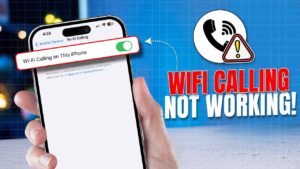
Before changing settings on your iPhone, confirm that your mobile carrier supports Wi-Fi Calling for your account and location. Carrier support can vary by country, plan, SIM type, and even prepaid versus postpaid service.
On your iPhone, go to:
Settings > Cellular or Settings > Mobile Data
Then select your phone line and look for Wi-Fi Calling. On some iPhones and iOS versions, you can also find it through:
Settings > Apps > Phone > Wi-Fi Calling
If the Wi-Fi Calling option is completely missing, the problem may not be your Wi-Fi network. Your carrier may need to enable the service, your plan may not support it, or the feature may be unavailable in your region.
If you recently changed carriers, moved your SIM to a new iPhone, or converted from a physical SIM to eSIM, restarting the activation process with your carrier may be necessary.
Turn Wi-Fi Calling Off and Back On
If Wi-Fi Calling is available but not working properly, toggling the feature off and back on can force your iPhone to reconnect to the carrier’s Wi-Fi Calling service.
- Open Settings.
- Go to Apps > Phone > Wi-Fi Calling, or Settings > Cellular > [your phone line] > Wi-Fi Calling, depending on your iOS version.
- Turn off Wi-Fi Calling on This iPhone.
- Wait about 30 seconds.
- Turn it back on.
You may be asked to confirm an emergency address. This address is used to help emergency services determine your location when a call is made through Wi-Fi.
After enabling the feature again, connect to Wi-Fi and wait a minute or two. Your iPhone may display Wi-Fi or your carrier’s Wi-Fi Calling indicator in the status area, although the exact wording can vary by carrier and iOS version.
If the feature turns on but calls still fail, the next thing to check is the Wi-Fi connection itself.
Make Sure the Wi-Fi Network Is Actually Suitable for Calling
A Wi-Fi connection can appear strong while still being unsuitable for voice calls. Wi-Fi Calling needs a stable connection to your carrier, and problems such as high latency, packet loss, network congestion, or restrictive router settings can interrupt that connection.
Try opening a few websites or using another internet service first. If everything is slow or repeatedly disconnects, fix the Wi-Fi connection before troubleshooting the iPhone.
Then try these steps:
- Turn Wi-Fi off on the iPhone.
- Wait a few seconds.
- Turn Wi-Fi back on.
- Reconnect to your network.
- Try making another call.
If possible, test Wi-Fi Calling on a different network. For example, try another trusted home, office, or public network.
This is an important diagnostic step. If Wi-Fi Calling works on another network, your iPhone and carrier service are probably functioning correctly. The original router, internet connection, or network configuration is more likely to be causing the problem.
Avoid making permanent router changes based on a single failed call. First, confirm that the issue consistently occurs only on one Wi-Fi network.
Restart Your iPhone and Wi-Fi Equipment
Temporary software and network errors can interfere with Wi-Fi Calling even when the settings appear correct.
Restart your iPhone first. After it turns back on, reconnect to Wi-Fi and test the feature again.
If the issue affects other devices or Wi-Fi Calling fails only on your home network, restart your modem and router as well. Unplugging network equipment briefly can clear temporary connection problems, but wait for the internet connection to return fully before testing another call.
A restart is particularly useful after:
- Installing an iOS update
- Changing SIM or eSIM settings
- Changing carriers
- Updating router settings
- Experiencing an internet outage
If the problem disappears after a restart but returns frequently, continue troubleshooting instead of treating the restart as a permanent solution.
Check for an iOS and Carrier Settings Update
Wi-Fi Calling depends on both iOS and your carrier’s network configuration. Keeping the iPhone updated can resolve compatibility issues and carrier-related bugs.
To check for an iOS update:
- Open Settings.
- Tap General.
- Select Software Update.
- Install an available update.
Also check for a carrier settings update:
- Open Settings > General > About.
- Wait for a few seconds.
If an update is available, your iPhone should display a prompt asking you to install it.
Carrier settings updates can change network configuration, including how your device connects to services such as Wi-Fi Calling. You usually do not need to search for or manually download these updates.
After installing any update, restart the iPhone and test Wi-Fi Calling again.
Check Your Cellular Line and SIM Settings
Wi-Fi Calling still requires an active cellular line, even though calls are carried through a Wi-Fi network. If your SIM or eSIM is disabled, improperly activated, or experiencing a carrier registration problem, Wi-Fi Calling may fail.
Go to Settings > Cellular or Settings > Mobile Data and check that your phone line is turned on.
If you use Dual SIM or multiple eSIMs, make sure you are checking Wi-Fi Calling for the correct line. Each line can have its own settings, and Wi-Fi Calling may be enabled on one number but disabled on another.
If you recently added or transferred an eSIM, give the carrier activation process time to complete. If the line shows No Service, SOS, or another persistent activation problem, resolve that issue with the carrier before focusing on Wi-Fi Calling.
A physical SIM can also cause problems if it is damaged or not seated correctly. If your iPhone uses a removable SIM, turning off the phone, checking the SIM, and reinserting it can help rule out a connection issue.
Disable and Reconnect to the Wi-Fi Network
Sometimes the problem is related to saved network information rather than the internet connection itself. Your iPhone may reconnect to a network with an incorrect or outdated configuration.
Start with the simpler option:
- Go to Settings > Wi-Fi.
- Turn Wi-Fi off.
- Wait a few seconds.
- Turn it back on.
- Reconnect to your network.
If that does not help, forget the Wi-Fi network and add it again.
- Open Settings > Wi-Fi.
- Tap the information button next to the network.
- Select Forget This Network.
- Confirm your choice.
- Connect to the network again and enter the password.
Be careful with this step if you do not know the Wi-Fi password. Forgetting the network removes its saved password and settings from your iPhone.
After reconnecting, wait briefly before testing Wi-Fi Calling. The phone needs to establish both the Wi-Fi connection and the secure connection required by your carrier.
Check Whether a VPN Is Interfering With Wi-Fi Calling
A VPN routes your internet traffic through another server. While VPNs are useful in certain situations, some VPN configurations can interfere with services that need to communicate directly and reliably with your mobile carrier.
If you use a VPN, temporarily disconnect it and test Wi-Fi Calling again.
Go to Settings > VPN or check the VPN section within Settings > General, depending on your iOS version and configuration. You can also disconnect the VPN through the VPN app itself.
Do not delete your VPN configuration unless necessary. Simply disconnecting it is enough for testing.
If Wi-Fi Calling starts working after the VPN is disabled, check the VPN provider’s settings or contact your carrier. The issue may be related to the VPN protocol, server, or network route rather than a fault with your iPhone.
Turn Off Low Data Mode for the Wi-Fi Network
Low Data Mode reduces background network activity. It does not necessarily disable Wi-Fi Calling, but turning it off can help eliminate network restrictions while troubleshooting.
To check it:
- Open Settings > Wi-Fi.
- Tap the information button next to your connected network.
- Find Low Data Mode.
- Turn it off temporarily.
- Test Wi-Fi Calling again.
This is mainly a troubleshooting step. If Wi-Fi Calling works normally with Low Data Mode disabled, monitor the connection before assuming that setting was the cause. The problem may have been resolved by reconnecting to the network during the same process.
Test Wi-Fi Calling With Cellular Service Turned Off
One confusing part of troubleshooting is determining whether your iPhone is actually using Wi-Fi Calling. A phone with a usable cellular signal may switch between Wi-Fi and the mobile network depending on signal strength and carrier behavior.
You can perform a simple test using Airplane Mode.
- Connect your iPhone to a working Wi-Fi network.
- Turn on Airplane Mode.
- Turn Wi-Fi back on.
- Wait for the Wi-Fi connection to stabilize.
- Check whether your carrier’s Wi-Fi Calling indicator appears.
- Try making a call.
If the call works, Wi-Fi Calling is functioning over the Wi-Fi connection.
If the call fails in Airplane Mode but works when cellular service is active, your iPhone may have been placing calls through the cellular network rather than Wi-Fi.
Do not use this test as a permanent setting. Airplane Mode disables cellular connectivity, so you will not receive normal mobile network service while it is enabled.
Reset Network Settings if the Problem Persists
If Wi-Fi Calling stopped working after trying the steps above, resetting network settings can remove corrupted or conflicting network configurations.
On recent iOS versions, go to:
- Settings > General.
- Tap Transfer or Reset iPhone.
- Select Reset.
- Tap Reset Network Settings.
- Enter your passcode if requested.
This reset does not erase your photos, apps, messages, or other personal files.
However, it does remove saved Wi-Fi networks and passwords. It can also reset cellular, VPN, and other network-related settings, so you may need to reconnect to Wi-Fi and reconfigure some services afterward.
Because of that, network settings should not be your first troubleshooting step. It is more useful when basic fixes have failed or when several network-related features are behaving unexpectedly.
After the reset, reconnect to Wi-Fi, make sure Wi-Fi Calling is enabled, and test a call.
Why Wi-Fi Calling Keeps Disconnecting
If Wi-Fi Calling works but repeatedly drops, the problem is usually different from a feature that will not activate at all.
A connection that drops during calls often points to Wi-Fi instability. Common causes include moving too far from the router, interference, a congested network, or an unstable internet connection.
Try making a call while standing relatively close to the router. If the connection improves significantly, Wi-Fi coverage may be the issue.
You should also check whether the problem happens at specific times. For example, a connection may become unstable when several devices are streaming video, downloading large files, or performing cloud backups.
If your router supports both 2.4 GHz and 5 GHz Wi-Fi, the better option depends on your location. A 5 GHz connection can provide faster performance at shorter distances, while 2.4 GHz generally has better range through walls. Neither frequency automatically guarantees better call quality, so testing both can help identify which connection is more stable in your environment.
Repeated disconnections on every Wi-Fi network are more likely to involve the iPhone, carrier account, or iOS configuration.
What to Do if Wi-Fi Calling Will Not Turn On
A Wi-Fi Calling switch that refuses to activate usually points to an account or carrier issue rather than poor Wi-Fi performance.
First, verify that the iPhone has an active cellular line and a working internet connection. Then turn the feature off and back on, restart the iPhone, and check for iOS and carrier settings updates.
If the feature displays an error while activating, note the exact message. The wording can help identify whether the issue involves the emergency address, carrier authorization, or account provisioning.
Your carrier may need to enable or reprovision Wi-Fi Calling on your account. This can be especially relevant if:
- You recently changed your mobile plan
- You transferred your number to another carrier
- You changed from a physical SIM to eSIM
- You restored the iPhone or moved your service to a new device
- Wi-Fi Calling previously worked and suddenly disappeared from the settings
Contacting the carrier is usually more productive than repeatedly resetting the iPhone when the Wi-Fi Calling option is missing or activation consistently fails.
Check Your Router if the Issue Happens Only at Home
If Wi-Fi Calling works on another network but not on your home Wi-Fi, focus on the router and internet connection.
Start by restarting the router and checking for available firmware updates from the router manufacturer. Outdated firmware can sometimes cause general connection or compatibility problems.
Also check whether the router has unusually restrictive firewall, security, or parental-control settings. Corporate, hotel, school, or public Wi-Fi networks may also restrict the type of traffic Wi-Fi Calling needs.
Avoid disabling router security features at random. If you are changing network settings, document the original configuration so you can restore it if the change does not help.
If you are not comfortable changing router settings, contact your internet service provider or router manufacturer. Explain that the iPhone connects to Wi-Fi normally but Wi-Fi Calling fails only on that network.
Common Mistakes When Troubleshooting iPhone Wi-Fi Calling
A few common troubleshooting habits can make the process longer than necessary.
The first is repeatedly turning Wi-Fi Calling on and off without checking whether the carrier actually supports it. If the feature is not enabled for your account, changing the iPhone setting will not solve the underlying problem.
Another mistake is assuming that a strong Wi-Fi signal means the connection is stable. Signal strength only shows the connection between your iPhone and the router. Your internet connection can still experience congestion, packet loss, or interruptions.
Resetting the entire iPhone too early is also unnecessary in most cases. A network settings reset is less disruptive and is more appropriate when Wi-Fi and cellular features are affected.
Finally, do not assume that every failed call is caused by Wi-Fi Calling. If calls also fail when using a strong cellular signal, the problem may involve the carrier network or your phone line rather than Wi-Fi.
When to Contact Your Carrier or Apple
Contact your mobile carrier when:
- Wi-Fi Calling is missing from the settings
- The feature will not activate
- You receive a carrier-related activation error
- Your account or plan may not support the feature
- The issue began after changing SIMs, eSIMs, plans, or carriers
- Wi-Fi Calling fails on multiple reliable Wi-Fi networks
The carrier can check whether Wi-Fi Calling is properly provisioned, which means correctly enabled and configured for your phone number.
Consider contacting Apple Support if Wi-Fi Calling continues to fail after confirming that the carrier supports and has enabled the feature, the problem occurs across multiple Wi-Fi networks, and other network troubleshooting steps have not resolved it.
If the issue started immediately after an iOS update, check whether a newer update is available before assuming there is a hardware problem. Software updates can fix network-related bugs, while restoring the iPhone should generally be treated as a later option after less disruptive fixes have been exhausted.
Conclusion
Most iPhone Wi-Fi Calling issues can be fixed by checking the carrier and account first, then working through the iPhone and Wi-Fi connection step by step. Start by confirming that Wi-Fi Calling is supported and enabled, then reconnect to Wi-Fi, restart the iPhone and router, install available updates, and test the feature on another network.
If Wi-Fi Calling works on one network but not another, the problem is likely related to the original Wi-Fi connection or router. If it fails everywhere, focus on your carrier settings, SIM or eSIM activation, and iPhone network configuration. A network settings reset can help when simpler fixes fail, but it should not be the first step because it removes saved network information.
By narrowing down where the failure occurs instead of trying every possible fix at random, you can usually identify the cause of an iPhone Wi-Fi Calling issue and apply the right solution without unnecessarily resetting or restoring your device.
If you think there’s been a mistake here, please do let us know by commenting on this post or Contact Us. And a member of our Content Integrity Team will review this decision with you.




