

Spam calls can be more than an occasional nuisance. Repeated calls from unknown numbers can interrupt work, wake you up, fill your call history, and sometimes lead to scams or attempts to collect personal information. The good news is that you can stop most spam calls on iPhone without blocking every number you do not recognize.
Apple provides several tools for identifying callers, screening unknown numbers, silencing suspected spam, and blocking individual callers.
The best approach depends on the type of calls you receive. If most unwanted calls come from numbers you do not recognize, screening or silencing unknown callers is usually more effective than manually blocking each number. If your carrier identifies spam calls, iPhone can also filter those calls automatically.
For persistent spam that gets through these protections, a supported caller identification app or your carrier’s spam protection may provide another layer.
How iPhone Handles Spam Calls
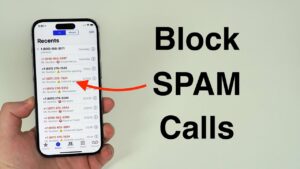
There is an important distinction between an unknown call and a spam call.
An unknown caller is simply a number that is not saved in your contacts or otherwise recognized by your iPhone. It could be a legitimate business, delivery driver, doctor’s office, school, bank, or someone calling from a new number. Treating every unknown number as spam can cause you to miss calls you actually need.
A spam call is a call identified as unwanted, fraudulent, or potentially suspicious. Depending on your carrier and iPhone settings, your phone may identify these calls and send them directly to voicemail instead of allowing them to interrupt you.
Current versions of iOS provide several controls under Settings > Apps > Phone. These include call screening, silencing unknown callers, filtering unknown calls, and carrier-based spam filtering. Apple also supports caller identification through supported carriers and compatible caller ID apps.
Because these features depend partly on your iOS version, carrier, region, and installed apps, you may not see exactly the same options described on another iPhone.
Turn On Spam Filtering on Your iPhone
If your iPhone and cellular provider support Apple’s spam filtering, this is one of the easiest ways to reduce unwanted calls without silencing every unknown number.
- Open Settings.
- Tap Apps.
- Tap Phone.
- Look for the Call Filtering section.
- Turn on Spam if the option is available.
When enabled, calls that your network provider identifies as spam or fraud are silenced, sent to voicemail, and moved into the Spam list in the Phone app. This means the phone does not have to ring before you decide whether the call is legitimate.
This option is particularly useful if you still need to receive calls from unfamiliar numbers. A call from a legitimate company that is not identified as spam can still reach you, while calls recognized by your carrier as potential spam are handled separately.
If you do not see a Spam option, that does not necessarily mean something is wrong with your iPhone. Apple’s spam filtering depends on carrier support, so availability can vary by network and region.
Silence Unknown Callers When You Do Not Need Unfamiliar Calls
If you rarely need calls from people outside your contacts, silencing unknown callers can make a much bigger difference.
On current iOS versions, go to:
Settings > Apps > Phone > Screen Unknown Callers
You can choose Silence. Calls from unsaved numbers are then silenced and sent to voicemail instead of ringing your iPhone. They remain available in your call history, so you can review them later if necessary.
This is often the most practical solution for people who receive large numbers of robocalls throughout the day. It removes the interruption rather than requiring you to identify and block every new spam number.
There is one significant tradeoff: legitimate callers who are not saved in your contacts can also be silenced. If you are waiting for a delivery, job interview, medical appointment, repair technician, school, or another important call, save the relevant number in your contacts first.
You should also be careful if you frequently receive calls from new customers or clients. Silencing all unknown callers may be inconvenient in that situation.
Use Call Screening Instead of Silencing Every Unknown Number
If you want to know why an unfamiliar person is calling before your iPhone rings, call screening can be a better middle ground.
Go to:
Settings > Apps > Phone > Screen Unknown Callers > Ask Reason for Calling
With call screening enabled, iPhone asks an unknown caller for additional information before allowing the call to ring through. You can then see the caller’s response and decide whether to answer.
This is useful when you receive legitimate calls from numbers that are not stored in your contacts but still want protection from interruptions.
For example, if a delivery company calls from a new number, the screening response may give you enough information to recognize the call. A robocall that cannot provide a meaningful reason for calling is easier to ignore.
Call screening also has limitations. Availability can vary by software version, country, language, and calling circumstances. Apple says that calls are not screened while roaming, and emergency calls can temporarily disable call screening.
Block Spam Numbers That Keep Calling
Blocking an individual number is useful when the same caller repeatedly contacts you.
On the iPhone:
- Open the Phone app.
- Open Calls or Recents, depending on your Phone app layout.
- Find the unwanted number.
- Tap the number or the information button beside it.
- Choose Block Caller.
Apple’s current iOS 26 settings also provide a centralized blocked-contact list under Settings > Privacy & Security > Blocked Contacts.
Blocking is different from simply silencing an unknown caller. When you block a specific number, future calls from that number will not alert you. The caller can still leave a voicemail, but you will not receive a notification about it.
Manual blocking is most effective for persistent callers. It is less useful as your only defense against spam campaigns because scammers can rotate through different numbers.
Why Blocking Every Spam Number Does Not Always Work
Many spam campaigns use multiple phone numbers rather than repeatedly calling from one number.
A caller may use one number today and another tomorrow. Some unwanted calls can also display a number that appears familiar or local, making the call look more trustworthy. This practice is commonly associated with caller ID spoofing, where the displayed caller ID does not necessarily represent the caller’s actual number.
That is why manually blocking every unwanted number can become an endless task.
If you are dealing with frequent spam, use spam filtering or unknown-caller controls as the first layer, then block individual numbers that repeatedly get through. This reduces the amount of maintenance required.
Enable Caller Identification for Better Spam Detection
Your iPhone can use several sources to identify incoming callers.
Apple says caller information can come from your contacts, supported carrier directories, Apple Business Connect, and compatible caller identification apps. You can manage supported identification options under Settings > Apps > Phone > Call Blocking & Identification.
If you have installed a supported caller ID app, it may be able to recognize businesses or numbers associated with unwanted calls.
To check the available options:
- Open Settings.
- Tap Apps.
- Tap Phone.
- Tap Call Blocking & Identification.
- Review the caller identification options available on your iPhone.
- Enable the services you trust.
Third-party caller ID services vary in how they identify numbers and what information they provide. Before installing one, check its privacy practices and permissions rather than assuming every caller identification service works the same way.
If several caller ID apps are installed, iPhone can also use them as different sources of caller information and allows supported identification apps to be prioritized.
Use Live Voicemail to Screen Calls Without Answering
Live Voicemail is useful when you want to see what a caller is saying before deciding whether to answer.
Go to:
Settings > Apps > Phone > Live Voicemail
When an incoming call goes to voicemail, your iPhone can display a transcription of the message while the caller is speaking. You can then decide whether the call deserves your attention.
This works particularly well with unknown callers because you can let the person explain why they are calling without immediately talking to them.
For example, a legitimate caller may leave a clear message explaining that they are from a company you recently contacted. A suspicious caller may provide vague information, use pressure tactics, or leave an automated message.
Live Voicemail is not available in every country, region, or language. Apple also notes that calls identified as spam by your carrier do not go through Live Voicemail and are instead declined automatically when the relevant spam protection is active.
Save Important Numbers to Your Contacts
Spam protection works best when your iPhone knows which callers are important.
If you regularly receive calls from a doctor, school, employer, family member, delivery service, bank, or business contact, save those numbers in your Contacts. This is especially important if you use a setting that silences unknown callers.
Apple specifically recommends adding important numbers to Contacts so those calls can continue to reach you when unknown callers are being screened or silenced.
You should also save new legitimate numbers after receiving an important call. Otherwise, the next call from the same organization may again appear as an unknown number.
Do not assume that a familiar caller ID automatically means the call is safe. A spoofed number can appear legitimate, so you should still be cautious when a caller asks for passwords, verification codes, banking information, or other sensitive details.
Do Not Interact With Suspicious Robocalls
Your iPhone settings can reduce the number of calls you hear, but your behavior also matters.
If an automated caller asks you to press a number to speak to someone, cancel a service, claim a prize, verify an account, or provide personal information, do not assume the request is legitimate simply because the caller knows your name.
Avoid giving callers passwords, one-time verification codes, card numbers, banking credentials, or account recovery information. If a caller claims to represent a bank, government agency, technology company, delivery company, or another organization, contact that organization through a trusted phone number or official website instead of using a number supplied during the call.
Do not call back a suspicious number simply because it appears repeatedly in your missed calls. If the caller is legitimate, there should normally be another way to verify the reason for the contact.
Use Your Carrier’s Spam Protection
Your cellular provider may offer its own spam detection or call-blocking service.
This can be useful because carrier-level systems may identify suspicious calls before they reach your iPhone. Apple’s own spam filter also depends on information supplied by the network provider, so carrier support is an important part of the overall system.
Carrier features vary considerably. Some providers may offer spam labels, automatic blocking, caller identification, reporting tools, or an optional app. Others may provide fewer controls.
If spam calls remain frequent after changing your iPhone settings, check your carrier’s available call-protection features. Use the carrier’s official support channel to confirm what is included with your particular plan.
This approach can be especially useful when the unwanted calls continue despite blocking individual numbers, because the problem may involve large numbers of changing caller IDs rather than one persistent caller.
Check Your iPhone If Legitimate Calls Are Being Silenced
Sometimes the problem appears to be excessive spam filtering when the real issue is that an important caller is being treated as unknown.
If you suddenly stop receiving expected calls, check:
Settings > Apps > Phone > Screen Unknown Callers
If it is set to Silence, change it to Never or Ask Reason for Calling if you need calls from unfamiliar numbers to reach you.
Also review Call Filtering and your blocked contacts. Apple’s current support documentation recommends checking blocked numbers when calls are not coming through.
If a legitimate caller has been filtered into the Unknown Callers list, iPhone allows you to mark the caller as known. Apple provides this option from the Phone app’s filtered call list.
This is one reason it is better to filter unknown calls rather than completely ignore them. You can still review calls that were silenced and recover legitimate contacts when necessary.
What to Do If Spam Calls Keep Getting Through
If you have enabled spam filtering and are still receiving unwanted calls, work through the problem in layers rather than changing every setting at once.
First, confirm that Spam filtering is available and enabled under the Phone settings. If your carrier does not support Apple’s spam filter, look for a separate carrier service.
Next, decide how you want unknown callers handled. Use Ask Reason for Calling if you still receive legitimate calls from unfamiliar numbers. Choose Silence if interruptions are the main problem and you are comfortable checking voicemail.
Then enable a trusted caller identification service if your iPhone supports one. This can help identify businesses and suspicious callers that are not caught by the carrier’s filtering.
Finally, block numbers that continue to contact you repeatedly.
If the volume of spam is unusually high, contact your cellular provider. Persistent spam may require carrier-level filtering rather than more manual blocking on the phone.
Common Mistakes That Make Spam Calls More Difficult to Manage
One common mistake is blocking only the numbers that have already called. This can help with repeat callers but does little against campaigns that constantly change numbers.
Another mistake is silencing all unknown callers without considering legitimate calls. If you are waiting for a call from someone who is not in your contacts, save their number or use call screening instead.
It is also easy to assume that a caller ID name proves who is calling. Caller identification is useful, but it should not be treated as proof of identity. A caller can still misrepresent themselves or use a spoofed number.
Finally, do not install multiple caller ID apps simply because each promises to block more calls. More apps are not automatically better. Check what each service does, what permissions it requests, and whether your carrier already provides comparable protection.
Which iPhone Spam Call Setting Should You Use?
| Situation | Best option |
|---|---|
| You receive occasional spam calls | Turn on carrier spam filtering |
| You rarely need calls from unknown numbers | Silence Unknown Callers |
| You need unknown callers but want to screen them | Ask Reason for Calling |
| One number keeps calling | Block the caller |
| You want caller names or spam identification | Enable supported caller identification |
| You want to review a caller before answering | Live Voicemail |
| Spam continues despite iPhone settings | Check your carrier’s spam protection |
You do not necessarily need to enable every feature. Start with the least restrictive option that solves the problem.
For many people, carrier spam filtering combined with call screening provides a good balance. If unwanted calls are constant and you rarely receive legitimate calls from new numbers, silencing unknown callers is more aggressive and usually more effective at preventing interruptions.
Conclusion
The most effective way to stop spam calls on iPhone is to combine automatic filtering with a setting that matches how you actually use your phone. Start with Settings > Apps > Phone and check whether Spam filtering is available. If unknown numbers are still a major problem, use Ask Reason for Calling to screen them or Silence to send them straight to voicemail.
Block persistent callers individually, keep important numbers in your Contacts, and consider a supported caller identification service if your carrier and iPhone provide one. Live Voicemail can also help you decide whether an unfamiliar caller deserves an answer without forcing you to pick up immediately.
No single setting can guarantee that every unwanted call will disappear. Spam callers can change numbers, and legitimate calls can sometimes look like unknown calls. The goal is to make unwanted calls less disruptive while preserving a reliable way for important people and businesses to reach you.
If you think there’s been a mistake here, please do let us know by commenting on this post or Contact Us. And a member of our Content Integrity Team will review this decision with you.




