

When an iPhone refuses to charge, charges only when the cable is held at a certain angle, disconnects repeatedly, or shows an accessory warning, the charging cable is one of the first things to investigate. A cable problem can look very similar to a faulty charger, dirty charging port, software glitch, or even a battery problem, so replacing the cable immediately is not always the best first step.
The most reliable approach is to test the cable, power source, connector, and iPhone port separately until you identify which part is actually causing the failure.
Apple’s current guidance also recommends checking the cable and adapter for physical damage, trying a different power source, checking the charging port for debris, restarting the iPhone, and testing another cable or charger when charging fails.
How to Tell If the iPhone Charging Cable Is the Problem
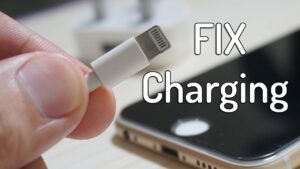
A faulty cable does not always stop working completely. Some cables develop intermittent faults where they charge normally one moment and disconnect the next. Others may still charge an iPhone but do so inconsistently or fail to establish a data connection.
Look for a pattern in how the problem occurs. If your iPhone charges normally with another cable using the same charger and wall outlet, the original cable is the most likely cause. If several known-good cables behave the same way, the problem is more likely to be the iPhone’s charging port, power adapter, outlet, software, or battery.
Common symptoms of a charging cable problem include:
- The iPhone repeatedly starts and stops charging.
- Charging works only when the cable is positioned a particular way.
- The connector feels unusually loose in the iPhone.
- The cable has exposed wires, cracks, severe bends, or damaged connector ends.
- The iPhone displays an accessory-related warning.
- One cable works while another cable does not.
- The cable charges another device poorly or not at all.
- The iPhone connects to a computer intermittently when using the same cable.
Do not continue using a cable with exposed conductors, damaged insulation, bent connector components, or signs of overheating. Apple specifically advises against using damaged charging accessories.
Check the Cable for Physical Damage
Start with the cable itself because it is easy to inspect and does not require changing anything on the iPhone.
Examine the entire length of the cable, particularly the areas close to both connectors. These sections bend repeatedly during normal use and are common places for insulation to split or internal conductors to become damaged.
Check for:
- Frayed or split outer insulation
- Exposed wires
- A connector that is bent or visibly damaged
- Discoloration or burn marks
- Cracks around the connector housing
- Loose parts inside the connector
- Excessive bending near either end
A cable can also fail internally without showing obvious external damage. If it looks fine but charging cuts in and out when the cable moves, test another cable before assuming the iPhone is defective.
Avoid deliberately bending or twisting the cable to find a position where charging works. That may temporarily restore contact but can make an existing internal fault worse.
Test the Cable With Another Charger or iPhone
The most useful troubleshooting technique is substitution. Instead of changing several components at once, replace one part and observe what happens.
For example, keep the same iPhone and cable but use a different power adapter. If charging immediately becomes stable, the cable may not be responsible. Next, use the original adapter with a different known-good cable. This gives you a much clearer result.
A simple testing sequence is:
- Connect the original cable to the original power adapter.
- Try a different wall outlet.
- Try the original cable with another compatible power adapter.
- Try a known-good cable with the original adapter.
- If possible, test the original cable with another compatible device.
- Compare the results.
The important point is to change only one variable at a time. If you replace the cable, adapter, and outlet simultaneously, you may fix the problem without discovering which component was faulty.
Apple similarly recommends trying another USB cable or charger when an accessory warning appears.
Check the iPhone Charging Port for Debris
A charging cable can be perfectly functional while the iPhone fails to charge because debris has accumulated inside the port.
Pocket lint is a particularly common problem. Small particles can collect at the bottom of the connector and prevent the cable from seating properly. The result may be a loose connection, intermittent charging, or a connector that appears to be plugged in but does not make reliable contact.
Apple recommends checking the charging port and removing debris when the iPhone will not charge or reports that an accessory is unsupported.
Do not assume that a port is clean simply because you can see light inside it. A small amount of compacted material can be enough to interfere with the connector.
If you inspect the port, use good lighting and avoid forcing objects into it. Do not scrape aggressively against the contacts or use metal tools. Damaging the connector inside the phone can turn a simple cleaning issue into a hardware repair.
If the port appears damaged, unusually loose, or has corrosion, stop trying to force the cable into place.
Why a Loose Charging Connection Matters
If the cable repeatedly disconnects when the iPhone is moved, there are two main possibilities: the cable connector is worn or the phone’s charging port is obstructed or damaged.
A healthy connector should make a reasonably stable connection. It should not require you to hold the cable at a particular angle for the phone to continue charging.
This is an important distinction because people sometimes assume the battery is failing when the real problem is mechanical. If charging stops whenever the cable moves slightly, battery health is unlikely to explain that particular symptom.
Try a second known-good cable. If both cables have the same loose fit, inspect the iPhone port rather than repeatedly buying cables.
Restart the iPhone Before Replacing the Cable
Charging is controlled by both hardware and software. A temporary software problem can sometimes prevent an otherwise functional accessory from behaving normally.
If the cable and connections appear fine, restart the iPhone and try charging again. Apple includes restarting the device among its recommended troubleshooting steps for charging problems.
A restart is especially reasonable when the problem appeared suddenly after an iOS update, accessory change, or unusual system behavior.
If the iPhone is completely unresponsive, Apple’s charging troubleshooting procedure recommends connecting it to power and allowing it to charge before attempting a force restart. The exact button combination depends on the iPhone model.
Deal With an “Accessory May Not Be Supported” Warning
An “Accessory may not be supported” or similar message does not automatically mean the charging cable is fake or completely unusable.
Apple says the warning can appear when an accessory is damaged, incompatible, not certified for the device, or when the iPhone’s connector is dirty or damaged.
Start by disconnecting and reconnecting the cable. If the warning returns, inspect both ends of the connection for damage or debris.
Then try a different compatible cable and charger. If the second combination works normally, the original accessory becomes the main suspect.
It is also sensible to install available iOS updates because Apple notes that some accessories may require a newer version of iOS.
If the warning appears with multiple known-good cables and chargers, the problem may be with the iPhone rather than the cable.
Check Whether You Are Using the Correct Cable
The physical connector on an iPhone depends on the model. Current iPhones with USB-C use USB-C connections, while older models use Lightning.
Apple’s iPhone documentation identifies USB-C cables for USB-C iPhone models and USB-C to Lightning cables for Lightning-equipped devices.
This matters when replacing a cable because a cable can physically appear suitable while not providing the connection you need. USB-C is also a connector standard used for many different purposes, so not every USB-C cable has identical capabilities.
For ordinary charging, use a cable that is compatible with the iPhone and charger you are using. If you also need data transfer, consider the cable’s data capabilities rather than judging it only by the shape of its connector.
Apple states that the USB-C cable supplied with its newer iPhones supports charging and USB 2 speeds. Cables designed for higher-speed USB connections have different capabilities.
Test the Wall Adapter and Power Outlet
A charging cable is only one part of the charging path. If the wall adapter is defective or the outlet is not supplying power, replacing the cable will not solve the problem.
Connect the iPhone to a known-working wall outlet and make sure the cable, adapter, and outlet connections are firmly seated. Apple specifically recommends trying another outlet when troubleshooting an iPhone that will not charge.
Avoid using a computer USB port as your only test. A computer port can help determine whether the cable works, but a wall charger provides a simpler reference point when investigating ordinary charging problems.
If the iPhone works reliably with a different adapter and the same cable, investigate the original adapter rather than replacing the cable.
What to Do If the Cable Only Charges at a Certain Angle
This symptom deserves special attention because it usually points toward a physical connection problem.
First, stop applying pressure to the cable. Holding a connector sideways or bending the cable near the port may temporarily maintain contact, but it can put additional stress on the connector.
Try another known-good cable. If the replacement fits securely and charges normally without being held in a particular position, replace the original cable.
If the replacement cable behaves the same way, examine the iPhone’s charging port. Debris can prevent the connector from reaching its normal position, while physical damage can cause a persistent loose connection.
If the port looks clean but multiple cables remain loose or unreliable, professional service may be necessary.
Handle Liquid Detection Before Testing the Cable
If your iPhone displays a liquid-detection warning, do not keep reconnecting the cable to see whether charging starts.
Apple says iPhones with Lightning or USB-C connectors can detect liquid in the connector, cable, or accessory and temporarily disable charging to protect the device. Charging while the connector is wet can lead to corrosion or permanent damage.
Disconnect the cable and allow both the iPhone and cable ends to dry in an area with airflow. Apple recommends waiting at least 30 minutes before trying again, and says that complete drying can take up to 24 hours if the alert continues.
Do not use a hair dryer, external heat source, or compressed air to dry the connector. Apple also advises against inserting objects such as cotton swabs or paper towels into the connector and specifically says not to put the iPhone in rice.
If the liquid warning repeatedly appears with one particular cable but not others, that cable may be damaged. If it happens with known-good Apple cables as well, the iPhone may require service.
When an iPhone Charges Slowly With a Good Cable
Slow charging does not necessarily mean the cable is defective.
The charging speed depends on the iPhone, cable, power adapter, temperature, and charging conditions. A cable that successfully charges the phone may therefore be working correctly even if charging takes longer than expected.
Start by comparing the same iPhone and cable with a different compatible power adapter. If the charging behavior changes substantially, the adapter may be the limiting component.
Temperature can also affect charging. Apple explains that an iPhone can temporarily limit charging when its temperature becomes too high, including limiting charging above 80 percent until the device cools.
There is another situation that can look like a cable problem: charging stopping at 80 percent. On supported iPhones, features such as Optimized Battery Charging and Charge Limit can affect how far the battery charges. iPhone 15 models and later support a Charge Limit setting that can intentionally stop charging at a selected level.
How to Troubleshoot a Cable That Works for Charging but Not Data
Sometimes the cable charges an iPhone but fails when connected to a computer.
This can happen because charging and data communication are not exactly the same function. A cable may support charging without providing the data capability required for a particular connection.
Apple recommends trying another USB cable when a computer does not recognize an iPhone and specifies that the replacement cable must support both data and charging.
If you are troubleshooting a computer connection, test another USB port and another known-good data cable. Also check for the appropriate trust or accessory prompts on the iPhone and keep iOS and the computer’s operating system up to date.
This distinction is useful because a cable that charges successfully should not automatically be considered fully functional for every purpose.
When You Should Replace the Charging Cable
Replacing the cable makes sense when testing shows that the cable itself is responsible for the problem.
You have a strong case for replacement if:
- Another cable charges the same iPhone normally.
- The original cable repeatedly disconnects.
- The connector is visibly damaged.
- The cable has exposed wires or cracked insulation.
- The same cable fails with another compatible device.
- An accessory warning follows the cable rather than the iPhone.
- The cable has been physically stressed and now works intermittently.
Do not continue using a damaged cable simply because it still charges. A cable that works inconsistently is already showing a fault, and continued physical wear can make the problem worse.
When purchasing a replacement, check that the cable matches your iPhone’s connector and intended use. For USB-C iPhones, Apple notes that non-compliant USB-C accessories and cables may not work as expected.
Common Charging Cable Troubleshooting Mistakes
Several habits can make a charging problem harder to diagnose or damage the hardware.
Replacing everything at once
If you immediately buy a new cable, charger, and power adapter, you may solve the problem without learning what actually failed. Test components individually whenever possible.
Forcing a loose connector
A connector should not need to be pushed sideways or held at an angle. If it does, investigate the cable and port rather than applying more pressure.
Cleaning the port aggressively
The charging port contains delicate contacts. Avoid sharp metal objects and aggressive scraping. If debris cannot be safely removed, professional cleaning is safer than risking connector damage.
Ignoring visible cable damage
A cable with exposed conductors, severe fraying, or heat damage should be replaced. It is not a good candidate for continued troubleshooting.
Assuming an 80 percent limit is a cable fault
If charging consistently stops at 80 percent while everything else works normally, check the iPhone’s charging settings and temperature before replacing the cable. Apple identifies both Optimized Battery Charging and Charge Limit as possible explanations.
When the Problem Is Probably the iPhone
If multiple known-good cables and chargers fail in exactly the same way, the cable becomes less likely to be responsible.
At that point, consider the iPhone’s charging port, software, battery, or another internal hardware component. A damaged port is particularly likely when the connector feels loose, charging cuts out with minor movement, or the phone has previously been exposed to moisture.
Service becomes more appropriate when the phone refuses to charge with known-good accessories, repeatedly reports accessory or liquid warnings despite appropriate troubleshooting, or has visible physical damage.
Apple’s charging guidance states that if the device still will not power on or charge after its recommended troubleshooting steps, service may be required.
Before paying for a repair, make sure you have performed a controlled test with a known-good cable, compatible adapter, and reliable power outlet. That simple comparison can prevent an unnecessary cable or port replacement.
A Practical Order for Troubleshooting iPhone Charging Cable Problems
If you want the shortest sensible diagnostic process, work through the problem in this order:
- Inspect the cable for visible damage.
- Try another wall outlet.
- Confirm the cable and adapter are firmly connected.
- Try a different compatible cable.
- Try a different compatible power adapter.
- Inspect the iPhone charging port for debris or visible damage.
- Restart the iPhone.
- Check for accessory or liquid-detection warnings.
- Update iOS if an accessory compatibility warning persists.
- Test the iPhone with known-good charging equipment.
- Arrange service if multiple known-good accessories fail.
This order starts with the easiest and least invasive checks. It also helps isolate the faulty component instead of turning troubleshooting into a process of randomly replacing parts.
Final Thoughts
Learning how to troubleshoot charging cable issues on iPhone is mainly about isolating the failure. A damaged cable, dirty port, faulty adapter, incompatible accessory, liquid detection, software issue, and hardware failure can produce similar symptoms, so the most useful test is to compare the suspect cable with a known-good cable while keeping the other components unchanged.
Do not ignore physical damage or a connector that only works at a particular angle. Avoid forcing the cable into the port, and take liquid-detection warnings seriously because charging a wet connector can cause corrosion and permanent damage.
If another compatible cable and charger work normally with your iPhone, replacing the faulty cable is usually the appropriate solution. If several known-good cables produce the same problem, the investigation should move toward the iPhone’s charging port, software, power conditions, or internal hardware. At that point, further cable swapping is unlikely to solve the underlying problem, and professional service may be the better next step.
If you think there’s been a mistake here, please do let us know by commenting on this post or Contact Us. And a member of our Content Integrity Team will review this decision with you.




