

If your iPhone is stuck on the recovery mode screen showing a computer and cable, the phone has detected a startup or software problem and is waiting for a computer to help it recover. The good news is that recovery mode does not automatically mean your iPhone is permanently damaged. In many cases, you can exit recovery mode with a force restart or repair iOS by choosing Update on a Mac or Windows PC. If updating fails, Restore can reinstall iOS, but it erases the iPhone’s current data.
The safest approach is to start with the least destructive solution and only move to a restore when necessary. This matters because recovery mode is often used specifically to repair an iPhone without immediately deleting everything stored on it.
What It Means When an iPhone Is Stuck on Recovery Mode
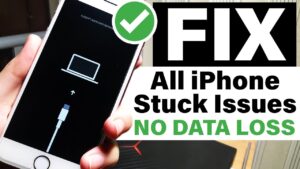
Recovery mode is a special startup state that allows an iPhone to communicate with a computer when normal iOS startup is not working. You may see a graphic of a cable pointing toward a computer, sometimes accompanied by instructions to connect the iPhone to a computer.
The screen usually appears because iOS cannot complete the normal startup process. This can happen after an interrupted software update, a failed restore, corrupted system files, an unsuccessful migration, or another software problem that prevents the operating system from loading properly.
Recovery mode itself is not necessarily the problem. It is a recovery mechanism. The real issue is that the iPhone has not been able to return to normal startup.
An iPhone can also enter recovery mode because of a button sequence. For example, connecting the phone to a computer while holding the appropriate button can intentionally place it in recovery mode. If you accidentally triggered it, a force restart may be enough to get back to the normal lock screen.
Try a Force Restart Before Restoring the iPhone
If your iPhone is already displaying the recovery mode screen, the first thing to try is a force restart. This does not reinstall iOS and does not intentionally erase your data, so it is the best first step when you simply want to get the phone out of recovery mode.
The button combination depends on the iPhone model.
iPhone 8 and later, including newer iPhone SE models
- Press and quickly release Volume Up.
- Press and quickly release Volume Down.
- Press and hold the Side button.
- Keep holding the Side button until the Apple logo appears.
- Release the Side button when the Apple logo appears.
Apple says the Side button may need to be held for more than 10 seconds when the iPhone is unresponsive.
Do not press all three buttons at the same time. The volume buttons need to be pressed and released quickly before you hold the Side button.
iPhone 7 and iPhone 7 Plus
Press and hold the Side button and Volume Down button together. Keep holding them until the Apple logo appears.
iPhone 6s and earlier, including iPhone SE (1st generation)
Press and hold the Home button and the Side button or Top button together until the Apple logo appears.
After the force restart, give the iPhone some time to boot. If it reaches the lock screen normally, you do not need to restore it simply because it previously entered recovery mode.
If it immediately returns to recovery mode, the startup problem has not been resolved. At that point, use a computer to attempt an iOS update.
Update iOS From Recovery Mode Without Erasing Your Data
If a force restart does not work, connect the iPhone to a Mac or Windows PC. Apple recommends trying Update before choosing Restore when an iPhone cannot start normally. An update attempts to reinstall or update iOS while preserving your personal data.
Before starting, make sure the computer is ready. On a Mac, use Finder. On a Windows PC, use the current Apple Devices app. Older Windows setups may still use iTunes, but Apple’s current Windows workflow uses Apple Devices.
On a Mac
- Connect the iPhone to the Mac using a USB cable.
- Open Finder.
- Select the iPhone from the Finder sidebar.
- If Finder presents Update and Restore, choose Update.
- Follow the instructions on the screen.
- Keep the iPhone connected until the process finishes.
The computer may need to download iOS before it can install the update. If the download takes more than 15 minutes, Apple notes that the iPhone can leave the recovery mode screen. If that happens, allow the download to finish, then put the iPhone back into recovery mode and repeat the process.
On a Windows PC
- Connect the iPhone to the PC.
- Open the Apple Devices app.
- Select your iPhone.
- If Windows asks you to trust the device, follow the instructions provided.
- Choose the option to Update when Apple Devices presents the recovery options.
- Follow the onscreen instructions and leave the phone connected.
If the update succeeds, the iPhone should restart and attempt to boot normally. Your data should remain on the device because you chose Update rather than Restore.
Do not disconnect the cable simply because the screen changes or the iPhone appears to restart. Give the computer time to finish communicating with the phone.
Why You Should Choose Update Before Restore
The distinction between Update and Restore is important.
Update attempts to reinstall or update iOS without intentionally erasing the contents of the iPhone. This is the appropriate choice when your priority is getting the phone working while preserving its existing data.
Restore reinstalls iOS and erases the iPhone. Apple explicitly warns that restoring removes the device’s current data.
That means you should not jump directly to Restore if the iPhone contains photos, messages, notes, or other information that has not been backed up.
There are situations where Restore becomes necessary. If an Update fails repeatedly, iOS may be too damaged to start normally, or the device may require a clean installation. But that decision should come after attempting the non-destructive update.
If you have a recent iCloud or computer backup, a restore is less concerning because you can set the iPhone up again and recover supported data from the backup. If you have no backup, however, understand the data-loss consequence before selecting Restore.
What to Do If the Update Fails
A failed update does not necessarily mean the iPhone has a hardware fault. Several things can interfere with the recovery process, including the computer’s software, the USB connection, the downloaded iOS package, or the phone itself.
Start with the basic variables before repeatedly attempting the same operation.
Use a reliable USB cable and connect the iPhone directly to the computer rather than through an unreliable hub or adapter. If possible, try another USB port. Also make sure the Mac is updated or that the Windows PC has the current Apple Devices app, since Apple specifically recommends an up-to-date computer environment for recovery operations.
If the computer begins downloading iOS and the iPhone exits recovery mode because the download takes longer than 15 minutes, do not assume the process has failed permanently. Apple recommends allowing the download to finish and then putting the iPhone back into recovery mode before repeating the installation steps.
If you receive a specific error code, take note of it before trying random fixes. The error can provide useful information about whether the problem is related to communication with the computer, the software installation, or the device itself.
Put the iPhone Back Into Recovery Mode Correctly
If the iPhone leaves recovery mode while the computer is still downloading iOS, you may need to enter recovery mode again.
For an iPhone 8 or later, including the iPhone SE (2nd generation and later):
- Connect the iPhone to the computer.
- Press and quickly release Volume Up.
- Press and quickly release Volume Down.
- Press and hold the Side button.
- Continue holding it until the recovery mode screen appears.
For an iPhone 7 or iPhone 7 Plus, hold the Side or Top button and Volume Down together until the recovery screen appears.
For an iPhone 6s or earlier, including the first-generation iPhone SE, hold the Home button and the Side or Top button together until the recovery screen appears.
The important detail is that you must continue holding the appropriate button combination until the recovery screen appears. Releasing too early can simply restart the phone instead of entering recovery mode.
Restore the iPhone When an Update Cannot Repair It
If the iPhone remains stuck in recovery mode and an Update cannot complete, Restore is the next software-based option. This should be treated as a last resort when preserving the current contents of the phone is important.
Connect the iPhone to the computer and open Finder on a Mac or Apple Devices on Windows. Select the iPhone and choose Restore when the recovery options appear. Follow the onscreen instructions until the process finishes.
A restore completely reinstalls iOS and erases the iPhone. When it finishes successfully, the device should display the Hello setup screen.
You can then set it up as a new iPhone or restore supported content from an existing backup. If Activation Lock is enabled, you may also need the Apple Account credentials associated with the device during setup.
Do not choose Restore simply because it is the first option you see. If your data is not backed up, try Update first.
What If the iPhone Keeps Returning to Recovery Mode?
An iPhone that repeatedly enters recovery mode after a successful or unsuccessful update deserves closer attention.
If the device enters recovery mode after every restart, the operating system may still be unable to complete startup. Repeated failures during the update or restore process can also point toward a deeper software problem.
At this stage, try the recovery process again with a different cable or computer if one is available. This helps rule out a faulty connection or computer-side problem before assuming the phone itself is defective.
Hardware can also be involved. A damaged button, charging port, battery, or other internal component can cause problems that software recovery cannot solve. Apple states that service may be necessary if recovery mode cannot be used because a button does not work or is stuck, or if the device cannot be updated or restored through recovery mode.
If the iPhone was recently dropped, exposed to liquid, repaired, or suffered a charging problem before becoming stuck, mention that when seeking service. Those details can change the likely diagnosis.
Check Whether You Are Actually Seeing Recovery Mode
Not every iPhone that fails to start is in recovery mode.
The recovery mode screen normally shows an illustration directing you to connect the iPhone to a computer. A phone that remains on the Apple logo, shows a progress bar, displays a black screen, or repeatedly restarts can have a different startup problem.
This distinction matters because the recommended steps are not identical.
For example, Apple advises that if an iPhone is stuck on the Apple logo with a progress bar that has not moved for at least an hour, recovery mode may then be appropriate.
If the screen is completely black, try the appropriate force restart and make sure the phone has sufficient charge before moving to computer-based recovery. Apple recommends charging an iPhone that will not turn on before trying the restart procedure again.
Correctly identifying the screen prevents you from performing an unnecessary restore.
A Newer Option: Recovery Assistant
Some iPhones can display Recovery Assistant when they encounter startup problems or repeated crashes. This is different from the traditional computer-and-cable recovery screen.
Recovery Assistant can download a software package intended to resolve startup problems. Apple says the process requires a Wi-Fi connection and can take several minutes.
If Recovery Assistant appears on your iPhone, follow the instructions shown on the device rather than immediately connecting it to a computer and restoring it.
If the startup problem continues after Recovery Assistant finishes, Apple recommends making sure the iPhone is running the latest version of iOS. If the problem remains, recovery mode and a restore may be necessary.
This option is useful because it can address certain startup problems without requiring you to immediately erase the device.
Common Mistakes That Can Make Recovery Problems Worse
One common mistake is choosing Restore immediately without considering whether the iPhone contains data that has not been backed up. Restore is a legitimate repair method, but it is destructive to the current contents of the phone.
Another mistake is repeatedly force-restarting the phone while ignoring a failed iOS update. A force restart is useful for exiting an accidental or temporary recovery state, but it cannot repair damaged iOS files by itself.
Using an unreliable cable is another avoidable problem. Recovery requires consistent communication between the iPhone and computer, so a cable that intermittently disconnects can cause the process to fail.
It is also easy to release the recovery-mode button combination too early. The exact sequence varies by model, so use the correct procedure for your iPhone rather than assuming every model uses the same buttons.
Finally, avoid disconnecting the iPhone during an active update or restore unless the computer specifically instructs you to do so. Interrupting an installation can leave you back where you started and make troubleshooting harder.
When You Should Get Professional Service
Software recovery is reasonable when the iPhone is otherwise physically intact and the computer can communicate with it. Service becomes more appropriate when the recovery process repeatedly fails despite using a reliable cable, current computer software, and the correct procedures.
You should also seek service if a physical button is broken or stuck, the charging port appears damaged, the iPhone has suffered liquid exposure, or the phone was recently damaged.
Apple’s current support guidance says service may be required when an iPhone cannot be updated or restored using recovery mode or when recovery mode cannot be used because a button does not work or is stuck.
If the data on the phone is especially important and you do not have a backup, tell the technician that before authorizing a restore. Once a restore erases the device, recovering the previous contents may not be possible unless they exist in a backup or another supported copy.
Conclusion
When an iPhone is stuck on recovery mode, start with the least destructive solution. Try a force restart first, then connect the iPhone to a Mac or Windows PC and choose Update rather than Restore. Apple recommends trying an update before restoring because Restore erases the device.
If the update fails, check the cable, USB connection, computer software, and recovery-mode procedure before trying again. If the iPhone repeatedly returns to recovery mode or cannot be updated or restored, the problem may require service, particularly if there is evidence of physical damage.
The key is not to treat the recovery mode screen itself as proof that the iPhone is broken. Recovery mode exists to give you a way to repair startup problems. In many cases, a force restart or successful iOS update is enough to get the phone back to normal without erasing your data.
If you think there’s been a mistake here, please do let us know by commenting on this post or Contact Us. And a member of our Content Integrity Team will review this decision with you.




