

If you want useful information on your iPhone without opening an app, you can customize Lock Screen widgets to put things such as weather, battery levels, calendar events, reminders, and other app information directly below the clock. Apple introduced Lock Screen widgets with iOS 16, and current versions of iOS continue to let you add, remove, replace, and configure compatible widgets from the Lock Screen customization screen.
The important detail is that Lock Screen widgets are not customized in exactly the same way as Home Screen widgets. You edit them from the Lock Screen itself, and the amount of space available depends on the layout. Some widgets also offer their own settings, so you can choose what information they display instead of simply changing their position.
What You Can Customize on the iPhone Lock Screen
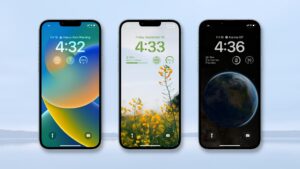
A Lock Screen is more than a wallpaper and clock. Apple allows you to change several parts of the screen, including the wallpaper, clock appearance, widgets, and, on supported iOS versions, the quick-action controls at the bottom. You can also create multiple Lock Screens and connect them to different Focus modes.
For widgets specifically, you can:
- Add widgets from compatible Apple and third-party apps.
- Remove widgets you no longer need.
- Replace one widget with another.
- Change the position of widgets within the available area.
- Configure widgets that provide additional choices.
- Use different widgets on different Lock Screens.
- Keep sensitive information off the Lock Screen if privacy is a concern.
The available choices depend on the apps installed on your iPhone. A developer must provide a Lock Screen-compatible widget for an app before that app can appear in the Lock Screen widget gallery.
This is why you may see a particular app’s widgets on the Home Screen but not when you tap Add Widgets on the Lock Screen. Home Screen and Lock Screen widgets are related, but an app does not necessarily support both in the same way.
How to Add Widgets to Your iPhone Lock Screen
Adding a widget takes only a few steps, but you need to enter the Lock Screen editing interface rather than the normal Home Screen editing mode.
- Wake your iPhone and display the Lock Screen.
- Touch and hold the Lock Screen until the wallpaper gallery appears.
- Select the Lock Screen you want to change.
- Tap Customize.
- Choose Lock Screen if iOS asks which part you want to edit.
- Tap the widget area below the clock.
- Tap Add Widgets.
- Scroll through the available apps or use the search field to find a widget.
- Tap a widget to add it, or drag it into the available widget area.
- When you are finished, close the widget picker.
- Tap Done to save the changes.
Apple’s current iPhone documentation confirms that existing widgets can be changed by selecting them during Lock Screen customization, while new widgets can be added through Add Widgets.
If there is not enough room for another widget, you will need to remove one of the existing widgets first. The Lock Screen widget area has limited space, so you cannot keep adding widgets indefinitely.
Adding a Widget When You Are Already in Settings
You can also reach Lock Screen customization through Settings.
Open Settings > Wallpaper, find the Lock Screen you want to change, and tap Customize. From there, select the Lock Screen preview and make your widget changes. Apple’s current wallpaper instructions use this route for customizing Lock Screen widgets, the clock, wallpaper styles, and controls.
The Lock Screen itself is usually the faster route when you are already looking at it, while Settings can be more convenient when you are managing several wallpapers.
How to Replace or Remove a Lock Screen Widget
You do not have to delete an entire Lock Screen just because you want different widgets.
Open the Lock Screen customization screen, tap the widget area, and then remove the widget you no longer want. You can then tap Add Widgets and select a replacement.
A practical approach is to keep the widgets you check several times a day. For example, if you frequently check the weather before leaving home, a weather widget is more useful than a widget that shows information you rarely need.
To remove a widget:
- Touch and hold the Lock Screen.
- Tap Customize.
- Select Lock Screen.
- Tap the widget area.
- Tap the remove button on the widget you want to delete.
- Add another widget if necessary.
- Tap Done.
Removing a widget does not uninstall the associated app. It only removes that particular widget from the Lock Screen.
How to Change What Information a Widget Shows
Some widgets are not fixed displays. They have configurable options that let you choose the information shown inside them.
For example, a widget may allow you to select a location, account, list, calendar, or other data source. The exact options depend on the app and the widget developer.
If a Lock Screen widget supports configuration, tap the widget while you are customizing the Lock Screen and look for the available choices. Not every widget has an editable setting, so you should not expect an Edit Widget option for every widget.
This distinction is useful because there are two different types of customization. You can change which widget occupies a space, and, when supported, you can change the information that widget displays.
For example, replacing a weather widget with another weather widget is one type of change. Selecting a different city inside a configurable weather widget is another.
How to Arrange Lock Screen Widgets
The Lock Screen widget area is deliberately compact. Instead of treating it like a Home Screen where you can freely arrange large blocks of widgets, think of it as a small information panel.
When you add several widgets, iOS places them into the available space. If you want to change the arrangement, enter Lock Screen customization and adjust the widgets within the widget area where the interface allows it.
Widget size also matters. Some widgets occupy more horizontal space than others. A widget that uses a wider layout can prevent you from adding several smaller widgets beside it.
This is one reason it is better to decide what information you actually need before filling the available space. A screen containing several tiny pieces of information is not necessarily more useful than one containing two or three items you check constantly.
Which Widgets Are Most Useful on the Lock Screen?
The best Lock Screen widgets depend on how you use your iPhone. There is no single combination that works for everyone.
Weather
Weather information is one of the most practical choices because it can answer a simple question without requiring you to open an app.
You may be able to display current conditions, temperature, forecasts, air quality, or other information depending on the available widget. If you regularly check weather for another location, use a configurable widget that supports choosing a specific location.
Calendar
A Calendar widget can show upcoming events directly on the Lock Screen. This is particularly useful if your schedule changes throughout the day and you need to see the next appointment without opening Calendar.
Be careful with this option if your Lock Screen is visible to other people. Calendar information can reveal meeting names, locations, or other personal details depending on the widget and privacy settings.
Reminders
Reminders can put tasks within easy reach. If you use your iPhone to manage shopping lists, work tasks, appointments, or recurring chores, a Lock Screen reminder can be more useful than a decorative widget.
Apple’s current widget system also supports interaction with some widgets, although the available actions vary by widget.
Batteries
The Batteries widget is useful if you regularly use AirPods, an Apple Watch, or other connected accessories. It can provide battery information without requiring you to open the Batteries settings or another app.
Apple specifically documents Batteries widgets for monitoring the iPhone and connected accessories.
Other App Widgets
Third-party apps can provide their own Lock Screen widgets. Depending on the app, these might show notes, tasks, financial information, fitness information, shortcuts, travel details, or other data.
The quality and functionality vary considerably between apps. If a widget does not appear in the Lock Screen picker, check whether the app is updated and whether its developer supports Lock Screen widgets.
How to Customize the Clock Alongside Your Widgets
Your widgets are only one part of the Lock Screen layout. You can also customize the appearance of the time, which can make a noticeable difference when the wallpaper has a busy background.
While editing the Lock Screen, tap the time to view the available clock styles and appearance options. Current versions of iOS provide several ways to change the clock’s visual appearance, with some options depending on the wallpaper and iPhone software.
The goal should be readability rather than simply adding as many visual effects as possible. A complicated wallpaper can make both the clock and widgets harder to read.
If the photo behind the clock contains important details, try changing the wallpaper crop or choosing a simpler image. A clean area around the clock and widgets generally produces a more usable Lock Screen.
Customize the Lock Screen Controls Too
If your real goal is to make the Lock Screen more useful, do not overlook the controls at the bottom.
On current versions of iOS, Apple allows supported Lock Screen controls to be changed. You can remove an existing control and add another available control from the control gallery.
This is separate from widgets. The controls are quick actions, while widgets primarily provide information and, for some apps, limited interaction.
For example, you might choose a widget to display the weather while using a bottom control for another frequently used function. Separating information from actions can make the Lock Screen much easier to use.
iOS 18 also expanded Lock Screen controls by allowing controls from compatible third-party apps to be added through the controls gallery.
Create Different Lock Screens for Different Situations
One of the most useful features is the ability to create more than one custom Lock Screen.
You might create one for work with Calendar, Reminders, and productivity-related information, then create another for personal use with Weather, Batteries, and other frequently checked information.
Apple also allows Lock Screens to be linked to Focus modes. When you associate a Lock Screen with a Focus, switching into that Focus can display the corresponding Lock Screen.
This is more practical than trying to make one Lock Screen contain every piece of information you might need during the day.
To create another Lock Screen:
- Touch and hold the current Lock Screen.
- Swipe through your existing Lock Screens.
- Tap the button to add a new Lock Screen.
- Choose a wallpaper.
- Customize the clock and widgets.
- Add a Focus connection if appropriate.
- Tap Done.
You can then switch between your saved Lock Screens from the wallpaper gallery.
What to Do If Lock Screen Widgets Are Missing
If you cannot find a widget you expect to see, start with the app rather than changing random iPhone settings.
First, make sure the app is installed and updated. Some developers introduce or improve widget support through app updates, so an outdated app may not provide the same widget options as the current version.
Next, check whether you are looking in the correct place. A widget available on the Home Screen is not automatically guaranteed to be available on the Lock Screen.
If the widget appears but cannot be configured, that may simply be how the developer designed it. Apple provides the widget framework, but individual apps determine what their widgets display and what configuration options they support.
Restarting the iPhone can also help if a recently installed or updated app is not appearing correctly in the widget picker. If the problem persists, update both iOS and the affected app before assuming that the widget is unavailable.
Why You Cannot Add More Widgets
The most common reason is simply that the widget area is full.
Lock Screen widgets have a constrained layout. Larger widgets consume more space, leaving less room for additional information. Apple’s instructions specifically indicate that you may need to remove an existing widget when there is not enough room for a new one.
Try removing the widest widget and then checking whether smaller alternatives fit.
If you are trying to add a widget from an app that does not appear in the gallery, changing the arrangement will not solve the problem. The app must provide a compatible Lock Screen widget.
Protect Private Information on Lock Screen Widgets
Convenience comes with a privacy tradeoff.
Widgets can expose information while the iPhone is locked. A Calendar widget, for example, could reveal an upcoming event, while another app’s widget might display account or task information.
iPhone lets you control which Lock Screen features can be accessed while the device is locked. Go to Settings > Face ID & Passcode or Touch ID & Passcode, then review the options under Allow Access When Locked. Apple explains that disabling Lock Screen access can prevent someone holding your iPhone from viewing certain personal information, although it also removes your own quick access while the phone is locked.
If privacy matters more than instant access, review what your widgets reveal before leaving them permanently on the Lock Screen.
This is especially important for phones used in workplaces, shared environments, or situations where the display may be visible to other people.
Common Mistakes When Customizing Lock Screen Widgets
One common mistake is adding widgets simply because they are available. The Lock Screen has limited space, so every widget should have a reason to be there.
Another mistake is confusing Home Screen widgets with Lock Screen widgets. An app can support one type without offering the other.
It is also easy to overlook widget configuration. If a widget supports multiple data sources or locations, replacing it may not be necessary. Check whether selecting the widget during customization gives you additional options.
Finally, do not ignore readability. A beautiful wallpaper can become frustrating if it makes the clock or widget text difficult to see. A simpler background is often the better choice when the Lock Screen is meant to provide information at a glance.
A Practical Lock Screen Setup
For a general-purpose Lock Screen, start with two or three pieces of information you actually check throughout the day.
A useful combination could be:
- Weather for current conditions or forecasts.
- Calendar for the next scheduled event.
- Batteries for connected devices.
If you rely heavily on reminders, replace one of these with Reminders. If you rarely check battery levels for accessories, there is little reason to give that information valuable Lock Screen space.
For work, a Calendar and Reminders combination may make more sense. For travel, weather and location-related information may be more useful. The best setup is the one that reduces the number of times you have to open an app for information you check repeatedly.
Final Thoughts
Learning how to customize Lock Screen widgets on iPhone is mostly about choosing the right information and arranging it within the limited space Apple provides. You can add compatible widgets, replace or remove existing ones, configure widgets that support additional settings, and create separate Lock Screens for different parts of your day.
If a widget is missing, check the app’s support for Lock Screen widgets rather than assuming your iPhone is malfunctioning. And before adding personal information such as calendar events or tasks, consider what someone else could see while your iPhone is locked.
A good Lock Screen should make common information easier to reach, not turn the screen into a crowded dashboard. Start with the information you check most often, keep the layout readable, and create additional Lock Screens when your needs change.
If you think there’s been a mistake here, please do let us know by commenting on this post or Contact Us. And a member of our Content Integrity Team will review this decision with you.




