

Deleting a calendar event on your iPhone does not always mean it is gone permanently. The recovery method depends on where the event was stored and how it was removed. Events connected to iCloud, Google Calendar, Microsoft Exchange, Outlook, or another calendar service may be recoverable from the service that originally stored them, while locally deleted data can be more difficult to restore.
The important thing is to avoid making unnecessary changes to your calendars before checking the available recovery options. If the deletion was caused by a sync problem rather than an intentional removal, changing calendar settings or deleting accounts can sometimes make troubleshooting more confusing.
First, Check Whether the Event Is Actually Deleted
Before trying to recover anything, make sure the event has truly been deleted. Calendar events can disappear from an iPhone for reasons that have nothing to do with deletion.
Open the Calendar app and tap Calendars at the bottom of the screen. Check whether the calendar that originally contained the event is still selected. If its checkbox is turned off, the events in that calendar may simply be hidden.
Also check the following:
- Search for the event using the Calendar app’s search feature.
- Look at the correct date and time, especially if the event was created in a different time zone.
- Check whether you are viewing the correct calendar account.
- Make sure an iCloud, Google, Outlook, or Exchange account has not stopped syncing.
This distinction matters. If an event is only hidden or temporarily missing because of a synchronization problem, restoring a backup may be unnecessary and could replace newer data on your iPhone.
Recover Deleted Calendar Events From iCloud
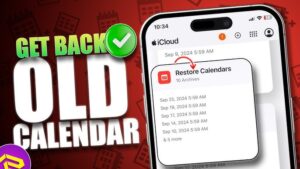
If the deleted events were stored in iCloud Calendar, Apple provides a way to restore an earlier version of your calendars through iCloud’s data recovery tools.
This method is particularly useful when multiple events disappeared or an entire calendar was accidentally deleted.
Restore an Earlier Version of Your Calendars
- Sign in to iCloud on the web using your Apple Account.
- Open the data recovery or account recovery options.
- Look for Restore Calendars.
- Review the available archived versions of your calendars.
- Choose an archive created before the events were deleted.
- Confirm that you want to restore it.
After the restoration, iCloud replaces the current calendar data with the selected archived version and synchronizes the restored calendars with devices using the same iCloud account.
The timing of synchronization can vary. If your events do not immediately reappear on the iPhone, connect to a stable internet connection and give iCloud time to sync.
Understand What Happens When You Restore Calendars
Restoring an earlier calendar archive can bring back deleted events, but it may also affect calendar changes made after that archive was created.
For example, imagine you deleted an important meeting on Monday but created several new events on Tuesday. Restoring a calendar version from before Monday may recover the deleted meeting, while newer changes may need to be checked afterward.
This is why it is better to choose the most recent archive that existed before the deletion rather than automatically selecting the oldest available version.
If the missing event was part of a shared calendar, remember that shared calendars can behave differently depending on the owner and the calendar service. The organizer or owner may still have the event even if it disappeared from your own device.
Recover Deleted Events From Google Calendar
If your iPhone Calendar app displays events from a Google account, the event is usually managed by Google Calendar rather than stored exclusively on the iPhone.
In that situation, recovering the event through Google Calendar is generally the better approach.
Open Google Calendar on the web and check its Trash or deleted items area. Deleted events may remain there for a limited period before being permanently removed.
If you find the event:
- Select the deleted event.
- Choose the option to restore it.
- Wait for Google Calendar to sync with your iPhone.
- Open the iPhone Calendar app and confirm that the correct Google calendar is enabled.
If the restored event does not appear, go to Settings > Apps > Calendar > Calendar Accounts on newer iOS versions, or Settings > Calendar > Accounts on some earlier versions. Confirm that the Google account is still connected and that calendar synchronization is enabled.
You can also remove and re-add the Google account if synchronization remains stuck, but do not do this as your first step. Check the event online first. Removing an account can temporarily remove all of its calendar data from the iPhone, which can make it harder to determine whether the original problem was deletion or synchronization.
Recover Events From Outlook, Exchange, or Another Calendar Account
Work and school calendars are often connected through Microsoft Exchange, Outlook, or another organization-managed service. In these cases, the iPhone is usually displaying information stored on a server.
Start by signing in to the calendar service through its website or desktop application and checking whether the missing event is still available there.
The exact recovery process depends on the service. Some services provide a deleted items folder, while others allow administrators to restore deleted calendar data within a specific retention period.
If the event was created by someone else, ask the organizer to check the original invitation. In many workplace calendars, the organizer can resend the invitation, which may be easier than attempting to restore the event through a device backup.
Make Sure Your Calendar Account Is Still Syncing
Sometimes deleted calendar events on an iPhone are actually events that stopped syncing because an account was disabled, disconnected, or experiencing a temporary server issue.
Check your calendar accounts and make sure the affected account is still active.
On recent versions of iOS:
- Open Settings.
- Tap Apps.
- Select Calendar.
- Tap Calendar Accounts.
- Choose the account containing the missing events.
- Make sure Calendars is enabled.
The wording and location of these settings can differ slightly depending on the iOS version. On older versions of iOS, Calendar account settings may appear directly under Settings > Calendar > Accounts.
If the account is active but events still do not appear, try turning calendar synchronization off and then back on. Give the device a moment to reload the calendar data.
Only use this step when you know the events still exist on the calendar provider’s server. If you are uncertain, check the service through a web browser first. That prevents confusion between a sync issue and a genuinely deleted event.
Recover Deleted Calendar Events Using an iPhone Backup
An iCloud or computer backup may contain calendar information from the time before the events disappeared. However, restoring an entire backup is usually a last resort.
A full backup restoration does not simply restore one deleted calendar event. It can replace current data and settings on the iPhone with data from the backup.
Before using this method, check whether the events can be recovered directly through iCloud or the calendar provider. Restoring the entire device for a single appointment is often unnecessary.
When a Backup May Help
A backup can be worth considering when:
- The events were not synchronized with iCloud or another calendar service.
- The missing data existed when the backup was created.
- Other recovery methods have failed.
- You understand that newer data may be affected by the restoration process.
Before restoring, make sure you have a current backup of the iPhone. This gives you a way to preserve your latest data before replacing the device with older backup contents.
Restore From an iCloud Backup
To restore an iPhone from an iCloud backup, the device generally needs to be erased first. During the setup process, you can choose Restore from iCloud Backup and select a backup created before the calendar events disappeared.
This is a major step for a relatively small problem, so it should not be the first recovery method you try.
After restoration, check the Calendar app before making major changes. If the recovered events are connected to an online account, synchronization may change what you see once the iPhone reconnects to that account.
Restore From a Mac or PC Backup
If you previously backed up your iPhone to a Mac or Windows PC, you may be able to restore that backup through Finder or the Apple Devices app, depending on your computer and software.
As with an iCloud backup, restoring a computer backup can replace current device data with older data. Create a fresh backup before proceeding if you need to preserve the current state of your iPhone.
A backup is most useful when it contains data that no longer exists on any synchronized calendar service. If the calendar is still stored online, restoring the iPhone may simply cause the device to download the same current calendar data again after synchronization.
Check Other Apple Devices Before Restoring Anything
If you use the same calendar across an iPad or Mac, check those devices before attempting a major recovery procedure.
A device that has not yet synchronized the deletion may still display the missing event. If you find it, record the event details before connecting the device to the internet or forcing synchronization.
You may be able to recreate the event manually with the original title, date, time, notes, location, and alerts. For recurring events, check the repeat settings carefully because recreating only one occurrence is not the same as restoring the full series.
Do not rely on this method if the device has already synchronized with the same cloud account. Once the deletion has propagated across devices, the event may disappear everywhere.
Recover a Deleted Recurring Event
Recurring events require a little more attention because you may have deleted either a single occurrence or the entire event series.
When deleting a recurring event, iPhone typically gives you options related to the selected event or all future events, depending on the calendar service and event configuration.
If only one occurrence disappeared, you may be able to recreate that individual event manually. If the entire recurring series was deleted, recovering it through the original calendar provider is usually preferable because it can preserve the recurrence pattern and associated details.
After restoring a recurring event, check several future dates. A calendar can show the next occurrence correctly while later occurrences are missing because the recurrence rule was not fully restored.
Why Deleted Calendar Events Sometimes Cannot Be Recovered
Recovery is not guaranteed. The main limitation is that the Calendar app is often only a viewer for data stored somewhere else.
If an event was permanently removed from the original calendar service and no usable backup or archive exists, there may be no copy left to restore.
Recovery can also fail when:
- The event was permanently deleted from the provider’s recovery area.
- The calendar account was removed and the original data is no longer accessible.
- The event belonged to another person who removed the shared calendar.
- The available backup was created after the event had already been deleted.
- A synchronization conflict replaced older calendar data with newer server data.
This is also why third-party iPhone recovery tools should be treated carefully. Some can scan backups or recover data in specific situations, but no application can reliably restore calendar information that has been permanently removed from every source.
Before installing recovery software, check what it actually supports. Some tools can extract existing data from a backup but cannot recover data that was never stored in that backup. Others may charge for features without guaranteeing that the missing calendar event can be restored.
How to Prevent Losing Important Calendar Events Again
The easiest way to recover a deleted event is to avoid depending on a single copy in the first place.
For important calendars, make sure the account is synchronized with a reliable service such as iCloud, Google Calendar, Microsoft Exchange, or another provider you actively use. This allows events to remain available even if you replace, reset, or lose access to one device.
It also helps to check which account you are using when creating an important event. If you have multiple calendars, an event can accidentally be saved to a local, work, or secondary account that is not backed up in the way you expect.
For recurring appointments and deadlines, review the event after creating it to confirm the calendar, recurrence pattern, time zone, and alert settings. These small checks can prevent a missing-event problem that looks like accidental deletion but is actually caused by the event being saved incorrectly.
Conclusion
If you need to recover deleted calendar events on iPhone, start by identifying where the event was originally stored. Check whether it is simply hidden, then look for recovery options through iCloud, Google Calendar, Outlook, Exchange, or the service connected to the affected calendar.
If the event is permanently gone from the original service, check other Apple devices and available backups before restoring your entire iPhone. A full backup restoration can be useful in limited situations, but it is usually the last option because it may replace newer data.
The safest approach is to recover the event from the calendar service that originally stored it. That method is more targeted, avoids unnecessary data loss, and usually restores the event across your devices once synchronization is complete.
If you think there’s been a mistake here, please do let us know by commenting on this post or Contact Us. And a member of our Content Integrity Team will review this decision with you.



