

Your iPhone already includes strong security protections, but many of the most useful ones depend on settings you choose. The default configuration is designed to balance security with convenience, which means some features can expose more information on the Lock Screen, give apps broader access than they need, or make a stolen phone easier to use. A few changes in Settings can significantly reduce those risks without making your iPhone frustrating to use.
The exact options vary by iPhone model and iOS version, so you may see slightly different names or menu locations. The settings below focus on practical protections that are available on recent versions of iOS and explain when each one is worth changing.
Start With a Stronger iPhone Passcode
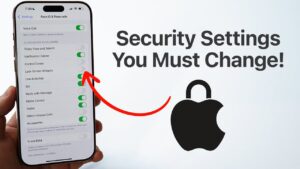
Your passcode is one of the most important security controls on an iPhone. Face ID or Touch ID makes unlocking convenient, but the passcode still protects the device in situations where biometric authentication is unavailable, such as after a restart or certain security-sensitive changes. Apple also allows you to use a custom numeric or alphanumeric passcode instead of the standard six-digit option.
Avoid using birthdays, phone numbers, repeating digits, or a code that you already use elsewhere. A unique six-digit code is considerably better than a predictable one, while a custom alphanumeric passcode can provide additional protection if you are comfortable entering a longer code.
To review the setting, open Settings > Face ID & Passcode or Settings > Touch ID & Passcode, depending on your iPhone.
Tap Change Passcode, then select Passcode Options if you want to use a custom numeric or alphanumeric code.
There is another useful option in the same area: Erase Data. When enabled, iPhone can erase its contents after 10 consecutive failed passcode attempts. This can protect your data if someone repeatedly tries to guess your passcode, but it also creates a serious risk if you or someone you trust accidentally triggers the limit.
If you enable it, make sure your important information is backed up.
Turn On Stolen Device Protection
One of the most important settings to change is Stolen Device Protection. It is specifically designed for a situation that is more serious than simply losing your phone: someone steals your iPhone and knows your passcode.
Without additional protection, knowing the device passcode can give a thief access to sensitive information and allow certain account or device changes. Stolen Device Protection adds biometric requirements and, for some critical actions, a security delay. There is no passcode fallback for those protected actions.
Go to:
Settings > Face ID & Passcode > Stolen Device Protection
Turn it on.
On supported versions of iOS, you can also choose Always under Require Security Delay. Normally, the strongest additional protections are triggered when the iPhone is away from familiar locations such as home or work. Choosing Always applies those additional security measures regardless of location.
This is particularly useful if you regularly carry your iPhone through crowded areas, travel frequently, or use it for banking, email, password management, and other sensitive activities.
Stolen Device Protection requires Find My to remain enabled. That is a benefit rather than a drawback because Find My provides another layer of protection if the phone disappears.
Keep Find My iPhone Enabled
Find My is more than a way to locate a misplaced phone. When you enable Find My on an iPhone, Activation Lock is automatically enabled as well.
Activation Lock links the device to your Apple Account. If the iPhone is lost or stolen, another person cannot simply erase it and activate it as their own without the required account credentials.
Check it under:
Settings > [your name] > Find My > Find My iPhone
Make sure Find My iPhone is enabled.
If available on your device, also keep Find My network and Send Last Location enabled. These features can improve your chances of locating a device when it is offline or when its battery is critically low.
There is an important practical rule here: if your iPhone is stolen, do not remove it from Find My simply because you have remotely erased it. Removing the device can remove Activation Lock and make the phone easier for someone else to reactivate.
Hide Sensitive Notification Previews From the Lock Screen
Your iPhone can display parts of incoming messages, emails, calendar invitations, and other notifications while the phone is locked. That is convenient, but it also means someone looking at your screen can potentially see information without unlocking your phone.
For better privacy, go to:
Settings > Notifications > Show Previews > When Unlocked
You can choose Never if you want stronger privacy.
There is also a more targeted approach. Instead of hiding every notification preview, open the notification settings for individual apps and choose When Unlocked or Never for apps that handle sensitive information.
Banking apps, password managers, email, authentication apps, and private messaging apps deserve particular attention.
This setting does not prevent notifications from arriving. It simply limits how much of their contents are exposed before you authenticate.
Reduce What Can Be Accessed While Your iPhone Is Locked
Your passcode protects the iPhone, but several features can be made available from the Lock Screen for convenience. Depending on your configuration, someone holding your locked phone may be able to access Control Center, widgets, Siri, Wallet, Notification Center, USB accessories, or other functions.
Go to:
Settings > Face ID & Passcode > Allow Access When Locked
Review each option.
You do not necessarily need to disable everything. The goal is to remove access that you do not need.
For example, you may want to disable Control Center from the Lock Screen if you do not want someone to change connectivity settings while your phone is locked. You might also disable Siri if you do not want voice commands available without authentication.
There is a tradeoff. Restricting Lock Screen access can make the phone less convenient to use. Choose the restrictions that make sense for the information and functions you keep on your device.
Make Face ID Require Your Attention
If your iPhone uses Face ID, check the attention settings.
Apple says Face ID can be configured to unlock the iPhone only when your eyes are open and looking at the screen. Requiring attention provides an additional security layer because Face ID is less likely to authenticate when you are not actually looking at the device.
Look under:
Settings > Accessibility > Face ID & Attention
Make sure Require Attention for Face ID is enabled if your device and circumstances support it.
People with certain accessibility needs may intentionally disable this feature. If that applies to you, do not change it simply for the sake of following a security checklist.
Review Which Apps Can Access Your Location
Location data can reveal where you live, work, travel, shop, or spend your time. Many apps do not need continuous access to your precise location to perform their main function.
Go to:
Settings > Privacy & Security > Location Services
Review the apps individually.
For each app, ask whether it genuinely needs location access and whether it needs your exact location.
Apple provides options such as Never, Ask Next Time Or When I Share, While Using the App, and Always, although the choices available can vary by app. You can also disable Precise Location for apps that only need an approximate area.
For example, a navigation app generally needs precise location while you are using it. A weather application may only need approximate location, depending on how you use it.
Be careful with the Always option. It permits an app to access location information in the background, which is more access than most applications require.
Do not disable Location Services globally just to improve privacy. Some important iPhone features depend on it. Reviewing individual apps gives you much more control without unnecessarily breaking useful features.
Turn Off App Tracking Requests You Do Not Want
Apple’s App Tracking Transparency feature lets you control whether apps can track your activity across other companies’ apps and websites.
To stop apps from repeatedly asking for tracking permission, go to:
Settings > Privacy & Security > Tracking
Then turn off Allow Apps to Request to Track.
When this is disabled, apps are treated as though you selected the option not to allow tracking when they request permission.
This setting is mainly about privacy rather than protecting the iPhone from someone stealing it. Still, it is one of the easiest ways to reduce unnecessary cross-app tracking.
It also does not mean that every form of tracking disappears. Third-party services can have their own account-level privacy settings, so review those separately when an app collects information you do not want to share.
Turn On App Privacy Report
If you want to understand what your installed apps are actually doing, App Privacy Report is useful.
Go to:
Settings > Privacy & Security > App Privacy Report
Turn it on and give it some time to collect information.
The report can show how often apps have accessed privacy-sensitive information such as your location, camera, and microphone. It also records certain network activity. Apple says the report begins collecting information only after you enable it and covers activity from the previous seven days once enough data has accumulated.
This is particularly useful when you notice something that does not make sense.
For example, if a simple utility app repeatedly accesses a sensor or location information that you would not expect it to need, you can investigate its permissions and decide whether to remove access or uninstall the app.
The report is not a malware scanner. Unusual activity does not automatically mean an app is malicious. Use it as a way to identify permissions and behavior that deserve a closer look.
Review Camera, Microphone, Photos, Contacts, and Bluetooth Permissions
Location is only one category of sensitive information.
Under Settings > Privacy & Security, review permissions for:
- Camera
- Microphone
- Photos
- Contacts
- Bluetooth
- Local Network
- Calendars
- Reminders
- Health
- Speech Recognition
Apple allows you to review which apps have requested access and change permissions after granting them.
Photos deserve particular attention because you do not always need to give an app access to your entire photo library. When iOS offers a more limited photo-selection option, use it when an app only needs a few images.
The same principle applies to contacts. If an app does not need your address book to perform its primary function, there is little reason to give it access.
Deleting old apps is also useful. An application you no longer use does not need to retain permissions simply because you once approved them.
Keep Wired Accessories Set to Ask
USB and other wired accessories can be another area to review, particularly if you frequently connect your iPhone to computers or unfamiliar accessories.
On supported iPhones, go to:
Settings > Privacy & Security > Wired Accessories
Apple provides options that control when accessories can connect. On USB-C iPhones, options can include Always Ask, Ask for New Accessories, Automatically Allow When Unlocked, and Always Allow, depending on the device.
For most people, requiring approval for unfamiliar accessories is a sensible security choice.
You do not need to sacrifice normal charging to use this protection. Apple states that an iPhone can still charge from a USB power adapter even when it has not been unlocked for accessory communication.
If you regularly connect to trusted equipment, a less restrictive option may be more convenient.
Install iOS and Security Updates Automatically
Keeping iOS current is one of the simplest security measures because Apple regularly distributes fixes for vulnerabilities along with feature updates.
Go to:
Settings > General > Software Update > Automatic Updates
Make sure automatic updates are configured according to your preference. Recent iOS versions also support automatic installation of system file updates and Rapid Security Responses, which are designed to deliver important security improvements more quickly than waiting for a larger software release.
If you have postponed an iOS update because you dislike changing settings or features, security should be part of the decision. An older operating system can leave known vulnerabilities unpatched.
Also check manually from time to time. Automatic updates reduce the work involved, but you should not assume every update will install immediately.
Consider Advanced Data Protection for iCloud
If you store sensitive photos, documents, backups, notes, or other information in iCloud, Advanced Data Protection is one of the strongest optional security settings available to Apple users.
When enabled, it expands end-to-end encryption to many additional iCloud categories, including iCloud Backup, Photos, Notes, iCloud Drive, and other data. The encryption keys for protected categories remain with your trusted devices rather than being accessible to Apple.
You can find it at:
Settings > [your name] > iCloud > Advanced Data Protection
There is an important tradeoff. Apple cannot recover the encryption keys for your end-to-end encrypted data if you lose access to your account. Before enabling the feature, Apple requires an alternative recovery method such as a recovery contact or recovery key.
Do not enable Advanced Data Protection without understanding that responsibility. Stronger encryption also means you have a greater responsibility for account recovery.
Use Safety Check to Review Sharing
If you have used your iPhone for a long time, it can be difficult to remember exactly which people and apps can access your information.
Safety Check gives you a central place to review many of those relationships.
Go to:
Settings > Privacy & Security > Safety Check
On supported iPhones, Safety Check can review information shared with people and apps, connected devices, account security information, and certain privacy permissions. It also provides Emergency Reset, which can quickly stop sharing information when necessary.
For normal maintenance, choose Manage Sharing & Access rather than making broad changes you do not understand.
This is especially useful if you have changed relationships, stopped using certain services, or suspect that someone has access to information they should no longer see.
Lock Sensitive Apps With Face ID
Recent iOS versions let you lock supported apps so that opening them requires authentication.
Touch and hold an app icon on the Home Screen, then choose Require Face ID or Require Touch ID, depending on your device.
This is useful for applications containing particularly sensitive information, such as email, financial information, password managers, or private documents.
Apple’s current Stolen Device Protection behavior adds another layer: when a locked app is protected by Stolen Device Protection and the iPhone is away from familiar locations, Face ID or Touch ID is required without a passcode fallback.
You do not need to lock every application. Doing so can become annoying and may reduce the practical benefit of the feature. Focus on apps where access would cause real problems if someone obtained your unlocked phone or knew your passcode.
Use Lockdown Mode Only for High-Risk Situations
Lockdown Mode is often mentioned in lists of iPhone security settings, but it is not something most people need to enable.
Apple designed it for the small number of people who may face highly sophisticated, targeted attacks, including attacks involving mercenary spyware. It substantially restricts certain features, websites, connections, and services to reduce potential attack surfaces.
You can find it at:
Settings > Privacy & Security > Lockdown Mode
The reason not to recommend it to everyone is simple: it changes how the iPhone works. Some messaging features, web technologies, connectivity functions, and other conveniences are restricted.
If you have a credible reason to believe you are specifically targeted by an advanced attack, Lockdown Mode is worth investigating. For ordinary theft, phishing, weak passwords, and excessive app permissions, the other settings in this article are much more relevant.
Consider Advanced Account Security Options
Your iPhone’s security is closely tied to your Apple Account. If someone gains control of that account, protecting the physical phone alone is not enough.
Open:
Settings > [your name] > Sign-In & Security
Review the devices connected to your account, trusted phone numbers, recovery methods, and two-factor authentication settings.
If you have unusually high security requirements, Apple also supports physical security keys for Apple Account authentication. These are hardware devices that replace the normal six-digit verification code during supported sign-in flows. Apple recommends having at least two keys so that losing one does not lock you out.
Most people will not need security keys. They become more relevant for people who face targeted attacks or have accounts containing extremely valuable information.
A Practical Security Setup for Most iPhone Users
You do not need to change every security option on your iPhone. A sensible setup for most people would include:
- Use a unique six-digit or custom alphanumeric passcode.
- Keep Face ID or Touch ID enabled.
- Turn on Stolen Device Protection.
- Keep Find My iPhone enabled.
- Set sensitive notification previews to When Unlocked.
- Review Allow Access When Locked and disable unnecessary features.
- Review Location Services and remove unnecessary Always permissions.
- Turn off Allow Apps to Request to Track if you do not want tracking requests.
- Enable App Privacy Report and review unexpected activity.
- Keep iOS and security responses updated automatically.
- Review camera, microphone, photo, contact, Bluetooth, and local-network permissions.
- Consider Advanced Data Protection if you understand its recovery requirements.
The important part is not blindly turning everything off. Security settings work best when they match how you actually use the phone.
Common Security Mistakes to Avoid
A secure configuration can still be undermined by everyday habits.
Do not give your iPhone passcode to people simply because they need temporary access to the phone. If someone knows the passcode, several protections designed around device authentication become less effective.
Avoid entering your Apple Account password into links sent through unexpected messages or emails. A legitimate-looking login page can still be a phishing site.
Do not install configuration profiles, enterprise apps, or other management software unless you understand who provided them and why they are needed. Configuration profiles can change important device behavior.
Be careful with unfamiliar charging accessories and computers. Keeping wired-accessory protections enabled is useful, but it is still better to avoid connecting your iPhone to equipment you do not trust.
Finally, pay attention to Apple security alerts and unfamiliar devices in your Apple Account. An unexpected sign-in or account change deserves investigation rather than dismissal.
Conclusion
The best iPhone security setup is not necessarily the one with every privacy feature switched off. It is the configuration that protects the information that matters to you while keeping the phone practical to use.
Start with the fundamentals: a strong unique passcode, Face ID or Touch ID, Stolen Device Protection, Find My, automatic software updates, and restricted Lock Screen access. Then review app permissions, notification previews, location access, tracking requests, and privacy reports.
For stronger protection, Advanced Data Protection can provide end-to-end encryption for much more of your iCloud data, while Safety Check gives you a useful way to audit information sharing. Lockdown Mode and physical security keys are more specialized tools and make sense primarily for people with higher security requirements.
The important thing is to review these settings periodically. iOS changes, new apps are installed, old apps are forgotten, and the way you use your phone evolves. A short security check every few months can help ensure that your iPhone is protecting your information rather than exposing more of it than necessary.
If you think there’s been a mistake here, please do let us know by commenting on this post or Contact Us. And a member of our Content Integrity Team will review this decision with you.




