

If your iPhone keeps showing a Storage Almost Full warning, deleting apps is not your only option. You can often recover several gigabytes by removing temporary files, large attachments, downloaded media, duplicate photos, old messages, and other data stored by apps without uninstalling the apps themselves.
The best way to free up iPhone storage without deleting apps is to first find out what is actually using the space. Many people start deleting random photos or documents, only to discover later that Messages, Safari data, offline downloads, or system-generated files were responsible for most of the problem.
This guide explains where iPhone storage goes, how to identify the biggest space users, and which cleanup methods can free space while keeping your apps installed and usable.
Start by Checking What Is Using Your iPhone Storage
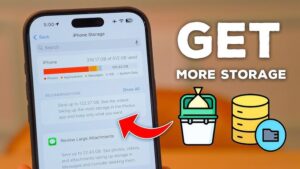
Before removing anything, check the storage breakdown.
- Open Settings.
- Tap General.
- Select iPhone Storage.
- Wait a moment for the storage information to load.
You will see a bar showing how your storage is divided among categories such as Apps, Photos, Media, Messages, iOS, and System Data. Below that, iPhone lists your installed apps and the amount of storage each one uses.
Pay attention to two numbers when looking at an app:
- App Size, which is the storage required for the application itself.
- Documents & Data, which includes downloaded files, cached content, attachments, and other information created while using the app.
An app can be relatively small while its data consumes several gigabytes. Social media apps, streaming services, browsers, messaging apps, and navigation apps are common examples.
Apple may also display storage recommendations near the top of this screen. These recommendations can change depending on what is stored on your iPhone, so they are worth reviewing before doing a manual cleanup.
Remove Downloaded Content You No Longer Need
Downloaded content is one of the easiest ways to recover storage without deleting an app. Streaming and media apps can store movies, episodes, songs, podcasts, and other files for offline use.
The important part is that deleting a download usually does not delete your account, playlists, watch history, or the app itself.
Check apps you regularly use for offline content, including:
- Music streaming apps
- Video streaming apps
- Podcast apps
- Cloud storage apps
- Map apps with offline maps
- Ebook and audiobook apps
- Social media apps with saved drafts or downloads
Open the app and look for a Downloads, Offline, or Downloaded section. Remove content you no longer need on your device.
This is usually better than deleting the entire app because you can choose exactly what to remove. For example, deleting a season of downloaded TV episodes may free several gigabytes while leaving the streaming app and your account untouched.
If you download content regularly, make a habit of removing completed shows, old podcasts, and music you no longer listen to offline.
Offload Apps Instead of Deleting Them
If an app itself is taking up a large amount of storage but you do not want to lose its documents and settings, consider Offload Unused Apps.
Offloading removes the app program from your iPhone while keeping its documents and data. The app icon remains on the Home Screen, and you can reinstall the app later to continue using its stored data.
To offload an individual app:
- Go to Settings > General > iPhone Storage.
- Select the app.
- Tap Offload App.
- Confirm your choice.
This option is useful for apps you want to keep but do not use often. Games are a common example because the app itself can be large even when you want to preserve saved data.
You can also enable automatic offloading in Settings > App Store by turning on Offload Unused Apps. Your iPhone can then remove apps you have not used recently when storage becomes limited.
Offloading is different from deleting. Deleting normally removes the app and its locally stored data, while offloading is designed to preserve the app’s documents and data.
There is one limitation. You will need to download the app again before you can use it. If the app is no longer available from the App Store, reinstalling it may not be possible.
Clear Safari Website Data and Downloads
Safari can gradually accumulate website data, cached files, cookies, and downloads. Clearing this data can free storage, although the amount recovered varies.
To review Safari downloads, open the Files app and check the Downloads folder. Large ZIP files, PDFs, videos, installers, and duplicate downloads can remain there long after you have finished using them.
Delete files you no longer need, then check the Recently Deleted folder in Files. Deleted files may continue occupying storage until they are permanently removed.
You can also clear Safari’s browsing data from Settings. Depending on your iOS version, look for the Safari settings and the option to clear history and website data.
Be aware of the trade-off before doing this. Clearing website data can sign you out of websites, remove browsing history, and reset some site preferences.
If storage is your only concern, reviewing Downloads first is often the safer option because you can remove individual files instead of clearing all Safari data.
Delete Large Message Attachments Without Removing Important Conversations
Messages can use far more storage than many people expect, especially if you regularly receive videos, photos, voice messages, and files.
You do not need to delete an entire conversation to reduce its storage use.
Go to Settings > General > iPhone Storage, then select Messages. Depending on your iOS version, you may see categories for large attachments, photos, videos, and other files.
Review these sections and remove attachments you no longer need.
This approach is particularly useful in group chats. A conversation may contain hundreds of photos and videos, but you might only want to keep a few important messages. Removing unnecessary attachments can recover space while leaving the conversation itself intact.
You can also adjust how long messages remain on your device. In Settings > Apps > Messages or the equivalent Messages settings section on your version of iOS, look for Keep Messages.
The available options may include keeping messages for a limited period or forever. Choosing a shorter retention period can reduce future storage use, but make sure you understand that older messages may be permanently deleted.
Do not change this setting simply because storage is low if you need old conversations for work, records, or personal reasons.
Use iCloud Photos to Reduce Local Photo Storage
Photos and videos are often the largest storage category on an iPhone. If you use iCloud Photos and have enough iCloud storage, Optimize iPhone Storage can reduce the amount of space used by your original photos and videos on the device.
To check the setting:
- Open Settings.
- Tap your Apple Account name.
- Select iCloud.
- Open Photos.
- Make sure iCloud Photos is enabled.
- Select Optimize iPhone Storage.
When this feature is active, your iPhone can keep smaller device-optimized versions locally while storing full-resolution originals in iCloud.
This does not instantly guarantee a specific amount of free space. iOS manages local storage based on available capacity and your usage. If you have recently enabled the feature, the optimization process can also take time.
A reliable internet connection and sufficient iCloud storage are required.
Also, understand the difference between optimizing and deleting. If iCloud Photos is enabled, deleting a photo from your iPhone can also delete it from your iCloud Photos library and other synced Apple devices. Optimizing storage keeps the photos in your library while reducing the amount of local space they use.
Find and Remove Duplicate Photos and Unnecessary Videos
Even if you want to keep your apps, you may have photos or videos that are consuming storage unnecessarily.
Open the Photos app and review:
- Duplicate photos
- Duplicate videos
- Screenshots
- Screen recordings
- Large videos
- Downloads saved to Photos
- Images from messaging apps
On supported versions of iOS, the Photos app can identify duplicates and allow you to merge them. This can remove redundant copies while preserving useful information.
Videos deserve special attention because a few high-resolution recordings can consume more storage than hundreds of photos.
You do not have to delete every old video. Start with clips you accidentally recorded, duplicate exports, long screen recordings, and videos you no longer need.
After deleting media, open Recently Deleted in Photos. Deleted items can remain there for a period before being permanently removed, which means the storage may not be recovered immediately.
If your goal is to free space now, permanently removing items from Recently Deleted will release the storage sooner.
Clean Up Large Files in the Files App
The Files app can contain documents and downloads stored locally on your iPhone. These files may come from Safari, email attachments, cloud storage services, messaging apps, or other applications.
Open Files and check:
- On My iPhone
- Downloads
- Recently Deleted
Look for large files such as videos, archived files, PDFs, old documents, and duplicate downloads.
If you use cloud services, make sure you understand whether a file is stored locally or only available through the cloud. Removing a local download from your iPhone may not delete the original cloud file, but the exact behavior depends on the app and service.
When possible, use the app’s option to remove the downloaded copy rather than deleting the original file.
For example, a cloud storage app may allow you to make a file available offline. Turning off offline access can free local storage while keeping the file safely stored in your cloud account.
Reduce Storage Used by Mail and Email Attachments
Email apps can also hold downloaded attachments and locally cached messages.
If you use the Apple Mail app, large attachments may be included in the storage used by Mail. Removing unnecessary emails with large files can help, especially if they remain in Trash afterward.
Third-party email apps manage storage differently. Some cache email content aggressively, while others provide settings for clearing downloaded data.
Check the storage entry for the email app under Settings > General > iPhone Storage. If the app’s Documents & Data is unusually large, review its settings for download or cache controls.
Do not assume that deleting an email app is necessary. In many cases, removing old attachments, downloaded files, or offline content is enough.
Manage Social Media and Messaging App Storage
Apps such as social networks and messaging services can build up temporary files over time. However, iPhone does not provide a universal Clear Cache button for every app.
The cleanup method depends on the app.
Some apps include their own storage management tools. A messaging app may let you remove large files or media from individual chats, while a social media app may provide controls for downloaded content or drafts.
Check the app’s own settings before taking more drastic action.
If an app does not provide a cache-clearing option and its Documents & Data has become very large, deleting and reinstalling the app can sometimes reduce its local storage. However, this is not the same as the other methods in this article because it temporarily removes the app and may delete local data that is not synced to your account.
Only use that option after confirming that important information, such as drafts, downloads, game progress, or locally stored files, is backed up or synced.
Clear Offline Maps and Navigation Data
Offline maps are useful when traveling or when your internet connection is unreliable, but downloaded map areas can occupy a significant amount of storage.
Open the navigation app you use and look for offline maps or downloaded regions. Remove areas you no longer need.
Some apps automatically update offline maps, which can keep storage usage higher than expected. Review the settings if you have downloaded maps for previous trips and forgotten about them.
This is another targeted cleanup method. You keep the navigation app installed and simply remove the data that is no longer useful.
Reduce the Storage Used by Podcasts and Other Media
Podcast apps can automatically download new episodes and keep old ones after you finish listening.
Check the settings in your podcast app for options such as:
- Automatically download episodes
- Remove played episodes
- Limit the number of saved episodes
- Restrict downloads to selected shows
If you listen to several podcasts, automatic downloads can quietly consume storage over time.
The same principle applies to music, audiobooks, and other media apps. Review what is actually downloaded rather than assuming the app itself is responsible for the storage usage.
Review Recommendations in iPhone Storage
Return to Settings > General > iPhone Storage after completing a few cleanup steps.
iOS may show recommendations based on your current storage usage. These can include options related to attachments, unused apps, or media.
Do not enable every recommendation automatically. Read what will happen first.
For example, offloading unused apps may be useful if you rarely open certain apps, but it may be unnecessary if your actual storage problem comes from downloaded videos. The goal is to remove the data causing the problem, not simply activate every available storage feature.
Checking this screen again also helps you confirm which cleanup method actually made a difference.
Understand Why System Data Can Stay Large
You may notice a category called System Data when checking iPhone Storage. This can include caches, logs, temporary files, fonts, system resources, and other data used by iOS.
The size can change over time, so a large System Data category is not always a permanent problem.
Before attempting drastic fixes, restart your iPhone and check the storage again after the system has had time to recalculate. Installing available iOS updates can also resolve some unusual storage behavior.
Do not rely on unofficial cleaning apps that claim they can remove all iPhone system files. iOS limits what third-party apps can access, and an app cannot safely clear arbitrary system data in the same way a desktop cleanup utility might.
If System Data remains unusually large and storage is severely limited, backing up the iPhone and restoring it can sometimes rebuild system storage. This is a more advanced step and should only be considered after simpler options have been exhausted.
Make sure you have a current backup and understand the restoration process before proceeding.
Avoid These Common Mistakes When Freeing Up iPhone Storage
The biggest mistake is deleting data without checking where your storage is actually going.
Avoid these common problems:
- Deleting apps before checking Documents & Data
- Removing photos without checking Recently Deleted
- Clearing Safari data when large downloads are the real problem
- Deleting cloud files without confirming they are safely stored elsewhere
- Reinstalling apps before confirming important local data is synced
- Turning on automatic message deletion without considering what old conversations you need
- Assuming System Data can be manually erased with a cleanup app
Another common issue is expecting the storage number to update instantly. iOS sometimes needs time to recalculate available space after large files are removed. Restarting the iPhone or waiting briefly can help the storage screen refresh.
A Practical Order for Freeing Up Storage Without Removing Apps
If you need to recover space efficiently, start with the areas most likely to contain large removable files.
- Check Settings > General > iPhone Storage to identify the biggest categories.
- Remove downloaded movies, music, podcasts, and offline content.
- Review large message attachments.
- Check Files and permanently clear unnecessary items from Recently Deleted.
- Remove duplicate photos, large videos, screenshots, and screen recordings you do not need.
- Enable Optimize iPhone Storage if you use iCloud Photos and have sufficient iCloud storage.
- Review offline maps and cloud files stored locally.
- Check individual apps for storage management options.
- Offload apps you rarely use if their app size is significant.
- Restart the iPhone and check the storage breakdown again.
This order helps you target removable data before making changes that could affect apps or important information.
Conclusion
You can free up iPhone storage without deleting apps by focusing on the files and data stored inside them. Downloaded media, message attachments, offline maps, duplicate photos, browser downloads, local documents, and cached data can often consume more space than the apps themselves.
Start with Settings > General > iPhone Storage so you can identify the real cause of the problem. Then remove unnecessary downloads and large files, optimize photo storage, clean up attachments, and use app-specific storage controls where available.
If you still need more space, offloading unused apps can remove the app itself while preserving its documents and data. Taking a targeted approach is safer than deleting apps at random, and it makes it much easier to recover storage without losing the tools, accounts, and information you still need.
If you think there’s been a mistake here, please do let us know by commenting on this post or Contact Us. And a member of our Content Integrity Team will review this decision with you.




