

Installing apps from unidentified developers can be useful when software isn’t available through the official app store or when you’re testing an app that hasn’t been published yet.
At the same time, it introduces risks that don’t exist with apps installed from trusted sources. Malicious software, modified installers, and fake download pages are common ways attackers target users who bypass built-in security checks.
The good news is that installing apps from unidentified developers does not have to be dangerous if you understand how your operating system’s security features work and know what to verify before opening an installer.
The safest approach is not simply allowing unknown apps to run. It’s making sure the software is legitimate before you install it.
This guide explains what “unidentified developer” means, why operating systems display these warnings, and how to install apps safely on Windows, macOS, Android, and Linux while reducing the risk of malware or compromised software.
What Does “Unidentified Developer” Mean?
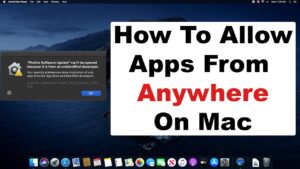
An unidentified developer is simply a software publisher whose application hasn’t been verified by your operating system’s security system.
This does not automatically mean the app is unsafe.
Many legitimate developers choose not to purchase a code-signing certificate, distribute software outside official app stores, or release open-source applications that aren’t digitally signed.
However, operating systems cannot easily distinguish between an unknown but trustworthy developer and malicious software. That’s why they warn you before allowing the app to run.
Depending on your device, you may see messages such as:
- Windows protected your PC
- Microsoft Defender SmartScreen prevented an unrecognized app
- Apple cannot verify the developer
- App from an unidentified developer
- Install unknown apps?
- Installation blocked for security reasons
These warnings are intended to make you pause and verify the software before proceeding.
Why Operating Systems Block Unknown Apps
Modern operating systems include several security layers designed to prevent malware infections.
When you download software from outside an official store, your device may check:
- Whether the installer has a valid digital signature
- Whether the certificate belongs to a trusted developer
- Whether the file has been altered
- Whether the installer has a known reputation
- Whether malware scanners detect suspicious behavior
If one or more of these checks fail, you’ll usually receive a warning.
The operating system isn’t claiming the software is malicious. It’s informing you that it cannot verify its origin with enough confidence.
Before You Install Any App From an Unidentified Developer
Taking a few minutes to verify an app before opening it can prevent serious security problems later.
Download Only From the Official Website
Many infections happen because users search for software through search engines and click download sites instead of the developer’s own website.
Whenever possible:
- Visit the developer’s official website directly.
- Avoid unofficial mirrors unless the developer recommends them.
- Be cautious with “free download” websites that bundle installers.
Official downloads are much less likely to contain modified files.
Research the Developer
If you’ve never heard of the developer, spend a few minutes checking their reputation.
Look for:
- An established website
- Documentation
- Support information
- Active development
- User reviews from trusted communities
- Public source code if it’s an open-source project
A lack of information doesn’t always mean the software is unsafe, but it should encourage additional verification.
Verify Digital Signatures
Digitally signed applications help prove that the installer hasn’t been modified since the developer released it.
On Windows:
- Right-click the installer.
- Choose Properties.
- Open the Digital Signatures tab.
If a valid signature is present, Windows will display the publisher information.
On macOS, signed applications contain a developer certificate that Gatekeeper can verify automatically.
Unsigned software isn’t necessarily dangerous, but signed software provides more confidence.
Compare File Checksums
Many developers publish SHA-256 checksums for downloads.
A checksum is a unique fingerprint of a file.
If your downloaded file matches the published checksum, it means the installer has not been altered after the developer created it.
This is especially important for operating system images, developer tools, security software, and open-source applications.
Scan the Installer Before Running It
Before opening the installer:
- Scan it with your antivirus software.
- Make sure your antivirus definitions are current.
- If your antivirus flags the file, investigate before ignoring the warning.
False positives do occur, particularly with smaller developers, but they should never be dismissed automatically.
How to Install Apps From Unidentified Developers on Windows Safely
Windows includes several security features that may block unfamiliar software.
The most common is Microsoft Defender SmartScreen.
When SmartScreen detects an app with little reputation or an unknown publisher, it displays a warning.
If you’ve verified the software is legitimate:
- Download the installer from the developer’s official website.
- Scan it with Windows Security or another trusted antivirus.
- Right-click the installer and choose Properties.
- Review the publisher information if available.
- Double-click the installer.
- If SmartScreen appears, select More info.
- Confirm the publisher.
- Choose Run anyway only if you’re confident the software is legitimate.
Do not disable SmartScreen permanently simply to install one application.
Keeping SmartScreen enabled provides ongoing protection against malicious downloads.
When You Should Stop the Installation
Do not continue if:
- The installer requests unexpected administrator access without explanation.
- The publisher information looks suspicious.
- The download came from an unofficial website.
- Antivirus detects malware.
- The installer attempts to install unrelated software.
These are common warning signs of unwanted or malicious software.
How to Install Apps From Unidentified Developers on macOS Safely
macOS uses a security feature called Gatekeeper.
Gatekeeper checks whether applications are signed by registered developers and whether they have been notarized by Apple.
If an app hasn’t been notarized or signed, macOS may refuse to open it.
If you’ve confirmed the app is trustworthy:
- Download the application from the official developer website.
- Open System Settings.
- Select Privacy & Security.
- Scroll to the Security section.
- Attempt to open the application.
- Return to Privacy & Security.
- If macOS displays an option to open the blocked app, choose Open Anyway.
- Confirm the warning when prompted.
Another method is:
- Right-click the application.
- Choose Open.
- Confirm the security dialog.
This temporarily overrides Gatekeeper for that application without disabling protection for everything else.
Avoid changing Gatekeeper settings globally unless absolutely necessary.
How to Install Apps From Unknown Sources on Android
Android allows installation outside Google Play, but recent Android versions handle this more securely than older releases.
Instead of enabling unknown sources system-wide, Android now grants permission to individual apps.
For example, you can allow your browser or file manager to install APK files without allowing every app to do the same.
To install an APK safely:
- Download the APK from the developer’s official website.
- Verify that the download matches the intended version.
- Open the APK.
- If prompted, allow your browser or file manager to install unknown apps.
- Review the permissions requested during installation.
- Complete the installation.
- Disable the permission afterward if you don’t plan to install more APKs.
Avoid APK files from random forums or download sites, especially if they advertise paid apps for free.
Modified APKs often include malware or hidden tracking software.
Installing Software Safely on Linux
Linux distributions usually rely on package managers such as APT, DNF, Pacman, or Zypper.
Whenever possible, install software from your distribution’s official repositories.
Official repositories typically verify package signatures automatically.
If software isn’t available there:
- Download it from the official project website.
- Verify GPG signatures if provided.
- Check published SHA-256 hashes.
- Review installation instructions carefully.
Avoid running installation commands copied from unknown websites without understanding what they do.
Commands executed with administrator privileges can modify your entire system.
Common Warning Signs That an Installer Is Unsafe
Not every dangerous installer is blocked by your operating system.
Be cautious if you notice:
- The website uses unusual domain names.
- Multiple pop-up download buttons appear.
- The installer size differs significantly from the official version.
- The application asks to disable antivirus software.
- The installer includes unrelated browser extensions.
- Unexpected advertisements appear during setup.
- The software requests permissions unrelated to its function.
- The installer attempts to change browser settings without permission.
A single warning sign doesn’t always indicate malware, but several together should be treated seriously.
Common Mistakes People Make
Many users accidentally increase their risk by trying to bypass security features as quickly as possible.
Some of the most common mistakes include:
- Downloading software from the first search result instead of the official website.
- Ignoring antivirus warnings.
- Disabling operating system security permanently.
- Running installers with administrator privileges unnecessarily.
- Installing outdated versions from abandoned websites.
- Skipping checksum verification for security-sensitive software.
- Trusting download sites simply because they appear high in search results.
Avoiding these mistakes significantly reduces the chances of installing malicious software.
What to Do If You Accidentally Installed a Suspicious App
If you suspect you’ve installed unsafe software, act quickly.
First, disconnect from the internet if the application appears to be behaving suspiciously.
Next:
- Uninstall the application.
- Run a complete antivirus scan.
- Install any available operating system updates.
- Change passwords if sensitive information may have been exposed.
- Monitor financial and online accounts for unusual activity.
- Remove unknown browser extensions.
- Review startup programs for unfamiliar entries.
If the malware cannot be removed, restoring the system from a clean backup or reinstalling the operating system may be necessary.
Should You Disable Security Features?
Generally, no.
Security mechanisms such as Microsoft Defender SmartScreen, Gatekeeper, Android’s installation restrictions, and package verification on Linux exist to prevent accidental malware installation.
If you need to bypass them for a trusted application, do so only for that specific app rather than disabling protection permanently.
Temporarily approving one verified installer preserves the security benefits for future downloads.
Troubleshooting Installation Problems
Sometimes an app is blocked even though it’s legitimate.
Here are a few common situations.
The App Is Old
Older software may not be digitally signed or compatible with current operating systems.
Check whether the developer offers a newer version.
The Certificate Has Expired
A developer’s signing certificate may have expired after the software was released.
Visit the official website to see if an updated installer is available.
Antivirus Flags the File
Some security products occasionally report false positives.
Compare results with another trusted antivirus scanner and verify the checksum before deciding whether the warning is legitimate.
The App Requires Administrator Rights
Utilities that modify system settings, install drivers, or update firmware often require administrator privileges.
Only approve the request if you understand why elevated permissions are necessary.
Best Practices for Installing Apps From Unidentified Developers
Installing software safely is less about bypassing warnings and more about verifying the software before trusting it.
Keep these practices in mind:
- Prefer official websites over third-party download portals.
- Verify digital signatures whenever possible.
- Compare published checksums.
- Keep your operating system updated.
- Use reputable antivirus software.
- Back up important files regularly.
- Remove software you no longer use.
- Install only applications you genuinely need.
Following these habits greatly reduces your exposure to malware without preventing you from using legitimate software distributed outside official app stores.
Final Thoughts
Knowing how to install apps from unidentified developers safely is about making informed decisions rather than ignoring security warnings. Windows, macOS, Android, and Linux all include safeguards because malicious software often disguises itself as legitimate applications.
Before overriding any warning, confirm that the software comes from the official developer, verify its authenticity when possible, and scan it with security software. If something about the installer seems unusual, pause and investigate instead of rushing through the prompts.
Most legitimate developers make it easy to verify their downloads. Spending a few extra minutes checking the source, digital signature, or checksum is far easier than dealing with a compromised system later.
Related Articles
- How to Clear Social Media App Cache
- How to Recover Permanently Deleted Files Without Backup On Window
- Best Free Alternatives to Microsoft Office for Students
If you think there’s been a mistake here, please do let us know by commenting on this post or Contact Us. And a member of our Content Integrity Team will review this decision with you.





