

Students rely on office software for almost every part of academic life. Essays, presentations, spreadsheets, group projects, research notes, and resumes all require tools that can create, edit, and share documents efficiently. While Microsoft Office remains one of the most popular productivity suites, not every student has access to a paid subscription.
The good news is that several free Microsoft Office alternatives now offer features that are more than capable of handling school and university work. Some are web-based, others are desktop applications, and many support Microsoft Word, Excel, and PowerPoint file formats, making collaboration much easier.
Choosing the right option depends on how you study. Some students primarily work online with classmates, while others need software that works without an internet connection.
This guide compares the best free alternatives to Microsoft Office for students, explains their strengths and limitations, and helps you decide which one fits your workflow.
What Makes a Good Microsoft Office Alternative for Students?
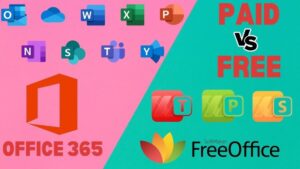
Not every free office suite is suitable for schoolwork. Some lack compatibility with Microsoft file formats, while others miss important features such as presentation tools or cloud storage.
A good student-friendly office suite should provide:
- A word processor for essays and reports
- Spreadsheet software for calculations and data analysis
- Presentation software
- Good compatibility with DOCX, XLSX, and PPTX files
- Autosave or cloud backup
- Collaboration features when working in groups
- A simple interface that doesn’t require much learning
Students also benefit from software that runs well on older laptops, since many school computers are not particularly powerful.
1. Google Docs, Sheets, and Slides
Google’s productivity suite is often the first recommendation for students because collaboration is built into every document.
Best for
- Group assignments
- Cloud-based work
- Chromebook users
- Students who frequently switch between devices
Instead of installing software, everything runs in a web browser. Documents are automatically saved every few seconds, reducing the chance of losing work due to crashes or accidental shutdowns.
Real-time collaboration is where Google Workspace stands out. Multiple students can edit the same document simultaneously, leave comments, suggest changes, and review version history without emailing files back and forth.
Another major advantage is accessibility. You can begin writing on a classroom computer, continue on your phone during your commute, and finish on your laptop at home.
Advantages
- Completely free with a Google account
- Automatic cloud saving
- Excellent collaboration tools
- Strong mobile apps
- Easy sharing permissions
Limitations
Formatting can occasionally change when opening complex Microsoft Word documents. Advanced Excel formulas, specialized fonts, and intricate PowerPoint animations may not transfer perfectly.
For standard school assignments, however, compatibility is generally excellent.
2. LibreOffice
LibreOffice has become the leading free desktop replacement for Microsoft Office.
Unlike browser-based tools, LibreOffice installs directly on Windows, macOS, and Linux, allowing students to work entirely offline.
Best for
- Offline work
- Research papers
- Large reports
- Students with unreliable internet
The suite includes:
| Microsoft Office | LibreOffice Equivalent |
|---|---|
| Word | Writer |
| Excel | Calc |
| PowerPoint | Impress |
| Access | Base |
| Draw | Draw |
| Math | Math |
Writer includes many advanced formatting options useful for university reports, including:
- Styles
- Footnotes
- Bibliographies
- Tables of contents
- Page numbering
- Academic formatting
Calc supports hundreds of spreadsheet formulas, while Impress provides enough presentation features for most classroom projects.
Advantages
- Completely free and open source
- No advertisements
- Excellent offline support
- Powerful editing tools
- Works on older computers
Limitations
The interface looks more traditional than Microsoft Office, which may require some adjustment. Compatibility with very complex Office documents is good but not perfect.
3. Microsoft 365 for the Web
Many students overlook the fact that Microsoft itself offers free web versions of Word, Excel, and PowerPoint.
These browser-based apps include many everyday editing features and preserve document formatting better than most third-party alternatives because they are Microsoft’s own products.
Best for
- Students already using Microsoft file formats
- Sharing documents with teachers
- Basic editing
The online versions do not include every desktop feature, but they are more than capable of handling essays, presentations, homework, and collaborative projects.
If your school provides an education account, you may also receive access to premium Microsoft 365 features at no additional cost.
Advantages
- Excellent Microsoft Office compatibility
- Familiar interface
- Cloud storage through OneDrive
- Free online editing
Limitations
Some advanced desktop features are unavailable without a subscription.
4. WPS Office Free
WPS Office is designed to feel very similar to Microsoft Office, making it one of the easiest transitions for students.
Its interface resembles the ribbon layout found in Microsoft Word, Excel, and PowerPoint, so there is very little learning required.
Best for
- Students familiar with Microsoft Office
- Editing Office documents
- Creating presentations
The free version includes:
- Writer
- Spreadsheet
- Presentation
- PDF reader
- PDF conversion tools
WPS also performs well with Microsoft document formatting.
Advantages
- Familiar interface
- Good Office compatibility
- Modern design
- Built-in PDF tools
Limitations
The free version includes advertisements and promotes premium features. Some advanced tools require a paid subscription.
5. ONLYOFFICE Desktop Editors
ONLYOFFICE focuses heavily on compatibility with Microsoft Office formats.
This makes it attractive for students whose instructors require DOCX, XLSX, or PPTX submissions.
Best for
- Maintaining document formatting
- Group projects
- Office compatibility
The desktop editors are free and include:
- Documents
- Spreadsheets
- Presentations
- PDF viewing
- Form filling
Formatting usually remains very close to the original Office documents, particularly for collaborative work.
Advantages
- Strong Microsoft compatibility
- Modern interface
- Free desktop software
- Cross-platform support
Limitations
Some collaboration features require connecting to a cloud server or self-hosted workspace.
6. Apple iWork (Pages, Numbers, and Keynote)
Students using a Mac, iPad, or iPhone already have access to Apple’s office suite.
Pages, Numbers, and Keynote are free for Apple users and integrate well across Apple’s ecosystem.
Best for
- Mac users
- iPad note-taking
- Attractive presentations
Keynote is especially respected for producing visually polished presentations with minimal effort.
Advantages
- Free for Apple devices
- Clean interface
- Excellent presentation design
- Strong synchronization through iCloud
Limitations
Although Microsoft Office files are supported, some formatting changes can occur when importing or exporting documents.
Feature Comparison
| Feature | Google Docs | LibreOffice | Microsoft 365 Web | WPS Office | ONLYOFFICE | Apple iWork |
|---|---|---|---|---|---|---|
| Free | Yes | Yes | Yes | Yes | Yes | Yes |
| Offline editing | Limited | Yes | Limited | Yes | Yes | Yes |
| Cloud storage | Yes | No | Yes | Yes | Optional | Yes |
| Real-time collaboration | Excellent | Limited | Excellent | Basic | Good | Good |
| Microsoft compatibility | Good | Good | Excellent | Very Good | Excellent | Good |
| Desktop application | No | Yes | No | Yes | Yes | Yes |
Which Free Office Suite Is Best for Different Types of Students?
The best choice depends on how you study.
For group assignments
Google Docs is difficult to beat. Live editing, comments, suggestions, and automatic saving make teamwork much easier.
For offline studying
LibreOffice is the strongest option.
Students without reliable internet can complete assignments anywhere without worrying about connectivity.
For Microsoft compatibility
ONLYOFFICE and Microsoft 365 for the web generally preserve formatting more accurately than other alternatives.
This matters when submitting assignments with strict formatting requirements.
For older computers
LibreOffice performs well on older hardware and does not require constant internet access.
For presentation-heavy courses
Apple Keynote and Google Slides both make it easy to create attractive presentations without much design experience.
Things to Consider Before Choosing
File compatibility
If your instructor specifically requests Microsoft Word documents, check how your chosen software exports DOCX files.
For simple essays, compatibility is usually excellent. More complicated layouts containing advanced formatting, macros, or custom fonts may require additional review before submission.
Internet access
Students with unstable internet should prioritize desktop software rather than browser-based applications.
Cloud-based tools are convenient, but offline editing provides greater reliability during travel or network outages.
Storage
Cloud services automatically back up documents, reducing the risk of data loss.
Desktop software places responsibility on you to save files and create backups, ideally using an external drive or cloud storage service.
Privacy
Open source applications such as LibreOffice process documents locally, meaning your files stay on your computer unless you choose to upload them.
Cloud-based editors store files on remote servers, which provides convenience but also means your data is managed by the service provider.
Common Mistakes Students Make
Many students choose software based only on appearance instead of compatibility.
Before submitting an assignment:
- Open the exported document and review formatting.
- Verify that page numbers remain correct.
- Check tables and images.
- Confirm fonts haven’t changed.
- Review presentation animations if using PowerPoint files.
Another common mistake is relying solely on local storage. Even if you use offline software, keeping a backup in cloud storage can prevent losing days of work if your laptop fails.
Tips for Getting the Most Out of Free Office Software
Learn keyboard shortcuts early. Most office suites support familiar shortcuts such as Ctrl+C, Ctrl+V, Ctrl+S, and Ctrl+Z, which speed up everyday tasks.
Use templates for reports, resumes, and presentations. Many free office suites include professionally designed templates that save time and help maintain consistent formatting.
If you’re collaborating with classmates, agree on one file format before starting the project. Constantly converting between different formats can introduce formatting issues and make version control more difficult.
Finally, keep your software updated. Free office suites receive regular improvements for compatibility, security, and performance. Installing updates reduces the chance of encountering document errors or unsupported file formats.
Frequently Asked Questions
Can free office suites open Microsoft Word documents?
Yes. Most major alternatives support DOCX files, although very complex documents may experience minor formatting differences.
Which free alternative is closest to Microsoft Office?
WPS Office and ONLYOFFICE have interfaces that closely resemble Microsoft Office. Microsoft 365 for the web is naturally the closest in terms of appearance and file compatibility because it comes directly from Microsoft.
Is LibreOffice completely free?
Yes. LibreOffice is free, open source, and does not require a subscription.
Which option is best for students who work offline?
LibreOffice remains the strongest choice because every application runs locally without requiring an internet connection.
Can I use these alternatives on multiple devices?
Most cloud-based services, including Google Docs and Microsoft 365 for the web, allow you to access documents from almost any device with a browser. Desktop applications such as LibreOffice, WPS Office, and ONLYOFFICE can also be installed on multiple personal devices, subject to their licensing terms.
Final Thoughts
The best free alternatives to Microsoft Office for students cover nearly every academic need without requiring a paid subscription. If collaboration is your priority, Google Docs, Sheets, and Slides offer the smoothest experience for group projects and shared assignments.
Students who need dependable offline editing will find LibreOffice hard to beat, while ONLYOFFICE and Microsoft 365 for the web are excellent choices when preserving Microsoft Office formatting is essential.
Rather than looking for a single “best” option, think about how you actually work. Many students even combine tools, using Google Docs for collaboration and LibreOffice or ONLYOFFICE for offline editing.
With the right combination, you can write papers, analyze data, build presentations, and submit assignments confidently without paying for Microsoft Office.
Related Articles
- How to Clear Social Media App Cache
- How to Install Apps From Unidentified Developers Safely
- How to Recover Permanently Deleted Files Without Backup On Window
If you think there’s been a mistake here, please do let us know by commenting on this post or Contact Us. And a member of our Content Integrity Team will review this decision with you.


