

Every MacBook battery degrades over time. That part is unavoidable, since lithium-ion batteries have a finite number of charge cycles before their capacity starts to drop. What’s largely within your control is how quickly that degradation happens.
A MacBook that’s charged and used thoughtfully can still hold 80% or more of its original capacity after several years, while one that’s treated carelessly might drop below that threshold in half the time.
This isn’t about obsessive babying of the battery or avoiding your laptop’s charger out of fear. It’s about understanding a handful of habits that genuinely matter, and letting go of a few myths that don’t.
How MacBook Batteries Actually Degrade
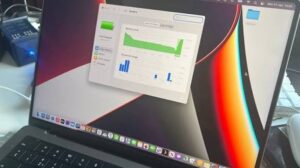
A MacBook’s battery is rated in charge cycles, not just calendar time. One full cycle equals using 100% of the battery’s capacity, whether that happens in a single day or spread across a week of partial charges and discharges. Apple typically rates its batteries to retain around 80% of original capacity after 1,000 cycles, though this varies by model and generation.
Every cycle causes a small amount of physical wear inside the battery cells. Heat accelerates this wear significantly, more than almost any other factor. A battery kept at a high charge level while also running hot, such as sitting plugged in on a couch cushion that blocks airflow, ages faster than one used in a cooler environment with more moderate charge levels.
Time itself also plays a role independent of cycles. A battery that sits fully charged and unused for months, like in a MacBook stored in a drawer, will still lose some capacity simply from being held at high voltage for an extended period.
Check Your Current Battery Health First
Before changing any habits, it helps to know where your battery currently stands.
- Click the Apple menu and go to System Settings.
- Select Battery in the sidebar.
- Click Battery Health.
Here you’ll see a “Maximum Capacity” percentage, which compares your battery’s current capacity to when it was new. You’ll also see a status, usually “Normal,” but sometimes “Service Recommended” if the battery has degraded enough to noticeably affect performance or if Apple has detected an issue.
On Apple silicon MacBooks (M1 and later), this screen also shows cycle count if you click into the details, giving you a clearer picture of how much use the battery has actually seen relative to its age.
If your Maximum Capacity is already below 80% and the machine is still within warranty or AppleCare coverage, it’s worth checking whether a free battery replacement applies before spending time optimizing charging habits for a battery that may need replacing regardless.
Use Optimized Battery Charging
Since macOS Catalina, MacBooks have included a feature called Optimized Battery Charging, which learns your daily routine and delays charging past 80% until shortly before you typically unplug the laptop. Apple silicon models added more granular control over this in later macOS versions.
To check or adjust it:
- Go to System Settings > Battery > Battery Health.
- Look for “Optimized Battery Charging” and make sure it’s enabled.
On newer macOS versions (Sonoma and later), you’ll also find additional charging options directly in the Battery Health screen, letting you choose between standard charging, a setting that always charges to 100%, and one that caps charging around 80% for maximum longevity, useful if your MacBook mostly stays plugged in at a desk.
This feature exists specifically because keeping a battery at 100% for extended periods contributes to faster degradation. By holding the charge lower until you actually need it, macOS reduces the time your battery spends at full voltage.
Charging Habits That Matter
A few charging habits make a measurable difference over years of use, while others that get repeated online don’t hold up as well.
Avoid keeping the battery at 100% for long stretches. If your MacBook is usually plugged in at a desk, either enable the 80% charge limit mentioned above, or unplug it periodically once it hits full charge rather than leaving it connected around the clock.
You don’t need to avoid fast charging. Apple’s charging circuitry manages heat and current delivery internally, so using the included charger, even at higher wattages on models that support fast charging, isn’t harmful to long-term battery health.
Partial charges are fine. The old advice about needing to fully discharge and recharge a battery applied to older nickel-based battery technology, not the lithium-ion batteries in every modern MacBook. Topping off from 40% to 70% throughout the day causes no extra wear compared to one full cycle.
Avoid letting the battery sit at 0% for long periods. Deep discharges, especially combined with leaving the laptop unused for weeks, can push a lithium-ion battery into a low-voltage state that degrades its capacity or, in extreme cases, makes it unable to hold a charge at all.
Only use Apple-certified chargers and cables, or MFi-certified third-party ones. Cheap uncertified chargers can deliver inconsistent voltage, which generates more heat during charging and increases wear over time.
Manage Heat During Use
Heat is the single biggest factor in accelerated battery aging, more than how often you charge or how low you let it drain.
Keep the MacBook’s vents unobstructed. Using it on a soft surface like a bed or couch cushion blocks the intake vents on the bottom and can cause internal temperatures to climb well above normal, especially during demanding tasks like video editing or gaming.
Avoid leaving the MacBook in direct sunlight or in a hot car. Apple specifies an operating temperature range up to 35°C (95°F), and storage in significantly hotter environments, even when the laptop is off, can degrade the battery faster than normal use would.
If you notice the laptop running unusually hot during light tasks, check Activity Monitor for a process using an unexpected amount of CPU. A runaway background process can keep the fans spinning and the internals warm for hours, which adds unnecessary thermal stress over time.
Using a MacBook stand or a hardshell case with proper ventilation cutouts can help with airflow, particularly if you regularly work with it closed and connected to an external display, since clamshell mode can trap heat if the surface underneath isn’t well ventilated.
Reduce Unnecessary Battery Drain
Optimizing battery health for the long term also means reducing how hard the battery works day to day, since more discharge cycles under strain generally means more heat and more cumulative wear.
Check which apps are consuming the most energy by going to System Settings > Battery > and looking at the app usage list, or through Activity Monitor’s Energy tab. Apps with unusually high energy impact while running in the background, particularly browsers with many tabs or apps syncing large amounts of data, are worth investigating.
Lower your display brightness when you don’t need it at maximum, since the screen is one of the largest single power draws on a MacBook. Enabling True Tone and allowing the display to adjust automatically based on ambient light can also reduce unnecessary brightness.
Turn off Bluetooth and Wi-Fi when you genuinely don’t need them, such as during long flights, though for daily use this makes a relatively small difference compared to display brightness and CPU-heavy background apps.
Review Location Services and background app refresh settings under System Settings > Privacy & Security and General, disabling them for apps that don’t need constant location or background updates to function properly.
Storage Habits If You Won’t Use the MacBook for a While
If you’re putting a MacBook into long-term storage, such as an older machine you’re keeping as a backup, Apple specifically recommends charging it to around 50% before storing it, rather than 100% or 0%.
Every six months or so, power it on, check the battery level, and recharge to around 50% again if it has dropped significantly. Storing a lithium-ion battery at full charge for months at a time accelerates capacity loss, while storing it fully depleted risks the battery discharging further into a state it may not recover from.
If possible, store the MacBook in a cool, dry place rather than an attic, garage, or car, where temperature swings can be significant even when the machine itself is off.
When Battery Replacement Makes More Sense Than Optimization
Good habits slow degradation, but they don’t stop it entirely, and at some point replacement becomes the more practical option.
If your Battery Health status shows “Service Recommended,” or your Maximum Capacity has dropped into the 70s or lower and you’re noticing the laptop shutting down unexpectedly at moderate battery percentages, no amount of charging optimization will restore the original capacity. At that point, an official battery replacement through Apple or an authorized service provider is the only way to meaningfully improve battery life.
Weigh this against the age and overall condition of the MacBook. For a machine that’s otherwise running well and that you plan to keep using for years, a battery replacement is usually worthwhile. For a much older model already showing its age in other ways, it may make more sense to put that money toward a newer machine instead.
Frequently Asked Questions
Should I keep my MacBook plugged in all the time? Occasional extended plugged-in use is fine, especially with Optimized Battery Charging enabled, since it prevents the battery from sitting at 100% unnecessarily. If your MacBook is essentially a permanent desktop setup, enabling the 80% charge limit will do more for long-term battery health than unplugging it periodically.
Does using my MacBook while it’s charging damage the battery? No. Modern MacBooks are designed to run normally while plugged in, and the battery management system handles the power delivery safely. The main concern is heat buildup during demanding tasks, not the fact that it’s charging.
How many charge cycles should I expect a MacBook battery to last? Most modern MacBook batteries are rated for around 1,000 cycles before dropping to about 80% of original capacity, though this varies by model. You can check your current cycle count in System Settings under Battery Health on Apple silicon models.
Does closing the lid drain the battery faster? Closing the lid puts the MacBook to sleep, which uses very little power under normal circumstances. If you notice significant battery drain while the lid is closed, check for apps or processes preventing sleep, since this is unusual behavior rather than expected battery drain.
Is it bad to use third-party chargers? Uncertified chargers can be inconsistent with voltage and current delivery, which generates more heat during charging and can accelerate battery wear. Sticking with Apple-certified or MFi-certified chargers avoids this risk entirely.
Conclusion
Long-term battery health on a MacBook comes down to a small set of habits repeated consistently: avoiding extended time at 100% charge, keeping the machine cool during use, letting Optimized Battery Charging do its job, and storing it at around 50% if it’s going unused for a while. None of these require changing how you actually use the laptop day to day.
Check your Battery Health numbers every few months so you can catch a genuine problem early rather than assuming normal aging is something wrong. And when the battery does eventually wear down enough to affect your workflow, treat replacement as a normal part of owning the machine long-term rather than a sign that anything was done incorrectly.
Related Articles
- How to Free Up Storage on MacBook Without Deleting Important Files
- How to Find Large Files Taking Up Space on Mac
- How to Remove Startup Apps Slowing Down Your MacBook
- Why Is My MacBook Overheating During Normal Use?
If you think there’s been a mistake here, please do let us know by commenting on this post or Contact Us. And a member of our Content Integrity Team will review this decision with you.





