Facebook videos can start playing automatically as you scroll through your feed, which can be distracting, consume mobile data, drain battery life, and make browsing less comfortable. The good news is that you can stop autoplay videos on Facebook by changing a setting in the Facebook app or on the Facebook website.
The exact steps depend on the device and version of Facebook you use. Facebook occasionally changes the names and locations of its settings, so the menu labels may look slightly different on your phone. However, the autoplay control is usually found under Settings & privacy, then Settings, in the Media or Preferences section.
This guide explains how to turn off Facebook video autoplay on Android, iPhone, and desktop, what to do if the setting is missing, and which related settings can help reduce data and battery usage.
Why Facebook Videos Autoplay
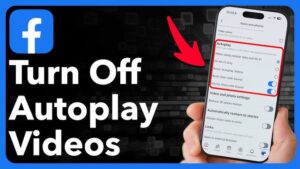
Facebook uses autoplay to start videos when they become visible in your feed. In many cases, the video begins silently, and audio plays only after you interact with the video or enable sound.
Autoplay is designed to make video content easier to consume, but it can create practical problems. If you scroll through Facebook frequently, multiple videos may load as they enter your screen. On a mobile connection, this can use more data than simply loading text and images.
Autoplay can also affect battery life because your phone has to download, decode, and display video content. The impact varies depending on video quality, connection speed, device hardware, and how long you use Facebook.
Turning off autoplay prevents Facebook from automatically starting eligible videos as you scroll. You can still watch any video manually by tapping it.
How to Stop Autoplay Videos on Facebook on Android
The Facebook app for Android includes an autoplay setting that lets you choose when videos should play automatically.
To turn it off:
- Open the Facebook app on your Android phone or tablet.
- Tap the Menu button. Depending on your version of the app, this may appear as your profile picture or a menu icon.
- Scroll down and tap Settings & privacy.
- Select Settings.
- Look for the Preferences section.
- Tap Media or Media and contacts.
- Find Autoplay.
- Select Never Autoplay Videos.
After changing the setting, videos in your Facebook feed should no longer begin playing automatically.
You may need to close and reopen the app if a video that was already loaded continues playing. The setting normally applies to videos you encounter after the change.
If You Cannot Find the Autoplay Setting on Android
Facebook changes its settings layout from time to time. If you do not see Media, use the Settings search feature if your version of the app provides one.
You can search for terms such as:
- Autoplay
- Video
- Media
If Facebook has moved the option, searching for the setting is often faster than manually checking every category.
Another possibility is that your Facebook app is outdated. Updating the app can change the interface and may restore settings that are missing because of an older version.
If you still cannot find the option, check the Facebook settings from a mobile browser or another device. Facebook sometimes tests different interfaces, which means two users may not see exactly the same menu arrangement.
How to Stop Autoplay Videos on Facebook on iPhone
The process is similar on an iPhone or iPad, although the placement of the menu button can differ depending on the Facebook app version.
Follow these steps:
- Open the Facebook app.
- Tap the Menu button or your profile picture.
- Scroll down and choose Settings & privacy.
- Tap Settings.
- Scroll to the Preferences section.
- Select Media.
- Tap Autoplay.
- Choose Never Autoplay Videos.
Facebook should now stop automatically playing videos as you move through your feed.
The wording may vary slightly. For example, some versions of Facebook may display several autoplay choices instead of showing a simple on or off switch. If that happens, select the option that prevents videos from autoplaying.
Check Other Video Settings While You Are There
The Media settings area may include options for video quality and sound. These settings do not necessarily stop autoplay, but they can reduce the amount of data Facebook uses.
For example, disabling automatic high-quality video playback can be useful if you regularly use Facebook on a limited mobile data plan.
Be careful not to confuse video sound settings with autoplay settings. Turning off automatic sound does not necessarily stop the video itself from playing. If your goal is to stop moving videos entirely, you need to change the Autoplay setting.
How to Stop Facebook Videos From Autoplaying on a Computer
You can also change the autoplay setting when using Facebook through a web browser.
The exact interface can vary, but the general process is:
- Go to Facebook and sign in to your account.
- Click your profile picture or the account menu.
- Select Settings & privacy.
- Open Settings.
- Look for Media, Preferences, or a similar video-related settings section.
- Find the Video autoplay setting.
- Change it to Off or Never Autoplay Videos, depending on the available option.
Once the setting is disabled, refresh Facebook and check your feed. Videos should remain still until you choose to play them.
If you use Facebook in more than one browser, check the setting in each environment if necessary. Account-based settings may follow your Facebook account, but browser behavior, cached pages, extensions, and interface changes can sometimes affect what you see.
What Happens When You Turn Off Facebook Video Autoplay?
When you select Never Autoplay Videos, Facebook should stop automatically starting videos as they appear in your feed.
The video post will still be visible. You can play it whenever you want by selecting or tapping the video.
Turning off autoplay does not remove videos from Facebook, block Reels, or prevent you from watching video content manually. It only changes the automatic playback behavior.
There are a few situations where you may still encounter video-related movement or playback behavior. Facebook regularly adds and changes features, and formats such as Stories, Reels, advertisements, and live videos may not always behave exactly like standard feed videos.
If your main concern is reducing unexpected playback, disabling autoplay is still the first setting to check.
How to Reduce Facebook Data Usage Without Fully Disabling Video
Some people do not want to stop autoplay completely. They may be comfortable with videos playing on Wi-Fi but want to prevent them from consuming mobile data.
Depending on your version of Facebook, the autoplay menu may offer options similar to:
- On mobile data and Wi-Fi connections
- On Wi-Fi connections only
- Never autoplay videos
Choosing Wi-Fi only can be a reasonable compromise if you enjoy watching videos but want to reduce mobile data usage.
The exact wording may differ between app versions and platforms. If your Facebook app offers a data-saving feature, that can also reduce the amount of data used while browsing.
Data-saving settings may lower the quality of images or videos, reduce preloading, or change how media is delivered. They are useful for controlling data consumption, but they are not a replacement for disabling autoplay if you specifically want videos to remain paused.
Why Videos May Still Play After You Turn Off Autoplay
If Facebook videos continue to play after you change the setting, do not immediately assume the setting failed. Several things can cause the behavior.
The Facebook App Needs to Restart
Settings changes do not always affect content that was already loaded in the app.
Close Facebook completely, then open it again and check a new section of your feed. This forces the app to load content using the updated preference.
You Changed the Setting on a Different Account
If you have more than one Facebook account, make sure the setting was changed while signed in to the account you are currently using.
This can be easy to miss when switching between personal, work, or other accounts on the same device.
You Are Seeing a Different Type of Video Content
Standard feed videos, Reels, Stories, live streams, and advertisements may not all respond to settings in exactly the same way.
Facebook can also change how specific content formats work. If regular feed videos stop autoplaying but another format still behaves differently, check for separate settings related to that feature.
The App Has a Temporary Problem
An outdated app or damaged temporary app data can sometimes cause settings to behave unexpectedly.
Start by updating Facebook through the appropriate app store. If the issue continues on Android, clearing the app cache may help.
To clear the Facebook cache on many Android devices:
- Open your phone’s Settings.
- Select Apps.
- Choose Facebook.
- Tap Storage or Storage & cache.
- Select Clear cache.
Avoid selecting Clear storage unless you understand the result. Clearing storage can remove locally stored app data and may require you to sign in again.
On iPhone, iOS does not provide a universal clear-cache button for individual apps. Updating, offloading, or reinstalling the app may be appropriate if Facebook is malfunctioning, but reinstalling should be treated as a troubleshooting step rather than the first solution.
How to Stop Videos From Playing Sound Automatically
Stopping autoplay and stopping automatic sound are separate settings.
If videos are playing silently but you do not want audio to start unexpectedly, check Facebook’s Media settings for options related to video sound or videos starting with sound.
The exact name varies by version. You may see a setting similar to Videos start with sound.
Disabling that option can prevent videos from automatically playing audio when video playback occurs. This is particularly useful if you do not mind visual autoplay but want to avoid unexpected sound in public places.
Keep in mind that manually enabling sound or adjusting your device’s media volume can still affect how individual videos behave.
Other Ways to Reduce Video Playback and Data Use
Facebook’s autoplay setting is the most direct solution, but your phone also has system-level features that can reduce background activity and mobile data use.
Use Data Saver or Low Data Mode
Android devices often include Data Saver, while iPhones offer Low Data Mode for supported mobile and Wi-Fi configurations.
These features can restrict background data activity and reduce how aggressively apps use your connection. Their effect on Facebook depends on the device, operating system, network, and Facebook app behavior.
They should be viewed as additional controls rather than guaranteed replacements for Facebook’s own autoplay setting.
Restrict Background Data on Android
Many Android devices allow you to limit an individual app’s background data access.
This can help reduce data use when Facebook is not actively open. However, background data restrictions will not necessarily stop videos from playing while you are actively scrolling through the Facebook app.
If autoplay is the problem, change the Facebook setting first. Use background restrictions to control additional data activity.
Enable Low Power Mode on iPhone
Low Power Mode can reduce certain background activities and system behavior to help extend battery life.
It does not specifically function as a Facebook autoplay switch, so it should not be expected to stop every video from playing. Still, it can be useful if battery consumption is your main concern while using multiple apps.
Common Mistakes When Trying to Disable Facebook Autoplay
A frequent mistake is turning off video sound instead of autoplay. A silent video can still download and play, so disabling sound does not solve a data usage or distraction problem.
Another common issue is selecting Wi-Fi only when the goal is to stop all automatic playback. Videos may stop autoplaying on mobile data but continue playing automatically whenever the device connects to Wi-Fi.
Some users also change a device-level setting and expect it to control Facebook directly. Android and iPhone data-saving features can reduce network activity, but Facebook’s own autoplay option is usually the more precise control.
Finally, avoid relying on outdated screenshots or instructions. Facebook changes menu names and interface layouts regularly. If a guide tells you to open a menu that no longer exists, use the search option within Facebook settings and look for autoplay, video, or media.
Which Autoplay Setting Should You Choose?
The right option depends on why you want to stop Facebook videos from playing automatically.
| Your goal | Recommended setting |
|---|---|
| Stop all automatic video playback | Never Autoplay Videos |
| Save mobile data but allow videos on Wi-Fi | Wi-Fi only, if available |
| Stop unexpected audio | Disable videos starting with sound |
| Reduce overall Facebook data use | Use Data Saver along with appropriate autoplay settings |
| Reduce background network activity | Restrict background data at the device level |
For most people searching for how to stop autoplay videos on Facebook, Never Autoplay Videos is the correct choice. It gives you control over when a video starts while still allowing normal manual playback.
What to Do if Facebook Changes the Setting Again
Facebook’s interface changes regularly, so the exact navigation path may not remain identical over time.
If you cannot follow the steps shown above, open Facebook’s settings and search for terms related to:
- Autoplay
- Media
- Video
- Preferences
Look for an option that controls when videos play automatically. The important part is the setting itself, not the exact menu path.
It is also a good idea to update Facebook before troubleshooting extensively. A newer version may move the setting, but it can also fix bugs that affect media preferences.
If no autoplay option appears at all, try accessing your Facebook settings from another device or through the web version. Interface experiments and gradual feature rollouts can occasionally make settings appear differently between users.
Conclusion
Knowing how to stop autoplay videos on Facebook gives you more control over how the app behaves while you browse. The setting is generally found in Facebook’s Settings & privacy area under Settings, then Media or a similar preferences section, where you can select Never Autoplay Videos.
If you want to reduce mobile data use without disabling autoplay completely, choose a Wi-Fi-only option if your version of Facebook provides it. You can also combine Facebook’s media settings with device features such as Data Saver or Low Data Mode.
If videos continue to play after you disable autoplay, restart the app, confirm that you changed the setting for the correct Facebook account, update the app, and check whether the content is a different format such as a Reel or Story. Once the correct setting is applied, standard Facebook feed videos should require you to start playback manually.
Related Articles
- How to Recover a Hacked Facebook Account Without ID
- How to Fix Instagram Notifications Not Working
- How to Recover a Suspended TikTok Account
- Why Are My Instagram Stories Getting Low Views? 12 Reasons and How to Fix Them
If you think there’s been a mistake here, please do let us know by commenting on this post or Contact Us. And a member of our Content Integrity Team will review this decision with you.