If you want to know how to stop Facebook from tracking your activity, start with Facebook’s Activity off Meta technologies controls. These settings let you disconnect activity that businesses and websites send to Meta and stop future activity from being associated with your Facebook account in the same way.
You should also review Facebook’s ad settings, limit the permissions given to the Facebook app, and disable cross-app tracking at the operating-system level. These steps do not make you completely invisible to Facebook, but they can significantly reduce the information available for advertising and personalization.
The important distinction is that Facebook tracking is not one single feature. Facebook can collect information from activity that happens directly on Facebook, while businesses and other apps can also send information to Meta about interactions that happen away from Facebook. Your phone’s advertising and tracking controls provide another layer of protection.
What Facebook Can Track About Your Activity
Facebook can learn about actions you take while using its services, such as the Pages you interact with, posts you engage with, searches you perform, and other activity associated with your account.
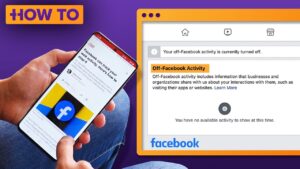
There is also a separate category called activity off Meta technologies. Meta describes this as information that businesses and organizations share about your interactions with their websites and apps. For example, a business may use Meta’s business tools to send information about activity on its website or app to Meta.
This does not necessarily mean Facebook can see everything you do online. The information depends on what a website or app shares with Meta, the technologies it uses, your device settings, and whether Meta can associate that activity with your account or device.
That distinction matters because turning off one Facebook privacy setting does not disable every form of data collection.
Turn Off Future Activity From Other Websites and Apps
The most important Facebook setting to check is Activity off Meta technologies. Facebook provides a Manage future activity control that allows you to disconnect future activity from your account.
The exact location can change as Facebook updates its interface, but you can usually find the setting through Facebook’s Settings & privacy area.
On the Facebook app
- Open the Facebook app and tap the menu button.
- Open Settings & privacy, then tap Settings.
- Look for Activity off Meta technologies. Depending on the version of Facebook you use, it may appear under an information, permissions, or privacy-related section.
- Open Manage future activity.
- Review the explanation Facebook provides.
- Choose the option to disconnect or turn off future activity, then confirm your choice.
If you cannot find the setting, use Facebook’s Settings search and search for Activity off Meta technologies or future activity. Facebook frequently changes the organization of its settings, so searching is often faster than following an old menu path.
This setting is particularly useful if your concern is Facebook receiving information about activity on other companies’ websites and apps.
On a computer
The same control is available through Facebook’s website.
Open Facebook, select your profile picture, go to Settings & privacy, and then open Settings. Search the settings for Activity off Meta technologies and open the relevant privacy control.
Facebook’s Help Center currently lists separate controls for reviewing activity off Meta technologies, managing future activity, and disconnecting past activity.
Disconnect Activity Facebook Already Received
Turning off future activity is only part of the process. Facebook also provides a way to disconnect past activity from your account.
Open the Activity off Meta technologies section and look for the option to disconnect or clear your previous activity. Facebook calls this control Disconnect your past activity off Meta technologies and describes it as a way to disconnect past off-Facebook activity using the clear-history control.
Follow the confirmation screens carefully because Facebook explains that disconnecting past activity can affect how some experiences work.
It is also important to understand what this does not mean. Clearing or disconnecting past activity does not erase every piece of information Facebook already holds about you. It is specifically related to the off-Meta activity associated with this control. Information you supplied directly to Facebook, activity performed on Facebook, and other categories of data can be handled separately.
Think of this as breaking a connection between certain external activity and your Facebook account, rather than deleting your entire Facebook history.
Review Which Businesses Have Sent Activity to Facebook
Before disconnecting everything, it can be useful to inspect the activity Facebook has associated with your account.
The Activity off Meta technologies area can show a summary of activity that businesses and organizations have shared with Meta, including interactions with their websites and apps.
This can sometimes explain why Facebook advertisements seem unusually relevant.
For example, you might visit an online store, browse a product, or interact with a company’s app. If that business uses Meta’s business tools and sends information about the interaction to Meta, the activity can become part of the information Meta uses for its services.
Reviewing the list can also help you identify websites and apps that you no longer use. If a service you rarely remember visiting appears in your activity, check that company’s privacy settings as well.
Turn Off Facebook’s App Tracking Permission on iPhone
If you use an iPhone or iPad, Apple’s App Tracking Transparency system gives you another important control.
Apple requires apps to request permission before tracking your activity across other companies’ apps and websites for advertising or sharing information with data brokers. If you select Ask App Not to Track, the app cannot access Apple’s advertising identifier for that purpose and is not permitted to track your activity using other identifying information covered by the system.
To check Facebook’s permission:
- Open Settings on your iPhone.
- Tap Privacy & Security.
- Tap Tracking.
- Find Facebook in the list.
- Turn off its tracking permission.
You can also disable Allow Apps to Request to Track. When that option is disabled, apps that request tracking are treated as though you selected Ask App Not to Track.
This is a device-level control, so it is useful even if you use several different apps that you do not want tracking you across other companies’ services.
Keep in mind that Apple’s tracking permission and Facebook’s own privacy settings address different things. Denying Facebook’s iPhone tracking permission does not stop Facebook from collecting information about activity that occurs directly inside Facebook.
Reduce Advertising Tracking on Android
Android provides its own advertising privacy controls, although the names and locations can vary between Android versions and manufacturers.
On current Android versions, Google documents an Ads privacy section under:
Settings > Google > All services > Ads > Ads privacy
From there, you can manage features such as Ad topics, App-suggested ads, and Ad measurement.
These controls are broader than Facebook alone. They affect how Android allows apps to use certain advertising-related information.
You can also manage your device’s advertising identifier. Google explains that users can reset or delete this identifier, although apps may have their own settings and identifiers that can influence advertising.
If your Android version provides the option to delete the advertising ID, you can use it to reduce one source of advertising identification.
However, do not assume that deleting the advertising ID makes Facebook unable to recognize your account. Facebook can still associate activity with your Facebook account when you are logged into its services, and apps can use other information for legitimate functionality, analytics, security, or other purposes.
Limit Facebook’s Location Access
Location information can reveal considerably more about your activity than many people realize, particularly when an app is allowed to access your location when it is not actively being used.
If you do not need Facebook to access your precise location, review the app’s location permission.
On iPhone
Open:
Settings > Privacy & Security > Location Services > Facebook
Choose a less permissive option if available, such as Never or While Using the App, depending on how you want Facebook to function.
You can also disable Precise Location if you want Facebook to receive a less precise location rather than your exact position.
On Android
Open your phone’s app permissions and select Facebook. Look for Location and choose the permission level that matches your needs.
The exact wording differs between manufacturers. Samsung, Google Pixel, Xiaomi, and other Android devices may organize permissions differently.
Turning off location access can affect features that depend on your location. For example, location-based functionality may become less accurate or unavailable. That is a trade-off rather than a malfunction.
Review Facebook’s Other App Permissions
Location is only one permission worth checking.
Open Facebook’s app permissions and review access to features such as:
- Camera
- Microphone
- Contacts
- Photos and videos
- Notifications
- Bluetooth or nearby devices, where applicable
Do not automatically deny every permission. Some permissions are necessary for features you intentionally use.
For example, Facebook needs camera access if you want to take photos directly from the app, and microphone access is relevant to features that use audio. The goal is to remove permissions you do not need, not to disable functionality blindly.
Contact access deserves particular attention. If you do not use Facebook’s contact-upload or contact-sync features, there is little reason to give the app access to your address book simply because it requests it.
Stop Uploading Your Contacts to Facebook
Facebook can use uploaded contacts for features such as helping people find friends and making connection suggestions.
If you previously allowed Facebook to upload your contacts, disabling the phone permission does not necessarily address contacts that were already uploaded. You should review Facebook’s contact-upload or contact-management settings and remove previously uploaded contacts if the option is available.
This is different from your phone’s Contacts permission.
The phone permission determines whether Facebook can access your device’s address book. Facebook’s own contact controls concern what happens to contact information that has already been uploaded.
That distinction is easy to miss and is one reason privacy settings can feel confusing.
Reduce Tracking When Browsing Websites Through Facebook
Facebook can open links inside its own in-app browser. Depending on the app and version, Facebook also provides settings related to enhanced browsing.
If you are particularly concerned about browsing activity being associated with Facebook, consider opening important external websites in your normal browser instead of continuing to browse them inside Facebook.
Facebook currently provides a setting for turning enhanced browsing on or off in its in-app browser on Android and iPhone.
The advantage of using your regular browser is that you have access to that browser’s privacy controls, cookie settings, content blockers, and other protections.
This does not make you anonymous. Websites can still collect information directly, and Facebook can still know that you clicked a link from Facebook in some circumstances. It simply gives you more control over the browsing environment after leaving Facebook.
Adjust Facebook’s Ad Preferences
If your main complaint is that Facebook seems to know what you are interested in, review your advertising preferences as well.
Facebook uses information from different sources to personalize advertisements. Disabling off-Meta activity can reduce one source of information, but it does not mean Facebook will stop showing personalized advertisements entirely.
Your Facebook activity itself can still provide signals. Pages you follow, posts you interact with, searches, profile information, and other activity can influence the advertising experience.
Look through Facebook’s Accounts Center, Ad preferences, or related advertising settings and review the categories Facebook provides.
You may be able to see information associated with your advertising experience and change available preferences. The exact options can vary by account, location, and Facebook’s current product configuration.
Do not confuse turning off personalized ads with turning off ads. Privacy controls generally affect how ads are personalized or how certain information is used for advertising. They do not necessarily remove advertisements from Facebook.
Use a Browser Instead of the Facebook App
For people who want to reduce Facebook’s access to device information, using Facebook through a browser can be a practical alternative to installing the mobile app.
A browser does not automatically prevent Facebook from tracking activity while you are logged into Facebook. However, it can reduce the number of device-level permissions Facebook receives directly.
For example, a browser session does not automatically give Facebook the same direct access to your phone’s contacts, microphone, camera, or location that a native app could request.
If you choose this approach, review your browser’s cookie and site-permission settings too. Facebook can still use cookies and similar technologies within the browser, and websites can use other methods of recognizing returning visitors.
Private browsing also has a narrower purpose than many people assume. It can reduce what is stored locally on your device after the session, but it does not make you invisible to Facebook or the websites you visit.
Consider Removing Facebook From Unnecessary Devices
If you have Facebook installed on an old phone, tablet, or secondary device that you rarely use, remove the app or sign out.
This is especially useful if you have accumulated several devices over the years. An old device may still have permissions that you granted when you first installed Facebook.
You can also review where your Facebook account is currently logged in and end sessions you no longer recognize or need.
This is not only a privacy measure. Removing forgotten sessions can reduce the number of devices through which your account can be accessed.
What These Steps Cannot Stop
It is important not to interpret “stop Facebook from tracking your activity” as a promise of complete anonymity.
If you continue using Facebook while logged into your account, Facebook can still collect information about your activity on its own services.
For example, interacting with a post on Facebook is activity occurring within Facebook. Disabling off-Meta activity does not make that interaction disappear.
Likewise, when you visit another website, that website may collect information independently of Facebook. A Facebook privacy setting cannot prevent a separate company from collecting data under its own privacy policy.
There are also technical reasons why no single setting can eliminate every form of identification. Websites can use cookies, account logins, browser characteristics, IP addresses, and other signals for different purposes. Apps can also collect information necessary for their operation, security, analytics, or other functions.
The realistic goal is to reduce unnecessary data sharing and limit cross-service tracking, not to make the Facebook account completely untraceable.
Common Mistakes to Avoid
One common mistake is turning off your phone’s advertising ID and assuming Facebook can no longer track you. Advertising identifiers are only one part of the larger tracking ecosystem.
Another mistake is clearing browser cookies and expecting Facebook’s own account-based activity to disappear. If you are logged into Facebook, much of your activity is associated with your account rather than depending solely on a browser cookie.
It is also easy to confuse Active Status with tracking. Turning Active Status off controls whether other people can see that you are active. It is not a general privacy switch that stops Facebook from collecting information about your activity.
Finally, do not rely on a single setting. The strongest practical approach is to combine Facebook’s own privacy controls with your phone’s tracking permissions, app permissions, browser settings, and sensible account habits.
A Practical Privacy Setup for Facebook
If you want a balanced setup without making Facebook unusable, start with these changes:
- Turn off or disconnect future Activity off Meta technologies.
- Disconnect your past off-Meta activity if you want to remove its connection to your account.
- Review the businesses and apps listed in your off-Meta activity.
- On iPhone, deny Facebook’s Tracking permission.
- On Android, review Ads privacy and advertising ID controls.
- Remove Facebook’s access to location, contacts, microphone, camera, or photos when you do not need those features.
- Review Facebook’s advertising preferences.
- Avoid unnecessary browsing inside Facebook’s in-app browser.
- Remove Facebook from devices you no longer use.
- Review active Facebook sessions and sign out of devices you do not recognize.
You do not have to make every change at once. Start with off-Meta activity and your phone’s tracking controls because those address different layers of data collection.
Final Thoughts
Learning how to stop Facebook from tracking your activity is really about reducing the number of ways information can be connected to your Facebook account. The most important Facebook-specific controls are the settings for Activity off Meta technologies, including the options to manage future activity and disconnect past activity.
For additional protection, combine those settings with Apple’s App Tracking Transparency controls on iPhone or Android’s advertising privacy settings. Apple and Google provide these controls at the operating-system level, so they address tracking mechanisms that Facebook’s own settings cannot control.
The result is not complete anonymity, and it should not be described that way. Facebook can still collect information from activity that occurs directly on its services, while other websites and apps can collect information independently. The practical objective is to give Facebook less information from outside its platform and to prevent unnecessary tracking permissions on your devices.
Related Articles
- How to Turn Off Read Receipts on Instagram
- How to Stop Autoplay Videos on Facebook
- How to Fix Facebook Marketplace Not Showing: 10 Ways to Get It Back
- How to Secure Your Gmail Account After a Phishing Attack
If you think there’s been a mistake here, please do let us know by commenting on this post or Contact Us. And a member of our Content Integrity Team will review this decision with you.