

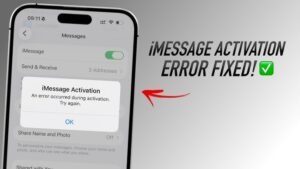
If iMessage is stuck on “Waiting for Activation,” displays “Activation Unsuccessful,” or shows “An error occurred during activation,” the problem is usually related to your internet connection, Apple Account settings, phone number registration, date and time settings, or your carrier’s ability to send the SMS used during activation.
Learning how to troubleshoot iMessage activation errors on iPhone is mostly a matter of checking these areas in the right order. Some fixes take only a few seconds, while others require waiting for Apple’s activation servers or confirming that your carrier supports SMS activation.
The important thing is not to keep turning iMessage on and off repeatedly without checking the underlying cause. Doing so can make it harder to tell whether the issue has actually been resolved.
Understand What Happens During iMessage Activation
iMessage is Apple’s messaging service that allows Apple devices to send messages over the internet instead of through traditional SMS or MMS messaging.
When you enable iMessage, your iPhone contacts Apple’s activation service and registers your Apple Account, phone number, or both. Your phone number may also need to send an international SMS in the background, depending on your carrier and region.
That is why an iMessage activation problem can occur even when Wi-Fi is working normally.
Your iPhone may display one of several messages:
- Waiting for Activation
- Activation Unsuccessful
- An error occurred during activation
- Could not sign in. Please check your network connection and try again
These messages can have different causes, but the troubleshooting process is similar.
Apple states that iMessage activation can take up to 24 hours. If you have already completed the basic checks and recently enabled the service, waiting may be necessary before assuming something is permanently wrong.
Check Your Internet Connection First
iMessage requires an active internet connection during activation. You can use Wi-Fi or cellular data, but the connection must be stable enough for your iPhone to communicate with Apple’s servers.
Open Safari and try loading a few websites. If pages fail to load or take an unusually long time, fix the connection before continuing.
If you are using Wi-Fi, try these steps:
- Turn Wi-Fi off and back on.
- Disconnect from the network and reconnect.
- Restart your router if other devices are also having connection problems.
- Try another Wi-Fi network if one is available.
If you are using cellular data, confirm that you have an active mobile data connection. You can also temporarily switch between Wi-Fi and cellular data to see whether one connection allows activation to complete.
A working internet connection alone does not guarantee activation, but it removes one of the most common causes early in the process.
Make Sure Your iPhone Can Send and Receive SMS Messages
This is one of the most overlooked causes of iMessage activation errors.
Depending on your carrier and location, activating iMessage may require your iPhone to send an SMS message to complete phone number registration. If your SIM cannot send SMS messages, the activation process may fail.
Before changing more settings, send a regular SMS to a non-Apple phone number.
If the message does not send, contact your carrier or check the following:
- Your SIM or eSIM is active.
- Your phone plan supports SMS messaging.
- You have sufficient credit if you use a prepaid plan.
- Your carrier has not blocked international SMS messages.
- Your phone number is correctly provisioned on the carrier’s network.
The international SMS requirement can be particularly important for prepaid users. Your phone may appear to have normal service while still being unable to send the message required for activation.
Do not assume that unlimited local SMS automatically means international SMS is available.
Confirm That Your Phone Number Is Active
iMessage can work with an Apple Account email address, but most people also want to use their phone number.
Go to Settings > Apps > Messages on newer versions of iOS. On some earlier versions, open Settings > Messages.
Make sure iMessage is enabled, then open Send & Receive.
Your Apple Account email address and phone number may appear here. If your phone number is missing, stuck on activation, or unavailable for selection, the problem is likely related to SIM activation, carrier registration, or Apple’s phone number verification process.
If you recently changed your SIM, switched carriers, converted from a physical SIM to eSIM, or transferred your number to a new iPhone, registration may take some time to update.
Avoid repeatedly removing and reinserting the SIM unless you suspect a physical SIM problem. If the iPhone already recognizes your number and cellular service is working, repeated SIM removal usually does not solve an iMessage registration issue.
Turn iMessage Off and Restart Your iPhone
A restart can clear temporary communication problems between iOS, your network, and Apple’s services.
Start by turning off iMessage:
- Open Settings.
- Go to Apps > Messages, or Messages on older iOS versions.
- Turn off iMessage.
- Restart your iPhone.
- After the iPhone turns back on, return to the Messages settings.
- Turn iMessage on again.
Leave the setting enabled after turning it back on. Constantly switching it off and on can restart the activation process.
After enabling it, check Send & Receive to see whether your phone number appears correctly.
If you see “Waiting for Activation,” give the process some time before trying another major change.
Check Your Date and Time Settings
Incorrect date, time, or time zone settings can interfere with secure communication between your iPhone and online services.
Go to:
Settings > General > Date & Time
Turn on Set Automatically.
Your iPhone should select the correct date, time, and time zone based on your location and network information.
If the setting is already enabled but the displayed time is clearly incorrect, restart the device and check for network or location-related issues.
Do not manually change the time unless automatic configuration is unavailable. A manually configured but incorrect clock can cause problems with account authentication and online services.
Sign Out of Your Apple Account for Messages and Sign Back In
If iMessage cannot properly verify your Apple Account, signing out and back in can refresh the connection.
Open:
Settings > Apps > Messages > Send & Receive
Tap your Apple Account and choose the option to sign out. Then restart your iPhone and sign back in.
Be careful not to confuse this with signing out of your entire Apple Account from the iPhone. In most cases, you only need to refresh the account connection used for iMessage.
After signing back in, confirm that the correct email address appears under the section where you can receive and reply to messages.
If your phone number still does not activate, the issue may not be related to your Apple Account at all. Continue checking the network, carrier, and device settings.
Check for a Carrier Settings Update
Carriers occasionally provide settings updates that affect cellular connectivity, messaging, and network registration.
To check manually:
- Open Settings > General > About.
- Wait for a few seconds.
- If a carrier settings update is available, your iPhone may display a prompt.
Install the update if one appears.
Carrier settings updates are different from regular iOS updates. Your iPhone can be running the latest version of iOS while still needing a carrier configuration update.
This step is especially useful if the activation problem started after changing carriers or inserting a new SIM.
Update Your iPhone
An outdated version of iOS can sometimes contain bugs that affect messaging, account authentication, or carrier compatibility.
Go to:
Settings > General > Software Update
Install any available stable update, then restart the iPhone.
Before updating, make sure the device has enough battery power or connect it to a charger. If possible, back up important data first.
Updating iOS is not a guaranteed fix for every activation problem. However, it makes sense to rule out known software issues before resetting network settings or contacting your carrier.
Check Apple’s System Status
Sometimes the problem is not on your iPhone.
Apple services can experience temporary outages or disruptions. If iMessage activation fails suddenly and your connection, SIM, and account settings appear normal, check Apple’s system status page from another device or browser.
Look for any reported issue involving iMessage or Apple Account services.
If Apple is experiencing a service interruption, changing settings on your iPhone is unlikely to fix the problem. The appropriate action is to wait until the service returns to normal and then check whether activation completes.
Reset Network Settings If the Problem Continues
If Wi-Fi, cellular data, or messaging configuration appears to be corrupted, resetting network settings can help.
On recent versions of iOS, go to:
Settings > General > Transfer or Reset iPhone > Reset > Reset Network Settings
Your iPhone will restart.
This reset removes saved Wi-Fi networks and passwords. It can also reset cellular, VPN, and other network-related settings.
It does not erase your photos, apps, messages, or other personal files.
After the restart, reconnect to Wi-Fi if necessary, confirm that cellular service is active, and turn iMessage on again.
Network settings should not be your first troubleshooting step because you will need to reconnect to saved Wi-Fi networks. It is more appropriate after simpler connection and configuration checks have failed.
Consider Problems Caused by Dual SIM or eSIM Setup
iPhones that use Dual SIM or eSIM configurations can occasionally experience activation confusion if more than one phone number is active.
Go to Settings > Cellular and check which lines are currently enabled.
If you have two active numbers, confirm that the number you want to use for iMessage is properly active and able to send SMS messages.
Then return to:
Settings > Apps > Messages > Send & Receive
Check whether the correct number appears.
If you recently added, removed, or transferred an eSIM, give the carrier registration process time to complete. A new eSIM may show cellular signal before all messaging-related services have fully updated.
Do not disable your primary line permanently just to test iMessage. If you temporarily change SIM settings, make sure you understand which line handles calls and SMS before making the change.
Wait Up to 24 Hours Before Repeating Major Fixes
Activation is not always immediate.
If you have confirmed that:
- Your internet connection works.
- Your SIM or eSIM is active.
- Your phone can send SMS messages.
- Your Apple Account information is correct.
- Your date and time are set automatically.
- iMessage is enabled.
Then leave iMessage turned on and allow the activation process time to complete.
Apple indicates that activation may take up to 24 hours. During that period, repeatedly restarting the activation process may be counterproductive because each attempt can interrupt the previous one.
If activation still fails after 24 hours, continue with carrier and Apple support checks.
When Your Carrier Is the Likely Cause
Your carrier is more likely to be responsible when iMessage activation fails but other Apple services work normally.
Contact your carrier if:
- You cannot send regular SMS messages.
- You recently changed your phone number.
- You transferred your number from another carrier.
- You changed from a physical SIM to eSIM.
- You use a prepaid plan with limited SMS credit.
- International SMS is blocked.
- Your phone number does not appear correctly in your cellular settings.
Explain that you are trying to activate iMessage and that the phone may need to send an SMS as part of the activation process.
Do not simply report that “iMessage is broken.” Asking the carrier to confirm SMS capability, international SMS permissions, and phone number provisioning gives them more useful information to investigate.
When to Contact Apple Support
If your internet connection and carrier service are working, your phone can send SMS messages, and activation still fails after waiting up to 24 hours, the issue may require Apple to investigate the activation status of your Apple Account or phone number.
Before contacting Apple, collect the following information:
- The exact activation error message.
- Your iPhone model.
- Your iOS version.
- Your carrier.
- Whether you use a physical SIM or eSIM.
- Whether you recently changed your phone number or carrier.
- The troubleshooting steps you have already completed.
Providing this information can prevent the support process from starting with basic steps you have already tested.
If possible, take a screenshot of the error message before changing settings again.
Common Mistakes That Can Delay iMessage Activation
Some troubleshooting attempts create more confusion than progress.
One common mistake is turning iMessage on and off repeatedly. Each attempt can restart the activation process, making it difficult to know whether the previous attempt was still processing.
Another is assuming Wi-Fi is the only requirement. Your internet connection may work perfectly while your carrier blocks the SMS needed to register your phone number.
Users also sometimes reset the entire iPhone too early. A factory reset is rarely the appropriate first response to an iMessage activation error because the problem is often related to carrier provisioning, account registration, or temporary server communication.
Finally, avoid using an outdated or incorrectly configured date and time. Authentication services depend on accurate system information, so keeping automatic time enabled removes an unnecessary source of failure.
How to Confirm That iMessage Is Finally Activated
After activation succeeds, return to:
Settings > Apps > Messages > Send & Receive
You should see the phone number and any selected Apple Account email addresses that can receive iMessages.
The exact appearance of this screen can vary depending on your iOS version and whether you use multiple SIMs.
You can also test the service by sending a message to another Apple device user. A successfully activated iMessage conversation normally uses Apple’s messaging service rather than standard SMS.
Keep in mind that message color alone should not be used as your only diagnostic tool. Messaging behavior can also depend on the recipient’s device, settings, and network availability.
Conclusion
Most iMessage activation errors on iPhone can be traced to a few specific areas: internet connectivity, SMS capability, carrier registration, Apple Account verification, or incorrect device settings. The most effective approach is to check these in order instead of changing everything at once.
Start by confirming that your iPhone has a stable internet connection and can send regular SMS messages. Then verify that your phone number is active, check your date and time settings, restart the iPhone, and confirm that your Apple Account is correctly signed in for Messages.
If the problem continues, check for carrier and iOS updates, review Apple’s service status, and reset network settings only after simpler fixes have failed. When you have completed those checks, leave iMessage enabled and allow up to 24 hours for activation.
If iMessage still will not activate after that, contact your carrier to confirm SMS and phone number provisioning, then contact Apple Support if the carrier confirms that everything is working correctly. Following this order gives you the best chance of finding the actual cause without resetting your iPhone or changing settings unnecessarily.
If you think there’s been a mistake here, please do let us know by commenting on this post or Contact Us. And a member of our Content Integrity Team will review this decision with you.




