

If your internet is fast on your phone but painfully slow on your Windows PC, your internet connection probably isn’t the real problem. In most cases, the issue is something specific to the computer, such as outdated network drivers, incorrect adapter settings, Windows features running in the background, Wi-Fi interference, or software consuming bandwidth.
The good news is that this type of problem is usually fixable without replacing your router or upgrading your internet plan. The key is identifying where the slowdown occurs. This article walks through the most effective solutions, explains why each one works, and helps you determine whether the issue is caused by Windows, your network hardware, or your internet service.
Why Is the Internet Slow on Windows but Fast on Your Phone?
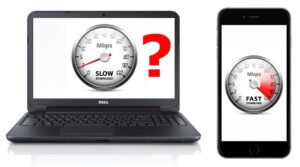
When your phone reaches normal speeds on the same Wi-Fi network, you’ve already ruled out several possible causes.
This usually means:
- Your ISP isn’t experiencing a major outage.
- Your router is generally working.
- Your Wi-Fi signal is good enough for at least one device.
That narrows the problem to the Windows computer itself.
Common causes include:
- Corrupted or outdated network drivers
- Weak Wi-Fi adapter performance
- Connection to the slower 2.4 GHz Wi-Fi band
- VPN or proxy software
- Windows Update using bandwidth
- Background apps downloading data
- DNS problems
- Malware
- Incorrect network adapter settings
- Faulty hardware
The fastest way to solve the problem is to work through these causes one by one.
First, Confirm the Problem
Before changing settings, verify that the slowdown is actually limited to the Windows PC.
Run a speed test on both devices while connected to the same Wi-Fi network.
If your phone reports:
- Download: 180 Mbps
- Upload: 20 Mbps
But your Windows PC shows:
- Download: 8 Mbps
- Upload: 18 Mbps
then the issue is almost certainly local to the PC.
Also compare:
- Loading websites
- Streaming HD video
- Downloading a large file
- Online gaming latency
Sometimes only downloads are slow, while browsing feels normal. That points toward different causes than a complete connection slowdown.
Restart the Router and Windows PC
It sounds simple because it is, but this fixes more problems than people expect.
Restarting clears temporary network errors, renews DHCP leases, and resets wireless connections.
Follow these steps:
- Shut down the Windows PC.
- Unplug the router.
- Wait about one minute.
- Plug the router back in.
- Wait until Wi-Fi reconnects.
- Turn on the PC.
If speeds immediately improve but become slow again after several hours or days, background software or a driver issue is more likely than the router.
Move Closer to the Router
Phones often have surprisingly strong Wi-Fi performance because manufacturers aggressively optimize wireless antennas and power management.
Many laptops, especially budget models, have smaller antennas and less capable wireless cards.
Test your speed:
- Right beside the router
- In your usual workspace
If performance improves dramatically near the router, the problem may be signal strength rather than Windows itself.
If possible:
- Reduce walls between the router and computer.
- Raise the router higher off the floor.
- Avoid placing it inside cabinets.
- Keep it away from microwaves and cordless phones.
Make Sure Windows Is Connected to the 5 GHz Network
Many routers broadcast both:
- 2.4 GHz
- 5 GHz
Windows sometimes reconnects to the slower 2.4 GHz network even when the faster 5 GHz band is available.
To check:
- Press Windows + R.
- Type:
cmd- Run:
netsh wlan show interfacesLook for:
Radio type
Channel
Receive rate
Transmit rate
Higher connection rates usually indicate you’re using the faster band.
If your router uses separate Wi-Fi names, manually connect to the 5 GHz network.
If it combines both bands under one network name, logging into the router and enabling band steering or separating the SSIDs may help.
Disable VPNs and Proxy Servers
VPN software encrypts internet traffic and routes it through another server.
A slow VPN server can reduce speeds dramatically.
Temporarily disconnect:
- VPN software
- Corporate VPN
- Browser VPN extensions
Also check for proxy settings:
- Open Settings.
- Go to Network & Internet.
- Select Proxy.
- Disable manual proxy settings unless required.
Test internet speeds again afterward.
Close Programs Using Your Bandwidth
A Windows PC often downloads data in the background while a phone sits idle.
Possible bandwidth users include:
- Windows Update
- Steam
- Epic Games Launcher
- OneDrive
- Dropbox
- Google Drive
- Cloud backups
- Browser downloads
Open Task Manager:
- Press Ctrl + Shift + Esc.
- Open the Processes tab.
- Sort by Network usage.
If one application is consuming most of your bandwidth, pause or close it before testing again.
Restart the Network Adapter
Network adapters occasionally become unstable after sleep mode or prolonged uptime.
Restarting them only takes a minute.
- Open Settings.
- Go to Network & Internet.
- Choose Advanced network settings.
- Disable the Wi-Fi adapter.
- Wait about ten seconds.
- Enable it again.
Reconnect to Wi-Fi and test your speed.
Update the Wi-Fi Driver
Old or corrupted drivers frequently cause slow wireless performance.
To update:
- Right-click the Start button.
- Open Device Manager.
- Expand Network adapters.
- Right-click your wireless adapter.
- Select Update driver.
If Windows says the best driver is already installed but the problem persists, visit the laptop or adapter manufacturer’s support website and download the latest driver directly.
This is often newer than the version available through Windows Update.
If the slowdown started immediately after a driver update, try rolling back to the previous version instead.
Disable Power Saving for the Wireless Adapter
Windows can reduce power to the Wi-Fi adapter to extend battery life.
This sometimes lowers network performance.
To disable it:
- Open Device Manager.
- Open your wireless adapter’s properties.
- Go to the Power Management tab.
- Clear:
Allow the computer to turn off this device to save power
Restart the computer and test again.
On laptops, also switch Windows to Best Performance power mode while troubleshooting.
Forget and Reconnect to the Wi-Fi Network
Saved wireless profiles occasionally become corrupted.
To recreate the connection:
- Open Settings.
- Go to Network & Internet.
- Open Wi-Fi.
- Manage known networks.
- Select your network.
- Choose Forget.
- Reconnect using your Wi-Fi password.
This forces Windows to create a fresh wireless profile.
Reset TCP/IP and Network Settings
Windows networking components can become corrupted after software installation, VPN usage, or system changes.
Open Command Prompt as Administrator.
Run these commands one at a time:
netsh winsock reset
netsh int ip reset
ipconfig /release
ipconfig /renew
ipconfig /flushdns
Restart the computer afterward.
If the slowdown was caused by damaged network settings, this often restores normal performance.
Change Your DNS Server
DNS does not usually affect download speed itself, but slow DNS servers can make websites appear sluggish because they take longer to locate servers.
You can switch to faster public DNS providers such as:
| Provider | Primary DNS | Secondary DNS |
|---|---|---|
| 8.8.8.8 | 8.8.4.4 | |
| Cloudflare | 1.1.1.1 | 1.0.0.1 |
If pages begin loading faster but speed tests remain unchanged, DNS was only part of the problem.
Scan for Malware
Malware sometimes uses your internet connection for spam, cryptocurrency mining, botnet activity, or unauthorized downloads.
Run a full scan with Windows Security:
- Open Windows Security.
- Choose Virus & threat protection.
- Select Scan options.
- Run a Full Scan.
If malware is detected, remove it and restart the computer before testing again.
Disable Metered Connection
If Windows believes the network is metered, some applications intentionally limit downloads.
Check the setting:
- Open Settings.
- Select Network & Internet.
- Open your Wi-Fi connection.
- Turn off Metered connection if it isn’t needed.
This won’t fix every speed problem, but it can remove unnecessary restrictions.
Check for Windows Updates
Occasionally Windows releases fixes for networking bugs.
Open:
Settings → Windows Update
Install any pending updates.
Keep in mind that Windows Update itself may temporarily consume bandwidth while downloads are in progress, so wait until updates finish before running another speed test.
Test Using an Ethernet Cable
This is one of the best diagnostic steps.
Connect your PC directly to the router with an Ethernet cable.
There are three possible outcomes:
| Ethernet Result | Likely Cause |
|---|---|
| Fast | Wi-Fi issue |
| Slow | Windows or hardware issue |
| Both slow | Router or ISP problem |
This simple comparison saves a lot of unnecessary troubleshooting.
Reset Windows Network Settings
If you’ve tried multiple fixes without success, perform a complete network reset.
Open:
Settings → Network & Internet → Advanced network settings → Network reset
This removes:
- Network adapters
- Saved configurations
- VPN adapters
- Custom network settings
Windows reinstalls everything after restarting.
You’ll need to reconnect to your Wi-Fi network afterward.
Check the Wi-Fi Adapter Hardware
Older laptops sometimes include inexpensive wireless adapters that struggle with modern high-speed internet.
Signs of hardware limitations include:
- Very slow speeds despite strong signal
- Frequent disconnects
- Speeds improving dramatically with Ethernet
- Driver updates making little difference
If that’s the case, consider upgrading to:
- A USB Wi-Fi 6 adapter
- A PCIe Wi-Fi card for desktop PCs
- An internal wireless card if your laptop supports replacement
A newer adapter can significantly improve performance, especially on Wi-Fi 6 or Wi-Fi 6E routers.
Common Mistakes That Keep Internet Speeds Slow
Many users spend hours changing random settings that don’t address the real issue.
Avoid these common mistakes:
- Restarting only the browser instead of the network connection.
- Installing multiple driver updater programs.
- Using registry cleaners to “speed up” Windows.
- Running several VPNs or security tools simultaneously.
- Ignoring background downloads.
- Assuming the ISP is responsible when other devices work normally.
A systematic approach is almost always faster than trying random fixes.
When the Problem Is Probably Your Internet Provider
Although a fast phone usually points toward a Windows issue, there are exceptions.
Contact your ISP if:
- Every device eventually becomes slow.
- Wired and wireless connections are equally affected.
- The router frequently loses internet access.
- Speeds vary dramatically throughout the day.
- The modem reports frequent disconnects or signal errors.
Your provider can test the connection from their end and determine whether there’s a line issue, equipment fault, or local service problem.
Frequently Asked Questions
Why is my Windows laptop slower than my phone on the same Wi-Fi?
Phones and laptops use different wireless hardware, drivers, and power management settings. A Windows PC may also be running updates, cloud sync apps, antivirus scans, or other background processes that consume bandwidth. Driver issues and poor Wi-Fi adapter settings are among the most common causes.
Can an outdated Wi-Fi driver reduce internet speed?
Yes. Wireless drivers control how Windows communicates with the network adapter. A buggy or outdated driver can cause lower connection speeds, higher latency, and unstable connections even when the router and internet service are working normally.
Does changing DNS make internet faster?
Changing DNS doesn’t increase your maximum download or upload speed. It can, however, reduce the time it takes to find websites, making browsing feel more responsive. If large downloads are slow, the cause usually lies elsewhere.
Should I reset Windows network settings?
A network reset is a good option after you’ve tried simpler fixes such as restarting the adapter, updating drivers, and checking for background downloads. Because it removes saved network configurations, it’s best used after other troubleshooting steps have failed.
Final Thoughts
When you’re trying to fix slow internet on Windows but fast on your phone, start with the simplest checks: restart your devices, verify you’re connected to the correct Wi-Fi band, and look for programs using your bandwidth.
If the problem persists, update your network driver, reset Windows networking components, and compare Wi-Fi performance with a wired Ethernet connection.
Working through these steps in order helps isolate the real cause instead of changing settings at random.
In most cases, the slowdown comes from the Windows computer itself, not your internet service, and can be resolved without replacing your router or upgrading your broadband plan.
Related Articles
- Why Is My Computer Freezing After Windows Update? Causes and Fixes
- How to Stop OneDrive From Syncing Specific Folders Only
- Google Chrome Keeps Crashing After the Latest Update? Here's How to Fix It
- How to Make an Old Laptop Run Faster Without Upgrading RAM (Windows and Mac)
If you think there’s been a mistake here, please do let us know by commenting on this post or Contact Us. And a member of our Content Integrity Team will review this decision with you.


