

Knowing how to manage iCloud backups efficiently can save you from running out of cloud storage, deleting useful data by mistake, or paying for more storage than you actually need. The key is understanding what iCloud Backup stores, what is already synced through iCloud, which apps are consuming backup space, and when an old backup can safely be removed.
iCloud is not simply a copy of everything on your iPhone. Apple separates syncing from backup. Data such as iCloud Photos, iCloud Drive files, Contacts, and Notes may already be stored in iCloud and therefore do not need to be duplicated in an iCloud device backup. iCloud Backup mainly protects information and settings that are not already being synced.
That distinction makes managing backups much easier. Instead of randomly deleting files or switching off backup altogether, you can identify what is taking up space and decide which data actually needs to be included.
Understand What iCloud Backup Actually Stores
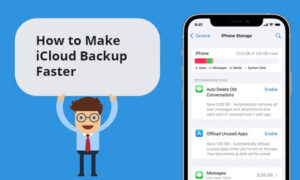
An iCloud Backup is designed to help restore an iPhone, iPad, or other supported Apple device if it is replaced, lost, damaged, or reset. It contains information and settings on the device that are not already being synchronized with iCloud.
This means the size of your backup does not necessarily represent the amount of data stored on your iPhone. A phone with hundreds of gigabytes of photos can still have a relatively small iCloud Backup if iCloud Photos is enabled, because those photos are synchronized separately rather than duplicated in the daily device backup.
App data is often one of the largest parts of an iCloud Backup. This can include data from games, messaging applications, social media apps, and other third-party software. If an app stores its information through iCloud Drive instead, that information is stored in iCloud separately from the device backup.
Some information is also excluded because it is already synchronized or can be downloaded again. Apple lists examples such as data already stored in iCloud, Apple Pay information, Face ID or Touch ID settings, and certain App Store content.
Understanding this prevents a common mistake: assuming that turning off an app in iCloud Backup means all of that app’s data will disappear from your iPhone. The setting controls whether that app’s data is included in the device backup. The exact behavior of the app itself depends on how the developer stores and synchronizes its data.
Check Which Backups Are Using Your iCloud Storage
Before deleting anything, check how much space your backups actually use.
On a current iPhone or iPad, open:
Settings > [your name] > iCloud
From there, select Storage or Manage Account Storage, then tap Backups. You can see the devices that have iCloud backups and select an individual device to inspect its backup. Apple also provides a Next Backup Size figure, although the device may take several minutes to calculate it.
This is more useful than looking only at the overall iCloud storage bar. Your storage may be divided between backups, photos, iCloud Drive, messages, mail, and other services.
For example, if your iCloud account is nearly full and backups account for only a small portion of the used space, deleting backup data will not solve the underlying problem. You would need to examine the other categories instead.
You can also manage backups from a Mac through System Settings > [your name] > iCloud > Manage > Backups. On Windows, Apple provides backup management through iCloud for Windows.
Remove Backups From Devices You No Longer Use
Old iPhone and iPad backups are one of the easiest places to recover iCloud storage.
It is common to replace a phone and leave its previous backup sitting in the same Apple Account. If you have already moved to a newer device and confirmed that your important information is available there, an old backup may no longer serve a useful purpose.
To remove an old backup on an iPhone or iPad:
- Open Settings.
- Tap [your name].
- Tap iCloud.
- Tap Storage or Manage Account Storage.
- Tap Backups.
- Select the old device.
- Choose Turn Off and Delete from iCloud or the equivalent option shown on your version of iOS.
- Confirm the deletion.
Apple notes that deleting a device backup also turns off iCloud Backup for that device.
That last point matters if you are deleting the backup for the iPhone you currently use. You should not remove your current backup simply because it is large and expect automatic backups to continue. If you delete it, turn iCloud Backup back on afterward if you still want automatic protection.
Apple also states that backups for a device can remain available for up to 180 days after iCloud Backup is disabled or the device stops being used for backups.
Do not delete an old backup just because the device name looks unfamiliar. If you are unsure which device it belongs to, check the device list and confirm that you no longer need it before removing anything.
Reduce the Size of Your Current iCloud Backup
Deleting an old backup helps when you have backups from devices you no longer own. It does nothing to reduce the size of the backup from your current iPhone.
For that, you need to control which apps are included.
Go to:
Settings > [your name] > iCloud > Storage or Manage Account Storage > Backups > [your device]
You will see information about the backup and the apps contributing to its size. You can turn off backup for apps whose data you do not need to preserve in an iCloud device backup. Apple confirms that disabling an app’s backup removes that app’s backed-up information from iCloud.
This is where selective management is better than disabling iCloud Backup entirely.
Consider an application that stores large amounts of temporary content, cached information, downloaded media, or data that can easily be recovered by signing back into your account. If losing that information would not matter after restoring the iPhone, including it in the backup may not be necessary.
Be more cautious with apps that contain information you cannot easily recreate. A game with local progress, a specialized work application, or an app that stores important documents locally may deserve backup protection.
Some apps may also be required by the system or cannot be individually disabled. Apple specifically notes that some apps are always backed up.
The right question is not simply, “Can I turn this off?” It is, “What would I lose if I restored my iPhone without this app’s backup data?”
Do Not Treat iCloud Photos as a Second iPhone Backup
Photos cause confusion because iCloud Photos and iCloud Backup serve different purposes.
When iCloud Photos is enabled, your photos and videos are synchronized with iCloud rather than being included in the daily device backup. Changes to the photo library are reflected across devices using the same Apple Account.
This is useful for reducing duplication, but synchronization is not identical to maintaining an independent archival backup.
If you delete a photo while using iCloud Photos, that deletion can synchronize to your other devices. iCloud Photos is primarily designed to keep one photo library synchronized, not to maintain an untouched historical copy of every photo you have ever deleted.
For particularly important photographs, consider maintaining another copy outside the iCloud ecosystem, such as a computer or another appropriate backup system.
If your goal is to reduce iPhone storage, rather than iCloud storage, iCloud Photos can also use Optimise iPhone Storage. With this setting, full-resolution originals remain in iCloud while space-saving versions can be kept on the device.
That distinction is important because optimizing iPhone storage does not magically create more iCloud storage. It addresses the storage used on the physical iPhone.
Manage Messages, Photos, and iCloud Drive Separately
If iCloud storage is almost full, do not assume the backup is responsible.
Apple’s storage system can contain several different categories. Photos and videos, iCloud Drive documents, messages, mail, and backups can all contribute to your total usage.
If photos consume most of your storage, deleting an old device backup will have little effect. Likewise, turning off backup for a few apps will not solve an iCloud Drive storage problem.
Start by checking the storage breakdown under Settings > [your name] > iCloud. Identify the largest category first, then manage that category rather than making unrelated changes.
This approach also reduces the risk of deleting something important simply because you are trying to free a few gigabytes.
Choose Between iCloud Backup and Computer Backups
For many people, iCloud Backup is convenient because it works automatically without requiring a computer. Apple says an iCloud backup can occur when the device is connected to Wi-Fi, connected to power, and locked.
A computer backup is another option. You can back up an iPhone or iPad to a Mac or PC, with storage limited by the computer’s available space. Apple also supports encrypted computer backups, which are important if you want the backup to include additional protected information.
There is no requirement to choose only one approach.
For valuable data, maintaining both an iCloud backup and an encrypted computer backup can provide more flexibility. iCloud is convenient when your phone is unavailable, while a computer backup gives you a local copy that does not depend on your iCloud storage quota.
On a Mac or PC, you can also manage existing local backups through Finder or the Apple Devices app. Apple provides a Manage Backups interface where you can inspect, archive, or delete local backups.
The important point is that an iCloud backup and a computer backup are separate systems. Deleting one does not automatically remove the other.
Know When Paying for More iCloud Storage Makes Sense
Sometimes the most efficient solution is simply to use a larger iCloud storage plan.
Apple provides 5GB of free iCloud storage, and that space is shared across the services using your Apple Account.
If you regularly use iCloud Photos, iCloud Drive, device backups, and other iCloud services, 5GB can become restrictive quickly. In that situation, repeatedly deleting useful data just to stay under the limit may create more problems than it solves.
Before upgrading, however, inspect your storage breakdown.
If old device backups account for several gigabytes, deleting them may solve the problem without additional cost. If a current backup is large because of necessary app data, reducing it selectively may help. But if most of your storage is genuinely needed for photos, files, and backups, increasing the storage allowance can be the more practical choice.
Apple also recommends checking the Next Backup Size when a backup cannot complete because of insufficient storage. If the next backup requires more space than is available, you can either remove unnecessary information or upgrade your iCloud+ storage.
What to Do When iCloud Backup Fails
An iCloud backup that repeatedly fails is not always a storage problem.
First, check whether you have enough available iCloud storage. If there is insufficient space, review the next backup size and reduce unnecessary backup data or increase your storage capacity.
If storage is sufficient, check your Wi-Fi connection and make sure the device is running current software. Apple recommends trying another Wi-Fi network when a backup cannot be completed.
A backup can also take longer than expected when the upload contains a large amount of data or the internet connection has limited upload speed. Apple recommends leaving the device connected to power and Wi-Fi for an extended period when a backup is taking unusually long.
If the iCloud Backup setting is unavailable or greyed out, check whether the device is still being restored. A device-management profile can also restrict iCloud Backup on some managed devices.
Avoid repeatedly deleting your current backup as a troubleshooting step. If the problem is a network connection, software issue, or insufficient storage, deleting the existing backup may leave you with less protection without addressing the real cause.
Common iCloud Backup Management Mistakes
One of the biggest mistakes is deleting the current backup simply because it is large. Backup size by itself is not evidence that something is wrong.
Another mistake is turning off backup for large apps without considering what their data contains. A large backup can be inefficient, but a smaller backup is not automatically a better backup if important information has been excluded.
It is also easy to confuse iCloud storage with iPhone storage. Removing an iCloud backup does not create physical storage space on the iPhone, and enabling iCloud Photos does not give you additional iCloud capacity. The two storage systems serve different purposes.
Finally, do not assume that synchronization equals backup. iCloud services can keep information synchronized across devices, but synchronization can also propagate changes such as deletions. Important files and photographs deserve an additional copy if losing them would be serious.
A Practical Routine for Keeping iCloud Backups Under Control
You do not need to inspect your iCloud settings every day. A simple periodic check is usually enough.
Every few months, open the iCloud storage screen and look at the largest categories. Remove backups belonging to devices you no longer use, review unusually large app backups, and check whether your current storage plan still matches the amount of data you actually keep.
When replacing an iPhone, do not immediately delete the old device’s backup. First confirm that the new phone has been restored correctly and that important information is available. Once you are confident that the old backup is no longer needed, remove it.
For critical personal data, maintain an additional copy outside the iCloud backup system. This is especially useful for irreplaceable photographs, documents, and other information where losing access would have serious consequences.
The goal is not to make your iCloud backup as small as possible. The goal is to keep it small enough to manage while still containing the information you would actually need after losing or replacing your device.
Conclusion
Learning how to manage iCloud backups efficiently comes down to separating useful protection from unnecessary duplication. Start by checking which devices have backups, inspect the size of your current backup, remove backups from devices you no longer use, and selectively exclude app data that you can safely recover elsewhere.
Keep iCloud Backup enabled for the information that would be difficult to recreate, and remember that services such as iCloud Photos and iCloud Drive are handled separately from the device backup. If your storage is still consistently full after cleaning up unnecessary data, upgrading iCloud storage may be more sensible than continually deleting information you actually need.
A well-managed iCloud setup should give you enough storage for reliable backups without forcing you to micromanage every gigabyte. The best configuration is not the one with the smallest backup, but the one that gives you a dependable way to recover your important data when you need it.
If you think there’s been a mistake here, please do let us know by commenting on this post or Contact Us. And a member of our Content Integrity Team will review this decision with you.


