High CPU usage doesn’t always mean your computer is underpowered. In many cases, Windows 11 is spending processor time on background services, startup programs, indexing, or power management rather than the applications you’re actively using.
If you’re working with multiple browser tabs, editing documents, attending video meetings, running virtual machines, or using creative software, closing applications isn’t always an option. The better approach is to identify what is consuming CPU resources and reduce unnecessary workload while keeping your important programs open.
This guide explains how to reduce CPU usage in Windows 11 without closing apps, why CPU usage becomes high, and which optimizations actually make a difference.
Why CPU Usage Stays High Even When You’re Not Doing Much
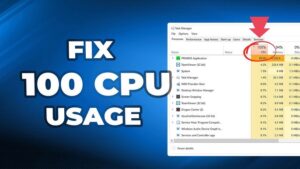
The CPU processes instructions for everything running on your computer. Besides the apps you can see, Windows runs dozens of background processes responsible for security, updates, indexing, networking, drivers, notifications, and hardware management.
A temporary spike to 70% or even 100% isn’t necessarily a problem. Installing updates, extracting archives, compiling code, or rendering video naturally pushes CPU usage higher.
The real concern is sustained high CPU usage that lasts for several minutes while the computer feels slow, fans run constantly, or the processor remains near maximum utilization despite light workloads.
Before changing any settings, identify what’s actually using your processor.
Check What’s Using Your CPU
Task Manager provides the fastest way to identify CPU-heavy processes.
- Press Ctrl + Shift + Esc.
- Select Processes.
- Click the CPU column to sort by processor usage.
- Watch the list for a minute rather than reacting to a brief spike.
Common CPU consumers include:
- Web browsers with many tabs
- Windows Search Indexer
- Windows Update
- Antivirus scans
- Cloud sync applications
- Video conferencing software
- Driver utilities
- Third-party overlays
If one process consistently uses a large percentage of CPU, optimize that process rather than making system-wide changes.
Switch to the Best Power Mode
Windows 11 adjusts CPU behavior according to the selected power mode.
If your PC is configured for maximum performance, the processor remains at higher clock speeds even during lighter workloads.
To change the power mode:
- Open Settings.
- Go to System > Power & battery.
- Under Power mode, choose Balanced.
Balanced mode allows the processor to lower its speed when full performance isn’t required. This often reduces CPU activity, fan noise, and power consumption without affecting everyday multitasking.
If you’re rendering videos or compiling software, you can temporarily switch back to Best Performance.
Reduce Background Apps Instead of Closing Your Work
Many applications continue performing background tasks even when you’re not actively using them.
Examples include:
- Automatic update checks
- Telemetry collection
- Background synchronization
- Notification services
- Helper processes
To reduce unnecessary activity:
- Open Settings.
- Go to Apps > Installed apps.
- Select apps you rarely use.
- Disable unnecessary background permissions where available.
Also review software that automatically starts with Windows.
Open Task Manager > Startup apps and disable programs you don’t need immediately after signing in.
Disabling startup apps doesn’t uninstall them. It simply prevents them from consuming CPU resources before you actually use them.
Pause Cloud Synchronization Temporarily
Cloud storage applications constantly monitor folders for file changes.
If you’re editing many documents or working with large files, synchronization software may repeatedly scan and upload changes.
Common examples include:
- Microsoft OneDrive
- Google Drive
- Dropbox
Rather than closing the application entirely, temporarily pause synchronization while performing CPU-intensive work.
Most cloud clients allow you to pause syncing for 30 minutes, two hours, or until manually resumed.
This is particularly helpful when editing videos, compiling software projects, or extracting thousands of files.
Reduce Browser CPU Usage
Modern web browsers are among the largest CPU consumers.
A browser with dozens of tabs can easily use more processor time than traditional desktop software.
You don’t necessarily have to close tabs.
Instead:
- Enable browser memory saver features.
- Disable extensions you don’t regularly use.
- Remove duplicate ad blockers.
- Stop unnecessary autoplay media.
- Close developer tools when they’re no longer needed.
- Suspend inactive tabs.
Many Chromium-based browsers automatically place inactive tabs into a sleeping state, significantly reducing CPU usage while keeping the tabs available.
If a single tab constantly consumes processor time, refresh it or identify scripts running on that website.
Let Windows Finish Updates
Windows Update sometimes causes prolonged CPU usage.
This is especially common after:
- Major feature updates
- Monthly security updates
- Driver installations
- .NET updates
Interrupting updates usually creates more problems than it solves.
Instead:
- Open Settings > Windows Update.
- Allow updates to complete.
- Restart the computer if requested.
- Wait several minutes after restarting.
CPU usage often returns to normal once Windows finishes background maintenance.
Limit Search Indexing
Windows Search builds an index so searches complete almost instantly.
On systems containing hundreds of thousands of files, indexing can consume noticeable CPU resources.
To reduce indexing:
- Open Settings.
- Navigate to Privacy & security > Searching Windows.
- Choose Classic if you don’t need every drive indexed.
- Exclude folders containing large archives or development projects.
For example, software developers often exclude build directories because thousands of temporary files change constantly.
Reducing indexed locations lowers ongoing CPU activity without affecting your applications.
Schedule Antivirus Scans for Idle Hours
Real-time antivirus protection should remain enabled.
However, scheduled full scans can consume significant processor time.
Instead of disabling security software:
- Schedule scans overnight.
- Exclude trusted development folders when appropriate.
- Avoid running multiple antivirus programs simultaneously.
Running two real-time antivirus products rarely improves security and frequently increases CPU usage.
If Windows Security is your only antivirus, high CPU usage during scheduled scans is usually temporary.
Disable Unnecessary Startup Services
Many applications install background services that start automatically.
Examples include:
- Printer utilities
- RGB lighting software
- Game launchers
- Updaters
- OEM hardware assistants
Open Task Manager > Startup apps and review each item.
Ask yourself:
- Do I need this every time Windows starts?
- Can this application launch only when I open it?
Disabling unnecessary startup entries often reduces ongoing CPU usage throughout the day.
Be cautious with Microsoft services and hardware drivers. If you’re unsure what a service does, research it before disabling it.
Adjust Visual Effects
Animations and visual effects mostly affect the GPU, but they also require some CPU resources.
On lower-powered systems, simplifying Windows animations can improve responsiveness.
To change visual effects:
- Search for Adjust the appearance and performance of Windows.
- Open the Performance Options window.
- Choose Adjust for best performance, or manually disable specific animations while leaving font smoothing enabled.
The difference won’t be dramatic on modern high-end processors, but it can help older laptops and entry-level hardware.
Change the Priority of CPU-Intensive Processes
If one background process competes with your active work, you can lower its priority.
To do this:
- Open Task Manager.
- Go to Details.
- Right-click the process.
- Select Set priority.
- Choose Below normal or Low.
This doesn’t reduce total CPU usage.
Instead, it tells Windows to favor your active applications over less important tasks.
Never change the priority of critical Windows processes unless you understand their function.
Keep Drivers Updated
Poorly optimized drivers can create excessive CPU usage through interrupt handling, hardware polling, or compatibility issues.
Pay particular attention to:
- Graphics drivers
- Chipset drivers
- Storage controller drivers
- Wi-Fi drivers
- Audio drivers
If CPU usage increased immediately after installing a driver update, consider rolling back to the previous version until the issue is resolved.
Always obtain drivers from Windows Update or your hardware manufacturer’s support page.
Scan for Malware
Unexpected CPU usage sometimes indicates malicious software.
Warning signs include:
- Unknown processes
- Constant processor usage while idle
- Browser redirects
- Frequent pop-ups
- Unexplained network activity
Run a full scan using Windows Security.
For additional verification, you can occasionally use a reputable second-opinion malware scanner.
Avoid downloading random “PC optimizer” tools that promise instant performance improvements. Many provide little benefit, while some introduce additional background services that increase CPU usage.
Reduce Widgets and Background Features
Windows 11 includes optional features that periodically refresh information.
Examples include:
- Widgets
- News feeds
- Weather updates
- Background recommendations
- Third-party notification services
If you rarely use these features, disabling them reduces background activity.
The savings are usually modest, but every background process removed gives the CPU slightly more time for the applications you actually care about.
Keep Enough Free Storage
Although storage space doesn’t directly affect CPU usage, nearly full drives can slow Windows maintenance tasks.
Aim to keep at least 15% to 20% of your system drive free.
Low available storage increases background housekeeping and can make Windows appear slower overall.
Delete temporary files through Settings > System > Storage, or enable Storage Sense to automate cleanup.
Restart Instead of Living With Weeks of Uptime
Windows handles long uptimes well, but memory fragmentation, accumulated background tasks, and pending updates can gradually increase CPU activity.
If you haven’t restarted your computer for several days, a reboot often clears temporary issues.
This is particularly effective after:
- Driver installations
- Windows updates
- Software updates
- Large application installs
Restarting is often more effective than repeatedly ending individual background processes.
When High CPU Usage Is Actually Normal
Not every period of heavy processor activity indicates a problem.
Higher CPU usage is expected during:
- Video rendering
- Gaming
- Software compilation
- Virtual machines
- AI workloads
- File compression
- Large spreadsheet calculations
- Photo exports
In these situations, reducing CPU usage may simply make the task take longer.
The goal should be ensuring other unnecessary processes aren’t competing for processor time.
Common Mistakes That Usually Don’t Help
Many performance guides recommend changes that either provide little benefit or create new problems.
Avoid these practices unless you have a specific reason:
- Disabling Windows Defender permanently
- Turning off Windows Update
- Ending random Windows processes
- Editing the registry without understanding the changes
- Installing multiple “RAM cleaner” or “CPU booster” utilities
- Disabling essential Microsoft services
- Running several antivirus products together
Windows 11 already manages processor scheduling effectively. The biggest improvements usually come from reducing unnecessary background activity rather than tweaking obscure system settings.
When Hardware Is the Real Limitation
Sometimes optimization reaches its limit.
If your processor remains close to 100% while running applications you genuinely need, the workload may simply exceed your hardware’s capabilities.
Signs that an upgrade may be necessary include:
- CPU usage consistently above 90% during everyday multitasking
- Frequent thermal throttling despite proper cooling
- Modern applications becoming increasingly slow
- Video calls lagging while basic office apps are open
- High CPU usage even after eliminating unnecessary background tasks
In these cases, adding more RAM may help if the system is also memory-constrained, but sustained CPU bottlenecks generally require a faster processor or a newer computer.
Final Thoughts
Learning how to reduce CPU usage in Windows 11 without closing apps is mostly about eliminating unnecessary background work rather than sacrificing your productivity.
Start by identifying which processes are actually consuming CPU time, then optimize power settings, startup programs, browser behavior, cloud syncing, search indexing, and scheduled maintenance.
Avoid aggressive tweaks that disable core Windows features or promise unrealistic speed gains. In most cases, a balanced approach that trims background activity while leaving essential services intact provides the best results.
If CPU usage remains consistently high after these optimizations, the workload may have outgrown the hardware, making an upgrade a more effective long-term solution than further software tweaks.
Related Articles
- Fix USB Device Not Recognized After Windows Update: Causes and Solutions That Work
- How to Fix High Disk Usage Caused by Windows Search
- Google Chrome Keeps Crashing After the Latest Update? Here's How to Fix It
- How to Fix External Hard Drive Not Showing Up in Windows 11
If you think there’s been a mistake here, please do let us know by commenting on this post or Contact Us. And a member of our Content Integrity Team will review this decision with you.