

Most people grant an app permission once during setup and never think about it again. Even years later, when the app’s purpose has completely changed since that original grant.
A flashlight app with access to your contacts. A photo editor that still has microphone access from a video feature you tried once and never touched again.
This is more common than it should be. Cleaning it up doesn’t take long, and Android has gotten better at surfacing which permissions apps are actually using versus just holding onto.
Permission creep happens gradually and invisibly. Every app update is another chance for a new request to sneak in as part of a feature you didn’t ask for.
Most people tap through these prompts without much scrutiny, especially if the app already has their trust. A periodic review catches what individual moments of granting access never will.
Why This Matters Beyond Just Privacy
Unused permissions aren’t just a privacy concern, though that’s the main one. Apps with background location or activity recognition access, even unused, can contribute to battery drain.
They keep background processes alive that check those permissions periodically, whether or not anything useful comes from it. Trimming permissions to just what an app needs is both a privacy win and, often, a small battery improvement too.
Use the Privacy Dashboard to See What’s Actually Being Used
Rather than guessing which apps might have permissions they don’t need, Android’s Privacy Dashboard shows you exactly what’s been accessed. Available on Android 12 and later.
- Go to Settings, then Privacy, or Privacy and Security depending on your version.
- Tap Privacy Dashboard.
- You’ll see a timeline of which apps accessed Camera, Microphone, and Location over the past 24 hours or 7 days.
This is more useful than reviewing app by app, since it shows actual usage, not just what’s granted. If an app accessed your location dozens of times in a week for no clear reason, that’s a strong signal to restrict it.
Review Permissions by Type Instead of by App
Android also lets you review permissions grouped by category, which is faster for spotting outliers.
- Go to Settings, Privacy, Permission Manager.
- Tap into a specific permission, Location, Camera, Microphone, Contacts, and so on.
- You’ll see every app with that permission, sorted by Allowed, Allowed Only While Using, or Denied.
This view is particularly useful for Location, the most commonly over-granted permission. Look for apps set to “Allow all the time” and ask whether they genuinely need it.
A weather app almost never needs constant background location. Only apps like navigation or fitness tracking with route logging have a real case for it.
What to Look for Permission by Permission
Location
Set most apps to “Allow only while using the app.” This single change is the biggest win for both privacy and battery life together.
Camera and Microphone
Usually safe to leave granted for apps that clearly need them, messaging apps, video call apps, camera apps. Check for apps where the use case isn’t obvious, like a game with mic access you’ve never used.
Contacts
Many apps request this to help you find friends already using the app. If you never use that feature, denying it has no downside for your actual usage.
Body Sensors and Physical Activity
Legitimate for fitness apps. Unnecessary for most other categories. Safe to revoke from anything that isn’t clearly fitness-related.
Use Auto-Reset for Unused Apps
Android automatically resets permissions for apps you haven’t opened in several months. Useful for apps you downloaded once and forgot about.
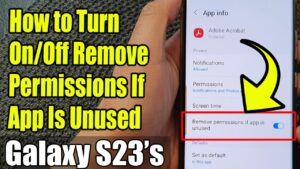
- Go to Settings, Apps, select an app you rarely use.
- Scroll down to “Remove permissions if app isn’t used” and make sure it’s on. It’s the default on newer Android versions, but worth confirming.
If you reopen the app later, it simply asks again, as if first launch. No real downside to leaving this on.
Reviewing App Storage Permission Separately From File Access
Storage permission has changed significantly across Android versions, and it’s worth understanding the current model to review it correctly. Older Android versions used a single broad storage permission covering everything on the device.
Modern Android splits this into more specific categories: Photos and Videos, Music and Audio, and Files and Documents, each grantable separately. This means an app might have access to your photos but not your downloaded documents, or vice versa, which is worth checking specifically if you’re trying to limit what a given app can see.
Go to Settings, Apps, the specific app, Permissions, and look for these split storage categories rather than a single generic Storage entry. Grant only the specific media type the app genuinely needs for its actual function.
SMS and Call Log Permissions Deserve Extra Scrutiny
Permissions covering SMS messages and call logs are among the most sensitive on the phone, since they expose your communication history directly rather than just metadata. Very few apps have a legitimate need for these beyond your default phone and messaging apps themselves.
If a game, a photo editor, or a utility app somehow has SMS or Call Log permission granted, this is worth investigating immediately rather than casually revoking, since it’s genuinely unusual for an app in those categories to need this access at all for any legitimate feature.
Check Settings, Privacy, Permission Manager, then SMS or Call Logs specifically, and review the full list of apps holding either permission. Revoke access from anything outside your actual default phone and messaging apps.
Nearby Devices Permission and What It Actually Exposes
Newer Android versions introduced a Nearby Devices permission covering Bluetooth scanning, used by apps to detect and connect to nearby hardware like headphones, smartwatches, or Bluetooth speakers. This permission also indirectly reveals a form of location information, since Bluetooth device scanning can be used to approximate physical location.
Check which apps hold this permission specifically under Permission Manager, Nearby Devices. Apps that clearly connect to Bluetooth accessories, like a fitness tracker’s companion app, have an obvious legitimate use. Apps without any Bluetooth-related feature holding this permission are worth questioning.
How Permission Requests Differ Between Play Store Apps and Sideloaded Apps
Apps installed through the Play Store go through a review process that flags obviously excessive permission requests before the app is even published, though this process isn’t perfect and doesn’t catch everything. Apps installed outside the Play Store, sideloaded through a direct APK, don’t go through this same review at all.
This is one of several reasons sideloading carries more risk generally, and it’s worth being especially thorough about reviewing permissions specifically for any app you’ve sideloaded rather than installed through the Play Store, since there’s no equivalent upstream check that already happened on Google’s end.
Reviewing Notification Access Alongside Standard Permissions
Notification access is separate from standard permissions. It lets an app read the full content of every notification on your phone, not just its own.
Legitimate for smartwatch companion apps. Occasionally requested by apps with no obvious reason to need it.
Check Settings, Apps, Special Access, then Notification Access. Revoke it for anything without a clear purpose.
Checking Accessibility Service Permissions
Accessibility services are one of the most powerful permission categories. Originally designed to help users with disabilities by reading screen content and simulating taps.
This broad access is occasionally misused to intercept passwords. Check Settings, Accessibility, then Downloaded Apps or Installed Services.
Unless you deliberately installed a screen reader or password manager with autofill, this list should be empty or contain only apps you clearly recognize.
Device Admin and Work Profile Permissions
Device Admin access lets an app enforce security policies or remotely wipe data. Typically only relevant for work profile apps and dedicated security software.
Check Settings, Security, Device Admin Apps. Confirm nothing unexpected has this level of access.
Frequently Asked Questions
Will revoking a permission ever break an app completely?
Depends how central it is. Revoking camera from a camera app breaks its purpose. Revoking location from a game you’ve never used location features in usually changes nothing.
Why do some apps ask for permission again even after I denied it before?
Some re-prompt each time you try a feature that needs it. This is reasonable design, since you’re only granting access at the moment you actually need it.
Does Android tell me if an app is misusing a permission?
Not directly through a built-in alert. Unusually frequent access shown in the Privacy Dashboard timeline is the closest signal available.
Managing App Permissions on a Shared or Family Phone
If multiple people use the same phone, or you’re managing permissions for a child’s device, it’s worth setting stricter defaults than you would on a personal phone used by one adult.
Google’s Family Link app lets a parent review and approve app permissions remotely on a child’s device, rather than relying on the child to make good decisions when a permission prompt appears. This is worth setting up specifically if the phone belongs to someone under 13, since default Android permission prompts don’t distinguish based on the user’s age.
Checking What a Permission Actually Enables, Not Just Its Name
Permission names on Android are sometimes broader than what people assume from the label alone. “Phone” permission, for instance, doesn’t just let an app make calls, it can also let the app read your phone’s unique identifiers and call log, depending on the specific sub-permission granted.
Tapping into any permission within Permission Manager shows a brief description of exactly what it covers. It’s worth reading this description specifically for permissions with broad-sounding names before assuming you know exactly what you’re granting.
Permissions Requested at Install Time Versus Runtime
Older Android versions granted all permissions upfront at install time, before you ever opened the app. Modern Android instead asks for most sensitive permissions the first time a specific feature actually needs them, called runtime permissions.
This distinction matters because an app can still list permissions in its Play Store listing that it never actually prompts you for at runtime, if you never use the feature requiring them. Checking Permission Manager directly, rather than the Play Store listing, always reflects what’s actually currently granted on your device.
How to Read an App’s Permission List Before You Even Install It
You can review what permissions an app requests before installing it, rather than discovering them only after the fact. On the app’s Play Store listing page, scroll down to the “About this app” section and look for a Data Safety or Permissions section, depending on the current Play Store layout.
This shows the full list of permissions the developer has declared the app may request. Comparing this against the app’s actual advertised function, a calculator app requesting camera and microphone access, for example, is a useful red flag to catch before installing rather than after.
This pre-install check is particularly worth doing for utility apps, flashlight apps, simple games, and other categories where the core function clearly shouldn’t need broad access, since these categories are disproportionately represented among apps that over-request permissions for advertising or data collection purposes unrelated to their stated function.
What Happens to Permissions When You Restore an App From Backup
When you set up a new phone and restore apps from a backup, either through Android’s built-in transfer or a manufacturer-specific tool, permissions generally don’t carry over automatically in every case. Some are restored based on what was granted on the old device, while sensitive ones may re-prompt fresh.
This is actually a useful opportunity rather than an inconvenience, since it gives you a natural checkpoint to reconsider permissions you may have granted years ago on the old phone without much thought, rather than carrying forward the same broad access indefinitely across multiple device generations.
If you’re setting up a new phone soon, it’s worth treating the fresh permission prompts as a deliberate review moment rather than just tapping Allow reflexively to get through setup faster, the way most people handle initial setup prompts.
Enterprise Mobile Device Management and Permission Restrictions
If your phone is enrolled in a company’s mobile device management system, some permission settings may be locked or pre-configured by your organization’s IT policy, independent of anything covered in this guide. You may notice certain permissions can’t be changed at all, or are grayed out within Permission Manager.
This is intentional on the company’s part, generally implemented to enforce a consistent security baseline across all enrolled devices. If you encounter locked permissions specifically on a work-managed device or work profile, this is worth directing to your IT department rather than assuming something is broken with the phone’s own settings.
A Reasonable Cadence for Repeating This Review
Once you’ve done a thorough initial pass through Permission Manager and enabled auto-reset for unused apps, a full manual review every six months is a reasonable cadence for most people, rather than something you need to think about constantly.
New apps you install between reviews are worth a quick permission check at install time itself, covered above, rather than waiting for the next scheduled review specifically. This combination, a periodic full review plus install-time vigilance, catches the large majority of permission creep without turning it into a frequent chore.
One-Time Permissions Are Worth Using More
For apps you use only occasionally, a QR scanner, a document scanning app, Android lets you grant access for a single session only rather than permanently.
Look for “Only this time” alongside “While using the app” and “Deny” when a prompt appears. Default to this for anything you don’t use often.
Check Background Data and Battery Alongside Permissions
Permissions and background activity are related but separate. An app can have minimal permissions but still run frequently in the background unrelated to sensitive data.
Check Settings, Apps, the specific app, then Battery, and restrict background activity for apps you don’t need constant updates from. This has a more direct effect on battery life specifically.
Don’t Over-Restrict Apps You Actually Rely On
Be deliberate, not reflexively aggressive. Restricting location on a navigation app you use weekly causes real problems for little benefit.
The goal is trimming permissions that don’t match how you actually use an app, not minimizing everything across the board regardless of function.
Frequently Asked Questions, Continued
Should I be worried about system apps that come pre-installed with broad permissions?
Generally less so than third-party apps, since pre-installed system apps go through manufacturer testing before shipping and typically need broader access for their core system-level functions. That said, some manufacturers bundle bloatware with permissions that genuinely don’t match their function, and these are worth reviewing the same way as any downloaded app.
Does uninstalling an app remove all the permission history associated with it?
Yes, uninstalling an app removes its granted permissions immediately, and if you reinstall it later, it starts fresh with no permissions granted until you approve them again through new prompts.
Conclusion
Android’s Privacy Dashboard and Permission Manager make this genuinely quick, usually ten to fifteen minutes for a full review.
Focus first on location set to “Allow all the time,” then work through camera, microphone, and contacts, and finally check SMS, Call Log, and Nearby Devices for anything that clearly doesn’t match the app’s actual purpose. Enabling auto-reset means this cleanup mostly maintains itself going forward, without becoming a recurring task you have to remember on your own.
If you think there’s been a mistake here, please do let us know by commenting on this post or Contact Us. And a member of our Content Integrity Team will review this decision with you.


