

A MacBook that hangs on a black screen, takes an unusually long time to start, repeatedly displays the wrong startup disk, or forgets settings such as speaker volume or screen resolution can sometimes be fixed by resetting NVRAM.
Although it is not a cure for every startup problem, it is one of the safest troubleshooting steps for Intel-based Macs because it clears a small amount of stored system information that may have become corrupted.
If you have a newer MacBook with Apple silicon, the process is different. These models manage startup settings automatically, so manually resetting NVRAM is generally unnecessary. Understanding which type of Mac you own is the first step before trying this solution.
This guide explains what NVRAM does, when resetting it makes sense, how to reset NVRAM on a MacBook safely, and what to do if startup issues continue afterward.
What Is NVRAM on a MacBook?
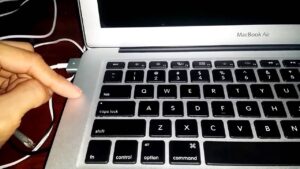
NVRAM stands for Non-Volatile Random Access Memory. It is a small section of memory that stores certain system settings even after your MacBook is turned off.
Unlike your SSD or hard drive, NVRAM only contains configuration information that macOS needs early during startup.
Examples include:
- The selected startup disk
- Speaker volume
- Screen resolution
- Recent kernel panic information
- Time zone in some situations
- Display configuration
- Certain startup preferences
Because these settings are stored separately from macOS itself, corruption in NVRAM can sometimes interfere with the startup process.
Resetting NVRAM does not erase:
- Personal files
- Installed applications
- Photos or documents
- User accounts
- macOS itself
It only restores supported settings to their defaults.
When Should You Reset NVRAM?
Resetting NVRAM is most helpful when startup problems appear to be related to stored hardware settings rather than damaged system files.
Common symptoms include:
- MacBook starts to a blank or black screen
- Question mark folder appears during startup
- Startup disk changes unexpectedly
- Mac repeatedly boots into the wrong operating system
- Incorrect display resolution after restarting
- External monitor behaves strangely during boot
- Startup chime volume changes unexpectedly on older Macs
- Slow startup with no obvious cause
- Display brightness resets after every reboot
It is less likely to solve issues caused by:
- Failing SSDs
- Corrupted macOS installations
- Hardware damage
- Liquid damage
- Logic board failures
- Battery problems
If your MacBook suffered physical damage or shows signs of hardware failure, resetting NVRAM should not be your only troubleshooting step.
Before You Reset NVRAM
Although resetting NVRAM is safe, taking a few precautions makes troubleshooting easier.
Before proceeding:
- Save any open work.
- Shut down all running applications.
- Disconnect unnecessary USB devices.
- Leave the power adapter connected if the battery is low.
- Know whether your Mac uses an Intel processor or Apple silicon.
The reset procedure depends entirely on your Mac’s processor.
How to Check Whether Your MacBook Uses Intel or Apple Silicon
If your Mac still starts normally:
- Click the Apple menu.
- Select About This Mac.
- Look for the processor information.
If you see:
- Intel Core i5, i7, i9, or similar, you have an Intel Mac.
- Apple M1, M2, M3, M4, or newer, you have an Apple silicon Mac.
If your Mac will not boot normally, the age of the MacBook usually provides a clue.
Generally:
| Processor | Typical MacBook Models |
|---|---|
| Intel | Most models released before late 2020 |
| Apple silicon | M1 and newer models introduced from late 2020 onward |
Knowing the processor prevents trying a reset method that does not apply to your computer.
How to Reset NVRAM on an Intel MacBook
This is the traditional keyboard shortcut used on Intel-based Macs.
Step 1: Shut Down the Mac
Choose Shut Down from the Apple menu.
Wait until the screen is completely black.
Step 2: Locate the Keys
Place your fingers on these four keys:
- Option (⌥)
- Command (⌘)
- P
- R
Do not press them yet.
Step 3: Turn On the Mac
Press the power button.
Immediately press and hold:
Option + Command + P + R
Timing matters. If you wait too long after pressing the power button, the reset may not occur.
Step 4: Keep Holding the Keys
Continue holding the keys for about 20 seconds.
Depending on your Mac model:
- Older Macs may play the startup chime twice.
- Macs with the Apple T2 Security Chip may briefly show the Apple logo twice.
Either behavior usually indicates the reset completed successfully.
Release the keys afterward.
Step 5: Allow macOS to Start
The first startup may take slightly longer than usual.
This is expected because the Mac is rebuilding certain stored settings.
How to Reset NVRAM on Apple Silicon MacBooks
If your MacBook uses an M1, M2, M3, M4, or newer Apple processor, there is no keyboard shortcut for resetting NVRAM.
Apple silicon automatically checks and restores NVRAM when necessary during startup.
If you suspect corrupted startup settings:
- Shut down the Mac.
- Wait about 30 seconds.
- Turn it back on.
If startup problems continue, other troubleshooting methods are usually more effective than attempting an NVRAM reset.
What Settings Will Be Reset?
After resetting NVRAM on an Intel Mac, you may notice some settings return to their defaults.
These commonly include:
- Speaker volume
- Startup disk selection
- Screen resolution
- Display scaling
- Time zone in some cases
- Mouse or trackpad speed if previously customized
You may need to revisit System Settings to adjust these preferences again.
Your personal files remain untouched.
How to Confirm the Reset Worked
There is no notification saying that NVRAM has been reset.
Instead, you can look for small signs such as:
- Startup disk returns to the default setting
- Display resolution changes
- Speaker volume resets
- Startup issues improve
- External displays initialize correctly
If the original problem disappears, corrupted NVRAM was likely contributing to the issue.
What to Do If Startup Problems Continue
Resetting NVRAM addresses only a specific category of startup issues. If your MacBook still refuses to boot properly, continue with additional troubleshooting.
Start in Safe Mode
Safe Mode starts macOS with only essential system components.
It also performs several automatic checks, including verifying the startup disk and clearing certain caches.
If your Mac starts normally in Safe Mode, third-party software or login items may be contributing to the problem.
Check Startup Disk Settings
Sometimes the Mac attempts to boot from the wrong drive.
If macOS loads successfully:
- Open System Settings.
- Select General.
- Open Startup Disk.
- Choose your macOS drive.
- Restart the Mac.
Incorrect startup disk selection is more common after using external drives or installing multiple operating systems.
Run Disk Utility
File system corruption can prevent macOS from loading correctly.
Boot into macOS Recovery and run First Aid in Disk Utility.
If First Aid reports errors that it successfully repaired, restart and test the Mac again.
Reinstall macOS
If startup files are damaged but the SSD is healthy, reinstalling macOS often restores normal operation.
A standard reinstall does not erase personal files, although creating a backup beforehand is always recommended if possible.
Run Apple Diagnostics
Hardware problems can resemble software issues.
Apple Diagnostics checks components such as:
- Memory
- Logic board
- Sensors
- Graphics hardware
- Wireless hardware
If diagnostics reports an error reference code, hardware repair may be necessary.
Common Mistakes When Resetting NVRAM
Several small mistakes can prevent the reset from working.
These include:
- Holding the keys too late after pressing the power button
- Releasing the keys too early
- Trying the Intel shortcut on an Apple silicon Mac
- Assuming every startup problem is related to NVRAM
- Forgetting to reconnect external displays after troubleshooting
If you are unsure whether the reset occurred, simply repeat the procedure carefully.
Does Resetting NVRAM Delete Anything?
No.
Resetting NVRAM does not erase:
- Documents
- Photos
- Applications
- Browser data
- Passwords
- Apple ID
- iCloud information
Only a small collection of hardware-related settings returns to default values.
Troubleshooting After Resetting NVRAM
If your Mac behaves differently afterward, the following situations are normal.
| Issue | Explanation |
|---|---|
| Lower speaker volume | Default audio settings were restored. |
| Different screen resolution | Display preferences were reset. |
| Startup disk changed | You may need to select the preferred startup drive again. |
| Longer first boot | macOS is rebuilding hardware settings. |
If new problems appear that were not present before, review your display, startup disk, and audio settings.
Frequently Asked Questions
Can resetting NVRAM fix a MacBook stuck on the Apple logo?
Sometimes. If corrupted startup settings are responsible, resetting NVRAM may help. If the issue is caused by damaged system files or hardware, additional troubleshooting will be required.
Does every MacBook support NVRAM reset?
Only Intel-based Macs support the traditional keyboard shortcut. Apple silicon Macs manage NVRAM automatically.
Can I reset NVRAM multiple times?
Yes. Running the reset more than once will not damage your Mac. If repeated resets have no effect, the startup issue likely has another cause.
Will resetting NVRAM improve Mac performance?
Generally, no. NVRAM stores startup-related settings rather than data that affects everyday performance. It should only be reset when symptoms point to configuration problems.
Should I reset SMC as well?
Only Intel Macs have a separate System Management Controller (SMC) that can be reset. Apple silicon Macs automatically handle most functions previously managed by the SMC. If your Intel Mac has power, charging, fan, or sleep issues, an SMC reset may be appropriate after trying an NVRAM reset.
Final Thoughts
Knowing how to reset NVRAM on a MacBook to fix startup issues can save time when troubleshooting problems such as incorrect startup disks, display glitches, or boot failures caused by corrupted system settings. For Intel-based Macs, the process takes less than a minute and does not affect your personal data. For Apple silicon models, there is no manual reset because the system manages NVRAM automatically.
If resetting NVRAM does not resolve the problem, continue with Safe Mode, Disk Utility, macOS Recovery, or Apple Diagnostics. Persistent startup failures, especially those accompanied by unusual noises, repeated crashes, or diagnostic error codes, often point to storage or hardware issues that require more extensive repair rather than a configuration reset.
Related Articles
- How to Use Split View on Mac for Better Productivity
- Why Is My MacBook Overheating During Normal Use?
- How to Clean a MacBook Keyboard Safely
- How to Reset MacBook SMC and When You Should Do It
If you think there’s been a mistake here, please do let us know by commenting on this post or Contact Us. And a member of our Content Integrity Team will review this decision with you.





This Post Has 2 Comments