

AirDrop not discovering nearby devices is usually caused by a visibility setting, disabled Wi-Fi or Bluetooth, Personal Hotspot, distance, or a temporary communication problem between the Apple devices. The good news is that you usually do not need to reset the entire device or change complicated network settings. Start by checking AirDrop’s receiving permission on both devices, then work through the connection and software fixes below.
AirDrop uses Bluetooth Low Energy to detect nearby devices and peer-to-peer Wi-Fi to establish the connection and transfer files. That means the devices do not simply need to be connected to the same Wi-Fi network. They also need to be close enough, awake, discoverable, and configured to allow the other device to find them.
The steps are slightly different depending on whether you are using an iPhone, iPad, or Mac, so use the instructions that match the devices involved.
Check AirDrop Settings on Both Devices
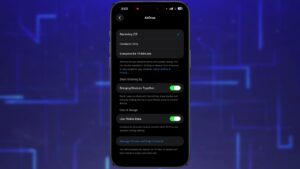
The first thing to check is whether the receiving device is actually allowing AirDrop requests. A device can have Wi-Fi and Bluetooth enabled and still remain invisible if AirDrop is set to Receiving Off or if Contacts Only is preventing the sender from being recognized.
On iPhone or iPad
Open Control Center by swiping down from the upper-right corner of the screen. On older iPhone models with a Home button, swipe up from the bottom.
Then:
- Touch and hold the group of connectivity controls in the upper-left area.
- Tap AirDrop.
- Select Everyone for 10 Minutes.
Apple currently uses Everyone for 10 Minutes as the temporary broad-discovery option on supported iPhone and iPad versions. After 10 minutes, the setting changes back automatically. If you are signed in to your Apple Account, it returns to Contacts Only; if you are not signed in, it returns to Receiving Off.
This makes Everyone for 10 Minutes particularly useful for troubleshooting. It removes contact-matching as a possible reason the other device cannot see you.
If the devices belong to you and are signed in to the same Apple Account, you can also test AirDrop between them after confirming that AirDrop is enabled. Apple says items sent between your own Apple devices can be automatically accepted when both are signed in to the same Apple Account.
On a Mac
On macOS, open Control Center from the menu bar and select AirDrop. Make sure AirDrop is turned on and choose the appropriate discovery option.
You can also open Finder and select AirDrop from the sidebar. The AirDrop window provides an option for choosing who can discover and send items to the Mac.
If you are testing an iPhone-to-Mac connection, temporarily choosing the broader receiving option on the Mac can help determine whether the problem is caused by the Mac’s discovery settings.
Make Sure Wi-Fi and Bluetooth Are Turned On
AirDrop depends on both Wi-Fi and Bluetooth. Turning off either one can prevent nearby devices from appearing.
Check both devices rather than assuming that the settings are correct on the other person’s phone or Mac. Apple specifically recommends having Wi-Fi and Bluetooth enabled on both the sender and recipient before using AirDrop.
On an iPhone or iPad, you can check them from Control Center, but there is an important detail that can cause confusion. Tapping the Wi-Fi or Bluetooth buttons in Control Center does not always completely disable the underlying radios. It can disconnect the device from networks or accessories while leaving the technologies available for features such as AirDrop.
For troubleshooting, check the full settings instead:
- Go to Settings > Wi-Fi and make sure Wi-Fi is enabled.
- Go to Settings > Bluetooth and make sure Bluetooth is enabled.
- Return to AirDrop and test the connection again.
If either connection was behaving strangely, turning it off and back on from Settings can also refresh the wireless connection.
Turn Off Personal Hotspot Temporarily
Personal Hotspot can interfere with AirDrop discovery. Apple specifically recommends disconnecting Personal Hotspot when preparing to use AirDrop.
On the iPhone providing the hotspot, go to Settings > Personal Hotspot and turn off Allow Others to Join if it is active. Also disconnect any device that is currently using the hotspot.
After that, verify Wi-Fi and Bluetooth are enabled and try AirDrop again.
This is an easy step to overlook because AirDrop and Personal Hotspot both use wireless technologies, but they serve different purposes. A phone that is actively being used as a hotspot may not behave as expected during AirDrop discovery.
Move the Devices Closer Together
AirDrop is designed for nearby devices. Apple specifies a distance of about 10 meters (30 feet) for AirDrop, although walls, interference, device orientation, and the surrounding environment can affect practical performance.
For troubleshooting, do not test from opposite sides of a room. Put the devices next to each other.
Keep both screens awake while testing and avoid putting either device inside a bag, drawer, or another location that could interfere with the wireless signal.
If AirDrop begins working when the devices are very close together, distance or environmental interference was probably contributing to the problem.
Keep Both Devices Awake and Unlocked
AirDrop discovery works best when the receiving device is active and available.
Unlock the iPhone, iPad, or Mac before attempting the transfer. On an iPhone or iPad, leave the screen on while opening the Share menu and testing AirDrop.
This also makes it easier to see an incoming AirDrop request. On a Mac, if you opened AirDrop in Finder, Apple says the acceptance notification can appear in the Finder AirDrop window rather than in Notification Center.
If one device is locked or asleep, wake it, unlock it, open AirDrop, and then try again.
Use Everyone for 10 Minutes When Contacts Only Fails
Contacts Only is convenient for normal use, but it introduces another condition that must be satisfied. The receiving device has to recognize the sender as a permitted contact.
Apple’s AirDrop security system uses identity information associated with contacts when Contacts Only is selected. If the sender does not match a permitted contact, the receiving device may not respond to the discovery request.
That can happen even when the people involved believe they are in each other’s contacts. For example, one person may have an outdated phone number or email address saved, while the other person’s Apple Account uses different contact information.
For testing, change the receiving device to:
Control Center > AirDrop > Everyone for 10 Minutes
Then open the Share menu on the sending device and select AirDrop again.
If the device immediately appears, AirDrop itself is functioning. The problem is more likely related to Contacts Only configuration rather than Wi-Fi, Bluetooth, or defective hardware.
If you are running iOS 26.2, iPadOS 26.2, or macOS 26.2 and later, Apple has also introduced AirDrop codes for certain transfers involving people who are not in your contacts. If prompted, the recipient can generate an AirDrop code that the sender enters to authorize the transfer.
Restart Wi-Fi and Bluetooth
If the settings look correct but AirDrop still shows no nearby devices, refresh the wireless connections.
On both devices:
- Open Settings.
- Turn Wi-Fi off.
- Turn Bluetooth off.
- Wait a few seconds.
- Turn both back on.
- Set AirDrop to Everyone for 10 Minutes on the receiving device.
- Try the transfer again.
This is different from simply repeatedly tapping AirDrop. The goal is to restart the wireless connections that AirDrop relies on.
If one device sees other Bluetooth or Wi-Fi equipment normally but AirDrop remains empty, continue with the next troubleshooting steps rather than repeatedly changing AirDrop settings.
Restart Both Apple Devices
A restart is useful when AirDrop suddenly stops discovering devices even though it worked earlier.
Temporary system processes responsible for wireless communication can occasionally stop behaving correctly. Restarting the device clears those temporary states without deleting your files, photos, apps, or settings.
Restart both devices instead of restarting only the sender.
After they restart:
- Unlock both devices.
- Turn on Wi-Fi and Bluetooth.
- Disable Personal Hotspot if it is active.
- Set the receiving device to Everyone for 10 Minutes.
- Place the devices close together.
- Try sending a small file.
Apple also recommends restarting the device when AirDrop is having difficulty working.
Testing with a single photo or small document is useful because it separates discovery problems from transfer problems. If the device appears but the transfer later fails, you are dealing with a different issue.
Check for a VPN That Blocks Local Connections
A VPN can sometimes interfere with local-device communication, depending on how its configuration handles local network traffic.
If you have a VPN enabled, temporarily disconnect it and test AirDrop again. Apple notes that VPN configurations should not prevent local network communication when using features that depend on nearby-device connectivity.
This does not mean every VPN breaks AirDrop. The important distinction is the VPN configuration.
If AirDrop works immediately after disconnecting the VPN, check the VPN application’s settings for an option related to local network access, LAN connections, or local network discovery. The exact setting varies by VPN provider.
If disabling the VPN makes no difference, reconnect it rather than leaving it disabled unnecessarily.
Check the Mac Firewall if an iPhone Cannot See It
When AirDrop works between iPhones but an iPhone cannot discover a particular Mac, the Mac’s network configuration deserves closer attention.
macOS includes a built-in firewall that controls incoming network connections. Apple provides an option called Block all incoming connections, which prevents incoming connections to nonessential services and applications.
To inspect the setting on a recent version of macOS:
- Open the Apple menu.
- Select System Settings.
- Choose Network.
- Select Firewall.
- Review the firewall settings.
If Block all incoming connections is enabled, it can prevent sharing-related connections from being established. Apple also provides options for allowing applications and services to receive incoming connections.
Do not permanently disable your firewall just because AirDrop is not working. First determine whether the firewall configuration is actually responsible. If changing the setting fixes the problem, restore the strongest configuration that still permits the required functionality.
If the Mac belongs to an employer or school, firewall settings may be controlled by device-management software. In that situation, you may not be able to change the setting yourself.
Check That the Devices Are Compatible With AirDrop
AirDrop works between supported Apple devices, including iPhone, iPad, and Mac. It is not a general-purpose wireless file-sharing system for Windows PCs, Android phones, or other non-Apple devices.
If you are trying to send a file from an iPhone to a Windows laptop, for example, the Windows computer will not appear in the AirDrop list. You need another file-transfer method instead.
The same applies to situations where someone expects AirDrop to discover a nearby Android phone. AirDrop is designed for Apple’s ecosystem.
When troubleshooting, first confirm that both devices are supported Apple products. This avoids spending time changing settings for a connection AirDrop cannot establish.
Update iOS, iPadOS, or macOS
If AirDrop stopped working after a software change or behaves inconsistently across several devices, check for available system updates.
On iPhone or iPad, open:
Settings > General > Software Update
On Mac, open:
Apple menu > System Settings > General > Software Update
Install an available update if appropriate, especially if the current problem started after a system upgrade or if another Apple device running a newer version works correctly.
Software updates can also change AirDrop behavior. For example, current Apple documentation includes AirDrop code requirements for devices running iOS 26.2, iPadOS 26.2, or macOS 26.2 and later when certain transfers involve people outside the recipient’s contacts.
After updating, restart the device and test AirDrop again instead of assuming the update alone has resolved the problem.
Try AirDrop With a Different Device
If you have access to another compatible iPhone, iPad, or Mac, use it as a diagnostic test.
Suppose an iPhone cannot discover your Mac, but another iPhone can discover the Mac. That points toward a problem with the first iPhone rather than the Mac.
The opposite result is also useful. If no Apple device can discover the Mac, investigate the Mac’s AirDrop settings, firewall configuration, software state, or hardware more closely.
A simple comparison can narrow the problem considerably:
| Test | What the result suggests |
|---|---|
| iPhone sees another iPhone | iPhone wireless hardware is probably working |
| Mac sees another iPhone | Mac AirDrop is probably functioning |
| Nobody can see the Mac | Investigate Mac settings |
| Nobody can see the iPhone | Investigate iPhone settings |
| Device appears but transfer fails | Discovery is working, so investigate transfer issues |
| Device appears only under Everyone for 10 Minutes | Contacts or visibility settings are likely involved |
This approach is usually more useful than repeatedly resetting settings without knowing which device is responsible.
Reset Network Settings as a Last Resort
If AirDrop still refuses to discover nearby devices after the simpler fixes, you can consider resetting network settings on an iPhone or iPad.
This is more disruptive than restarting Wi-Fi or Bluetooth. A network settings reset can remove saved Wi-Fi networks and passwords, VPN-related settings, and other network configuration. You should therefore treat it as a later troubleshooting step rather than the first thing to try.
On supported iPhone and iPad versions, the reset is found under:
Settings > General > Transfer or Reset iPhone/iPad > Reset > Reset Network Settings
The exact wording can vary slightly by system version.
Before doing this, make sure you know the passwords for important Wi-Fi networks. After the reset, reconnect to Wi-Fi and configure any required VPN or network settings again.
If AirDrop still does not work afterward, the problem is less likely to be a simple cached network configuration.
Common AirDrop Mistakes That Prevent Discovery
Several problems are easy to overlook because everything appears to be configured correctly at first glance.
AirDrop is enabled only on the sender. The recipient must also allow incoming AirDrop requests.
Contacts Only is enabled. The sender may not meet the contact-matching requirements, so temporarily use Everyone for 10 Minutes.
Personal Hotspot is active. Disconnect it before testing.
The devices are too far apart. Put them within a few feet of each other during troubleshooting.
Wi-Fi or Bluetooth was disabled from Settings. Check both technologies directly rather than relying only on the Control Center icons.
The device is locked or asleep. Unlock both devices and keep them awake during the test.
A VPN restricts local traffic. Disconnect it temporarily and test.
The devices are not both Apple devices. AirDrop cannot make an Android phone or Windows PC appear as an AirDrop recipient.
The Mac firewall blocks incoming connections. Check the Mac’s firewall configuration when Mac discovery is the specific problem.
What to Do If AirDrop Still Does Not Discover Devices
If you have completed the basic checks and AirDrop remains empty, narrow the problem down instead of repeating the same steps.
First, determine whether the issue affects one device or several. Test the problematic device with another compatible Apple device if possible.
Next, check whether changing the receiving option to Everyone for 10 Minutes makes any difference. If it does, focus on contacts and AirDrop permissions. If it does not, focus on wireless connectivity, distance, Personal Hotspot, VPN configuration, software, and the device itself.
If a Mac is involved, inspect its firewall settings. If the problem persists across multiple Apple devices and after software updates and network troubleshooting, hardware or a deeper system-level problem becomes more plausible.
At that point, Apple’s support resources or an Apple service provider may be appropriate, particularly if Bluetooth or Wi-Fi also behaves abnormally in other applications. AirDrop relies on those wireless capabilities, so a broader connectivity problem is a useful clue.
Conclusion
When AirDrop is not discovering nearby devices, start with the settings that control visibility rather than immediately resetting the device. Make sure both devices have Wi-Fi and Bluetooth enabled, turn off Personal Hotspot, bring the devices close together, unlock them, and set the receiving device to Everyone for 10 Minutes while testing. Apple specifically recommends these conditions for troubleshooting AirDrop.
If that does not work, restart both devices, temporarily disconnect a VPN, check the Mac firewall when a Mac is involved, and install available system updates. A network settings reset should be reserved for cases where the simpler fixes have failed.
The most useful diagnostic clue is whether the device becomes visible after changing AirDrop from Contacts Only to Everyone for 10 Minutes. If it does, the underlying wireless connection is probably working and the problem is more likely related to AirDrop’s discovery permissions or contact matching. If no compatible Apple device can discover the affected device at all, investigate that device’s wireless and system configuration more closely.
If you think there’s been a mistake here, please do let us know by commenting on this post or Contact Us. And a member of our Content Integrity Team will review this decision with you.




