

Apple Music sync issues on iPhone usually show up in a few familiar ways: songs or playlists added on another device do not appear, changes made on the iPhone fail to show up on a Mac or PC, albums remain stuck loading, or downloaded tracks suddenly disappear.
The problem is usually related to Sync Library, an incorrect Apple Account, an internet connection, an outdated app or iOS version, or a cloud library that has not finished updating. Apple also warns that Apple Music is not a backup service, so you should protect any locally stored music before making major sync changes.
The good news is that you can usually identify the cause without deleting your entire music library or repeatedly signing out of your iPhone. Start with the account and Sync Library checks, then move toward network, software, and library-specific fixes.
Check What Is Actually Failing
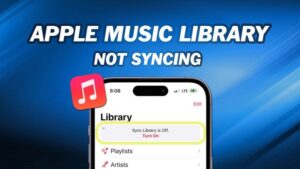
Before changing settings, determine whether the problem affects your entire library or only certain songs.
Open the Music app and check whether you can see your playlists, recently added music, albums, and songs. Then make a small change, such as adding an existing song to a playlist, and check whether that change appears on another device.
This distinction matters because a complete failure to sync points toward an account, subscription, Sync Library, or network problem. If only a few songs are missing or greyed out, the problem may be with those individual tracks or with the computer where the original library is stored. Apple provides separate troubleshooting steps for missing or greyed-out music.
Also check whether music plays normally when you are connected to the internet. If streaming works but downloaded songs are missing, you may be dealing with a download problem rather than a library synchronization problem.
Make Sure Sync Library Is Turned On
Sync Library is the feature that keeps your Apple Music library available across devices. When it is enabled, changes to your library, including playlists and added music, can appear on other devices signed in with the same Apple Account.
On current versions of iOS, check the setting here:
- Open Settings.
- Tap Apps.
- Tap Music.
- Find Sync Library.
- Make sure it is turned on.
The exact menu appearance can vary slightly between iOS versions, but the setting is located within the Music settings.
If Sync Library is already enabled, do not immediately switch it off. First continue with the account and connection checks below. Turning Sync Library off can remove downloaded music from the iPhone, so it is better treated as a troubleshooting step rather than a routine reset.
If Sync Library is missing altogether, that is useful information. Apple says the option requires an Apple Music subscription or iTunes Match, and the device must be signed in to the Apple Account associated with that subscription.
Check That Your Apple Account Matches Your Other Devices
One of the easiest ways to create a sync problem is to use different Apple Accounts on different devices.
Your iPhone may be signed into one account while your Mac, Windows PC, or another iPhone is using another. In that situation, Apple Music cannot treat those libraries as one synchronized library.
Open the Apple Music app on your iPhone, tap your profile picture, and check the account information. Compare it with the Apple Account used by Apple Music on your other devices.
Apple specifically recommends signing in with the same Apple Account on all devices when using Sync Library.
This is particularly important if you have changed Apple Accounts in the past, use Family Sharing, or recently moved from one account to another. Having access to the same iPhone does not mean two different Apple Accounts will share the same Apple Music library.
If you discover that the accounts are different, avoid randomly signing out of every device. First identify which account owns the Apple Music subscription and contains the library you want to keep using.
Check Your Apple Music Subscription
Sync Library is not simply an iCloud setting that every iPhone can use. Apple requires an Apple Music subscription or iTunes Match for the feature.
If your subscription expired, was cancelled, or is attached to a different Apple Account, the Sync Library option may not behave as expected.
Check your Apple Account subscription information and confirm that the account currently signed into Apple Music is the one associated with your active subscription.
This is especially important if the problem started after changing accounts, restoring an iPhone, joining or leaving a Family Sharing group, or switching subscriptions.
If your subscription is active and the account is correct, move on to the network checks rather than repeatedly changing account settings.
Check the Internet Connection
Apple Music needs an internet connection to synchronize cloud-based library information. A weak or unstable connection can make the Music app appear as though it has stopped syncing when the real problem is connectivity.
Try opening Safari and loading a few websites. If pages load slowly or fail intermittently, test another connection.
If you are using Wi-Fi, temporarily switch to cellular data if your plan allows it. If cellular works but Wi-Fi does not, restart the router and reconnect the iPhone to the network.
You can also check whether Airplane Mode is enabled and whether cellular data is permitted for Music. On an iPhone using cellular data, open Settings > Cellular and make sure Music is allowed to use cellular data if you want it to sync away from Wi-Fi.
Do not assume that because other apps work, Apple Music must have a perfect connection. Music synchronization can fail while general browsing continues normally, particularly when a library contains many changes waiting to upload or download.
Restart the Music App and iPhone
A temporary Music app process can sometimes prevent library changes from appearing correctly.
First, close the Music app and open it again. On an iPhone with Face ID, swipe up from the bottom of the screen and pause to open the app switcher, then swipe the Music app away. Reopen Music and give it some time to refresh.
If that does not help, restart the iPhone.
A restart is useful when the Music app is frozen, a library update appears stuck, or the device has been running for a long period without a restart. It does not repair a wrong Apple Account or an unavailable cloud library, so treat it as a simple reset rather than a complete synchronization fix.
Update iOS and Apple Music
Software problems can affect synchronization, especially when an iPhone is running an older version of iOS while the other device or Apple Music service has changed.
Open Settings > General > Software Update and check for an available iOS update.
If you use Apple Music on Windows, also make sure the Apple Music app is current. Apple recommends updating Apple devices and the Apple Music app for Windows when troubleshooting missing music.
After updating, restart the iPhone and check Sync Library again.
Do not assume that an update will restore missing songs automatically. If the library itself contains missing or unavailable tracks, you may still need to troubleshoot those individual items.
Give a Large Library Time to Synchronize
A common mistake is repeatedly toggling settings because the library does not update immediately.
If you recently added a large number of songs, created several playlists, changed a library on a Mac or PC, or restored an iPhone, the cloud library may need time to process those changes.
This is particularly noticeable with large libraries. Apple recommends using a good network connection and acknowledges that larger music libraries can take more time to sync.
Leave the iPhone connected to a reliable network and allow the Music app time to update before making another configuration change.
If only recently added content is missing, waiting is safer than immediately turning Sync Library off and on. You do not want to create another download task while the original synchronization is still processing.
Fix Apple Music Sync by Refreshing Sync Library
If Sync Library is enabled, the account is correct, the subscription is active, and the network is working, refreshing Sync Library can resolve a stuck synchronization process.
Before doing this, understand the consequence: Apple states that turning Sync Library off removes downloaded music from the device. Your cloud-based library is not necessarily being deleted, but music downloaded for offline listening will need to be downloaded again afterward.
If you are comfortable doing that, use this process:
- Open Settings.
- Tap Apps.
- Tap Music.
- Turn Sync Library off.
- Wait briefly.
- Restart the iPhone.
- Return to Settings > Apps > Music.
- Turn Sync Library back on.
- Connect to a reliable Wi-Fi network.
- Open Music and allow the library to repopulate.
Do not use this method if you have important offline downloads and cannot easily download them again.
This is also why you should not treat toggling Sync Library as the first troubleshooting step. It is more disruptive than checking the account, connection, subscription, and software version.
Check for Missing or Greyed-Out Songs
If the sync problem affects only particular tracks, look at the songs themselves rather than resetting the entire library.
A greyed-out song may be unavailable because the original track is no longer available in the catalog, the library entry has a problem, the file on the originating computer is unavailable, or the cloud library has not properly matched or uploaded the track.
Apple recommends checking the Cloud Status of songs on the computer where the local music library originates when music is missing.
If your library comes from a Mac, open the Music app there and inspect the affected songs. Look for cloud-related status information and determine whether the original file is still available.
If several songs are affected, focus on the computer containing the original library before making changes on the iPhone. Apple recommends updating the cloud library on the local computer first and then allowing the synced computer or device to update.
This approach is important for people who have imported music files rather than relying exclusively on songs from the Apple Music catalog.
Check the Source Computer if You Use a Mac or Windows PC
If your Apple Music library originates on a computer, the iPhone is not necessarily the source of the problem.
On a Mac, Apple Music uses Sync Library to make the cloud library available across supported devices. On Windows, the current Apple Music app also provides Sync Library, while older iTunes installations use the term iCloud Music Library for the related feature.
Check the computer first:
- Open Apple Music.
- Confirm that the correct Apple Account is signed in.
- Open the Music settings.
- Make sure Sync Library is enabled.
- Allow the cloud library to finish updating.
- Check whether the missing songs are available locally.
If the computer itself cannot update its library, repeatedly resetting Sync Library on the iPhone is unlikely to solve the underlying problem.
Make Sure You Have Enough iPhone Storage
Storage does not normally prevent the cloud library itself from existing, but it can affect downloaded music.
If songs appear in your library but refuse to download, check available storage under Settings > General > iPhone Storage.
A nearly full iPhone can cause problems with downloads and other app operations. If storage is critically low, remove unnecessary videos, apps, photos, or old downloads before trying to download a large music collection again.
Remember the distinction between library synchronization and downloading. Sync Library makes your cloud music library available across devices, while downloading stores music locally for offline playback. Apple documents these as separate functions.
Check Whether the Problem Is Limited to Downloads
If your playlists and songs appear correctly but music will not play offline, Sync Library may already be working.
Try streaming the affected song while connected to the internet. If it plays normally, the cloud library is probably available and the problem is more likely related to the local download.
You can remove a problematic download and download it again. In Apple Music, touch and hold the song or album, choose Remove, and then choose Remove Download. This removes the local copy while leaving the music in your library.
Be careful not to choose Delete from Library unless you actually want to remove the music from your library. With Sync Library enabled, deleting a song from the library can affect the library on your other devices as well.
What to Do If Apple Music Still Will Not Sync
If the standard fixes have not worked, narrow the problem down before making more changes.
Check the Music app on another device using the same Apple Account. If the library is correct there but not on the iPhone, the problem is probably local to the iPhone.
If the library is missing on every device, investigate the account, subscription, source computer, and cloud library instead.
If only one playlist is affected, inspect the playlist and the songs inside it. If individual tracks are missing, investigate those tracks rather than resetting the whole library.
If Apple Music itself is unavailable or several devices suddenly stop updating at the same time, the problem may be on Apple’s service side. In that situation, changing settings on your iPhone will not necessarily help, so check Apple’s current service status before performing destructive troubleshooting.
Common Mistakes to Avoid
Some troubleshooting steps can create more work than they solve.
The biggest mistake is repeatedly turning Sync Library off and on without first checking the Apple Account. If the wrong account is being used, the reset does not address the cause and may remove downloaded music from the iPhone.
Another mistake is deleting songs from the library when you only intended to remove their downloads. Remove Download and Delete from Library have very different consequences.
It is also risky to assume that Apple Music is a backup. Apple explicitly says it is not a backup service. If you maintain a personal collection of imported music files, keep an independent backup of those originals before changing synchronization settings.
Finally, avoid changing several settings at once. If you change the Apple Account, toggle Sync Library, update iOS, delete downloads, and change networks all at the same time, you will have no clear idea which action fixed or caused the problem.
When You Should Contact Apple Support
If the iPhone is using the correct Apple Account, your Apple Music subscription is active, Sync Library is enabled, the internet connection works, iOS is current, and the same library fails to synchronize across multiple devices, further local troubleshooting may not be useful.
Before contacting Apple, record exactly what is missing. Note whether the problem affects all music or specific songs, whether another device shows the correct library, whether streaming works, and whether the problem started after a particular account, software, or device change.
That information makes the problem easier to diagnose than simply reporting that “Apple Music is not syncing.”
If you have a large personal music collection, do not delete the source files or rebuild the library just because the iPhone is not displaying everything. Preserve the original library until you know whether the problem is with the source files or Apple’s cloud synchronization.
Final Thoughts
Fixing Apple Music sync issues on iPhone is mostly a matter of finding where synchronization is breaking. Start by confirming the same Apple Account and an active Apple Music subscription, then verify Settings > Apps > Music > Sync Library, test the internet connection, restart the app and iPhone, and update iOS. Apple confirms that Sync Library requires the appropriate subscription and the same Apple Account across devices.
If only certain songs are missing, investigate the individual tracks and the Mac or Windows PC where the original library is stored instead of resetting everything. If downloads are the only problem, treat that separately from cloud library synchronization.
The Sync Library toggle can be useful when the service appears stuck, but it should be one of the later steps because turning it off removes downloaded music from the iPhone. Once the underlying account, network, software, and library issues are addressed, Apple Music should be able to keep your playlists, songs, and other library changes consistent across your devices.
If you think there’s been a mistake here, please do let us know by commenting on this post or Contact Us. And a member of our Content Integrity Team will review this decision with you.




