

Bluetooth problems on an iPhone can show up in several ways. Your iPhone may refuse to connect to a device, disconnect unexpectedly, fail to find an accessory, or show that a device is connected even though no audio or data is being transmitted. These issues can affect AirPods, wireless headphones, speakers, car systems, smartwatches, keyboards, and other accessories.
The good news is that most Bluetooth connection issues on iPhone are caused by settings, pairing problems, temporary software glitches, interference, or the accessory itself. The right fix depends on where the connection is failing. This guide walks through the troubleshooting process in a logical order, starting with simple checks and moving toward more advanced solutions.
Check That Bluetooth Is Enabled and the Device Is Ready to Connect
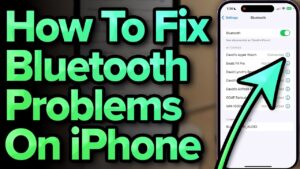
Before changing settings or resetting anything, make sure both devices are actually ready to establish a Bluetooth connection.
On your iPhone, open Settings > Bluetooth and make sure Bluetooth is turned on. You can also enable Bluetooth from Control Center, but checking the Settings app is more useful because it shows available and previously connected devices.
Next, check the accessory you are trying to connect.
Many Bluetooth accessories must be placed into pairing mode before a new iPhone can detect them. Simply turning on a speaker or pair of headphones does not always make them discoverable. The exact process varies by manufacturer, but it often involves holding the power button or a dedicated Bluetooth button until an indicator light flashes.
Also check the following:
- Make sure the accessory has enough battery power.
- Keep the iPhone and accessory close together.
- Confirm the accessory is powered on.
- Disconnect the accessory from another phone, tablet, or computer if necessary.
- Check whether the accessory has a limit on the number of simultaneous Bluetooth connections.
A common problem occurs when wireless headphones automatically reconnect to a nearby device they were previously paired with. In that situation, your iPhone may not be able to connect until the accessory is disconnected from the other device.
Turn Bluetooth Off and Back On
If Bluetooth is enabled but the connection is not working properly, turning Bluetooth off and back on can clear a temporary connection problem.
- Open Settings on your iPhone.
- Tap Bluetooth.
- Turn off Bluetooth.
- Wait about 10 seconds.
- Turn Bluetooth back on.
Then wait for the accessory to appear under Other Devices or try reconnecting to a device listed under My Devices.
You can also toggle Bluetooth from Control Center, but there is an important difference. On modern versions of iOS, tapping the Bluetooth button in Control Center may disconnect accessories temporarily without fully disabling Bluetooth system-wide. If you are troubleshooting a persistent connection issue, use Settings > Bluetooth and turn the feature off completely.
If the device connects normally after this step, the problem was likely a temporary communication issue. If it still does not connect, continue with the next steps.
Make Sure the Bluetooth Device Is Within Range
Bluetooth has a limited wireless range, and physical obstacles can reduce signal quality.
For troubleshooting, place the iPhone and accessory within a few feet of each other. Do not test the connection from another room or through several walls.
Other wireless devices can also interfere with Bluetooth. Wi-Fi networks, USB 3 accessories, wireless peripherals, and some electronic equipment may contribute to connection problems, especially in areas with many active wireless devices.
If your Bluetooth device repeatedly disconnects, try testing it in a different location. For example, if your headphones work reliably at home but disconnect in a crowded office or gym, wireless interference may be contributing to the issue.
Range problems usually cause unstable connections rather than preventing the device from appearing entirely. If your accessory never shows up in the Bluetooth device list, pairing mode or a device-specific issue is more likely.
Restart Your iPhone and the Bluetooth Accessory
Restarting both devices is one of the most effective ways to clear temporary software and connection problems.
To restart an iPhone with Face ID:
- Press and hold the Side button and either Volume button.
- When the power slider appears, drag it to turn off the iPhone.
- Wait around 30 seconds.
- Press and hold the Side button until the Apple logo appears.
For an iPhone with a Home button, press and hold the Side or Top button, then drag the power slider.
After the iPhone restarts, restart the Bluetooth accessory as well. The process depends on the device. For some accessories, turning them off and back on is enough. Others may have a dedicated reset procedure.
Once both devices are running again, try connecting them.
Restarting is particularly useful when Bluetooth was working normally and suddenly stopped. A temporary iOS process or communication error can sometimes prevent a previously paired device from reconnecting correctly.
Forget the Bluetooth Device and Pair It Again
If your iPhone can see the Bluetooth device but repeatedly fails to connect, forgetting the existing pairing and creating a new connection often fixes the problem.
When you pair a Bluetooth accessory with an iPhone, both devices save connection information. If that information becomes corrupted or no longer matches the accessory’s current state, the connection may fail even though the device appears in the Bluetooth list.
To forget a Bluetooth device:
- Open Settings > Bluetooth.
- Find the device under My Devices.
- Tap the Info button next to its name.
- Select Forget This Device.
- Confirm your choice.
Afterward, restart the Bluetooth accessory if possible and place it back into pairing mode.
Return to Settings > Bluetooth, wait for the accessory to appear under Other Devices, and tap its name to pair again.
You may need to enter a pairing code for certain accessories, particularly older car systems, keyboards, and audio equipment. If the accessory documentation provides a default code, use the manufacturer’s instructions rather than repeatedly guessing.
Keep in mind that forgetting a device removes its Bluetooth relationship with your iPhone. Some accessories may require additional setup after pairing again.
Check Whether the Accessory Is Connected to Another Device
Many Bluetooth devices can remember several previously paired devices. Some can also connect to multiple devices at the same time.
This can create confusion when an accessory appears to be working but refuses to connect to your iPhone.
For example, your wireless headphones may automatically reconnect to your laptop when you turn them on. Your iPhone may detect the headphones but fail to establish the connection because they are already actively connected elsewhere.
Try these steps:
- Turn off Bluetooth on nearby phones, tablets, and computers that have previously used the accessory.
- Turn the accessory off.
- Turn it back on and activate pairing mode.
- Try connecting it to the iPhone again.
This is especially useful for Bluetooth speakers, headphones, keyboards, and car adapters that are regularly used with multiple devices.
If the accessory supports multipoint Bluetooth, check its settings or documentation. Some devices prioritize the most recently connected device, while others allow only certain types of simultaneous connections.
Check Your iPhone’s Software Version
Bluetooth behavior can sometimes be affected by an iOS bug or compatibility problem. Installing the latest available iOS update can resolve known issues and improve compatibility with newer accessories.
To check for an update:
- Open Settings.
- Tap General.
- Select Software Update.
- Install an available update.
Before updating, connect your iPhone to Wi-Fi and make sure it has sufficient battery power or is connected to a charger.
If the Bluetooth problem began immediately after installing an iOS update, the situation can be more complicated. The issue may affect only a particular accessory, or the accessory may need its own firmware update.
In that case, test the Bluetooth device with another phone if possible. If it works with another device but not with your iPhone, check for iOS updates and any available firmware updates for the accessory.
Update the Bluetooth Accessory’s Firmware
Not every Bluetooth device supports firmware updates, but many modern headphones, speakers, smartwatches, and car accessories do.
Manufacturers often provide companion apps for updating firmware. These updates can fix connection bugs, improve compatibility, or address problems introduced by operating system changes.
The update process varies depending on the accessory. In most cases, you install the manufacturer’s app, connect the accessory, and check for available firmware updates.
Do not interrupt the accessory while a firmware update is in progress. Turning it off or moving it out of range during the update can cause additional problems.
If the accessory cannot maintain a connection long enough to update, check the manufacturer’s troubleshooting instructions. Some devices can be updated through a USB connection or reset before attempting the update again.
Reset Network Settings on Your iPhone
If several Bluetooth devices are experiencing problems, or none of the usual fixes work, resetting network settings may help.
This reset clears saved network-related settings and can remove configuration problems affecting wireless connections.
Before doing this, understand what will change. Resetting network settings can remove:
- Saved Wi-Fi networks and passwords
- Cellular and network preferences
- VPN settings that were manually configured
- Some network-related connection settings
You will need to reconnect to Wi-Fi networks afterward.
On recent versions of iOS, the option is generally found here:
- Open Settings.
- Tap General.
- Select Transfer or Reset iPhone.
- Tap Reset.
- Choose Reset Network Settings.
- Enter your passcode if requested and confirm.
Your iPhone will restart.
After it restarts, turn Bluetooth back on and pair the accessory again if necessary.
This is a stronger troubleshooting step, so it makes more sense after trying simpler fixes. It is particularly useful when multiple wireless connections are behaving strangely rather than when only one Bluetooth accessory has a problem.
Reset All Settings If the Problem Persists
If resetting network settings does not help and the Bluetooth problem appears to be related to the iPhone rather than the accessory, you can consider Reset All Settings.
This does not erase your personal files, photos, apps, or messages. However, it restores many system settings to their defaults, including preferences that you may need to configure again.
Go to:
Settings > General > Transfer or Reset iPhone > Reset > Reset All Settings
Use this option carefully because it is more disruptive than resetting Bluetooth or network settings. It should not be the first fix for a single pair of headphones that will not connect.
If multiple Bluetooth devices have stopped working and the issue continues after restarting, updating iOS, and resetting network settings, resetting all settings can help rule out a broader configuration problem.
Check for Bluetooth Interference and Hardware Problems
If the connection remains unstable, test the iPhone and accessory in a controlled way.
Try connecting the Bluetooth accessory to another compatible device. Then try connecting a different Bluetooth accessory to your iPhone.
These two tests can help narrow down the source of the problem.
| Test Result | Likely Cause |
|---|---|
| The accessory fails with every device | The accessory may have a hardware, battery, or firmware problem |
| Other Bluetooth devices work with your iPhone | The original accessory or its pairing configuration is likely the issue |
| No Bluetooth devices connect to your iPhone | The issue may be related to iOS settings or iPhone hardware |
| The accessory works only at close range | Signal interference or a weakened Bluetooth radio may be involved |
Avoid assuming that the iPhone is faulty simply because one accessory will not connect. A device-specific pairing issue is much more common.
Physical damage can also affect Bluetooth performance. If the iPhone recently suffered a hard drop or liquid exposure and Bluetooth problems started afterward, a hardware issue becomes more plausible.
In that situation, repeated resets are unlikely to repair the underlying problem.
Fix Bluetooth Audio Problems on iPhone
Sometimes Bluetooth connects successfully, but the audio does not come through the expected device.
Your headphones or speaker may appear as connected while sound continues playing through the iPhone’s built-in speaker.
Start by opening the audio output controls while media is playing. From Control Center or the Now Playing screen, select the Bluetooth device as the audio destination.
If the accessory is selected but produces no sound, check its volume. Many Bluetooth speakers and headphones have their own volume controls, separate from the iPhone’s volume level.
You should also check whether another audio device is currently connected. For example, your iPhone may automatically route audio to a car system, AirPlay device, or another Bluetooth accessory.
If only calls have audio problems, the issue may involve the accessory’s microphone or call audio profile rather than the general Bluetooth connection. Forgetting and pairing the device again can help, but you should also test it with another phone to determine whether the problem follows the accessory.
What to Do When Your Car Will Not Connect to Your iPhone
Car Bluetooth systems often have additional limitations that do not apply to headphones or speakers.
The car may have a maximum number of paired devices, or its Bluetooth system may still be connected to another phone.
Start by removing the old pairing from both the iPhone and the car’s infotainment system. Then restart the car system if possible and pair the devices again.
Follow the pairing process from the car’s own menu rather than waiting for the iPhone to connect automatically.
If your car supports both standard Bluetooth and a separate smartphone connection system, make sure you are troubleshooting the correct connection. A problem with hands-free calling may have a different cause from a problem with music streaming or another vehicle integration feature.
Older infotainment systems may also have compatibility limitations. If your iPhone connects to newer Bluetooth accessories without difficulty but consistently fails with the car, the vehicle’s software or Bluetooth implementation may need an update.
Common Mistakes to Avoid When Fixing iPhone Bluetooth Problems
A few troubleshooting habits can make Bluetooth issues harder to diagnose.
The first is repeatedly tapping the device name without changing anything. If the connection fails several times, restart the accessory or forget the pairing instead of continuing to retry the same connection.
Another common mistake is resetting the entire iPhone too early. A factory reset should be a last resort because it requires significantly more work and may not fix a hardware or accessory-specific problem.
Do not forget that the accessory itself may need attention. Checking its battery, firmware, pairing mode, and connections to other devices can save time.
It is also important to test one variable at a time. If you restart the iPhone, reset the accessory, update software, and change several settings simultaneously, you will not know which action actually resolved the problem.
When to Contact Apple or the Accessory Manufacturer
If you have tested multiple Bluetooth devices and none can connect reliably to your iPhone, there may be a deeper software or hardware issue.
Before seeking service, check that iOS is updated and test the iPhone with at least one known working Bluetooth accessory.
If only one device fails to connect while other Bluetooth devices work normally, contact the accessory manufacturer instead. The problem may involve the device’s firmware, battery, Bluetooth hardware, or compatibility.
If Bluetooth problems began after physical damage to the iPhone, professional inspection may be necessary. Software troubleshooting cannot repair a damaged Bluetooth component.
Conclusion
Learning how to fix Bluetooth connection issues on iPhone is largely a process of identifying where the connection is failing. Start with the simple checks: make sure Bluetooth is enabled, confirm the accessory is charged and in pairing mode, and keep both devices close together.
If that does not solve the problem, restart both devices, forget and pair the accessory again, check for connections to other devices, and install available software or firmware updates. For broader problems affecting several Bluetooth devices, resetting network settings or all settings may help eliminate configuration issues.
Testing the accessory with another device and testing another Bluetooth device with your iPhone can usually reveal which device is responsible. Once you isolate the source of the problem, you can avoid unnecessary resets and focus on the fix that is most likely to restore a stable Bluetooth connection.
If you think there’s been a mistake here, please do let us know by commenting on this post or Contact Us. And a member of our Content Integrity Team will review this decision with you.




