

If you find yourself checking your iPhone more often than you intended, the best solution is not simply to stop using it. A more practical approach is to identify where your time goes, decide which activities actually matter, and use Apple’s built-in Screen Time controls to make excessive use harder.
You can review your usage, limit specific apps, schedule periods away from the phone, reduce distracting notifications, and create different rules for workdays and weekends. The goal is not to eliminate screen time, but to make your iPhone work around your priorities instead of constantly competing for your attention.
Start by Finding Out Where Your iPhone Time Goes
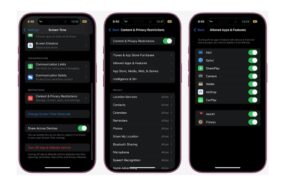
Before setting limits, check your actual usage. Screen Time can show how long you spend on individual apps and websites, which categories consume the most time, how often you pick up your device, and which apps send the most notifications. This gives you something more useful than simply knowing your total daily screen time.
Open Settings > Screen Time > See All App & Website Activity. You can switch between daily and weekly reports and select the device you want to examine.
Spend a few minutes looking at the report without immediately changing anything. A high total does not automatically mean your phone use is a problem. Two hours spent reading, navigating, working, or communicating may have a very different effect on your day than two hours of repeatedly opening social media.
Pay particular attention to patterns:
- Apps you open repeatedly without a clear reason
- Social media or entertainment apps that consume much more time than expected
- Websites that encourage repeated checking
- Large numbers of notifications
- Frequent device pickups
- Late-night usage
- Apps you open when you are supposed to be working, studying, eating, or sleeping
This first review helps you target the actual problem rather than placing arbitrary restrictions on everything.
Decide What You Actually Want to Change
Effective screen time management starts with a specific goal. “Use my iPhone less” is difficult to act on because it does not tell you what should change.
A better goal might be:
- Stop checking social media during work.
- Spend less time watching short-form videos.
- Keep the iPhone away during meals.
- Stop using entertainment apps after bedtime.
- Reduce unnecessary notifications.
- Check messages at specific times instead of constantly.
- Create longer periods without phone interruptions.
Your goal determines which Screen Time feature will help most.
For example, if Instagram or TikTok is consuming an hour every evening, an App Limit may be appropriate. If the bigger problem is reaching for the phone late at night, Downtime can be more useful. If notifications repeatedly interrupt you throughout the day, changing notification settings may produce a bigger improvement than setting an app limit.
This distinction matters because screen time is not always caused by the same behavior. Trying to solve every problem with one daily limit usually creates unnecessary friction.
Turn On Screen Time and Review the Weekly Report
If Screen Time is not already enabled, go to Settings > Screen Time > App & Website Activity, then turn on App & Website Activity. Once active, your iPhone begins collecting usage information that you can review through the Screen Time dashboard.
Give the report enough time to become useful. Looking at one unusual day can be misleading, particularly if you spent extra time traveling, watching a movie, working remotely, or handling an unusual situation.
Weekly patterns are usually more informative because they show whether your behavior is consistent. Apple also lets you view activity by day or week and see how usage is distributed across apps and categories.
If you use an iPhone, iPad, and Mac with the same Apple Account, check Share Across Devices in Screen Time. When enabled, Screen Time can combine activity across those devices, and limits and schedules can apply across them as well.
This setting is particularly important if you are trying to reduce a specific activity rather than merely reduce iPhone use. For example, limiting an app on your iPhone may not accomplish your goal if you simply move the same activity to an iPad or Mac.
Use App Limits for Your Biggest Time-Wasting Apps
App Limits are useful when one or two apps are responsible for most of your unnecessary usage. You can set limits for individual apps or entire categories, such as Games or Social Networking.
To create one, open:
Settings > Screen Time > App Limits > Add Limit
Choose a category, or open the category to select individual apps. Tap Next, choose the amount of time, and tap Done. Apple also allows different limits for different days, which can be useful if your weekday and weekend routines are very different.
Do not start by restricting every app. That can make Screen Time feel like a punishment rather than a useful tool.
Instead, identify the apps that repeatedly cause you to lose track of time. You might set a relatively modest limit for entertainment apps while leaving essential communication, navigation, banking, reading, or work apps unrestricted.
The exact number of minutes is less important than whether the limit supports your intended behavior. If you immediately ignore the limit every day, that is useful information. The problem may be that the limit is unrealistic, the app is serving an important function, or you need a different strategy altogether.
Use Downtime When You Need Predictable Phone-Free Periods
App Limits control how long you use particular apps. Downtime works differently by creating scheduled periods when most apps and notifications are unavailable.
This makes Downtime particularly useful for recurring situations such as bedtime, meals, focused work, studying, or an evening routine.
Go to Settings > Screen Time > Downtime and turn on a schedule. You can choose every day or customize individual days of the week. Apple allows different schedules for different days, so you can create separate weekday and weekend routines.
For example, you might schedule Downtime during the hours when you normally prepare for bed. During that period, only calls, messages, and apps you have specifically allowed remain available.
There is also a Block at Downtime option. When enabled, restricted apps cannot simply be opened during scheduled downtime. They appear dimmed with an hourglass symbol. Without this setting, the phone can still remind you that downtime is active while allowing you to continue using restricted apps.
That difference is important. If your problem is simply forgetting to put the phone down, a reminder may be enough. If you repeatedly override reminders, stronger restrictions are more appropriate.
Keep Essential Apps Available
Reducing screen time should not mean making your iPhone inconvenient to use when you genuinely need it.
Screen Time includes an Always Allowed section where you can choose apps and contacts that remain available during Downtime and after certain limits are reached.
Think carefully about what belongs there. A smaller list is generally more useful than allowing half of your Home Screen.
Depending on your routine, essential choices might include:
- Phone
- Messages
- Maps
- A work-related app
- A health or safety app
- A calendar
- Another genuinely necessary communication tool
Avoid adding an app simply because you might want it later. If a social media app remains available during the period you specifically created to avoid social media, the restriction loses much of its purpose.
The same principle applies to contacts. If you use Downtime overnight, you may want important people to remain reachable while nonessential communication is restricted. Apple’s communication controls can be configured separately for different periods.
Reduce Notifications Before You Reduce App Time
Notifications are one of the easiest ways for an app to pull you back into your phone.
An app does not need to be open to interrupt you. A notification can create a reason to unlock the iPhone, check one message, and then lead you into several unrelated apps.
Review notifications for apps that do not require immediate attention. Open Settings > Notifications, select an app, and adjust how it can alert you.
For many apps, disabling Lock Screen alerts is a useful middle ground. You can still receive important information without having every update become a reason to pick up your phone.
Consider turning off notifications for:
- Promotional shopping apps
- Games
- Social media engagement alerts
- News updates you do not need immediately
- Marketing messages
- Repeated reminders that can wait
Keep notifications that genuinely matter, such as calls from important people, authentication alerts, appointment reminders, or time-sensitive work communication.
If you reduce notifications but leave the most distracting apps sending dozens of alerts, you may not see much improvement. Notification management works best when you treat it as part of your overall screen time strategy.
Create Phone-Free Periods Instead of Chasing a Perfect Daily Number
A daily screen time target can be useful, but it is not always the best measure of healthy phone use.
Someone may use an iPhone heavily for navigation, work, reading, or communication and still have good control over the device. Another person may spend less total time on the phone but repeatedly interrupt important tasks to check notifications.
For that reason, create specific phone-free periods.
Start with situations where phone use has the greatest negative effect:
During meals: Put the iPhone away instead of leaving it face-up beside your plate.
During focused work: Keep the phone outside immediate reach or activate a Focus mode that reduces interruptions.
Before sleep: Use Downtime and physically move the phone away from the bed if you tend to keep checking it.
During conversations: Keep the screen out of sight so incoming notifications do not compete for attention.
During study sessions: Restrict the apps you are most likely to open when you lose concentration.
These rules are often easier to maintain than trying to keep your total screen time below an arbitrary number every day.
Use Focus to Control Interruptions During Work and Study
Screen Time and Focus solve different problems.
Screen Time is mainly concerned with how much you use your device and which apps you use. Focus is designed to control interruptions and notifications during particular activities or times.
If your main issue is constantly checking your phone while working, a Focus mode can be more appropriate than a strict app limit.
Create or customize a Focus under Settings > Focus. You can decide which people and apps are allowed to notify you and, depending on the Focus, automate it based on time, location, or other conditions supported by your iPhone.
The advantage is that you do not necessarily have to block an app completely. You can still open it when you deliberately choose to, while removing the constant prompts that encourage you to check it.
This distinction can make a major difference. An app limit addresses duration. Focus addresses interruption.
Make Distracting Apps Harder to Reach
You can also change the physical layout of your iPhone to reduce accidental or automatic opening.
Move highly distracting apps away from your first Home Screen. You do not necessarily need to delete them. The extra step of finding an app can be enough to make you stop and decide whether you actually want to open it.
You can also remove apps from the Home Screen while keeping them installed and accessible through the App Library.
Another practical approach is to avoid placing several high-distraction apps next to each other. If opening one app naturally leads to another, separating them creates a small interruption in the habit.
The goal is not to make your phone difficult to use. It is to remove the automatic path between unlocking the phone and entering an app you did not consciously decide to use.
Set Different Rules for Weekdays and Weekends
A single screen time rule for every day may not fit your actual schedule.
Your weekday routine could require navigation, communication, work apps, and productivity tools. On weekends, you may intentionally spend more time watching videos, playing games, or using social media.
Screen Time allows different app limits and Downtime schedules for different days.
This flexibility is useful because the objective is controlled use, not an identical usage pattern every day.
For example, you could create stricter social media limits on workdays and allow more recreational time on weekends. You could also schedule earlier Downtime before workdays while using a later schedule on Friday and Saturday nights.
Rules that match your real routine are generally easier to follow than restrictions that ignore how you actually use your phone.
Use Screen Time Across Your Apple Devices When Appropriate
If your distractions move between your iPhone, iPad, and Mac, managing each device separately can leave an obvious gap.
Apple’s Share Across Devices setting allows Screen Time activity to be shared across compatible Apple devices signed into the same Apple Account. Screen Time limits and schedules can then apply across those devices.
This is useful when the behavior you are trying to change is not tied to one particular device.
For example, if you restrict entertainment apps on your iPhone but immediately switch to an iPad, an iPhone-only approach has not addressed the underlying behavior. Sharing Screen Time information and limits can give you a more accurate picture of your overall Apple-device usage.
If you deliberately want separate limits for each device, leave the setting off.
Set a Screen Time Passcode When You Need Stronger Boundaries
Screen Time can be easier to ignore when changing the settings takes only a few taps.
If you repeatedly remove your own limits, consider using a Screen Time passcode. The purpose is not to create an impossible barrier. It creates an extra step between deciding to bypass a restriction and actually changing it.
This can be particularly useful for scheduled Downtime or limits that you want to treat as firm boundaries.
Be careful with the passcode, though. Do not create a code you will immediately forget, and understand how recovery works before relying on it. Apple provides a separate process for managing or recovering Screen Time passcodes, and family-managed devices can have additional restrictions.
For children, parents or guardians can manage Screen Time through Family Sharing and respond to requests for additional time when limits are reached.
Avoid Setting Limits That Are Too Aggressive
One of the most common mistakes is trying to cut usage dramatically on the first day.
If you normally spend several hours using your phone and suddenly impose extremely restrictive limits, you may constantly override them. That makes the system less useful and can turn Screen Time into something you fight against rather than a tool that helps you change your habits.
Start with the behavior that causes the most trouble.
If social media is responsible for repeated interruptions, address that first. If bedtime use is the problem, start with Downtime. If notifications are the trigger, reduce notifications before restricting the apps themselves.
After several days, review your Screen Time report again. You can then adjust the settings based on actual behavior rather than assumptions.
What to Do When Screen Time Limits Are Not Working
If you keep exceeding your limits, do not automatically make them stricter.
First, determine why you are bypassing them.
If the limit is too short for legitimate use, increase it or create different weekday and weekend limits. If you are repeatedly ignoring the limit because the app is available whenever you feel bored, change the environment around the app by removing it from the Home Screen and disabling unnecessary notifications.
If you can bypass the limit simply by choosing to continue, consider whether Block at Downtime is more appropriate for the periods when you need a firm boundary. Apple specifically provides this option for scheduled Downtime.
If the problem involves several devices, check whether Share Across Devices is enabled. Otherwise, you may be measuring or restricting only part of your usage.
And if the iPhone is not actually the source of the problem, changing Screen Time settings may accomplish very little. Sometimes the useful change is environmental, such as leaving the phone in another room during work or keeping it away from the bed at night.
A Practical iPhone Screen Time Setup
If you want a simple starting point, build your setup around your biggest sources of distraction rather than copying someone else’s numbers.
A practical configuration could look like this:
- Review one week of Screen Time data before setting restrictions.
- Identify your top two or three distracting apps.
- Set App Limits for those apps rather than limiting everything.
- Create Downtime around a period when you consistently want to be offline.
- Turn on Block at Downtime if reminders are too easy to ignore.
- Keep essential communication and utility apps available.
- Disable unnecessary notifications from distracting apps.
- Use Focus during work, study, or other periods that require concentration.
- Move distracting apps away from the first Home Screen.
- Review the weekly report and adjust the settings based on what actually happened.
This approach gives each Screen Time feature a specific job instead of using one restriction for every problem.
Final Thoughts
Learning how to manage screen time effectively on iPhone is less about chasing the lowest possible number and more about controlling when, why, and how you use the device. Screen Time gives you useful information, but the real value comes from turning that information into practical boundaries.
Start by reviewing your usage, identify the apps and situations that cause the most problems, then choose the appropriate tool. Use App Limits for specific apps, Downtime for predictable phone-free periods, Focus for interruptions, notification controls for unnecessary alerts, and Always Allowed for essential access. Apple also lets you customize schedules by day and share Screen Time settings across compatible devices, giving you more control when your routine is more complicated.
The best setup is one you can actually follow. If a restriction is constantly ignored, treat that as feedback rather than failure. Adjust the limit, change the environment, or use a different Screen Time feature until your iPhone supports the way you want to spend your time instead of repeatedly pulling your attention away from it.
If you think there’s been a mistake here, please do let us know by commenting on this post or Contact Us. And a member of our Content Integrity Team will review this decision with you.




