

If your iPhone has thousands of photos, finding one specific picture can become surprisingly difficult. The Photos app gives you several ways to organize pictures, but albums are one of the simplest because they let you group related photos without removing them from your main photo library. You can create albums for trips, family events, receipts, screenshots, work projects, or anything else you regularly need to find.
How Albums Work on iPhone
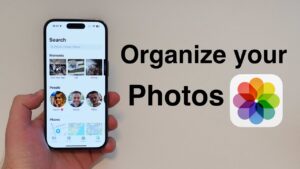
An album is a collection of photos that you choose to group together. Adding a photo to an album does not move it out of your main Photos library. The original photo remains in your library, and the album acts more like an organizational label.
This distinction is important. If you add a vacation photo to a “California Trip” album, you can still find that photo in your main library, other albums, Favorites, and relevant automatically generated collections.
You can also put the same photo in multiple albums. For example, a picture of your family at a birthday party could belong to both a “Family” album and a “2026 Birthdays” album without creating duplicate copies.
Albums are particularly useful when you want to organize photos according to your own system rather than relying entirely on the categories that the Photos app creates automatically.
How to Create a New Album on iPhone
Creating an album only takes a few steps. The exact wording and layout can vary slightly depending on your iOS version, but the basic process is similar.
- Open the Photos app.
- Tap Collections if your version of Photos uses the newer Collections layout.
- Find the Albums section and open it.
- Tap the + button.
- Choose New Album.
- Enter a name for the album.
- Tap Create.
- Select the photos you want to add.
- Tap Add or the equivalent confirmation button.
Give albums names that describe their contents clearly. “Vacation” may seem sufficient at first, but “2026 Lagos Trip” or “Family Vacation – August 2026” will be much easier to identify later.
You can also create an album first and add photos afterward. This is useful if you know how you want your library organized but do not have time to select everything immediately.
How to Add Photos to an Existing Album
You do not need to create a new album every time you find a photo you want to organize.
Open the photo you want to add, tap the Share button, and look for the option to add it to an album. Depending on your iOS version, you may also be able to select multiple photos first and then add all of them to the same album.
For a large group of photos:
- Open Photos.
- Go to your photo library or another collection.
- Tap Select.
- Choose the photos you want.
- Tap the Share button.
- Choose Add to Album.
- Select an existing album or create a new one.
Adding several photos at once is much faster than opening each image individually.
How to Remove a Photo From an Album Without Deleting It
This is one of the most important things to understand about iPhone albums.
If you no longer want a picture inside a particular album, remove it from the album rather than deleting the photo from your library.
Open the album, select the unwanted photo, and choose the option to remove it from the album. The exact command can vary by iOS version.
The photo should remain in your main library.
Be careful when using the trash or Delete option. Deleting a photo from Photos is different from removing it from an album. Deletion can remove the picture from your library and, when iCloud Photos is enabled, from your other Apple devices using the same iCloud Photos library.
A useful habit is to pause whenever you see a deletion confirmation. If your intention is simply to reorganize the picture, you want an album-management option, not a delete command.
How to Organize Albums by Category
The easiest way to maintain an organized photo library is to decide what each album is supposed to accomplish.
For example, you could create albums based on:
- Trips and vacations
- Family events
- Friends
- Work projects
- School or education
- Receipts and purchases
- Home improvement
- Important documents
- Screenshots you need to keep
- Photos you plan to print
- Hobbies and interests
Avoid creating dozens of extremely specific albums unless you genuinely need them. An album called “2026 January Dinner at Restaurant” may be too narrow if you only have a handful of pictures.
A better structure might be Food, Travel, and Family Events, with more specific organization handled by dates, captions, or additional albums when necessary.
The goal is to make future retrieval easier, not to catalog every photograph with multiple layers of labels.
A Practical Album System for a Large Photo Library
If you have accumulated several years of photos, reorganizing everything manually can feel overwhelming. You do not need to process your entire library in one sitting.
Start with the photos you access most often.
A practical system might look like this:
Travel
- 2026 Japan
- 2026 Lagos
- 2025 London
Family
- Birthdays
- Holidays
- Family Gatherings
Work
- Projects
- Product Photos
- Documents
Personal
- Favorites to Print
- Home
- Hobbies
This system separates broad categories from specific events. It also makes it easier to add new photos without constantly redesigning your organization.
You do not have to make an album for every year. If your library already provides date-based browsing, use albums for information that is not easily represented by dates.
Use Albums for Photos You Need to Find Regularly
Albums are most valuable when they solve a recurring problem.
Suppose you frequently need photos of your home for insurance, maintenance records, or renovation planning. Creating a Home Records album can save time because you do not have to search through months of unrelated images.
The same idea works for receipts, vehicle records, product serial numbers, work materials, or photos you regularly send to other people.
However, sensitive documents deserve additional care. An album does not necessarily provide the same protection as a dedicated secure storage mechanism. If a photo contains financial information, identification documents, passwords, or other sensitive data, consider whether keeping an ordinary copy in your Photos library is appropriate.
How to Reorder and Manage Albums
As you create more albums, the Albums area can become cluttered too.
Depending on your iOS version, Photos provides controls for managing the order or appearance of albums. Look for an Edit option or customization controls within the Albums area.
Put the albums you use most frequently where they are easy to reach.
For example, if you regularly use a Work Photos album but rarely access an old vacation album, keeping the work-related collection more accessible makes sense.
Do not spend too much time perfecting album order. The important part is having a structure that remains understandable six months from now.
Use Apple’s Automatic Collections Alongside Your Albums
You do not need to put every photo into a manually created album.
The Photos app already organizes images using information such as dates, locations, people, media types, and other categories. Depending on your iOS version and enabled features, you may also have automatically generated collections and memories.
These features are useful for finding photos that you forgot to organize manually.
For example, if you need photos taken at a particular place, searching your library may be faster than trying to remember which album you put them in.
Manual albums are therefore best used for your own meaningful groups, while Apple’s automatic organization can handle much of the basic discovery.
Trying to manually categorize every single image usually creates more work than it saves.
Create Albums From Large Photo Selections
If you are starting from an unorganized library, selecting photos in batches is the fastest approach.
Open your photo library and use the selection controls to choose related pictures. You can then add the selected images to an album in one operation.
For example, if you want to create a “2025 Family Events” album, you can work through the relevant dates and select groups of photos rather than individually processing every image.
Be selective. You do not need five nearly identical photos of the same moment in an album simply because they are all technically related.
Albums are easier to use when they contain the photos you are actually likely to want later.
How to Rename an Album
Album names can become outdated, especially when you initially create a temporary name.
Open the album and look for its editing or information controls. From there, you can rename the album if the option is available in your current iOS version.
Use descriptive names rather than vague labels.
Instead of:
- Trip
- Photos
- Stuff
- Important
Try:
- 2026 Family Vacation
- Work Product Photos
- Home Renovation
- Documents to Keep
A good name should tell you what is inside without requiring you to open the album.
Albums vs Folders: Which Should You Use?
The Photos app can use both albums and folders, but they serve different purposes.
An album contains photos. A folder helps organize albums.
For example, you could have a folder called Travel containing albums such as:
- 2024 Ghana
- 2025 London
- 2026 Japan
- 2026 Nigeria
This becomes useful when you have enough albums that finding the right one is becoming difficult.
Folders are not necessary for a small library. If you only have ten or twenty albums, adding another organizational layer may make things more complicated.
Consider using folders when you have multiple related albums and want to keep them together.
Use Favorites for Your Best Photos
Albums and Favorites have different purposes.
An album might contain every useful photo from a particular event, while Favorites can represent the images you consider especially important.
For example, your 2026 Vacation album might contain 150 photos, but only 20 of them may deserve to be marked as Favorites.
This gives you two levels of organization:
- The album preserves the complete collection.
- Favorites identify the photos you like most.
This can also make it easier to find photos for wallpapers, printing, sharing, or creating photo projects.
Don’t Create Duplicate Photos Just to Organize Them
One common mistake is creating duplicate copies of photographs because someone wants them to appear in different categories.
You normally do not need to do this.
A single photo can be included in multiple albums. This means a picture can appear in Family, Vacation, and Favorites without creating three separate image files.
This saves storage and prevents the confusion that comes from having multiple versions of the same photo.
If you notice several visually identical photos in your library, that is a separate cleanup problem. Album organization itself does not require duplication.
What Happens to Albums When You Delete Photos?
Albums do not act as independent storage locations.
If you delete the original photo from your Photos library, you should not expect the album to preserve another independent copy of it.
This is particularly important when using iCloud Photos. With iCloud Photos enabled, your photo library is synchronized across supported Apple devices. Deleting a photo can therefore affect the synchronized library rather than just the copy you are currently viewing.
Before performing a large cleanup, make sure you understand where your photos are stored and whether iCloud Photos is enabled.
If a photo is important, verify that you have the backup or copy you actually need before deleting anything.
Common Album Organization Mistakes
A few habits can make an otherwise useful album system difficult to maintain.
Creating too many albums
If every small event gets its own album, you may eventually spend more time deciding where something belongs than finding it.
Create an album when it solves a real retrieval problem.
Using vague names
Names such as “Misc,” “Old,” and “Stuff” provide little information months later.
Use names based on events, people, projects, or purposes.
Trying to organize every photo
Not every image needs a manual category. Screenshots, temporary photos, duplicates, and everyday snapshots can often remain in the main library while you organize the photos that matter most.
Confusing albums with storage
An album does not create a separate backup of your photos. It is an organizational feature.
If your concern is protecting important photographs from accidental deletion or device failure, think about backup separately from album organization.
Deleting instead of removing from an album
This is the mistake that can have the biggest consequences. If you only want to clean up an album, make sure you are removing the photo from that collection rather than deleting the image from the library.
A Simple Routine for Keeping Your iPhone Photos Organized
You do not need a weekly photo-management project.
When you return from a trip or finish an important event, create the relevant album and add the worthwhile photos while the event is still easy to identify.
Every few months, review the albums you actually use. Rename unclear ones, remove obsolete collections, and avoid creating new categories that overlap with existing ones.
For large libraries, work in batches. Organizing one trip, project, or year at a time is far more manageable than trying to classify thousands of photos in one session.
Most importantly, keep your system simple enough that you will continue using it. An imperfect organization system that you maintain is more useful than a complicated one that becomes too much work.
What to Do If Your Photos Are Not Appearing in an Album
If you add a photo to an album and cannot find it afterward, first check that you are looking at the correct album and that the operation actually completed.
If the photo seems to have disappeared from the library rather than simply failing to appear in the album, check Recently Deleted and your other Photos views before taking further action.
For iCloud Photos users, synchronization can also affect when changes appear across devices. Make sure the device is connected to the internet and signed into the expected Apple Account.
If an album appears empty or photos seem inconsistent across devices, avoid repeatedly deleting and re-adding images until you understand what is happening. Synchronization problems can become more confusing when several changes are made at once.
Final Thoughts
Learning how to organize photos using albums on iPhone is less about creating as many categories as possible and more about building a system that helps you find important pictures quickly. Use albums for meaningful groups such as trips, family events, work projects, and photos you regularly need, while letting the Photos app handle much of the automatic organization.
Remember that an album is a collection, not a separate storage location. Adding a photo to an album does not normally remove it from your library, and the same photo can belong to multiple albums. If you keep album names descriptive, avoid unnecessary duplication, and remove photos from albums instead of deleting them when appropriate, your iPhone photo library can stay manageable even as it grows.
If you think there’s been a mistake here, please do let us know by commenting on this post or Contact Us. And a member of our Content Integrity Team will review this decision with you.




