

If you accidentally deleted a note on your iPhone, do not start by restoring the entire phone or installing recovery software. In most cases, the note can be recovered directly from the Recently Deleted folder in the Notes app, as long as it has not been permanently removed.
Apple keeps deleted iCloud notes in Recently Deleted for up to 30 days. If the note is not there, the next step is to determine where the note was stored, because notes connected to iCloud, Gmail, Yahoo, Exchange, and the iPhone itself can follow different recovery paths.
Check Recently Deleted First
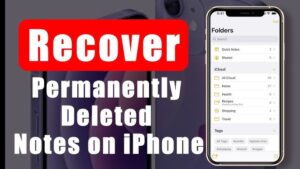
The Recently Deleted folder is the safest and simplest way to recover a note that was deleted recently. When an iCloud note is deleted, it is moved out of its normal folder rather than immediately erased. Apple says these notes remain available for recovery for up to 30 days.
To recover the note:
- Open the Notes app on your iPhone.
- Tap the back button until you reach the Folders screen.
- Tap Recently Deleted.
- Find the note you want to recover.
- Open the note and tap Recover, or use the available move option to return it to a normal folder.
Apple’s current Notes instructions place recently deleted notes in this folder and allow you to move a recovered note back to an existing or new folder.
If you cannot find Recently Deleted, that does not necessarily mean something is wrong with your iPhone. The folder only appears when there are notes available in it. If it is missing and you recently expected to find a deleted note there, check which account was storing the note before moving on to other recovery methods.
Recover a Deleted Note From iCloud.com
If you use iCloud for Notes, you can also check your notes from a browser. This is useful when the Notes app on your iPhone is not showing the note correctly or when you want to verify what is currently stored in your iCloud account.
Go to iCloud.com and sign in with the same Apple Account used for Notes on your iPhone. Open Notes, then select Recently Deleted.
Select the missing note and choose Recover. The note will be moved back to the Notes folder and should become available on devices signed in to the same Apple Account with Notes syncing enabled. Apple states that recently deleted notes can be recovered from iCloud.com for up to 30 days.
This method is particularly useful for identifying whether the problem is actually deletion. If the note exists somewhere in your iCloud Notes account but is not visible on your iPhone, the issue may be synchronization or account settings rather than data loss.
You can also search Notes on iCloud.com for text from the missing note. Apple’s search feature can search note content, attachments, and other text, although locked notes are not included in ordinary search results.
Make Sure the Note Was Not Just Moved
A missing note is not always a deleted note. It is easy to move a note into another folder accidentally, especially when managing several Notes folders.
Before attempting a backup restoration, open the Notes app and search for a distinctive word or phrase that you remember from the note. Check folders such as Notes, On My iPhone, and any custom folders you have created.
If you use multiple Apple devices, also check an iPad or Mac signed in to the same Apple Account. A synchronization delay can occasionally make a note appear missing on one device while it remains visible on another.
You should also check Recently Deleted after searching. A note that was moved is usually recoverable simply by moving it back to the folder where you want to keep it.
Check Which Account Stores Your Notes
The Notes app can display notes from several accounts. Your notes may be stored in iCloud, locally on the iPhone, or through another account such as Gmail or Yahoo. This distinction matters because each storage location has its own recovery process.
To check your Notes accounts, open:
Settings > Apps > Notes > Notes Accounts
Depending on your iOS version and configured accounts, you may see iCloud and other email accounts that support Notes.
Open each relevant account and make sure the Notes option is enabled. If Notes was disabled for an account, the notes may disappear from the Notes app without actually being deleted from the account. Apple recommends checking these account settings when notes appear to be missing.
This is an important distinction. Turning Notes back on for the correct account can make missing notes reappear without requiring a restoration or data recovery procedure.
Recover Notes Stored in Gmail or Yahoo
If you previously used a Gmail or Yahoo account for Notes, the recovery process is different from recovering an iCloud note.
Apple explains that notes associated with third-party services such as Gmail or Yahoo may be placed in that account’s Bin or Trash when deleted from the Notes app.
Check the email account’s trash or bin folder. If you find the missing note there, recover it according to that service’s options. Apple recommends copying the recovered note’s contents and pasting them into a new note in the Notes app.
This is one reason you should not assume that every missing note belongs to iCloud. If the note was created under a Gmail account, searching only the iCloud Recently Deleted folder will not necessarily find it.
The same principle applies to other accounts that provide Notes synchronization. The account that owns the note determines where its deleted copy may be stored.
Check the On My iPhone Account
Some notes can be stored locally on the iPhone rather than synchronized through iCloud. These are commonly associated with the On My iPhone account.
If you use this storage location, check whether On My iPhone Account is enabled in the Notes settings. The exact location of the setting can vary slightly between iOS versions, but it is generally found under the Notes settings.
Local notes are important when considering backups because Apple’s documentation distinguishes between iCloud Notes and notes saved locally on the device. Notes stored locally on the iPhone can be included in an iCloud backup, while notes already stored in iCloud are synchronized separately rather than being restored from an iCloud device backup.
That difference prevents a common mistake: assuming that restoring an old iCloud backup will automatically bring back every deleted iCloud note.
Can an iCloud Backup Recover a Deleted Note?
Sometimes, but it depends on where the note was stored.
If the note was stored locally on the iPhone and was included in an older backup, restoring that backup may bring the older version of the note back. Apple specifically states that locally stored Notes can be included in an iCloud backup.
However, iCloud Notes work differently. When Notes are stored in iCloud, the notes are synchronized with iCloud. Apple says that after restoring an iPhone, iCloud Notes are sent back to the device after the restoration process finishes. They are not simply restored as ordinary data from the device backup.
This means restoring an older iCloud backup is generally not the first thing to try when an iCloud note has been deleted. Check Recently Deleted and iCloud.com first.
There is another important consideration: restoring an iPhone from a backup is a major operation. If the iPhone is already set up, Apple requires you to erase the device before restoring from an iCloud backup.
Because that can replace or alter current data, it should not be treated as a quick Notes recovery trick.
Restore an Older iCloud Backup When It Actually Makes Sense
An older backup is worth considering when you have evidence that the missing note was stored locally on the iPhone and existed when the backup was created.
Before restoring anything, check the backup dates available to you and compare them with the date when the note was last known to exist. An older backup is useful only if it contains the data you are trying to recover.
Apple’s restoration process requires the iPhone to be erased if it is already set up. During setup, you can choose From iCloud Backup, sign in to your Apple Account, and select an appropriate backup.
There is a practical risk here. Restoring an older backup changes the state of the device back to that backup’s contents. Any information created after the backup may not be present in the restored state.
For that reason, make sure you have a current backup or another copy of important data before deliberately erasing the phone. Do not use this method simply because a note is missing from the Notes app.
Restore From a Computer Backup
If you regularly backed up your iPhone to a Mac or Windows PC, an older computer backup may provide another recovery option.
On a Mac, backups can be restored through Finder. On Windows, Apple says you can use the Apple Devices app, or iTunes on systems that still use it. The basic process is to connect the iPhone, select it, choose Restore Backup, select the appropriate backup, and wait for the restoration to finish.
Again, this approach is mainly useful for information that was actually included in the backup. It is not a guaranteed method for recovering an iCloud-synchronized note that has already been deleted from iCloud.
The backup date matters as well. If the note was deleted before the backup was created, restoring that backup will not bring back an earlier copy. You need a backup from a time when the note still existed.
What to Do If the Note Is Not in Recently Deleted
If you cannot find the note in Recently Deleted, work through the possibilities in this order:
- Search the Notes app for words from the missing note.
- Check every Notes folder, including custom folders and On My iPhone.
- Check Recently Deleted again after confirming the correct account.
- Open iCloud.com and check Notes and Recently Deleted.
- Check Gmail, Yahoo, or another connected account if you used one for Notes.
- Confirm that Notes synchronization is enabled for the relevant account.
- Check another Apple device using the same Apple Account.
- Look for an appropriate iCloud or computer backup if the note was stored locally.
- Avoid erasing the iPhone until you understand what backup you are restoring and what current data could be affected.
This order matters because the early steps are reversible and do not put your current data at risk.
Why a Deleted Note May Not Appear in Recently Deleted
There are several reasons a missing note may not be in that folder.
The most straightforward possibility is that more than 30 days have passed. Apple automatically removes notes from Recently Deleted after that period. Once a note has been permanently removed, Apple’s standard Notes recovery process cannot recover it.
Another possibility is that the note belonged to a third-party account. A Gmail or Yahoo note may be sitting in that account’s Bin or Trash instead of Apple’s Recently Deleted folder.
The note may also never have been deleted. It could be stored in another folder, associated with a different account, or temporarily hidden because Notes synchronization is disabled.
Shared notes behave differently as well. If you deleted a shared note that you do not own, Apple says it is removed from your list rather than being placed in your Recently Deleted folder. If the owner has not stopped sharing it, you may still be able to open it using the original shared link.
Be Careful With iPhone Recovery Software
You may find computer programs claiming they can recover permanently deleted iPhone notes. Treat these tools cautiously.
If a note is still in Recently Deleted, third-party recovery software is unnecessary. Apple’s built-in recovery method is safer and does not require giving another program access to your device or account.
The situation is more complicated after permanent deletion. Modern iPhones use hardware-backed security and encrypted storage, so there is no reliable general-purpose method that can simply scan the phone and guarantee recovery of permanently deleted Notes data.
A program that claims it can recover every deleted note regardless of when it was deleted should therefore be treated with skepticism. Before paying for any recovery service, establish whether the note still exists in an account, a backup, or another synchronized device.
Common Mistakes That Can Make Recovery Harder
One of the biggest mistakes is immediately restoring or erasing the iPhone. If the note is still available through iCloud or another account, a full device restoration is unnecessary and can create additional problems with current data.
Another mistake is repeatedly deleting items from Recently Deleted while looking for the correct note. Notes removed from that folder are permanently deleted, so do not empty the folder until you have confirmed that everything inside it is safe to remove.
It is also easy to overlook account settings. If you have used multiple email accounts with Notes, make sure you know which account originally stored the missing note before deciding that it is gone.
Finally, do not assume that an iCloud backup is a complete snapshot of everything on the iPhone. Data that already synchronizes through iCloud can be handled differently from locally stored information, and Apple’s documentation specifically distinguishes iCloud Notes from locally stored Notes when explaining backup behavior.
How to Prevent Losing Important Notes Again
For important information, keep Notes synchronization enabled for the account you actually use and make sure your iPhone is signed in to the correct Apple Account.
It is also useful to organize important notes into clearly named folders. This reduces the chance of confusing a missing note with a deleted one.
If a note contains information that would be difficult to recreate, consider keeping an additional copy in another appropriate location. For example, an important document can also exist as a file in cloud storage or as a document on a computer.
Most importantly, remember that Recently Deleted is temporary. A note that remains there is recoverable, but Apple automatically removes it after 30 days.
Frequently Asked Questions
Can I recover a permanently deleted note on iPhone?
Not through the normal Notes recovery feature. Once a note has been permanently removed from Recently Deleted, Apple does not provide a standard option to restore it from Notes. If you have an appropriate backup or another synchronized copy, however, that may provide another route depending on where the note was stored.
How long do deleted iPhone notes stay in Recently Deleted?
Deleted notes remain in Recently Deleted for up to 30 days. After that, Apple permanently removes them from the relevant devices and iCloud.
Can I recover deleted notes without a backup?
Yes, if the note is still in Recently Deleted or remains available through its original account. A backup is not required for those recovery methods. You may also find a copy through iCloud.com or another device using the same account.
Will restoring an iCloud backup recover deleted iCloud Notes?
Not necessarily. iCloud Notes are synchronized through iCloud rather than being treated like ordinary locally stored device data in an iCloud backup. Apple’s documentation says iCloud sends those notes to the device after restoration, while locally stored Notes can be included in the backup.
What if Recently Deleted is missing?
The folder only appears when there are recently deleted notes. If it is missing, check your Notes accounts, search your folders, and verify iCloud.com. If you use Gmail or Yahoo for Notes, check the account’s Bin or Trash as well.
Can I recover a deleted shared note?
If you do not own the shared note, deleting it from your list does not necessarily delete it for everyone. Apple says it may not appear in Recently Deleted. If the owner is still sharing it, you can reopen it using the original shared link.
Conclusion
The best way to recover deleted notes on iPhone is to start with the least disruptive option. Check Recently Deleted first, because notes deleted from iCloud remain there for up to 30 days and can be restored directly. If the note is not there, determine whether it was stored in iCloud, locally on the iPhone, or through an account such as Gmail or Yahoo.
If the note has disappeared rather than been deliberately deleted, checking account settings, folders, iCloud.com, and other synced devices can often solve the problem without restoring the phone. An older iCloud or computer backup is mainly useful when the missing note was stored locally and was present when that backup was made.
The key is to avoid jumping straight to a factory reset or third-party recovery software. Start with Apple’s built-in recovery options, confirm where the note was stored, and only consider a full backup restoration when you have a suitable backup and understand what data it will replace.
If you think there’s been a mistake here, please do let us know by commenting on this post or Contact Us. And a member of our Content Integrity Team will review this decision with you.




