

Deleting an important reminder can be frustrating, especially when it contains a deadline, shopping list, appointment, or task you still need to complete. Fortunately, deleted reminders are not always gone permanently. Apple provides a recovery option in the Reminders app that can restore recently deleted lists and reminders, provided they are still within the available recovery period.
The exact steps depend on the device you use and whether your reminders are stored in iCloud or another account such as Gmail, Exchange, or Outlook. This guide explains how to recover deleted reminders, what to do when the Recently Deleted section is missing, and which options remain after a reminder has been permanently removed.
Can You Recover Deleted Reminders?
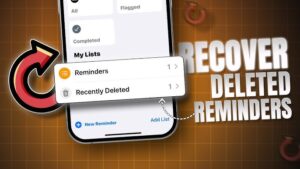
In many cases, yes. Apple includes a Recently Deleted section in the Reminders app for supported versions of iOS, iPadOS, and macOS. Deleted reminders and reminder lists can remain there temporarily before being permanently removed.
The important detail is that recovery is not unlimited. If the item has already been permanently deleted or the recovery period has expired, the normal restore option will no longer be available.
Recovery can also depend on where the reminder was stored. For example, a reminder saved under an iCloud account may be recoverable through Apple’s Reminders recovery system, while a reminder synchronized through Google or Microsoft may be managed by that provider instead.
Before trying more complicated methods, check the Recently Deleted section first. It is the safest option because it restores the original reminder rather than requiring you to recover an older backup.
How to Recover Deleted Reminders on iPhone or iPad
If you deleted a reminder or an entire reminder list recently, you can usually restore it directly from the Reminders app.
- Open the Reminders app on your iPhone or iPad.
- Tap Lists or navigate to the main lists screen.
- Look for Recently Deleted.
- Open the deleted reminders section.
- Select the reminder or list you want to restore.
- Tap Move or Recover, depending on the version of iOS or iPadOS.
- Choose the reminder list where you want the item restored.
After restoring it, return to the selected list and confirm that the reminder has reappeared.
The wording and button placement can vary slightly between software versions. On some devices, you may need to tap Edit or select multiple reminders before moving them back to a list.
If you only deleted a single reminder, make sure you check the correct list after restoring it. A recovered reminder can sometimes be returned to a different list if you manually selected another destination during the recovery process.
Recover Multiple Deleted Reminders at Once
If several reminders were deleted accidentally, you do not necessarily need to restore them one at a time.
Open Recently Deleted, then use the selection option available on your device. Select the reminders you want to recover and move them to an existing reminder list.
This is particularly useful when an entire group of tasks was removed while cleaning up an old list. However, check the items before restoring everything. Recently Deleted may contain reminders you intentionally removed, and restoring all of them can create unnecessary cleanup work.
How to Recover Deleted Reminders on a Mac
The recovery process on a Mac is similar, although the interface is different from the iPhone and iPad versions.
- Open the Reminders app on your Mac.
- Look at the sidebar for Recently Deleted.
- Select the deleted reminder or list you want to recover.
- Use the available recovery or move option.
- Choose the list where you want the reminder restored.
Once the item has been restored, open the destination list to verify that it is back.
If you do not see the sidebar, move your pointer to the left side of the Reminders window or use the app’s view options to show it. The Recently Deleted section is normally accessed from the main list navigation area rather than from inside an individual reminder list.
If you use the same Apple Account on your Mac, iPhone, and iPad, a restored iCloud reminder should synchronize to your other Apple devices once they connect and complete synchronization.
How Long Do Deleted Reminders Stay in Recently Deleted?
Recently deleted reminders are only kept temporarily. Apple typically provides a limited recovery period, and the remaining time can be shown next to or within the deleted item depending on the software version.
For this reason, it is better to check Recently Deleted as soon as you notice something is missing. Waiting can turn a simple recovery into a much more difficult problem.
Do not assume that creating a new reminder with the same title is an adequate replacement. The original reminder may contain notes, dates, tags, attachments, subtasks, or other information that will not be recreated automatically.
If the reminder is still visible in Recently Deleted, restore it before attempting backup recovery or other troubleshooting methods.
What to Do If Recently Deleted Does Not Appear
A missing Recently Deleted section does not always mean the reminder is permanently gone. Several situations can cause it to be unavailable.
Check Which Account Stores Your Reminders
The Reminders app can display reminders from more than one account. You might have separate lists under:
- iCloud
- Gmail or Google
- Microsoft Exchange
- Outlook
- Other supported accounts
If the missing reminder belonged to a non-iCloud account, Apple’s Recently Deleted feature may not handle recovery in the same way.
Check the account associated with the original reminder list. If the list was synchronized through Google, for example, you may need to check that account’s task or reminder service rather than relying only on Apple’s recovery section.
This is one of the most common reasons a reminder appears to have disappeared permanently when it was actually stored somewhere else.
Make Sure the Reminder Was Actually Deleted
Sometimes a reminder is not deleted at all. It may have been moved to another list, marked as completed, filtered out, or hidden because of the current view.
Before assuming that the item needs recovery, check:
- Other reminder lists
- Completed reminders
- Search results within the Reminders app
- Smart lists and filtered views
- Shared lists
- Reminders associated with another account
If you accidentally marked a reminder as completed, you usually do not need to recover it from Recently Deleted. Instead, locate it in the completed items and mark it as incomplete again.
Searching for a distinctive word from the reminder title can be faster than opening every list manually.
Check Whether the Device Is Using an Older Software Version
The Recently Deleted feature and its behavior depend on the version of iOS, iPadOS, or macOS installed on your device.
If your device is running an older version of Apple’s operating system, the recovery options may be different or unavailable. Updating the device can improve compatibility with current Reminders features, but an update will not necessarily restore reminders that were already permanently deleted.
Avoid updating solely because you expect an old deleted reminder to reappear. Check the available recovery options first.
How to Recover Deleted iCloud Reminders
If your reminders are stored in iCloud, synchronization can sometimes help determine whether the reminder still exists on another device.
For example, imagine you deleted a reminder on your iPhone but your Mac or iPad has not yet synchronized. If another device still shows the reminder, avoid making unnecessary changes until you confirm its synchronization status.
However, this situation requires caution. Once iCloud synchronization completes, the deletion can also synchronize to the other devices.
Do not rely on turning airplane mode on and off or repeatedly disabling iCloud as a recovery method. Changing synchronization settings without understanding what is stored locally can complicate the situation and may cause additional data changes.
Instead, first check whether the reminder exists in:
- The Recently Deleted section.
- Another Apple device using the same account.
- The original reminder list.
- Completed reminders.
- The relevant account if the list is not stored in iCloud.
If the reminder exists on another device, consider copying its contents manually before making further changes. This is particularly useful for reminders containing detailed notes or subtasks.
Can You Recover Deleted Reminders From an iCloud Backup?
An older backup may contain reminder data that existed when the backup was created. However, restoring from a backup is not always the best solution.
Restoring an iPhone or iPad from an older backup can replace current data with the state captured at the time of that backup. That means newer photos, messages, app data, and settings may be affected depending on the backup and restoration method.
Because of this, backup restoration should generally be considered only when:
- The reminder is important.
- It is no longer available in Recently Deleted.
- You have confirmed that an older backup likely contains it.
- You understand the potential impact of restoring older device data.
Before restoring a full backup, check whether you can access the reminder’s information from another synced device or account. Recovering one small task is rarely worth replacing large amounts of newer device data.
The same principle applies to third-party recovery tools. Some programs claim they can recover deleted iPhone data, but results can vary, and many cannot recover information that has already been removed from the available device or cloud data. Be careful about granting unknown software access to your Apple Account, backups, or personal information.
How to Recover a Deleted Reminder From Gmail, Outlook, or Exchange
Not every reminder visible in Apple’s Reminders app belongs to iCloud. If the missing item was connected to another account, recovery depends on that service.
For example, tasks associated with a Google or Microsoft account may have their own trash, deleted items, synchronization settings, or recovery options.
Start by identifying the account that owns the reminder list. Then check that service through its official website or app.
You should also verify that the account is still enabled on your device. If an account was removed or synchronization was turned off, its reminders may disappear from the Apple Reminders app without actually being deleted from the original service.
On an iPhone or iPad, account settings can be checked through the device’s settings. On a Mac, you can review the internet accounts configured for the system.
If the list reappears after re-enabling the correct account, the problem was synchronization rather than deletion.
What If the Entire Reminder List Was Deleted?
Deleting a reminder list is different from deleting one reminder. Depending on your device and software version, the deleted list may appear in Recently Deleted along with its contents.
Check Recently Deleted before creating a replacement list. Restoring the original list can preserve the reminders and their organization.
If you cannot find the list there, check whether it was a shared list. A shared reminder list may disappear from your device if you left the list, lost access, or the owner changed sharing permissions.
In that case, recovery may require the list owner to add you again or restore the list from their side.
Also check whether the list belonged to another account. Deleting or hiding an account can remove its lists from the Reminders interface even though the underlying data still exists with the account provider.
Common Mistakes That Can Make Reminder Recovery Harder
The biggest mistake is continuing to make changes before checking where the reminder was stored.
Repeatedly creating, deleting, moving, and renaming lists can make it harder to determine what actually happened. Start with a simple search and work through the recovery options in order.
Another common mistake is confusing a completed reminder with a deleted one. If the item was marked complete, Recently Deleted will not necessarily be the right place to look.
People also sometimes disable iCloud Reminders and immediately re-enable it in an attempt to force synchronization. This can work for some synchronization problems, but it should not be treated as a general recovery method. If the issue involves conflicting data or an account configuration problem, changing sync settings without checking the current state can make troubleshooting less clear.
Finally, avoid restoring an entire device backup without considering what newer data could be affected. A full restore is a major action compared with recovering a single deleted reminder.
Troubleshooting When a Recovered Reminder Does Not Reappear
If you restored a reminder but cannot find it, start by checking the destination list you selected during recovery.
Then use the Reminders search function and look for words from the reminder title or notes. If the reminder was restored to a different list, search can locate it faster than manually checking every list.
If you use iCloud, confirm that the device is signed in to the correct Apple Account and that Reminders synchronization is enabled. A temporary network problem can also delay synchronization between devices.
If the reminder appears on one device but not another, give the devices time to synchronize before repeatedly changing settings. If the problem continues, confirm that both devices are connected to the same account and that the missing device has access to the internet.
For shared or third-party account lists, check the original account rather than assuming the Apple Reminders app is the source of the problem.
How to Reduce the Risk of Losing Reminders Again
Accidental deletion is difficult to avoid completely, but a few habits can make important reminders easier to recover.
Keep critical tasks in clearly named lists so you can quickly identify where they belong. If a reminder contains important information, consider storing the essential details somewhere else as well, especially if the information would be difficult to recreate.
Review completed reminders before deleting them permanently. This is useful for recurring tasks, project deadlines, and reminders that contain notes you may need later.
If you use multiple accounts, understand which account owns each list. Mixing iCloud, Google, and Microsoft lists can be convenient, but it also means recovery methods may differ.
For important shared lists, make sure you know who owns the list and who can manage access. If the list disappears because of a sharing change, the solution may be to restore access rather than recover deleted data.
Conclusion
The best way to recover deleted reminders is to start with the Recently Deleted section in the Reminders app. If the reminder is still there, restore it to the appropriate list and verify that it has returned.
If Recently Deleted is missing or the item is not there, check whether the reminder was completed, moved to another list, stored under a different account, or available on another synced device. For reminders stored through Gmail, Outlook, Exchange, or another service, recovery may need to happen through that account instead of Apple.
Older backups can sometimes provide another recovery option, but restoring a complete device backup should be approached carefully because it can affect newer data. Working through the available options from the simplest method to the most disruptive one gives you the best chance of recovering deleted reminders without creating additional problems.
If you think there’s been a mistake here, please do let us know by commenting on this post or Contact Us. And a member of our Content Integrity Team will review this decision with you.




