

If someone steals your iPhone and knows your passcode, the risk is much greater than losing the phone itself. A thief who can unlock the device may try to change your Apple Account password, access saved passwords, disable security features, or make other account changes before you have time to react.
Apple’s Stolen Device Protection is designed specifically for this situation. It adds biometric authentication and security delays to sensitive actions, making it harder for someone who knows your passcode to take control of your device and account.
What Stolen Device Protection Does on iPhone
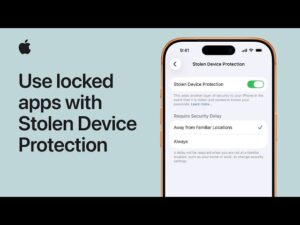
Stolen Device Protection is a security feature available on iPhone with iOS 17.3 or later. Its purpose is to protect your personal information and Apple Account when someone has your physical iPhone and knows the device passcode.
The feature addresses a specific weakness in smartphone security. Your passcode normally acts as a fallback when Face ID or Touch ID is unavailable. That is convenient for everyday use, but it can become a problem if a thief has watched you enter the passcode before stealing the phone.
With Stolen Device Protection enabled, certain sensitive actions require Face ID or Touch ID with no passcode alternative. Other important security changes trigger a Security Delay, which generally requires a successful biometric authentication, a one-hour waiting period, and another successful biometric authentication.
That delay is important because it gives you time to notice that the iPhone is missing and use Find My to mark it as lost before the thief can complete certain account or security changes.
Stolen Device Protection is not a replacement for a strong passcode, two-factor authentication, or Find My. It works alongside those protections to make a stolen iPhone harder to compromise.
What You Need Before Turning It On
Apple requires several security features to be configured before Stolen Device Protection can be enabled. Your iPhone must be running iOS 17.3 or later, and you need a device passcode, Face ID or Touch ID, two-factor authentication for your Apple Account, Find My, and the relevant Location Services settings enabled.
Before changing the setting, check these features:
- Your iPhone has a device passcode.
- Face ID or Touch ID is configured and working.
- Two-factor authentication is enabled for your Apple Account.
- Find My iPhone is enabled.
- Location Services are enabled.
- Your iPhone is updated to a supported version of iOS.
The location requirement matters because Stolen Device Protection normally changes how it behaves depending on where your iPhone is being used. Apple uses familiar locations, such as your home or workplace, as places where the additional protections may not be required under the default configuration.
If you cannot find the Stolen Device Protection setting, start by checking whether Face ID or Touch ID has been configured and whether your iPhone is running a supported version of iOS.
How to Turn On Stolen Device Protection on iPhone
The setting is located under Face ID & Passcode or Touch ID & Passcode, depending on your iPhone.
- Open Settings.
- Tap Face ID & Passcode. On an iPhone with a Home button, tap Touch ID & Passcode.
- Enter your iPhone passcode.
- Scroll down and tap Stolen Device Protection.
- Turn on Stolen Device Protection.
- Review the security option presented for when the additional protections should apply.
Apple’s current instructions provide an option to use the additional protection when the iPhone is away from familiar locations, as well as an Always option for requiring the extra security measures regardless of location.
After enabling the feature, do not assume that every action on your iPhone will suddenly require Face ID. Stolen Device Protection is targeted at sensitive operations. Normal tasks such as opening many everyday apps and changing ordinary settings can continue to work normally.
Choose Between “Away From Familiar Locations” and “Always”
One of the most important choices is how aggressively you want Stolen Device Protection to operate.
The default behavior applies the additional security measures when the iPhone is away from familiar locations. This is designed to provide stronger protection when your phone is being used somewhere a thief could potentially steal it, while keeping everyday account and device management more convenient at familiar places such as home or work.
The Always option applies the additional security requirements regardless of where the iPhone is located. Apple says this can cause actions such as changing the Apple Account password, signing out of the Apple Account, changing the device passcode, or adding or removing Face ID or Touch ID to require the security delay even at familiar locations.
For people who prioritize maximum protection over convenience, Always is the stronger setting.
There is a practical tradeoff. Security delays that are useful during a theft can also make legitimate security changes less convenient. If you frequently change security settings, move between devices, or troubleshoot authentication problems, you may encounter the additional verification and waiting period more often.
For most people, the default setting is already a significant improvement. If your main concern is protecting the phone even if it is stolen at home, work, or another familiar location, choosing Always provides another layer of protection.
Which iPhone Actions Get Extra Protection?
Stolen Device Protection does not simply lock down the entire iPhone. It focuses on actions that could give a thief greater control over your device, accounts, or personal information.
Some protected actions require Face ID or Touch ID without allowing the passcode as a fallback. Apple specifically identifies sensitive information such as saved passwords and certain stored payment information as requiring biometric authentication when the additional protections apply.
Other actions use the Security Delay. Changing important security settings can require biometric authentication followed by a waiting period and another biometric check. This makes it much harder for a thief to immediately change security information after obtaining the passcode.
The distinction is useful because not every protected action works the same way. Some operations are blocked until you successfully authenticate biometrically, while others introduce the time delay.
The feature also prevents Find My from being turned off while Stolen Device Protection is enabled. That matters because Find My is one of the most important tools available after an iPhone goes missing.
Why the Security Delay Matters After a Theft
Imagine someone steals your unlocked iPhone or learns your passcode before taking it. Without additional protections, the thief may have an opportunity to start changing important account settings immediately.
Stolen Device Protection changes that situation by putting a barrier around certain high-risk changes. Instead of allowing a sensitive security operation to be completed immediately with the passcode, iOS can require biometric authentication and a waiting period.
The purpose of the delay is not to make the thief give up because of a technical error. It is to create time.
During that period, you can use another device to access Find My, mark the iPhone as lost, review your Apple Account, and take other steps to protect your information. Apple specifically describes the Security Delay as a measure intended to give you time to mark the device as lost and secure your account.
This is particularly useful if the theft happens while you are away from home and do not immediately have another trusted Apple device available.
Lock Sensitive Apps for Additional Protection
Stolen Device Protection can also work with iPhone’s app-locking feature.
For supported apps, you can touch and hold the app icon on the Home Screen and choose Require Face ID or Require Touch ID. When Stolen Device Protection is active and the iPhone is away from familiar locations, a locked app requires biometric authentication rather than allowing the device passcode to open it.
This is useful for apps containing information that could help someone compromise other accounts.
For example, your Mail app may contain password-reset messages, sign-in alerts, or two-factor authentication codes. If a thief can freely open your email after stealing your phone, they may be able to use information from those messages to attack other accounts.
Locking sensitive apps adds another barrier.
You do not need to lock every app. Focus on applications containing information that could be particularly useful to someone who has your phone, such as email, password managers, financial apps, cloud storage, or private communications.
How to Make Stolen Device Protection More Effective
Turning on the feature is only part of securing an iPhone. Several other settings should be configured correctly because Stolen Device Protection is designed to work as part of Apple’s broader security system.
Use a strong device passcode
Your passcode still matters. Stolen Device Protection is specifically designed to help when someone knows your passcode, but preventing that knowledge in the first place is better.
Avoid simple combinations that someone could easily guess. A longer alphanumeric passcode provides more possible combinations than a short numeric code, although even a strong numeric passcode is preferable to a predictable one.
Be careful when entering your passcode in public. Someone observing the screen or recording you entering the code can potentially learn it without needing to break the encryption or guess the number.
Keep Face ID or Touch ID configured
Biometric authentication is central to Stolen Device Protection. Some protected actions cannot fall back to the passcode when the feature is active.
Make sure Face ID or Touch ID works reliably before relying on the protection. If Face ID repeatedly fails because of a configuration issue, you may need to resolve that problem rather than assuming the passcode will always be accepted for protected operations.
Enable two-factor authentication
Two-factor authentication adds another layer to your Apple Account. Apple explains that it is intended to prevent someone from accessing your account even if they know your password.
Stolen Device Protection itself requires two-factor authentication, so this should already be enabled when you set up the feature.
Keep your trusted phone numbers and recovery methods up to date. If your account information is outdated, recovering access can become more difficult when you lose your primary device.
Keep Find My enabled
Find My can help you locate a missing iPhone and mark it as lost. Apple recommends marking a stolen iPhone as lost as quickly as possible.
Stolen Device Protection prevents Find My from being turned off while the feature is enabled, which helps preserve this protection after theft.
What to Do If Your iPhone Is Already Stolen
There is an important limitation: Stolen Device Protection must be turned on before the iPhone is lost or stolen. You cannot wait until after the theft and remotely enable it on the missing device.
If your iPhone has already been stolen, act through Find My instead.
- Go to iCloud.com/find from another device.
- Sign in with your Apple Account.
- Select the missing iPhone under your devices.
- Choose Mark as Lost.
- Follow the instructions to lock and secure the device.
Apple says you do not need a verification code to sign in to iCloud.com/find for this purpose, which is especially useful when the trusted device that normally receives verification codes is the one that was stolen.
If the iPhone appears at an unfamiliar location, do not attempt to recover it yourself. Apple recommends contacting local law enforcement instead.
Also be cautious about messages claiming that your iPhone has been found. A common tactic after theft is to send convincing-looking messages or make fake support calls in an attempt to obtain your Apple Account password, verification code, or device passcode. Apple specifically warns users not to share these credentials.
Common Mistakes That Weaken iPhone Theft Protection
One of the biggest mistakes is assuming that Stolen Device Protection makes the passcode unimportant. It does not. Your passcode remains a fundamental part of your device security.
Another mistake is leaving Find My disabled. The ability to locate or mark an iPhone as lost is extremely important after theft, and Stolen Device Protection depends on Find My being enabled.
Using the same simple passcode everywhere is another avoidable risk. Someone who learns the code from your iPhone may try it on other devices or accounts, particularly if you reuse it elsewhere.
You should also avoid disabling Stolen Device Protection simply because a security delay is inconvenient. If you need to sell, give away, or trade in the iPhone, turn the feature off as part of the preparation process. Apple notes that a security delay can be required when attempting to disable it away from a familiar location or when the Always option is selected.
What Stolen Device Protection Cannot Do
Stolen Device Protection is powerful, but it is not a complete theft-prevention system.
It cannot physically stop someone from taking your iPhone. It also cannot guarantee that every piece of information stored on the device will be inaccessible under every circumstance.
Its purpose is narrower and more practical: it makes certain critical operations harder to perform when an iPhone is stolen, particularly when the thief knows the device passcode.
It also does not eliminate the need for Lost Mode. If your iPhone disappears, you should still use Find My promptly rather than assuming Stolen Device Protection will handle everything automatically.
You should also keep your Apple Account credentials private. Apple warns against sharing passwords, verification codes, or device passcodes with people claiming they can help recover a stolen device.
Should You Set Stolen Device Protection to Always?
For many users, the Always setting is the better choice if security is more important than convenience.
The default behavior focuses the additional protections on unfamiliar locations. That makes everyday account management easier at places such as home or work, but it also means the strongest protections are not applied in exactly the same way everywhere.
Choosing Always removes that location-based exception for the additional security measures. Sensitive changes can still require the Security Delay even when you are somewhere the iPhone considers familiar.
The downside is straightforward: legitimate security changes can take longer.
For someone who rarely changes Apple Account or biometric settings, that inconvenience may be minimal. For someone who frequently changes security settings or manages multiple devices, the default behavior may be more convenient.
If your priority is protecting the iPhone against a thief who knows the passcode, Always provides the more consistent security posture.
Check Your iPhone’s Security Settings Regularly
Security settings are easiest to ignore when everything is working normally. A short review every few months can catch problems before you actually need the protections.
Open Settings > Face ID & Passcode > Stolen Device Protection and confirm that it is still enabled. If you previously selected the Always option, verify that the setting remains what you expect.
Then check Settings > [your name] > Find My and make sure Find My iPhone is enabled. Review your Apple Account’s trusted phone numbers and security information as well.
If you recently transferred your information to another iPhone, check the new device rather than assuming every setting carried over exactly as expected. Apple says Stolen Device Protection settings are restored when you restore from an iCloud backup or transfer directly from an earlier iPhone, although the new device may take time to recognize familiar locations.
Conclusion
The best way to secure an iPhone with Stolen Device Protection is to enable the feature before anything goes wrong, keep Find My and two-factor authentication active, use a strong passcode, and make sure Face ID or Touch ID works correctly. Stolen Device Protection is particularly valuable when a thief knows the passcode because it can require biometric authentication for sensitive operations and introduce a Security Delay before important security changes can be completed.
For stronger protection, consider setting Require Security Delay to Always. This applies the additional safeguards even in familiar locations, although it can make legitimate security changes less convenient.
If your iPhone is already missing, do not wait for Stolen Device Protection to solve the problem. Use Find My to mark the device as lost, avoid interacting with suspicious messages claiming to have found it, and never provide your passcode, Apple Account password, or verification codes to anyone.
Used together, these measures give your iPhone a much stronger defense against the specific situation Stolen Device Protection was built to address: a stolen device in the hands of someone who already knows its passcode.
If you think there’s been a mistake here, please do let us know by commenting on this post or Contact Us. And a member of our Content Integrity Team will review this decision with you.




