

Background App Refresh allows apps on your iPhone to check for new content and update themselves while you are not actively using them. This can be useful for apps that need to display fresh information immediately, but it can also contribute to unnecessary data usage and battery drain. If you are trying to reduce background activity, learning how to stop Background App Refresh on iPhone gives you direct control over which apps can update when they are not open.
The setting is built into iOS, and you can either turn it off completely or disable it only for selected apps. The best choice depends on how you use your iPhone. Turning it off for every app can reduce background activity, but some apps may take longer to update when you open them.
This guide explains exactly how Background App Refresh works, how to disable it, what changes after you turn it off, and what to check if the setting is unavailable or not behaving as expected.
What Is Background App Refresh on iPhone?
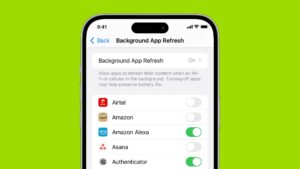
Background App Refresh is an iOS feature that allows supported apps to perform certain updates while they are not currently open on your screen.
For example, a news app may download recent articles before you open it. A social media app may retrieve newer posts, or a cloud-based app may prepare updated information in the background.
Without Background App Refresh, an app generally has to request updated content when you open it. That does not mean the app stops working. It simply means some information may not be prepared in advance.
There is an important distinction between Background App Refresh and notifications. Turning off Background App Refresh does not automatically stop an app from sending notifications. Notifications are controlled separately through the notification settings for each app.
It is also different from closing an app in the App Switcher. Removing an app from the App Switcher does not permanently disable its ability to perform all background tasks, and repeatedly force-closing apps is not a replacement for managing Background App Refresh.
How to Stop Background App Refresh on iPhone Completely
If your goal is to prevent all supported apps from refreshing in the background, you can disable the feature for the entire iPhone.
- Open the Settings app.
- Tap General.
- Select Background App Refresh.
- Tap Background App Refresh again at the top of the screen.
- Select Off.
Once you choose Off, apps can no longer use the standard Background App Refresh feature to download or update content while they are not actively being used.
The setting takes effect immediately. You do not need to restart your iPhone.
This is usually the simplest option if you are troubleshooting excessive background activity, trying to reduce mobile data use, or want to limit how much work apps perform when they are not open.
Keep in mind that turning it off completely affects all compatible apps. Some apps may therefore appear to load more slowly or show older information until they have a chance to update after you open them.
How to Turn Off Background App Refresh for Specific Apps
You do not have to disable Background App Refresh for everything. iOS also lets you control the feature on an app-by-app basis.
To do this:
- Open Settings.
- Go to General.
- Tap Background App Refresh.
- Make sure Background App Refresh is enabled at the system level.
- Scroll through the list of apps.
- Turn off the switch next to any app you do not want refreshing in the background.
This approach gives you more control. You can disable background activity for apps you rarely use while leaving it enabled for apps where fresh content matters to you.
For example, you may not need a shopping app or game to update content in the background. On the other hand, you might prefer a messaging, navigation, or productivity app to remain ready when you open it.
The exact benefit depends on the app. Not every app uses Background App Refresh in the same way, and disabling the setting does not guarantee a dramatic improvement in battery life for every iPhone.
Choose Wi-Fi Instead of Mobile Data
On the same Background App Refresh settings screen, iOS may give you options for how apps can refresh.
Depending on your iOS version and available settings, you may see:
- Off
- Wi-Fi
- Wi-Fi & Mobile Data
If you do not want apps using your cellular data for background updates, choose Wi-Fi.
This allows compatible apps to refresh while your iPhone is connected to Wi-Fi but prevents Background App Refresh from using mobile data.
This can be a useful middle ground for people who want apps to stay reasonably up to date without consuming part of a limited mobile data plan.
If your main concern is data usage rather than battery life, selecting Wi-Fi instead of turning the feature off entirely may be the better option.
What Happens When You Turn Off Background App Refresh?
Turning off Background App Refresh does not stop your apps from connecting to the internet when you actively use them.
If you open a social media app, for example, it can still load new posts. A news app can still download the latest headlines. Your email or other supported apps can still retrieve information when they are opened or when another system feature allows them to update.
The main difference is that apps lose one of the mechanisms used to prepare updated content before you launch them.
You may notice:
- Apps taking slightly longer to show current information
- Content updating after you open an app instead of beforehand
- Less background network activity
- Reduced mobile data use when background refresh previously used cellular data
The effect on battery life varies. Background App Refresh is only one of many factors that can affect battery consumption.
A weak mobile signal, high screen brightness, location services, video streaming, Bluetooth accessories, background downloads, and battery condition can also contribute to faster battery drain.
If your iPhone battery is draining unusually quickly, disabling Background App Refresh can be a useful troubleshooting step, but it should not be treated as the only possible fix.
Does Turning Off Background App Refresh Save Battery?
It can, but the amount of battery life you save depends on which apps you use and how frequently they attempt to refresh.
Apps that regularly download new information or perform background processing may use more power than apps that rarely refresh. If you have many apps installed and several are allowed to update frequently, restricting background activity may reduce unnecessary power consumption.
However, modern iPhones also manage background activity automatically. iOS can delay or limit refresh activity based on factors such as your usage patterns, network connection, and available power.
For that reason, disabling Background App Refresh does not always produce a noticeable improvement.
A practical approach is to turn it off for apps you do not need updated in advance. This reduces unnecessary background activity without affecting every app on your iPhone.
If battery life is still poor afterward, check which apps are actually using the most power.
Go to:
Settings > Battery
The battery usage section can help you identify whether a specific app is consuming an unusual amount of power. That information is more useful than disabling features blindly because it helps you focus on the actual source of the problem.
Background App Refresh and Low Power Mode
If you do not want to permanently change your Background App Refresh settings, Low Power Mode can be useful when you need to extend your remaining battery.
Low Power Mode temporarily reduces or limits certain background activities, including Background App Refresh.
To turn it on:
- Open Settings.
- Tap Battery.
- Turn on Low Power Mode.
You can also add Low Power Mode to Control Center if you want faster access, depending on how Control Center is configured on your version of iOS.
This option is useful when your battery is running low and you want to reduce background activity temporarily. Once Low Power Mode is turned off, the normal Background App Refresh settings can apply again.
Low Power Mode is therefore different from permanently disabling Background App Refresh. One is a temporary power-saving mode, while the other changes how apps are allowed to refresh in the background.
Why You May Not Be Able to Change Background App Refresh
Sometimes the Background App Refresh option appears grayed out or unavailable. In many cases, this is caused by another iPhone setting rather than a software fault.
Low Power Mode Is Enabled
Low Power Mode can restrict Background App Refresh. If the option is unavailable while Low Power Mode is active, turn off Low Power Mode first.
Go to:
Settings > Battery > Low Power Mode
After disabling it, return to:
Settings > General > Background App Refresh
Check whether the setting is available again.
Screen Time Restrictions May Be Involved
Screen Time can apply restrictions that affect certain apps and device settings. This is more likely on a child or managed device where restrictions have been intentionally configured.
Check:
Settings > Screen Time
Review the content and privacy restrictions that apply to the device. If the iPhone belongs to an organization, school, or employer, some settings may be controlled through device management.
In that situation, you may not be able to change the restriction yourself.
Your iPhone Is Managed by an Organization
A work or school iPhone can have a management profile that controls certain system settings.
You can check for device management information by opening:
Settings > General > VPN & Device Management
If a management profile is installed, avoid removing it unless you understand the consequences. Removing a profile can affect access to work accounts, apps, certificates, or other organization-managed services.
If the setting is controlled by your employer or school, contact the person or department responsible for managing the device.
Background App Refresh Is Not the Same as Background Data for Every App
One common mistake is assuming that disabling Background App Refresh prevents an app from using data when it is not open.
That is not always the case.
iOS apps can use different system services and permissions depending on what they do. For example, an app may receive push notifications even when Background App Refresh is disabled. Apps with location permissions may also perform certain location-related tasks depending on the permissions you have granted.
Background downloads, system updates, cloud synchronization, and other iOS services may also continue under their own rules.
If your goal is specifically to reduce data usage, you may need to review other settings as well.
For example, check:
Settings > Cellular
From there, you can control whether individual apps are allowed to use cellular data.
You should also review apps that automatically download large files, back up photos, or stream content. Disabling Background App Refresh alone will not necessarily stop those activities.
How to Decide Which Apps Should Keep Background App Refresh
You do not need to treat every app the same. The most useful approach is to consider how important fresh information is before you open each app.
Apps that may benefit from background updates include those that provide time-sensitive information or synchronize work-related content. Even then, the app may still work properly without the feature.
Apps that often make good candidates for disabling Background App Refresh include:
- Games that do not need updated content before launch
- Shopping apps you rarely open
- Apps you no longer use regularly
- Entertainment apps that can refresh after opening
- Promotional or retail apps that do not need immediate updates
Before disabling the feature for an app, consider what you expect it to do. If the app takes a few extra seconds to load current information afterward, that is a normal result.
If an app behaves differently from what you need, you can return to the Background App Refresh settings and turn it back on.
Common Mistakes When Trying to Stop Background Activity on iPhone
Background App Refresh is often confused with other iPhone features, which can lead to changes that do not solve the original problem.
One common mistake is force-closing every app. iOS is designed to manage suspended apps, and regularly removing everything from the App Switcher is usually unnecessary. If your goal is to stop a particular app from refreshing content in the background, the Background App Refresh setting is more direct.
Another mistake is disabling notifications when the real concern is battery or data usage. Notifications and Background App Refresh are separate systems. Turning off notifications may reduce interruptions, but it does not automatically control how an app refreshes content.
Users also sometimes turn off Background App Refresh and expect every form of background activity to stop. As explained earlier, apps and system services can have other permissions or processes that operate independently.
Finally, avoid assuming that a single setting will fix serious battery drain. If your battery percentage is dropping unusually fast, check battery usage, software updates, signal strength, and battery health. A problematic app or an aging battery may require a different solution.
When You Should Leave Background App Refresh On
There is no requirement to disable Background App Refresh. If your iPhone has good battery life and you value having certain apps ready with recent information, leaving the feature enabled may make sense.
You can also use the Wi-Fi-only option if your primary concern is cellular data consumption.
The setting is most useful when treated as a control rather than a feature that must always be on or off. Disabling it selectively can reduce unnecessary activity while preserving convenience for the apps you use most.
If you are troubleshooting a specific issue, try changing the setting and then use your iPhone normally for a while. This gives you a more realistic picture of whether the change actually improves battery life, data use, or app behavior.
Conclusion
Learning how to stop Background App Refresh on iPhone is straightforward: go to Settings > General > Background App Refresh, then choose Off to disable it completely or turn off the switch next to individual apps.
For most people, disabling Background App Refresh selectively is the better approach. You can stop rarely used apps from updating in the background while allowing important apps to prepare current information when needed.
If your main concern is mobile data, consider choosing Wi-Fi instead of Wi-Fi & Mobile Data. If you are trying to extend battery life temporarily, Low Power Mode can also limit background activity without permanently changing your settings.
Remember that Background App Refresh is only one part of how iOS manages apps. If battery drain or data usage continues after changing the setting, check the Battery and Cellular sections in Settings to identify the actual cause rather than relying on a single fix.
If you think there’s been a mistake here, please do let us know by commenting on this post or Contact Us. And a member of our Content Integrity Team will review this decision with you.




