

Emergency SOS features can help you contact emergency services, alert trusted contacts, and share your location when you are unable to make a normal phone call. Most modern smartphones include some form of Emergency SOS, but the exact steps, available features, and settings differ between iPhone and Android devices.
Knowing how to use Emergency SOS before an actual emergency matters. A feature that requires several button presses or depends on a setting you have never configured can be difficult to use when you are frightened, injured, or unable to think clearly.
This guide explains how Emergency SOS works, how to set it up, how to activate it on different devices, what happens after activation, and the limitations you should understand before relying on it.
What Is an Emergency SOS Feature?
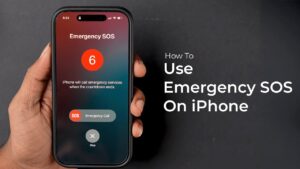
Emergency SOS is a built-in safety feature designed to help you quickly request assistance during an emergency.
Depending on your device and location, activating Emergency SOS may allow you to:
- Call local emergency services.
- Send an alert to selected emergency contacts.
- Share your current or changing location.
- Display medical information that first responders can access.
- Continue sharing location information for a period after the emergency call.
- Contact emergency services through satellite communication on supported devices when cellular and Wi-Fi service are unavailable.
The feature is intended for situations where unlocking your phone, finding the Phone app, and manually dialing an emergency number may be difficult or unsafe.
For example, you may need help after a car accident, during a medical emergency, or when you are in immediate danger. Emergency SOS is designed to reduce the number of actions required to request assistance.
It is not a replacement for emergency services themselves. If you can safely make a normal emergency call, that remains an effective option.
How Emergency SOS Works
The basic process is similar across most smartphones. You perform a specific hardware-button action, such as pressing the side button several times or holding a combination of buttons.
Your device then enters an emergency mode. Depending on the phone and your settings, it may display a countdown, sound an alarm, call emergency services automatically, or ask you to confirm the call.
After the emergency call is placed, the phone may notify the emergency contacts you previously selected.
Those contacts can receive information such as:
- A message indicating that you activated Emergency SOS.
- Your current location.
- Updates if your location changes.
- A link or map showing where you are.
The exact behavior depends on the device, operating system version, country, mobile carrier, and settings you have enabled.
That last point is important. Emergency SOS is not identical on every phone, even when two devices use the same operating system.
How to Set Up Emergency SOS on an iPhone
Apple includes Emergency SOS in iOS, and recent versions allow you to control how the feature is activated.
Before you need it, take a few minutes to review the settings.
Open the Emergency SOS Settings
- Open the Settings app.
- Scroll down and tap Emergency SOS.
- Review the available activation options.
Depending on your iPhone model and iOS version, you may see options such as calling by holding the side button and a volume button, calling by rapidly pressing the side button, or changing the countdown behavior.
The wording can vary slightly between iOS versions.
Add Emergency Contacts
Emergency contacts are usually managed through the Health app’s Medical ID settings.
- Open the Health app.
- Tap your profile picture or profile icon.
- Select Medical ID.
- Choose Edit.
- Scroll to the Emergency Contacts section.
- Add the people you want your phone to contact during an emergency.
Choose people who are likely to answer and who would know what to do if they receive an SOS notification.
Adding several contacts can be useful, but avoid adding people who may not understand why they are receiving location alerts or who are unlikely to respond.
Set Up Medical ID Information
Your Medical ID can contain important information that may be accessible from the emergency screen without unlocking your iPhone.
The information you choose to include may cover:
- Your name and date of birth.
- Medical conditions.
- Allergies and reactions.
- Medications.
- Blood type.
- Emergency contacts.
Only include information you are comfortable making available to emergency responders. Review the details periodically, especially after changes to your emergency contacts or important medical information.
How to Activate Emergency SOS on an iPhone
The activation method depends partly on your iPhone model and the options enabled in Settings.
One common method is to press and hold the side button and either volume button until the Emergency SOS screen appears. From there, you can drag the emergency call slider or continue holding the buttons if automatic calling is enabled.
Another available method on many iPhones is to press the side button rapidly five times.
If automatic calling and the countdown are enabled, the iPhone can begin an emergency countdown before placing the call. This can give you a brief opportunity to cancel if you activated it accidentally.
Do not test the final emergency call process unless you can cancel before the call is placed. Accidentally contacting emergency services can tie up resources needed for real emergencies.
What Happens After the Call
After an emergency call, your iPhone can alert your emergency contacts if that feature is configured.
Your phone may share your location with those contacts and continue providing updates if you move.
This can be particularly useful when emergency services have been contacted but a family member or trusted person also needs to know where you are.
Location sharing does not guarantee that another person will immediately see or respond to the alert. Your emergency contacts should understand that they have been selected and know what you expect them to do if they receive an SOS notification.
How to Use Emergency SOS on Android
Android phones do not all use the same Emergency SOS system. Google provides emergency features through Android, but manufacturers such as Samsung, Google, Xiaomi, OnePlus, and others can present the settings differently.
The first step is to check the Safety or Emergency section of your phone’s settings.
On many Android devices, you can find it by opening:
Settings > Safety & emergency
The name may vary. You may also find related options under Safety, Emergency, Security & emergency, or another manufacturer-specific menu.
Set Up Emergency Contacts on Android
Look for an option such as Emergency contacts or Emergency information.
Add people you trust to receive alerts or who can be contacted during an emergency.
Depending on the phone, you may also be able to add:
- Medical information.
- Allergies.
- Blood type.
- Medications.
- Your address.
- Other emergency details.
Some Android devices allow emergency information to be viewed from the lock screen. This can be useful if you are unconscious or unable to unlock the phone.
Configure the Emergency SOS Shortcut
Many Android phones allow Emergency SOS to be activated by pressing the power button several times in quick succession.
A common configuration uses five rapid presses, but you should not assume this applies to your device.
Open your Emergency SOS settings and check:
- Which button activates the feature.
- How many presses are required.
- Whether the feature starts a countdown.
- Whether an alarm sounds.
- Whether the phone calls emergency services automatically.
- Whether emergency contacts receive a message and location information.
Some devices allow you to choose which actions occur. Others provide fewer customization options.
The safest approach is to learn the exact sequence for your specific phone instead of relying on instructions intended for another Android model.
How to Activate Emergency SOS on Samsung Phones
Samsung Galaxy phones include emergency features, although the available options can change with One UI and Android updates.
On many recent Samsung devices, you can find the settings under:
Settings > Safety and emergency > Emergency SOS
From there, you may be able to configure rapid presses of the side or power button to start an emergency action.
Depending on the device and software version, Emergency SOS can be configured to perform actions such as contacting emergency services, notifying emergency contacts, sharing location information, or recording emergency media.
Because Samsung changes menus and options across software versions, check the labels shown on your own device rather than following an old screenshot or guide.
After configuring the feature, practice navigating to the Emergency SOS screen without completing an actual emergency call. The goal is to become familiar with the controls while avoiding a false alarm.
How Emergency SOS Location Sharing Works
Location sharing is one of the most useful parts of an Emergency SOS system, but it has limitations.
Your phone determines your location using available technologies such as:
- GPS.
- Cellular networks.
- Wi-Fi positioning.
- Bluetooth-based location assistance in some situations.
The accuracy can vary considerably.
A phone with a clear view of the sky may determine its GPS location more accurately than a phone inside a large building, underground area, or remote location with poor signal conditions.
Emergency location information can also depend on whether your phone has a network connection and which emergency services are available in your region.
Do not assume that activating Emergency SOS means your exact location will always be known immediately.
If you are able to speak during the emergency call, provide your location verbally. Mention useful details such as your address, building floor, nearby landmark, road name, or direction of travel.
What to Do If You Cannot Speak
Emergency SOS can still be useful when speaking is difficult or unsafe, but its capabilities vary.
Some regions and services support emergency text messaging or other alternatives to voice calls. Availability depends on local emergency infrastructure and your mobile service.
If your device sends alerts to emergency contacts, those contacts may be able to see your location and contact emergency services on your behalf.
Prepare for this possibility in advance.
Tell your emergency contacts:
- That they are listed as emergency contacts.
- What an SOS alert from you means.
- Whether they should call you first.
- When they should contact emergency services.
- Any important information that could help them identify your location.
An emergency contact who receives an unfamiliar automated message may otherwise assume it is spam or a technical error.
Emergency SOS Without Cellular Service
A common misunderstanding is that Emergency SOS always works without a mobile signal.
The answer depends on the device and the type of emergency connection available.
A standard emergency call may still work through any compatible available mobile network in some circumstances, even if your normal carrier has no service. However, this is not the same as having guaranteed emergency connectivity everywhere.
Some newer devices also support satellite-based emergency communication.
Satellite Emergency SOS is designed for situations where conventional cellular and Wi-Fi connections are unavailable. The feature is only available on supported hardware and in supported regions, and you generally need a relatively unobstructed view of the sky to establish communication.
It can also require you to follow on-screen instructions to point the device toward a satellite.
Satellite communication should not be treated as a replacement for cellular service. Buildings, dense trees, terrain, weather conditions, and regional availability can affect whether a connection is possible.
If your device supports satellite emergency communication, learn how the feature works before traveling into an area with limited network coverage.
Emergency SOS on Smartwatches
Some smartwatches also provide emergency calling and fall or crash detection features.
Apple Watch models with supported emergency capabilities can provide Emergency SOS features, while other smartwatch brands may offer their own emergency calling systems.
A smartwatch can be particularly useful when your phone is not easily accessible.
However, emergency calling from a watch may depend on its connection type. A cellular-capable watch may have more independence from your phone, while a GPS-only model may require the paired phone or another available connection.
Battery level also matters. A nearly empty watch may not be available when you need it.
If you rely on a smartwatch for safety features, check its battery before long trips, workouts, or outdoor activities.
Test Your Settings Without Creating a False Emergency
You should verify that your Emergency SOS setup works, but testing must be done carefully.
Do not intentionally place a call to emergency services simply to see what happens.
Instead, test the parts of the system that do not contact emergency services.
For example, you can:
- Open the Emergency SOS settings and confirm the activation method.
- Check that your emergency contacts are correct.
- Review your Medical ID or emergency information.
- Confirm that location services are enabled if required by your device.
- Navigate to the emergency activation screen and cancel before a call begins.
- Check your phone’s battery and software update status.
Some devices also provide a demonstration or test option for specific safety features. If your phone offers one, use the built-in test method rather than placing a real emergency call.
Common Emergency SOS Mistakes
Emergency SOS features are simple once configured, but several mistakes can reduce their usefulness.
Assuming Every Phone Uses the Same Button Combination
This is especially common with Android phones.
The power-button shortcut on one device may perform a completely different action on another. Always check your own phone’s Emergency SOS settings.
Forgetting to Add Emergency Contacts
The emergency call feature may work without contacts, but your trusted contacts will not automatically receive alerts if you have not configured them.
Review the list occasionally. A former phone number, outdated contact, or someone who no longer lives nearby may not be the right person to contact.
Never Updating Medical Information
Medical and emergency information can become outdated.
If you use Medical ID or a similar feature, update it after significant changes to the information you have chosen to include.
Accidentally Triggering Emergency SOS
This can happen when a button combination is pressed accidentally while a phone is in a pocket, bag, or tight-fitting case.
If your device frequently triggers the feature by accident, review the activation settings. Some phones allow you to change the shortcut or require additional confirmation before an emergency call is made.
Do not disable Emergency SOS entirely without considering the consequences. Adjusting the activation method may be a better solution.
Assuming Emergency Contacts Are Emergency Services
Your emergency contacts are not a substitute for calling local emergency services.
A friend or family member may be able to assist, but they may be far away, asleep, driving, or unable to reach you. For an immediate threat to life or safety, contact emergency services when possible.
When You Should Use Emergency SOS
Emergency SOS should be reserved for genuine situations requiring urgent help.
Appropriate situations may include:
- A serious medical emergency.
- A vehicle crash.
- Immediate physical danger.
- Being lost or stranded in a dangerous location.
- A situation where you cannot safely unlock your phone and place a normal call.
The exact threshold can depend on the circumstances. The important distinction is urgency.
Do not use Emergency SOS for routine assistance, minor technical problems, or situations where there is no immediate need for emergency help.
False activations can divert emergency resources and create unnecessary confusion for your emergency contacts.
Keep Your Emergency Features Ready Before You Need Them
Emergency SOS is most useful when it has already been configured.
Take a few minutes to check your phone and make sure you know the activation method. Add reliable emergency contacts, review your emergency information, and understand which features depend on cellular service, location access, or supported hardware.
It is also sensible to tell the people on your emergency contact list that you have added them. Explain what they should do if they receive an alert and make sure their phone numbers are still current.
Your phone’s Emergency SOS feature is designed to make requesting help faster when normal actions are difficult. Knowing exactly how it works on your own device removes uncertainty and can make a significant difference when every second and every action matters.
Conclusion
Knowing how to use Emergency SOS features before an emergency is more important than trying to figure them out under pressure. The exact process differs between iPhone, Android, Samsung phones, smartwatches, and devices with satellite communication, so take time to check the settings on the device you actually use.
Set up your emergency contacts, review your medical information, learn the activation shortcut, and understand the limits of location sharing and network availability. You do not need to memorize every possible emergency feature, but you should know what your own device can do and how to activate it safely.
A properly configured Emergency SOS feature can help you contact emergency services and notify trusted people quickly. The preparation takes only a few minutes, but it is something you want to complete long before you ever need it.
If you think there’s been a mistake here, please do let us know by commenting on this post or Contact Us. And a member of our Content Integrity Team will review this decision with you.




