

Focus Mode can make a noticeable difference when notifications, messages, calls, and app alerts keep pulling your attention away from important work. But simply turning it on is not enough. To use Focus Mode effectively, you need to decide what should be blocked, which people and apps can still reach you, when different Focus profiles should activate, and how to prevent the settings from becoming so restrictive that you miss something important.
The exact options depend on the device you use. Apple devices offer Focus with customizable modes such as Do Not Disturb, Work, Personal, and Sleep, while Android phones provide similar controls through Do Not Disturb and related notification settings.
The names and menus can vary by operating system version and manufacturer, but the basic idea is the same: control interruptions instead of reacting to them throughout the day.
What Focus Mode Actually Does
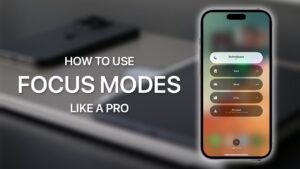
Focus Mode is designed to reduce distractions by controlling which notifications are allowed to interrupt you. Depending on the device, it can silence notifications, limit calls, hide certain alerts, change which apps appear on screen, or automatically activate during specific situations.
The important distinction is that Focus Mode does not make you more focused by itself. It removes some of the triggers that cause attention to shift. You still need to decide what deserves your attention during the period when Focus is active.
For example, imagine you are writing a report and receive notifications from a messaging app every few minutes. Even if you do not respond immediately, seeing each notification can break your concentration. A Focus setting that silences those alerts lets you work without repeatedly deciding whether to check your phone.
That is where Focus becomes useful. It moves the decision from the moment of distraction to the moment when you configure your settings.
Why Focus Mode Is More Effective When You Customize It
The default Do Not Disturb or Focus settings are useful for getting started, but they are rarely ideal for every situation.
A completely silent phone may be appropriate when you are sleeping, but it may be a poor choice while working if your family, manager, or clients need to reach you. Conversely, allowing every app through a work-focused profile defeats much of the purpose of using Focus.
A better approach is to create rules based on the activity you are doing.
Consider these examples:
- Work: Allow work-related communication while silencing social media and entertainment apps.
- Study: Allow calls from selected contacts but silence messaging groups and social apps.
- Sleep: Silence almost everything while allowing emergency or priority contacts.
- Personal time: Reduce work notifications so they do not follow you into the evening.
- Driving: Restrict notifications and interactions that encourage you to look at your phone.
- Exercise: Allow music, fitness, navigation, or emergency communication without displaying unrelated alerts.
The goal is not to block as much as possible. The goal is to block the interruptions that are least useful during a particular activity.
How to Set Up Focus Mode Properly
Before creating a Focus profile, think about what you are trying to accomplish. Starting with the goal makes the settings much easier to configure.
For example, “I need two hours to write without interruptions” is more useful than simply deciding to turn on Do Not Disturb.
1. Choose the activity
Start with one specific situation rather than creating a complicated profile that tries to handle everything.
If you need uninterrupted study time, create a Study or Work profile. If you primarily want fewer notifications at night, use a Sleep or Personal profile.
A focused profile should have a clear purpose. When the purpose is unclear, you are more likely to allow too many exceptions.
2. Decide which people can interrupt you
This is one of the most important settings.
You usually do not need to silence every person to reduce distractions. Instead, decide who genuinely needs to reach you immediately.
For example, you might allow calls or messages from close family members while blocking other conversations. On some devices, you can also allow repeated calls or emergency-related communication.
Be careful with large contact lists. If you allow dozens of people through your Focus settings, you may end up receiving enough notifications to make the mode much less useful.
3. Choose the apps that can send alerts
Next, decide which applications are allowed to interrupt you.
A practical work setup might allow:
- Email, if you need to respond quickly
- Calendar, for meetings and reminders
- Phone, for important calls
- Navigation, when relevant
- Authentication apps, if they send security codes or approval requests
You may want to silence:
- Social media
- Shopping apps
- Games
- News applications
- Promotional messaging
- Nonessential group chats
The key is to distinguish between an app you use during work and an app that can interrupt you during work.
An application can be useful without needing permission to notify you every time something happens.
4. Control the visual distractions
Some Focus systems can do more than silence sounds. They can also control how notifications appear or which screens and apps are visible.
This matters because visual interruptions can be distracting even when your phone is silent.
If your device supports it, consider reducing notification badges and other visual indicators for distracting apps. Seeing a growing number beside a social media application can create an urge to check it even if there is no sound or vibration.
For a stronger setup, remove highly distracting apps from the screen you use while working. This creates another layer between you and the habit of opening them.
Use Different Focus Profiles for Different Situations
One of the most common mistakes is trying to use one Focus configuration for the entire day.
Your communication needs change throughout the day, so your Focus settings should be able to change with them.
Work Focus
A Work profile should protect blocks of concentrated time without preventing necessary communication.
Allow the people and applications that are genuinely relevant to your job. Silence everything else.
If you have meetings throughout the day, allow calendar alerts. If you work independently for several hours, you may want to allow fewer communication apps during those periods.
Study Focus
Study Focus should prioritize concentration rather than communication.
You may want to allow emergency contacts, calls from selected people, and essential reminders. Social media, entertainment, and group-chat notifications can usually wait.
For longer study sessions, consider pairing Focus with a timer. The combination gives you a defined period during which you do not need to make repeated decisions about checking your phone.
Sleep Focus
Sleep is a different situation because the objective is not productivity.
A useful Sleep configuration should minimize unnecessary alerts while preserving a way for important people to contact you. Alarm and health-related functions may also need special consideration depending on the device and apps you use.
Avoid creating so many exceptions that your phone continues behaving like it does during the day.
Personal Focus
Personal Focus is useful when you want to stop work from following you after working hours.
Instead of blocking everything, silence work-related applications and contacts during your personal time. This is especially useful if your phone contains both personal and professional accounts.
The benefit is not simply fewer notifications. It creates a clearer boundary between different parts of your day.
Schedule Focus Mode Instead of Relying on Willpower
Manual activation works, but automation is often more effective.
If you regularly work from 9:00 AM to 5:00 PM, a scheduled Focus profile can activate automatically. You do not have to remember to turn it on every morning.
The same idea works for sleep, exercise, commuting, or recurring study sessions.
Depending on your device, Focus may also be able to activate based on factors such as time, location, or calendar events. The exact options vary by operating system and device.
Automation is particularly useful because distractions often happen when you are busy. If activating Focus requires you to remember a setting at the exact moment you need it, it is easy to skip.
However, avoid creating too many automatic rules. Conflicting schedules can make it difficult to understand why notifications are being silenced.
Start with one or two reliable automations and add more only when you have a clear reason.
Use Focus Filters When Your Device Supports Them
Some newer Focus systems can change information inside an app instead of merely silencing notifications.
For example, a Focus profile may be able to show a particular calendar, email account, or other type of information while that profile is active.
This can be more useful than simply hiding notifications.
Suppose you have personal and work calendars on the same phone. During working hours, you may want to see your work calendar without constantly seeing personal events. A suitable Focus configuration can reduce that information overlap.
The same principle applies to email accounts and other supported applications.
Focus filters are most useful when they reduce information that is irrelevant to your current task, not simply when they hide notifications.
Do Not Allow Too Many Exceptions
Exceptions are useful, but they can easily undermine your setup.
If every messaging application, contact, and notification is considered important, Focus Mode will not provide much protection from interruptions.
Ask a simple question for each exception:
Does this need my attention right now, or can I check it later?
If a notification can wait 30 minutes, an hour, or until the end of your work session, it probably does not need to bypass Focus.
This does not mean you should ignore important communication. It means you should deliberately identify what qualifies as important.
A smaller list of exceptions generally makes the system easier to trust.
Combine Focus Mode With Notification Management
Focus Mode works better when your overall notification system is already under control.
If dozens of applications are permitted to send notifications all day, creating several Focus profiles can become unnecessarily complicated.
Review your notification permissions periodically. Disable alerts that provide little value, particularly promotional notifications and applications that notify you about every minor update.
For some apps, you may want notifications enabled but delivered quietly rather than immediately. This gives you access to the information without allowing every event to interrupt your current task.
The distinction between receiving information and being interrupted by information is important.
You can still check a notification later without allowing it to control when you switch tasks.
Know What Happens to Silenced Notifications
A common misunderstanding is that Focus Mode necessarily deletes or prevents notifications from arriving.
In many cases, the notification is simply silenced or handled differently while Focus is active. The exact behavior depends on the operating system, application, and notification settings.
That means you should not assume that silence means the message disappeared.
If you are waiting for something important, check the notification center or relevant application after your Focus period ends.
This is also why Focus is different from disabling an application or turning off its notifications entirely. The purpose is usually to change when and how you receive interruptions.
What to Do When Important Notifications Are Still Getting Through
If Focus Mode does not seem to be working, do not immediately assume the feature is broken.
First check whether the app or person is included in your allowed list. Also check whether another Focus profile is active and has different rules.
Then review your notification settings for the individual application. Some alerts may use special notification categories or system-level behavior that is configured separately.
If you use multiple devices, also check whether your Focus settings are being shared across them. On ecosystems that synchronize Focus settings, activating a profile on one device may affect another device.
This can be helpful when you want consistent behavior, but confusing if you expect each device to operate independently.
What to Do If Focus Mode Blocks Something Important
The opposite problem is just as common.
If you discover that an important call, reminder, or message was silenced, identify exactly what was blocked before changing everything.
Add only the necessary person, application, or notification type to the allowed list.
Avoid responding by disabling Focus entirely. A single missed exception does not mean the entire configuration is wrong.
For example, if you need calls from one family member but not all contacts, add that person rather than allowing every call.
This keeps the original purpose of Focus intact while fixing the specific problem.
Common Focus Mode Mistakes
Making every app an exception
This is probably the easiest way to weaken a Focus setup. If every app is allowed to notify you, you have effectively created a profile that changes very little.
Using one profile for everything
Work, sleep, study, driving, and personal time have different requirements. Separate profiles usually provide better control.
Creating too many schedules
Automation is useful until you have so many overlapping rules that you cannot tell which profile is active. Keep your setup understandable.
Ignoring visual notifications
Silencing sounds does not necessarily remove the temptation created by badges, banners, or visible alerts.
Forgetting emergency communication
A Focus profile should not make you unreachable when there is a legitimate need to contact you. Review your emergency and priority-contact settings carefully.
Never testing the configuration
After creating a Focus profile, test it before relying on it for an important meeting, exam, work session, or sleep period.
Have someone send you a message or call you, then confirm that the behavior matches what you intended.
A Practical Way to Test Your Focus Setup
Do not wait until you have an important deadline to discover that your settings are wrong.
Run a short test session first.
- Activate the Focus profile.
- Send yourself or receive a test notification from an allowed application.
- Test a notification from an app that should be silenced.
- Test a call from an allowed contact.
- Test a call or message from someone who should not interrupt you.
- Check whether visual notifications and badges behave as expected.
- Confirm that alarms, reminders, or other essential alerts still work as intended.
The exact behavior varies between iPhone, iPad, Mac, Android phones, and individual Android manufacturers, so testing on the device you actually use is more reliable than assuming another device behaves the same way.
How to Make Focus Mode a Habit Without Making It Complicated
The best Focus configuration is one you will actually use.
Start with one profile that solves a real problem. Use it for several days and pay attention to the notifications that you genuinely miss and the ones that continue to distract you.
Then adjust the exceptions.
If you repeatedly find yourself checking one application during work, do not simply rely on discipline. Ask whether the app really needs permission to interrupt you.
Likewise, if you repeatedly miss an important notification, determine why and create a narrow exception.
Over time, your Focus settings should become a reflection of your actual routine rather than an idealized schedule.
When Focus Mode Is Not Enough
Focus Mode controls interruptions, but it cannot prevent you from opening distracting applications manually.
If you repeatedly disable Focus to check social media, messaging apps, or other distractions, you may need another layer of control.
App limits, website blockers, removing distracting applications from your home screen, and keeping your phone physically away from your workspace can help.
The physical distance matters more than many people expect. If your phone is sitting beside your keyboard, a notification is not the only source of distraction. The device itself can become a cue to check something.
For demanding work, combine Focus Mode with a defined work period and a clear stopping point. Once the session ends, turn Focus off and process the notifications that accumulated.
How to Use Focus Mode Effectively Every Day
A practical routine does not require complicated settings.
Before starting an important task, activate the appropriate Focus profile. During the session, avoid changing exceptions simply because you feel curious about a notification.
When the session ends, review what you missed. If nothing important was blocked, keep the configuration. If something useful was unnecessarily silenced, make a targeted adjustment.
Once a week or whenever your routine changes, review your Focus profiles. Remove old exceptions, update important contacts, and check schedules that no longer match your working hours.
This prevents Focus settings from becoming cluttered with permissions that made sense months ago but no longer serve a purpose.
Final Thoughts
Learning how to use Focus Mode effectively is mostly about making deliberate decisions about interruptions. The feature works best when each Focus profile has a clear purpose, allows only genuinely important communication, and activates automatically when possible.
Start small rather than creating a complicated collection of rules. Build one useful profile, test it, adjust the exceptions, and then create additional profiles only when your routine requires them.
A well-configured Focus Mode should not make you feel disconnected. It should make it easier to decide when you are available and when your attention belongs somewhere else. Once the settings match the way you actually work, study, sleep, and communicate, Focus becomes a practical tool for protecting your time instead of another feature you have to manage.
If you think there’s been a mistake here, please do let us know by commenting on this post or Contact Us. And a member of our Content Integrity Team will review this decision with you.




